# Manual: WhatsApp Business API without verification

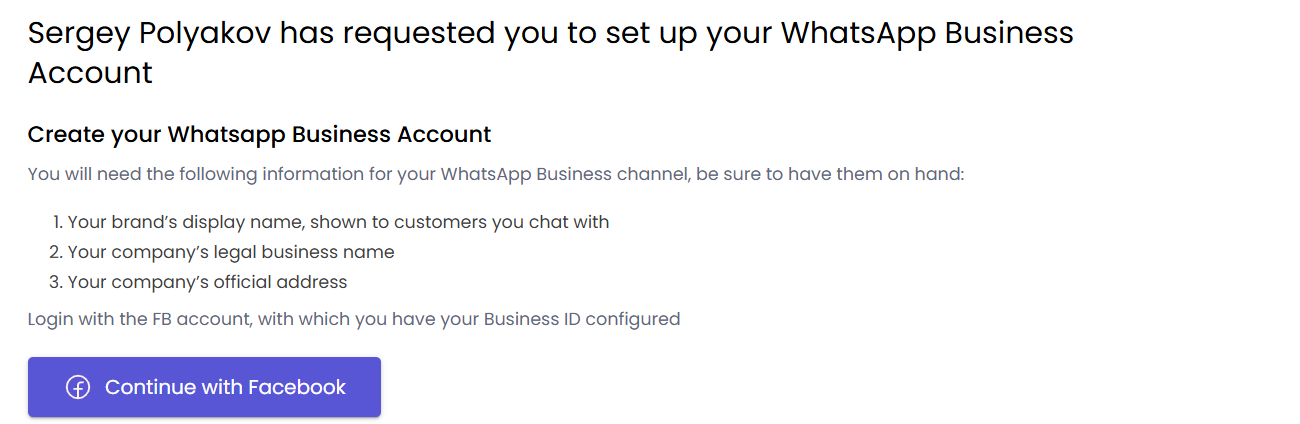
0\) Press "**Continue with Facebook**" button

[![image.png](https://support.chatarchitect.com/uploads/images/gallery/2026-04/scaled-1680-/Kprimage.png)](https://support.chatarchitect.com/uploads/images/gallery/2026-04/Kprimage.png)
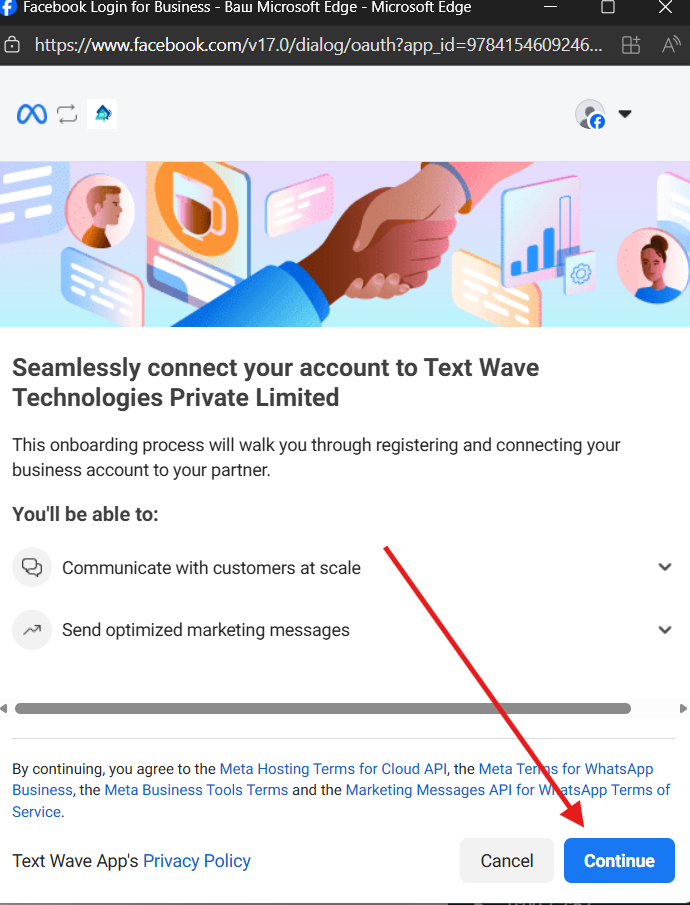
<figure id="bkmrk--1"></figure>1\) Then "**Continue**"

[![image.png](https://support.chatarchitect.com/uploads/images/gallery/2026-04/scaled-1680-/TMUimage.png)](https://support.chatarchitect.com/uploads/images/gallery/2026-04/TMUimage.png)

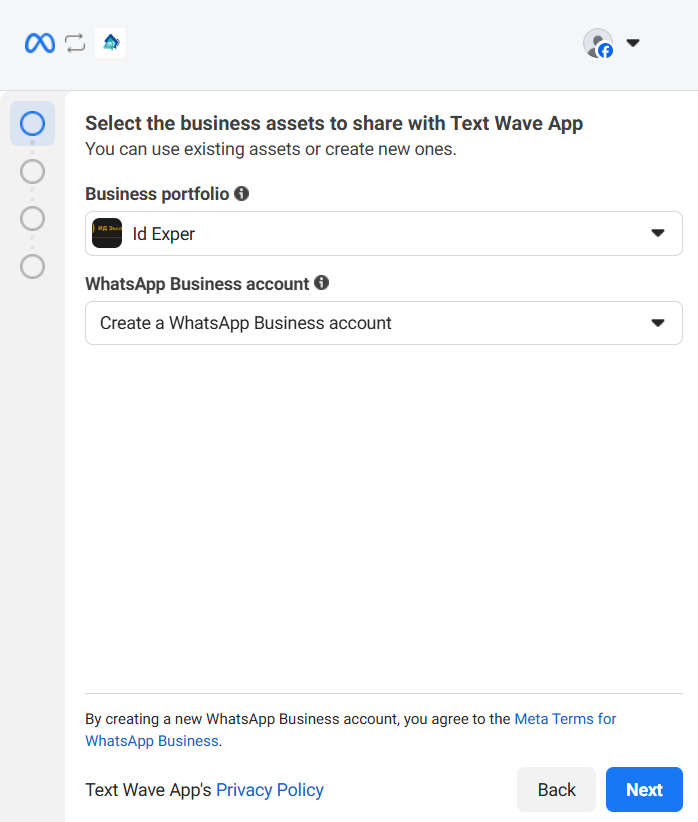
<figure id="bkmrk--3"></figure>2\) Choose Business portfolio and choose "**Create a WhatsApp Business account**"

[![image.png](https://support.chatarchitect.com/uploads/images/gallery/2026-04/scaled-1680-/r9ximage.png)](https://support.chatarchitect.com/uploads/images/gallery/2026-04/r9ximage.png)
<figure id="bkmrk--5"></figure>3\) Fill in all information and press "**Next**"

[![image.png](https://support.chatarchitect.com/uploads/images/gallery/2026-04/scaled-1680-/a9Himage.png)](https://support.chatarchitect.com/uploads/images/gallery/2026-04/a9Himage.png)
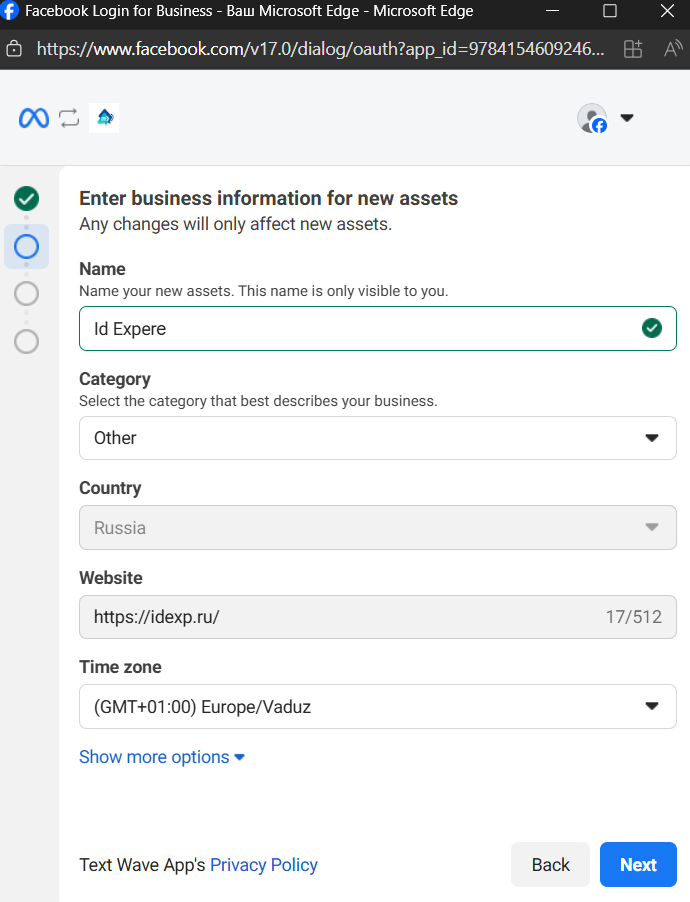
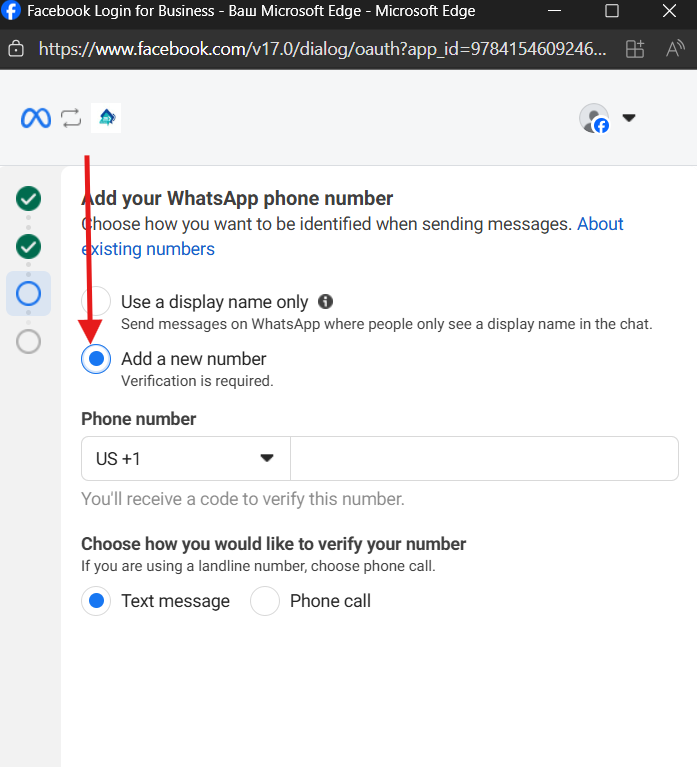
<figure id="bkmrk--7"></figure>4\) Choose "**Add a new number**" and fill in number that you want to connect

<figure id="bkmrk--8"></figure>[![image.png](https://support.chatarchitect.com/uploads/images/gallery/2026-04/scaled-1680-/GHVimage.png)](https://support.chatarchitect.com/uploads/images/gallery/2026-04/GHVimage.png)

  
5\. Verify number by using **SMS\\Voice call**![36c15fa9b34bcbbda2f7610dd40f8a1c.png](https://bookstack-support-u7942.vm.elestio.app/uploads/images/gallery/2026-03/embedded-image-lsjwzbnp.png)