## Business phone numbers
Updated: Feb 27, 2026
This document describes WhatsApp business phone numbers, their requirements, management information, and unique features.
### Registering business phone numbers
A valid business phone number must be registered before it can be used to send and receive messages via Cloud API. Registered numbers can still be used for everyday purposes, such as calling and text messages, but cannot be used with WhatsApp Messenger (“WhatsApp”).
Numbers already in use with WhatsApp cannot be registered unless they are [deleted](https://l.facebook.com/l.php?u=https%3A%2F%2Ffaq.whatsapp.com%2F2138577903196467%2F%3Fhelpref%3Duf_share&h=AT6Fa_hjE_3NMHTqdmlSl-X1WGZpTNJOKSM5o0P0RxX5_QUsSiaKKY8nG05SwmJhcxTgFXwV-cOVCudrdId7qrBDLiFkk3v7W3iAl19q-Ln94gjQjHfQK61iw9BHs-6Xs-EqNtDoJJKt1Rl-GPdAYg) first. If your number is banned on WhatsApp and you wish to register it, it must be unbanned via the [appeal process](https://l.facebook.com/l.php?u=https%3A%2F%2Ffaq.whatsapp.com%2F465883178708358&h=AT6Fa_hjE_3NMHTqdmlSl-X1WGZpTNJOKSM5o0P0RxX5_QUsSiaKKY8nG05SwmJhcxTgFXwV-cOVCudrdId7qrBDLiFkk3v7W3iAl19q-Ln94gjQjHfQK61iw9BHs-6Xs-EqNtDoJJKt1Rl-GPdAYg) first.
Note that when you complete the steps in our [Get Started](/books/meta-whatsapp/page/get-started-developer-documentation) document, a **test** business phone number will be generated and registered for you automatically.
#### Eligibility requirements
Eligible phone numbers must be:
owned by youhave a country and area code (short codes are not supported)able to receive voice calls or SMSnumber should have [scaled capabilities](https://www.facebook.com/business/help/595597942906808)If you are registering a 1-800 number, see [1-800 and toll free numbers](#bkmrk-1-800-and-toll-free--1) for additional information.
#### Registration methods
**Note:** The methods above add a phone number to your WhatsApp Business Account and verify your ownership, but they do not register the number for Cloud API use. To complete registration, call the [register endpoint](/books/meta-whatsapp/page/register-a-business-phone-number-developer-documentation). If you are a Solution Partner or Tech Provider using Embedded Signup, see [Registering business phone numbers](/books/meta-whatsapp/page/registering-business-phone-numbers-developer-documentation).
### Business phone number types
This table categorizes phone number types and evaluates their suitability for receiving OTPs via SMS, international phone calls, and flash calls. It provides likelihood assessments for successful delivery based on number type and carrier characteristics. Additionally, it offers actionable recommendations for users to improve delivery success without changing their phone number type.
| Phone type | Description | SMS OTP | Voice OTP | Actions |
|---|
| Assigned to mobile devices/SIMs | | | Enable International reception of SMS/Calls, ensure device is connected to Cellular Network, Grant App permissions |
| Assigned to physical locations (landline) | | | Enable International reception of SMS/Calls, ensure line is ready for incoming calls and disable call forwarding or IVR features |
| Toll-Free, recipient pays | | | Ensure with Phone provider that the number is able to receive International SMS/Calls, check that line is ready for incoming calls and disable call forwarding or IVR features |
| Higher charges for special services | | | Ensure with Phone provider that the number is able to receive International SMS/Calls, check that line is ready for incoming calls and disable call forwarding or IVR features |
| Cost shared between caller and recipient | | | Ensure with Phone provider that the number is able to receive International SMS/Calls, check that line is ready for incoming calls and disable call forwarding or IVR features |
| Reachable globally for customer service | | | Ensure with Phone provider that the number is able to receive International SMS/Calls, check that line is ready for incoming calls and disable call forwarding or IVR features |
| Assigned to individuals, not tied to device | | | Ensure with Phone provider that the number is able to receive International SMS/Calls, check that line is ready for incoming calls and disable call forwarding or IVR features |
| Internet telephony, not tied to physical line | | | Confirm that the VoIP provider supports international SMS/calls for OTPs; check provisioning and account settings; keep app/service running and notifications enabled; ensure device is online and permissions granted |
| Only accept incoming calls/messages | | | Ensure with Phone provider that the number is able to receive International SMS/Calls, check that line is ready for incoming calls and disable call forwarding or IVR features |
| Assigned to pagers (rare) | | | |
| Machine-to-machine, smart devices | | | Ensure device and SIM are allowed for incoming International SMS/calls |
Business phone numbers have a status, which reflects their quality rating and current [messaging limit](/books/meta-whatsapp/page/messaging-limits-developer-documentation). Business phone numbers must have a status of “connected” in order to send and receive messages via the API.
#### Viewing status via WhatsApp Manager
Your business phone number’s current status appears in the **Status** column in the [WhatsApp Manager](https://business.facebook.com/latest/whatsapp_manager/) > **Account tools** > **Phone numbers** panel.
See our [About your WhatsApp Business phone number’s quality rating](https://www.facebook.com/business/help/896873687365001) help center article to learn more about quality ratings and statuses as they appear in WhatsApp Manager.
#### Getting status via API
You must provide display name information when registering a business phone number. The display name appears in your business phone number’s WhatsApp profile, and can also appear at the top of **individual chat** threads and the **chat list** if certain conditions are met. See our [Display names](/books/meta-whatsapp/page/display-names-developer-documentation) document to learn how display names work.
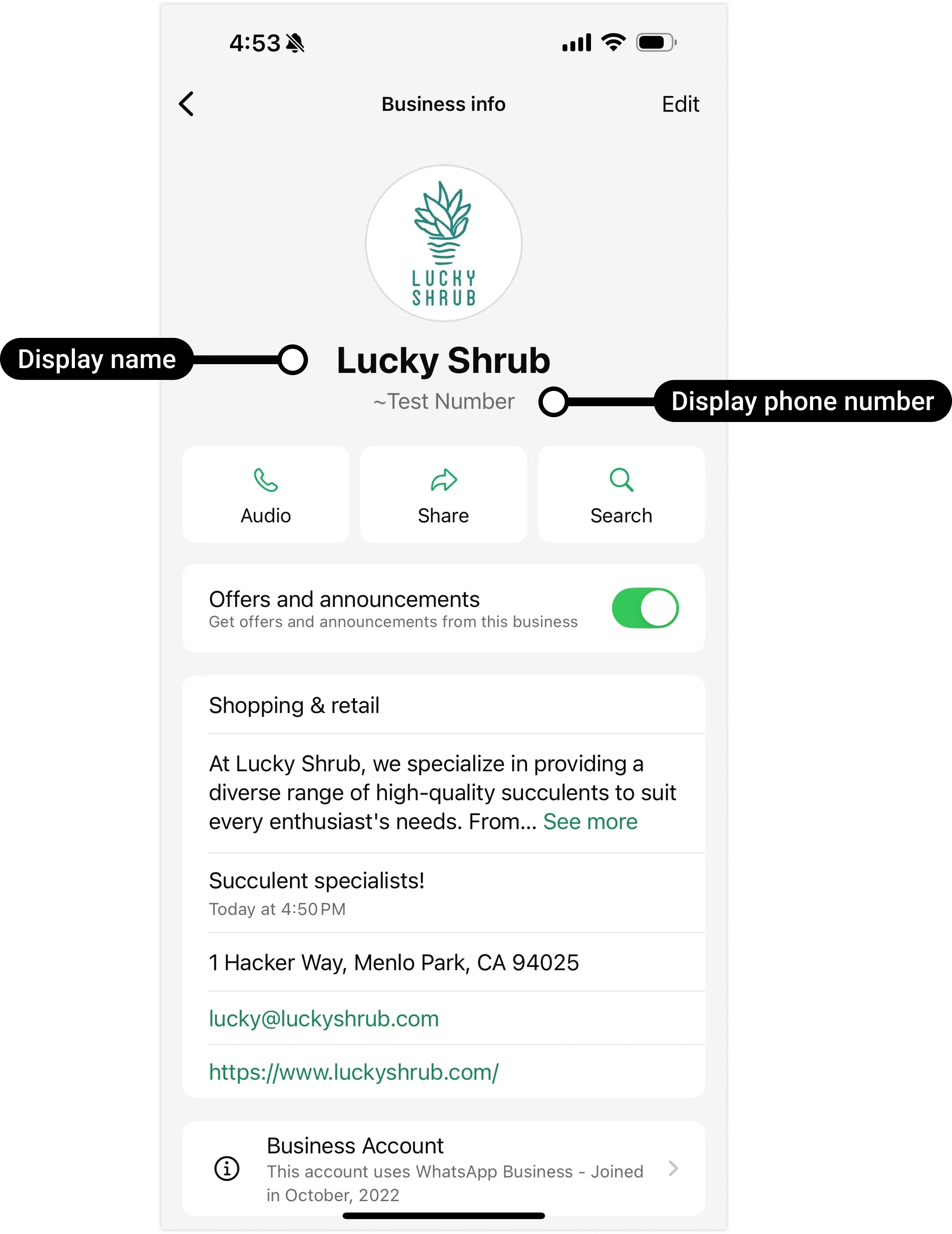
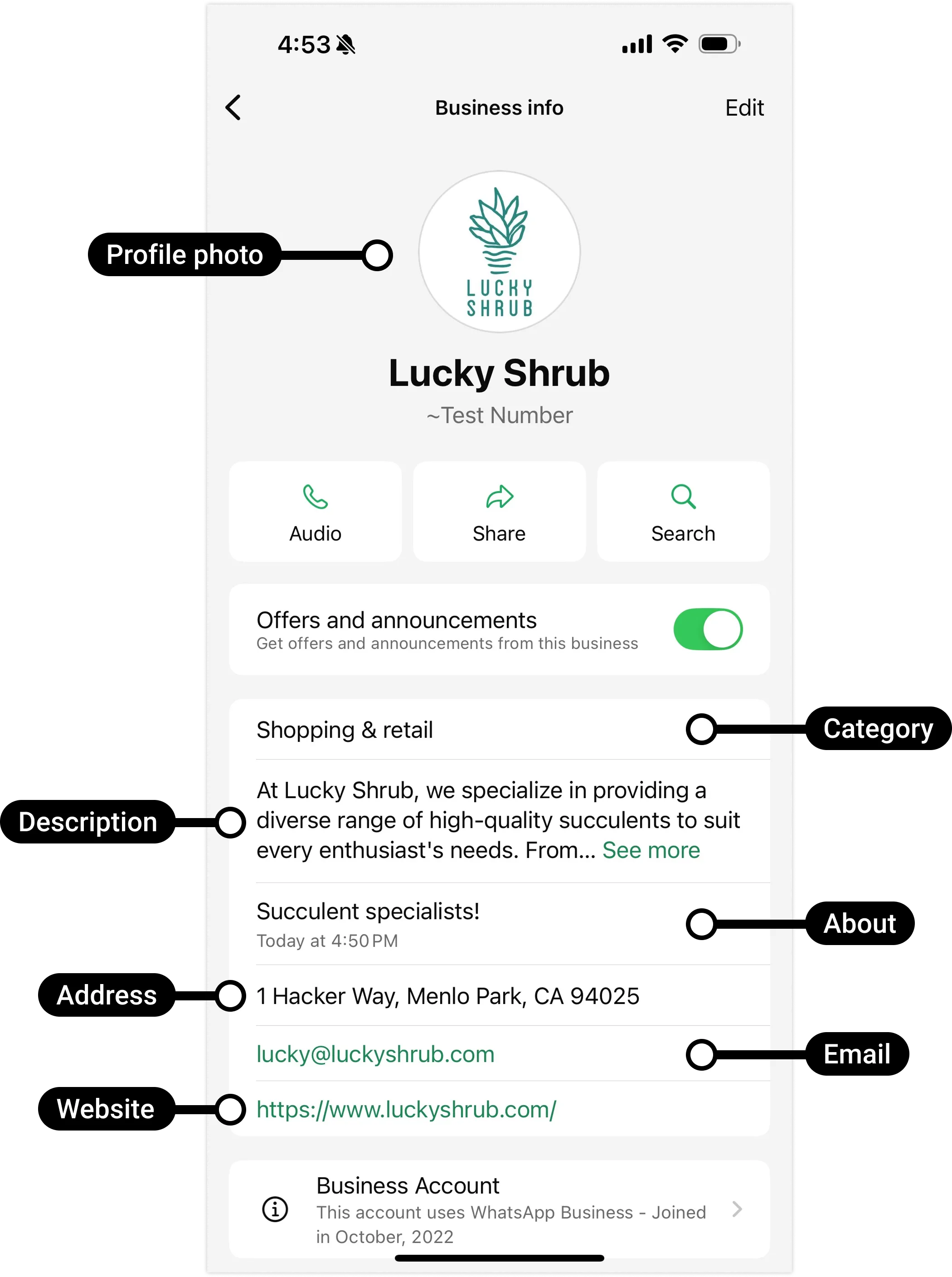
A business profile provides additional information about your business, such as its address, website, description, and so on. You can supply this information when registering your business phone number. See our [Business profiles](/books/meta-whatsapp/page/business-profiles-developer-documentation) document to learn how business profiles work.
### Official Business Account status
Business phone numbers can gain Official Business Account (OBA) status. OBA numbers have a blue checkmark beside their name in the contacts view.
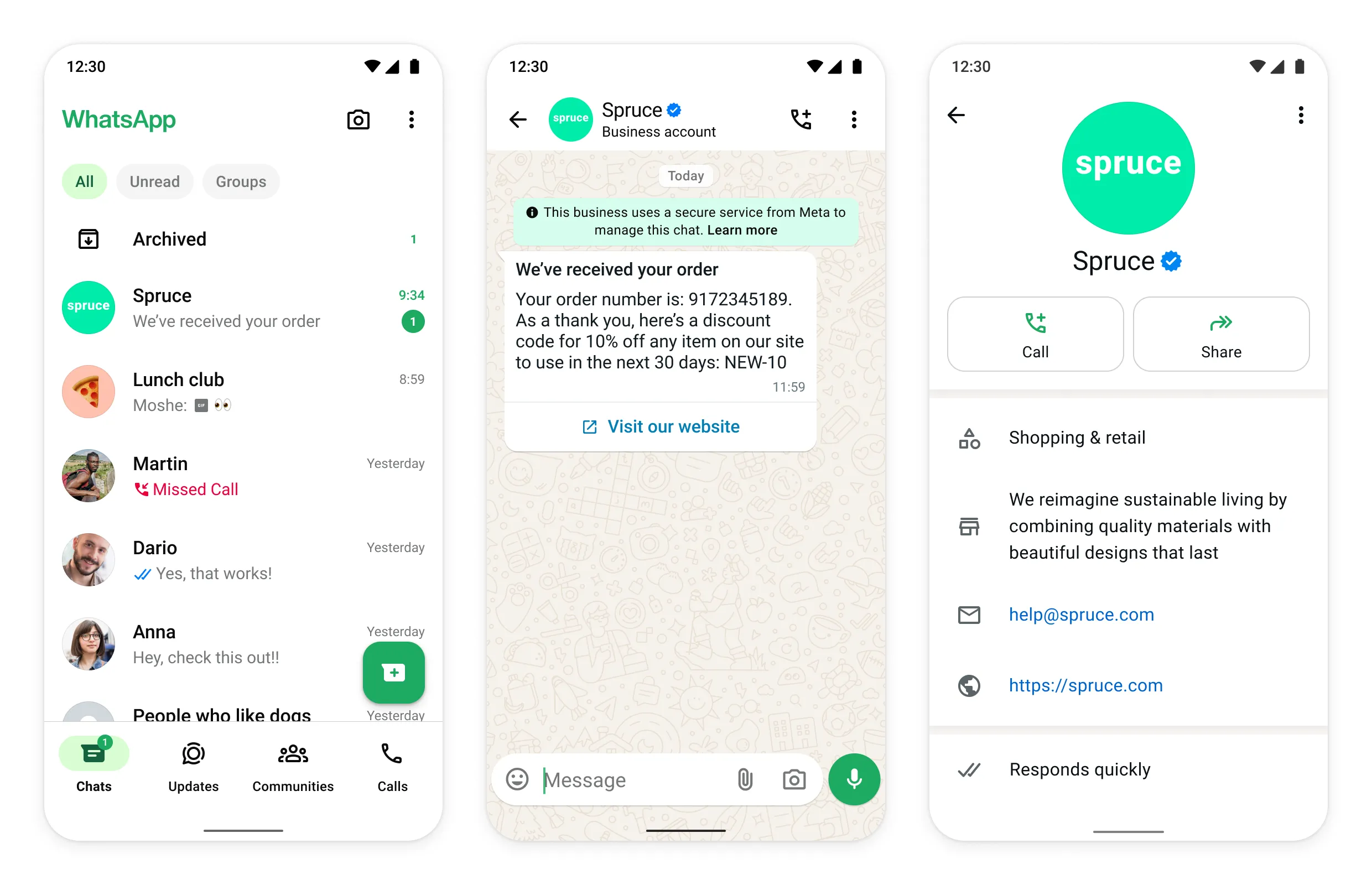
See our [Official Business Account](/books/meta-whatsapp/page/official-business-accounts-developer-documentation) document to learn how to request OBA status for a business phone number.
### 1-800 and toll free numbers
You may want to register a 1-800 or other toll free number on the platform. These numbers are usually behind an Interactive Voice Response (IVR) system. A WhatsApp registration call cannot navigate an IVR. Phone numbers behind an IVR system can be registered, but must be able to accept calls from international numbers and be able to redirect our SMS message or voice call to a real person.
To register a phone number that is behind an IVR system:
WhatsApp shares with you 1 or 2 phone numbers that the registration call will come from.Create an allow list for these numbers. If you are unable to create an allow list for these numbers, add the phone number to your WABA and open a Direct Support ticket asking for the registration call phone numbers and include the phone number you are trying to register in the ticket.Redirect the registration call to an employee or a mailbox to capture the registration code.Phone numbers behind an IVR system that are unable to receive registration calls are not supported.
### Registered number cap
New business portfolios are initially capped at 2 registered business phone numbers.
If your business becomes [verified](https://www.facebook.com/business/help/1095661473946872), or if you have reached a [messaging limit](/books/meta-whatsapp/page/messaging-limits-developer-documentation) of 2,000, Meta will automatically increase your cap to 20. Upon increase, a Meta Business Suite notification will be sent, informing you of your new cap, and a [business\_capability\_update](/books/meta-whatsapp/page/business-capability-update-webhook-reference-developer-documentation) webhook will be triggered with `max_phone_numbers_per_business` set to your new cap.
### WhatsApp user phone number formats
Plus signs (`+`), hyphens (`-`), parenthesis (`(`,`)`), and spaces are supported in send message requests.
We highly recommend that you include both the plus sign and country calling code when sending a message to a customer. If the plus sign is omitted, your business phone number’s country calling code is prepended to the customer’s phone number. This can result in undelivered or misdelivered messages.
For example, if your business is in India (country calling code `91`) and you send a message to the following customer phone number in various formats:
| Number In Send Message Request | Number Message Delivered To | Outcome |
|---|
| | |
| | |
| | |
| | |
Note: For Brazil and Mexico, the extra added prefix of the phone number may be modified by the Cloud API. This is a standard behavior of the system and is not considered a bug.
### Identity change check
You may want Meta to verify a customer’s identity before delivering your message to them. You can have us do this by enabling the identity change check setting on your business phone number.
If a customer performs an action in WhatsApp that is considered an identity change, Meta generates a new identity hash for the user. To get this hash when messaging a customer, enable the identity change check setting on your business phone number. Once enabled, anytime the customer messages you, or you message the customer without an identity hash, [any incoming messages webhooks](/books/meta-whatsapp/page/messages-webhook-reference-developer-documentation) or [status messages webhooks](/books/meta-whatsapp/page/status-messages-webhook-reference-developer-documentation) will include their hash. You can then capture and store this hash for future use.
To use the hash, include it in a send message request. Meta compares the hash in the request to the customer’s current hash. If the hashes match, the message will be delivered. If there is a mismatch, it means the customer has changed their identity since you last messaged them and the message will not be delivered. Instead, you will receive a status messages webhook with error code `137000`, notifying you of the failure and mismatch.
When you receive a mismatched hash webhook, assume the customer’s phone number can no longer be trusted. To reestablish trust, verify the customer’s identity again using other, non-WhatsApp channels. Once you have reestablished trust, resend the failed message to the new identity (if any), without a hash. Then store the customer’s new hash included in the message status delivery webhook.
Set `` to `true` to enable identity check, or `false` to disable it.
Use the [WhatsApp Business Phone Number](/documentation/business-messaging/whatsapp/reference/whatsapp-business-phone-number/whatsapp-business-account-phone-number-api#Reading) endpoint to get a phone number’s current [throughput level](/books/meta-whatsapp/page/throughput-developer-documentation):
### Get a single phone number
To get information about a phone number, send a GET request to the [WhatsApp Business Phone Number](/documentation/business-messaging/whatsapp/reference/whatsapp-business-phone-number/whatsapp-business-account-phone-number-api) endpoint:
### Get display name status (beta)
Include `fields=name_status` as a query string parameter to get the status of a display name associated with a specific phone number. This field is currently in beta and not available to all developers.
### Deleting business phone numbers
Only business portfolio admins can delete business phone numbers, and numbers can’t be deleted if they have been used to send paid messages within the last 30 days.
#### Deleting business phone numbers via WhatsApp Manager
If your business phone number has a Connected status, you will need your two-step verification PIN to delete your number.
Load your business portfolio in the [WhatsApp Manager](https://business.facebook.com/wa/manage/home/).If it doesn’t automatically load the Phone numbers panel, navigate to **Account tools** (the toolbox icon) > **Phone numbers**.Click the phone number’s trash can icon and complete the flow.If the number has been used to send paid messages within the last 30 days, you will be redirected to the **Insights** panel, showing the date of the last paid message. You can delete the number 30 days from this date.
#### Deleting business phone numbers via API
You cannot delete a business phone number via API.
### Migrating business phone numbers
You can [migrate phone numbers from one WABA to another](/documentation/business-messaging/whatsapp/solution-providers/support/migrating-phone-numbers-among-solution-partners-via-embedded-signup).
### Conversational components
You can enable helpful message UI components to make it easier for WhatsApp users to interact with your business. See [Conversational components](/books/meta-whatsapp/page/conversational-components-developer-documentation).
## Register a Business Phone Number
Updated: Mar 31, 2026
To use your business phone number with Cloud API you must register it. Registration can only be done via API - you cannot register a number through [WhatsApp Manager?](https://business.facebook.com) (WAM) or the App Dashboard.
To get your number ready for Cloud API, complete the following steps:
**Add** your business phone number to your WhatsApp Business account using [WhatsApp Manager](/books/meta-whatsapp/page/business-phone-numbers-developer-documentation).**Verify** ownership of the number using [WhatsApp Manager](/books/meta-whatsapp/page/business-phone-numbers-developer-documentation).**Register** your business phone number by making an API call to the [registration endpoint](#bkmrk-register-a-business--3) below.Register your business phone number in the following scenarios:
**Account creation** - When you implement this API, register the business phone number you want to use. Meta enforces two-step verification during account creation to add an extra layer of security to your accounts.**Name change** - If your phone is already registered and you want to change its display name, you can update it via [WhatsApp Manager?](https://www.facebook.com/business/help/378834799515077) or [via API](/books/meta-whatsapp/page/display-names-developer-documentation). Once the name change is approved (confirmed via the [phone\_number\_name\_update](/books/meta-whatsapp/page/phone-number-name-update-webhook-reference-developer-documentation) webhook), re-register your phone number using the endpoint below. Wait for approval before re-registering, as re-registering before approval has no effect. See [Display names](/books/meta-whatsapp/page/display-names-developer-documentation) for the complete workflow.If you are migrating a phone number from the On-Premises API to the Cloud API, there are extra steps you need to perform before registering a phone number with the Cloud API. See [Migrate From On-Premises API to Cloud API](/documentation/business-messaging/whatsapp/support/migrating-from-onprem-to-cloud) for the full process.
### Register a business phone number
To register your verified business phone number, make a `POST` call to `PHONE_NUMBER_ID/register`. Include the parameters listed below.
| Endpoint | Authentication |
|---|
`PHONE_NUMBER_ID/register` (See [Get Phone Number ID](/books/meta-whatsapp/page/business-phone-numbers-developer-documentation)) | Solution Partners must authenticate themselves with an access token with the `whatsapp_business_management` and `whatsapp_business_messaging` permissions. |
Requests to the registration endpoint are limited to 10 requests per business number in a 72-hour moving window.
When you make a registration request, the API checks how many registration requests you have made to register that number in the last 72 hours. If you have already made 10 requests, the API will return error code `133016`, and the number will be prevented from being registered for the next 72 hours.
| Name | Description |
|---|
| **Required.** Messaging service used. Set this to `"whatsapp"`. |
| **Required.** If your verified business phone number already has two-step verification enabled, set this value to your number's 6-digit two-step verification PIN. If you cannot recall your PIN, you can change it. See [Two-step verification](/books/meta-whatsapp/page/business-phone-numbers-developer-documentation). If your verified business phone number does not have two-step verification enabled, set this value to a 6-digit number. This will be the newly verified business phone number's two-step verification PIN. |
`data_localization_region` | **Optional.**
If included, enables [local storage](/books/meta-whatsapp/page/local-storage-developer-documentation) on the business phone number. Value must be a 2-letter ISO 3166 country code (for example, `IN`) indicating the country where you want data-at-rest to be stored.
Supported values:
**APAC** Australia: `AU`Indonesia: `ID`India: `IN`Japan: `JP`Singapore: `SG`South Korea: `KR`**Europe** EU (Germany): `DE`Switzerland: `CH`United Kingdom: `GB`**LATAM** Brazil: `BR`**MEA** Bahrain: `BH`South Africa: `ZA`United Arab Emirates: `AE`**NORAM** Canada: `CA`Once you enable local storage, you cannot disable or change it directly. Instead, you must [deregister](#bkmrk-deregister-a-busines-1) the number and register it again without this parameter (to disable), or include the parameter with the new country code (to change).
If the number is already registered, deregister it, then register it again with this parameter to enable local storage. |
### Deregister a business phone number
Deregistering a business phone number makes it unusable with Cloud API and disables [local storage](/books/meta-whatsapp/page/local-storage-developer-documentation) on the number, if it had been enabled. To use the number again, you must re-register it.
To deregister a business phone number, make a `POST` call to `PHONE_NUMBER_ID/deregister`:
| Endpoint | Authentication |
|---|
`PHONE_NUMBER_ID/deregister` (See [Get Phone Number ID](/books/meta-whatsapp/page/business-phone-numbers-developer-documentation)) | Solution Partners must authenticate themselves with an access token with the `whatsapp_business_management` and `whatsapp_business_messaging` permissions. |
## Media
Updated: Dec 11, 2025
You use 4 different endpoints to manage your media:
See [Supported Media Types](#bkmrk-supported-media-type-1) for supported types and size limits.
Some of the API requests described in this document require a media ID. Media IDs are returned by the API when [uploading media](#bkmrk-upload-media-1), and are included in incoming media messages webhooks ([image messages](/books/meta-whatsapp/page/image-messages-developer-documentation), [video messages](/books/meta-whatsapp/page/video-messages-developer-documentation), etc.)
Media IDs returned by the API expire after 30 days. Media IDs in webhooks expire after 7 days.
To download media, make a `GET` request on the media URL and include your access token. **If you omit your token, the request will fail.**
Note that when retrieving a media from a media ID received via webhook, the media ID will only be available to download for 7 days.
| Audio Type | Extension | MIME Type | Max Size |
|---|
| | | |
| | | |
| | | |
| | | |
| | audio/ogg (OPUS codecs only; base audio/ogg not supported; mono input only) | |
| Document Type | Extension | MIME Type | Max Size |
|---|
| | | |
| | | |
| | application/vnd.openxmlformats-officedocument.spreadsheetml.sheet | |
| | | |
| | application/vnd.openxmlformats-officedocument.wordprocessingml.document | |
| | application/vnd.ms-powerpoint | |
| | application/vnd.openxmlformats-officedocument.presentationml.presentation | |
| | | |
Images must be 8-bit, RGB or RGBA.
| Image Type | Extension | MIME Type | Max Size |
|---|
| | | |
| | | |
WebP images can only be sent in [sticker messages](/documentation/business-messaging/whatsapp/messages/sticker-messages).
| Sticker Type | Extension | MIME Type | Max Size |
|---|
| | | |
| | | |
Only H.264 video codec and AAC audio codec supported. Single audio stream or no audio stream only.
Note that videos encoded with the H.264 “High” profile and B-frames are not supported by Android WhatsApp clients. We recommend that you use H.264 “Main” profile without B-frames, or the H.264 “Baseline” profile when encoding (or re-encoding with a tool like ffmpeg), and place moov boxes before mdat boxes, for broader compatibility. If you are using ffmpeg, you can use the -movflags faststart flag to place moov boxes before mdata boxes.
| Video Type | Extension | MIME Type | Max Size |
|---|
| | | |
| | | |
Note that mismatched MIME type (`131053`) is a common error. Inspect your media files to verify their MIME type. Make sure that your file name extensions reflect their types. For example, if you are using UNIX, you can inspect a file via the command line to determine its MIME type:
`file -I your-image-asset.png`
The maximum supported file size for media messages on Cloud API is 100MB. In the event the customer sends a file that is greater than 100MB, you will receive a webhook with error code [131052](/documentation/business-messaging/whatsapp/support/error-codes#other-errors) and `title`:
*“Media file size too big. Max file size we currently support: 100MB. Please communicate with your customer to send a media file that is smaller than 100MB”*.
Send customers a warning message that their media file exceeds the maximum file size when this webhook event is triggered.
WhatsApp Business Blog – [Sending WhatsApp media messages from an app](https://l.facebook.com/l.php?u=https%3A%2F%2Fbusiness.whatsapp.com%2Fblog%2Fmedia-messages-via-app&h=AT56g_m791Hz2vyNNxrkcc3oGe9djDJ55IquMcadv5v_8g862_4P3sB_VC52BnOQahwV3sbhmBSXmha494eux1vBjaR8-pM7XdPamcQtB_Qgsx5KHVpQGBMSFf8_-fFzeVUm0Q56pkIhHFrJyzL0Fg)