Embedded Signup is an authentication and authorization desktop- and mobile-compatible interface that makes it easy for your business customers to generate the assets you will need to successfully onboard them to the WhatsApp Business Platform.
The Embedded Signup flow gathers business-related information from your business customers, automatically generates all WhatsApp assets needed by the platform, and grants your app access to these assets, so you can quickly provide your business customers with WhatsApp messaging services.
### How it works
Embedded Signup leverages the Facebook Login for Business product and our JavaScript SDK. Once configured, you can add a link or button to your website or portal that launches the flow.
Business customers who click the link or button will be presented with a new window where they can:
authenticate their identity using their Facebook or Meta Business Credentialsaccept terms of service for Cloud API, WhatsApp Business, Meta, Marketing Messages Lite API and Meta Business Tool Termsselect multiple WhatsApp APIs and accept terms of servicegrant your app access to their WhatsApp assetsselect an existing business portfolio or create a new oneselect an existing WhatsApp Business Account (WABA) or create a new oneenter and verify their business phone number (their own, or one you have provided)enter a display name that can appear in place of their number in the WhatsApp client
Upon successful completion, Embedded Signup returns the customer’s WABA ID, business phone number ID, and an exchangeable token code, to the window that spawned the flow. You must send this data to your server and use it in a server-to-server call to:
exchange the code for a customer-scoped business tokenregister the customer’s business phone number for Cloud API usesubscribe your app to webhooks on the customer’s WABAshare your credit line with the customer (Solution Partners only)
When these steps are complete, if you are a Solution Partner or are partnered with one, the customer can begin using your or your partner’s app for messaging immediately. If you are not a Solution Partner, or not partnered with one, the customer must first attach a payment method to their WABA before they can begin messaging.
We’re testing a new experience in the Embedded Signup flow for all versions. The flow itself is unchanged, but after completion, you may see a new **View your setup guide** button. Clicking it will take you to a new setup guidance page in WhatsApp Manager, which offers next steps on:
Business verificationResolving integrity issues and accessing Business Support HomeSending the first message via a partner solutionSending business-initiated messages using templates
### Asset ownership
Business customers onboarded via Embedded Signup own all of their WhatsApp assets, which they can leverage with other Meta solutions such as [Ads that Click to WhatsApp](https://www.facebook.com/business/help/447934475640650).
Business customers also have full access to [WhatsApp Manager](https://business.facebook.com/wa/manage/), which they can use to access their assets. Note that you cannot restrict this access in any way. Refer to available assets [here](/books/meta-whatsapp/page/version-4-developer-documentation).
### Limitations
#### Onboarding limits
By default, you can onboard up to 10 new business customers in a rolling 7-day window. Only newly onboarded customers count against this limit. You can see your current onboarded customer count in the **WhatsApp Manager** > **Partner overview** panel. You will be notified by email if you approach this limit.
If you complete Business Verification, App Review, and Access Verification, we will automatically increase your limit to 200 new business customers in a rolling 7-day window. If you need to onboard more than 200 customers per week, apply to become a [Meta Business Partner](https://l.facebook.com/l.php?u=https%3A%2F%2Fbusiness.whatsapp.com%2Fpartners%2Fbecome-a-partner&h=AT58x3ruMttrkL_YWd9qHZ2O9KRHZQ07hmChYIj_twmiC2juOO7XNKvtkKCussoVbwQdJQkkEHyKuDOf23eNMMbhjO8cS1L9Urb1foi3yEG0qR5Y-aJCvWMkZZzsDSv-7sGv6bhJ2kWXMFPMQRJF-w).
**Note:** Existing WhatsApp Business Accounts (WABAs) that were originally created via the developer app cannot be selected or onboarded directly through the Embedded Signup flow.
#### Business customer messaging limits
Business customers onboarded via Embedded Signup start with standard [messaging limits](/books/meta-whatsapp/page/messaging-limits-developer-documentation), which can be increased through API usage.
#### Business customer phone number limits
Business phone numbers can only be registered for use with Cloud API.Business phone numbers already in use with the [WhatsApp Business app](https://l.facebook.com/l.php?u=https%3A%2F%2Fbusiness.whatsapp.com%2Fproducts%2Fbusiness-app&h=AT58x3ruMttrkL_YWd9qHZ2O9KRHZQ07hmChYIj_twmiC2juOO7XNKvtkKCussoVbwQdJQkkEHyKuDOf23eNMMbhjO8cS1L9Urb1foi3yEG0qR5Y-aJCvWMkZZzsDSv-7sGv6bhJ2kWXMFPMQRJF-w) are supported, but require you customize the flow to enable [WhatsApp Business app user onboarding](/books/meta-whatsapp/page/onboarding-whatsapp-business-app-users-aka-coexistence-developer-documentation) (aka “Coexistence”).Business customers onboarded via Embedded Signup start with default [messaging limits](/books/meta-whatsapp/page/messaging-limits-developer-documentation).
### Cloud API flow
See [Cloud API Flow](/books/meta-whatsapp/page/customizing-the-default-flow-developer-documentation) for descriptions of each screen that your business customers will be presented with as part of the default implementation of Embedded Signup.
Note that if you know information about your customer’s business, you can [inject this data](/documentation/business-messaging/whatsapp/embedded-signup/pre-filled-data), which can significantly reduce the number of screens that your customers have to interact with.
### Access tokens
Embedded Signup generates [business tokens](/books/meta-whatsapp/page/access-tokens-guide-developer-documentation). When a business customer completes the Embedded Signup flow, an exchangeable token code will be returned as a message event and captured by the JavaScript SDK. You must exchange this code for a business token using a server-to-server call.
If you are a Tech Provider, you will use business tokens exclusively.
If you are a Solution Partner, you will use your [system user access token](/books/meta-whatsapp/page/access-tokens-guide-developer-documentation) (“system token”) to share your credit line with onboarded business customers, and business tokens for everything else. Note that the system user who the token represents must have granted your app the **business\_management** permission, and must have been granted an **Admin** or **Financial Editor** role on your business portfolio, in order to be able to share your credit line.
### Permissions
Embedded Signup can be configured to support business messaging products for your customers. If you are only interested in the Cloud API flow you are likely only going to need:
**whatsapp\_business\_management** — necessary if your app needs access to onboarded customer WhatsApp Business Account settings and message templates.**whatsapp\_business\_messaging** — necessary if your app needs access to onboarded customer business phone number settings, or if your app will be used by customers to send and receive messages.
You can specify which permissions your app needs during the [implementation](/books/meta-whatsapp/page/implementation-developer-documentation) process.
Note that while your app is in development mode, these permissions will appear in Embedded Signup’s [authorization screen](/books/meta-whatsapp/page/customizing-the-default-flow-developer-documentation) to anyone who has an **admin**, **developer**, or **tester** role on your app. However, once you switch your app to live mode, only permissions that have been approved for advanced access through the [App Review](/books/meta-whatsapp/page/app-review-developer-documentation) process will appear in the flow.
### Billing
#### Solution Partners
If you are a Solution Partner, you must already have a [line of credit](https://www.facebook.com/business/help/1684730811624773?id=2129163877102343) and have accepted the Credit Allocation API terms in the **Business Settings** > **Payments** panel in the Meta Business Suite. In addition, you must share your line of credit with any customers as part of the onboarding process.
#### Tech Providers and Tech Partners
If you are a Tech Provider or Tech Partner, your onboarded business customers must add a payment method to their WhatsApp Business Account. They can do this by following the steps described in our [Add a credit card to your WhatsApp Business Platform account](https://www.facebook.com/business/help/488291839463771) Help Center article.
### Sandbox accounts
You can test the Embedded Signup flow using your own Facebook account, but this can result in additional business portfolios, WABAs, and business phone numbers. If you don’t want to clutter your Facebook account with test data, you can claim a sandbox test account instead, and use it to simulate a business customer completing the flow.
When you complete the flow using the sandbox account, the sandbox account’s [WABA ID, business phone number ID](/books/meta-whatsapp/page/implementation-developer-documentation), and an [exchangeable token code](/books/meta-whatsapp/page/implementation-developer-documentation) will be returned, just as if it were a real customer completing the flow.
#### Sandbox account limitations
Sandbox accounts are valid for 30 days, after which they will be deactivated and must be reclaimed in order to be used again.The sandbox account cannot be used to create additional sandbox business portfolios, WABAs, or business phone numbers; the assets are generated automatically and will appear in the Embedded Signup flow.The sandbox account is associated with the app’s admin. In order for the sandbox account’s assets to appear in the Embedded Signup flow, the app admin must be signed into their Meta developer account.The sandbox account’s business portfolio will not appear in the Meta Business Suite or WhatsApp ManagerYou can exchange the returned token code for the sandbox account’s business token and use it to get data on the account’s WABA ID, but the business phone number cannot be used to send or receive messages.
#### Claiming sandbox accounts
To claim your sandbox account:
Navigate to the [App Dashboard](/apps) > **WhatsApp** > **Quickstart** panel.Locate the **Testing Integrations** section.Click the **Claim sandbox account** button.
Sandbox account deletion is being released gradually over several weeks, starting June 25, 2025.
If you are done testing and want to keep your testing environment clean, you can delete your sandbox account. Deleting a sandbox account is irreversible and removes all associated test data. If you accidentally delete your sandbox account but need to test again, you must claim a new one.
To delete your sandbox account:
Navigate to the [App Dashboard](/apps) > **WhatsApp** > **Quickstart** panel.Locate the **Testing Integrations** section, then locate your sandbox account.Click your sandbox account’s **Delete account** button.
Business customers can claim up to two 555 business phone numbers. These numbers behave the same way as standard business phone numbers (subject to pricing rules, impacted by quality ratings, etc.), but must have their display names approved before they can be used to send messages. In addition, 555 numbers:
Have a US country calling code (+1)Have a 555 area codeAre verified automaticallyCannot be migrated to another WhatsApp Business Account, or used outside of the WhatsApp Business platform
If your business customers are eligible for 555 numbers, the [phone number addition screen](/books/meta-whatsapp/page/customizing-the-default-flow-developer-documentation) will automatically give them the option to choose a 555 number:
Embedded Signup can be used to migrate onboarded business customer assets in several ways. See [Migrating business customer assets](/documentation/business-messaging/whatsapp/solution-providers/support#migrating-business-customer-assets).
### App Review
You will not be able to onboard business customers until your app has been approved for **advanced access** for each of the permissions it requires.
See [App Review](/books/meta-whatsapp/page/app-review-developer-documentation) to learn more about App Review and what you must provide in order to complete the process successfully.
### Embedded Signup Integration Helper
The Embedded Signup Integration Helper is a setup and testing tool within the App Dashboard. The tool allows you to:
launch Embedded Signup in various flow configurationssee data that gets returned when a business customer completes the flowgenerate implementation code and onboarding queries, which you can copy and paste into your website, business customer portal, and serversend API queries to endpoints you will need to use when onboarding customers who complete the flow
You can access the integration helper by navigating to **App Dashboard** > **WhatsApp** > **Embedded Signup Builder**.
**Note:** The Embedded Signup Integration Helper is available only for Business-type apps. You can view your app type at the top of the app dashboard.
### Localization
The Embedded Signup flow is available in 30 languages. The localized flow is automatically triggered based on the language that the business customer uses Facebook in.
Arabic, Czech, Danish, Greek, English (UK), Spanish (Spain), Spanish, Finnish, French (France), Hebrew, Hindi, Hungarian, Indonesian, Italian, Japanese, Korean, Norwegian (bokmal), Dutch, Polish, Portuguese (Brazil), Portuguese (Portugal), Romanian, Russian, Swedish, Thai, Turkish, Vietnamese, Simplified Chinese (China), Traditional Chinese (Hong Kong), Traditional Chinese (Taiwan).
### Next steps
Learn how to [implement Embedded Signup](/books/meta-whatsapp/page/implementation-developer-documentation) into your website or portal.
# Implementation | Developer Documentation
## Implementation
Updated: Mar 25, 2026
This document explains how to implement Embedded Signup v4 and capture the data it generates to [onboard business customers](#bkmrk-onboarding-business--1) onto the WhatsApp Business Platform.
### Before you start
You must already be a [Solution Partner](/books/meta-whatsapp/page/get-started-as-a-solution-partner-developer-documentation) or [Tech Provider](/books/meta-whatsapp/page/become-a-tech-provider-developer-documentation).If your business customers will be using your app to send and receive messages, you should already know how to use the API to send and receive messages using your own WhatsApp Business Account and business phone numbers. You should also know how to create and manage templates and have a webhooks callback endpoint properly set up to digest webhooks.You must be subscribed to the [account\_update](/documentation/business-messaging/whatsapp/webhooks/reference/account_update) webhook, as this webhook is triggered whenever a customer successfully completes the Embedded Signup flow, and contains their business information that you will need.If you are a Solution Partner, you must already have a [line of credit?](https://www.facebook.com/business/help/1684730811624773?id=2129163877102343).The server where you will be hosting Embedded Signup must have a valid SSL certificate.
### Step 1: Add allowed domains
Load your app in the [App Dashboard](/apps) and navigate to **Facebook Login for Business** > **Settings** > **Client OAuth settings**:
**Client OAuth login****Web OAuth login****Enforce HTTPS****Embedded Browser OAuth Login****use Strict Mode for redirect URIs****Login with the JavaScript SDK**
Embedded Signup relies on the JavaScript SDK. When a business customer completes the Embedded Signup flow, the customer's WABA ID, business phone number ID, and an exchangeable token code will be returned to the window that spawned the flow, but only if the domain of the page that spawned the flow is listed in the **Allowed domains** and **Valid OAuth redirect URIs** fields.
Add any domains where you plan to host Embedded Signup, including any development domains where you will be testing the flow, to these fields. Only domains that have enabled **HTTPS** are supported.
### Step 2: Create a Facebook Login for Business configuration
A Facebook Login for Business configuration defines which permissions to request, and what additional information to collect, from business customers who access Embedded Signup.
Navigate to **Facebook Login for Business** > **Configurations**:
Click the **Create from template** button and create a configuration from the **WhatsApp Embedded Signup Configuration With 60 Expiration Token** template. This will generate a configuration for the most commonly used permissions and access levels.
Alternatively, you create a custom configuration. To do this, in the **Configurations** panel, click the **Create configuration** button and provide a name that will help you differentiate the custom configuration from any others you may create in the future. When completing the flow, be sure to select the **WhatsApp Embedded Signup** login variation:
When choosing assets and permissions, select only those assets and permissions that you will actually need from your business customers. Assets that are already selected are added by default.
For example, if you select the **Catalogs** asset but don't actually need access to customer catalogs, your customers will likely abandon the flow at the catalog selection screen and ask you for clarification.
When you complete the configuration flow, capture your configuration ID, as you will need it in the next step.
Add the following HTML and JavaScript code to your website. This is the complete code needed to implement Embedded Signup. Each portion of the code will be explained in detail below.
#### Session logging message event listener
This portion of the code creates a message event listener that captures the following critical information:
The business customer's newly generated asset IDs, if they successfully completed the flowThe name of the screen they abandoned, if they abandoned the flowAn error ID, if they encountered an error and used the flow to report it
```
// Session logging message event listener
window.addEventListener('message', (event) => {
if (!event.origin.endsWith('facebook.com')) return;
try {
const data = JSON.parse(event.data);
if (data.type === 'WA_EMBEDDED_SIGNUP') {
console.log('message event: ', data); // remove after testing
// your code goes here
}
} catch {
console.log('message event: ', event.data); // remove after testing
// your code goes here
}
});
```
This information will be sent in a message event object to the window that spawned the flow and will be assigned to the data constant. **Add your own custom code to the try-catch statement that can send this object to your server.** The object structure will vary based on flow completion, abandonment, or error reporting, as described below.
**Successful flow completion structure:**
On the final screen, both clicking **Finish** and closing the popup (for example, by clicking the X button) are considered successful onboarding. In both scenarios, the exchangeable token code and the session info object containing the customer's asset IDs will be returned. Exiting on the final screen is not considered a cancel event.
The business customer's WhatsApp Business Account ID.
`524126980791429`
``
The business customer's business portfolio ID.
`2729063490586005`
``
Only included if the customer selected ad accounts during the flow. The business customer's ad account ID.
`4052175343162067`
``
Only included if the customer selected Facebook Pages during the flow. The business customer's Facebook Page ID.
`1791141545170328`
``
Only included if the customer selected datasets during the flow. The business customer's dataset ID.
`524126980791429`
``
Only included if the customer selected catalogs during the flow. The business customer's catalog ID.
`8827498273649182`
``
Only included if the customer selected Instagram accounts during the flow. The business customer's Instagram account ID.
`1749204838281942`
`` (in `waba_ids` array)
Only included for multi-WABA flows. Array of the business customer's WhatsApp Business Account IDs.
`524126980791429`
``
Indicates the customer successfully completed the flow.
**Possible Values:**
`FINISH`: Indicates successful completion of [Cloud API flow](/books/meta-whatsapp/page/customizing-the-default-flow-developer-documentation).`FINISH_ONLY_WABA`: Indicates user completed flow [without a phone number](/books/meta-whatsapp/page/bypassing-the-phone-number-addition-screen-developer-documentation).`FINISH_WHATSAPP_BUSINESS_APP_ONBOARDING`: Indicates user completed flow [with a WhatsApp business app number](/books/meta-whatsapp/page/onboarding-whatsapp-business-app-users-aka-coexistence-developer-documentation).`FINISH_OBO_MIGRATION`: Indicates user completed an on-behalf-of migration flow.`FINISH_GRANT_ONLY_API_ACCESS`: Indicates user completed a grant-only API access flow.`ERROR`: Indicates the user encountered an error during the flow.
Indicates which screen the business customer was viewing when they abandoned the flow. See [Embedded Signup flow errors](/documentation/business-messaging/whatsapp/embedded-signup/errors) for a description of each step.
The error description text displayed to the business customer in the Embedded Signup flow. See [Embedded Signup flow errors](/documentation/business-messaging/whatsapp/embedded-signup/errors) for a list of common errors.
Your verified name violates WhatsApp guidelines. Please edit your verified name and try again.
``
Error code. Include this value if you contact support.
`524126`
``
Unique session ID generated by Embedded Signup. Include this ID if you contact support.
`f34b51dab5e0498`
``
Unix timestamp indicating when the business customer used Embedded Signup to report the error. Include this value if you are contacting support.
`1746041036`
Parse this object on your server to extract and capture the customer's phone number ID and WABA ID, or to determine which screen they abandoned. See [Abandoned flow screens](/documentation/business-messaging/whatsapp/embedded-signup/errors#abandoned-flow-screens) for a list of possible `` values and the screens they correspond to.
Note that the try-catch statement in the code above has two statements that can be used for testing purposes:
```
console.log('message event: ', data); // remove after testing
console.log('message event: ', event.data); // remove after testing
```
These statements just dump the returned phone number and WABA IDs, or the abandoned screen string, to the JavaScript console. You can leave this code in place and keep the console open to easily see what gets returned when you are testing the flow, but you should remove them when you are done testing.
#### Response callback
Whenever a business customer successfully completes the Embedded Signup flow, we will send an exchangeable token code in a [JavaScript response?](https://l.facebook.com/l.php?u=https%3A%2F%2Fdeveloper.mozilla.org%2Fen-US%2Fdocs%2FWeb%2FAPI%2FResponse&h=AT7nB7RrhSvturBcaku2bbnsOUv9cPFSLRQAO1DJNe6zogToTX_p4GISb8epgn6o6OyE7li81jcp3lLzodFFePdsUBoxi1yMR_4b2G-lZWM7Lx0EpZqTcceMS4D_kZaWwZ6mHzPYBPy_QitYQtjeLw) to the window that spawned the flow.
```
// Response callback
const fbLoginCallback = (response) => {
if (response.authResponse) {
const code = response.authResponse.code;
console.log('response: ', code); // remove after testing
// your code goes here
} else {
console.log('response: ', response); // remove after testing
// your code goes here
}
}
```
The callback function assigns the exchangeable token code to a `code` constant.
**Add your own, custom code to the if-else statement that sends this code to your server** so you can later exchange it for the customer's business token when you [onboard the business customer](#bkmrk-onboarding-business--1).
Note that the if-else statement in the code above has two statements that can be used for testing purposes:
```
console.log('response: ', code); // remove after testing
console.log('response: ', response); // remove after testing
```
These statements just dump the code or the raw response to the JavaScript console. You can leave this code in place and keep the console open to easily see what gets returned when you are testing the flow, but you should remove them when you are done testing.
#### Launch method and callback registration
This portion of the code defines a method which can be called by an `onclick` event that registers the response callback from the previous step and launches the Embedded Signup flow.
Add your configuration ID here.
```
// Launch method and callback registration
const launchWhatsAppSignup = () => {
FB.login(fbLoginCallback, {
config_id: '', // your configuration ID goes here
response_type: 'code',
override_default_response_type: true,
extras: {
setup: {},
}
});
}
```
#### Launch button
This portion of the code defines a button that calls the launch method from the previous step when clicked by the business customer.
```
```
### Testing
Once you have completed all of the implementation steps above, you should be able to test the flow by simulating a business customer while using your own Meta credentials. Anyone who you have added as an admin or developer on your app (in the **App Dashboard** > **App roles** > **Roles** panel) can also begin testing the flow, using their own Meta credentials.
### Onboarding business customers
Embedded Signup generates assets for your business customers, and grants your app access to those assets. However, you still need to make a series of API calls to fully onboard new business customers who have completed the flow.
The API calls you must make to onboard customers are different for Solution Partners and Tech Providers/Tech Partners.
[Onboarding customers as a Solution Partner](/books/meta-whatsapp/page/onboarding-business-customers-as-a-solution-partner-developer-documentation)[Onboarding customers as a Tech Provider](/books/meta-whatsapp/page/onboarding-business-customers-as-a-tech-provider-or-tech-partner-developer-documentation)
# Onboarding business customers as a Tech Provider or Tech Partner | Developer Documentation
## Onboarding business customers as a Tech Provider or Tech Partner
Updated: Nov 14, 2025
This document describes the steps Tech Providers and Tech Partners must perform to onboard new business customers who have completed the Embedded Signup flow.
If you are a Tech Provider or Tech Partner, any business customer who completes your implementation of the Embedded Signup flow will not be able to use your app to access their WhatsApp assets or send and receive messages (if you are offering messaging services) until you complete these steps.
### What you will need
the business customer’s WABA ID (returned via [session logging](/books/meta-whatsapp/page/implementation-developer-documentation) or [API request](/books/meta-whatsapp/page/managing-whatsapp-business-accounts-developer-documentation))the business customer’s business phone number ID (returned via [session logging](/books/meta-whatsapp/page/implementation-developer-documentation) or [API request](/books/meta-whatsapp/page/business-customer-phone-numbers-developer-documentation))your app ID (displayed at the top of the **App Dashboard**)your app secret (displayed in the **App Dashboard** > **App settings** > **Basic** panel)
Also, if you wish to test messaging capabilities using the customer’s business phone number, you will need a WhatsApp phone number that can already send and receive messages from other WhatsApp numbers.
Perform all of the requests described below using server-to-server requests. Do not use client-side requests.
### Step 1: Exchange the token code for a business token
#### Request parameters
Placeholder
Description
Example value
``
**Required.**
Your app ID. This is displayed at the top of the **App Dashboard**.
`236484624622562`
``
**Required.**
Your app secret. You can get this from the **App Dashboard** > **App Secret** > **Basic** panel.
`614fc2afde15eee07a26b2fe3eaee9b9`
``
**Required.**
The code [returned by Embedded Signup](/books/meta-whatsapp/page/implementation-developer-documentation) when the customer successfully completed the flow.
Access the **WhatsApp Manager** > **Overview** panel at [https://business.facebook.com/wa/manage/home/](https://business.facebook.com/wa/manage/home/)Click the **Add payment method** buttonComplete the flow
Once your customer adds a payment method, they are fully onboarded onto the WhatsApp Business Platform and can begin using your app to access their WhatsApp assets and send and receive messages (if you are providing them with that service).
# Onboarding business customers as a Solution Partner | Developer Documentation
## Onboarding business customers as a Solution Partner
Updated: Nov 14, 2025
This document describes the steps Solution Partners must perform to onboard new business customers who have completed the Embedded Signup flow.
If you are a Solution Partner, any business customer who completes your implementation of the Embedded Signup flow will not be able to use your app to access their WhatsApp assets or send and receive messages until you complete these steps.
### What you will need
the business customer’s WABA ID (returned via [session logging](/books/meta-whatsapp/page/implementation-developer-documentation) or [API request](/books/meta-whatsapp/page/managing-whatsapp-business-accounts-developer-documentation))the business customer’s business phone number ID (returned via [session logging](/books/meta-whatsapp/page/implementation-developer-documentation) or [API request](/books/meta-whatsapp/page/business-customer-phone-numbers-developer-documentation))your app ID (displayed at the top of the **App Dashboard**)your app secret (displayed in the **App Dashboard** > **App settings** > **Basic** panel)your credit line ID (displayed in **Business Manager** > **Business Settings** > **Business Info** or returned via [API request](/books/meta-whatsapp/page/managing-credit-lines-developer-documentation))your [system user access token](/books/meta-whatsapp/page/access-tokens-guide-developer-documentation) (“system token”)
Also, if you wish to test messaging capabilities using the customer’s business phone number, you will need a WhatsApp phone number that can already send and receive messages from other WhatsApp numbers.
Perform all of the requests described below using server-to-server requests. Do not use client-side requests.
### Step 1: Exchange the token code for a business token
#### Request parameters
Placeholder
Description
Example value
``
**Required.**
Your app ID. This is displayed at the top of the **App Dashboard**.
`236484624622562`
``
**Required.**
Your app secret. You can get this from the **App Dashboard** > **App Secret** > **Basic** panel.
`614fc2afde15eee07a26b2fe3eaee9b9`
``
**Required.**
The code [returned by Embedded Signup](/books/meta-whatsapp/page/implementation-developer-documentation) when the customer successfully completed the flow.
### Step 3: Share your credit line with the customer
We are currently testing new steps for sharing your credit line with onboarded business customers. These steps will eventually replace this step, so if you wish to implement these steps now, see [Alternate method for sharing your credit line](/books/meta-whatsapp/page/managing-credit-lines-developer-documentation).
**Note**: If you are using the below API i.e. `whatsapp_credit_sharing_and_attach`, you would need to add your System User to the shared WhatsApp Business Accounts as a pre-requisite. Please refer to [this doc for steps](/books/meta-whatsapp/page/manage-system-users-developer-documentation).
#### Request parameters
Placeholder
Description
Example value
``
**Required.**
The business’s currency, as a three-letter currency code. Support values are:
`AUD``EUR``GBP``IDR``INR``USD`
This currency is used for invoicing and corresponds to [pricing](/books/meta-whatsapp/page/pricing-on-the-whatsapp-business-platform-developer-documentation) rates.
The extended credit line’s allocation configuration ID.
Save this ID if you want to [verify](/books/meta-whatsapp/page/managing-credit-lines-developer-documentation) that your credit line has been shared with the customer.
`58501441721238`
``
The customer’s WABA ID.
`102290129340398`
# Cloud API flow | Developer Documentation
## Cloud API flow
Updated: Nov 11, 2025
This document describes the default screens that your business customers will be presented with as they navigate the Embedded Signup flow. Note that if you inject [pre-filled data](/documentation/business-messaging/whatsapp/embedded-signup/pre-filled-data), you can pre-fill some of these screens, and bypass many of them entirely, reducing the likelihood of errors and making it much easier for your business customers to onboard onto the platform. This is the UI flow for the latest version v4.
### Screens
#### Authentication screen
This screen authenticates business customers using their Facebook or Meta Business Suite credentials.
This screen indicates that Meta successfully created and associated all of the business customer’s assets (business portfolio, WABA, phone number display profile, and business phone number).
When the customer clicks Finish, a message event will be triggered, containing the customer’s WABA ID and business phone number ID, which you must then use to onboard the customer to the platform.
# Customizing the default flow | Developer Documentation
## Customizing the default flow
Updated: Nov 14, 2025
This document provides an overview of the various ways that you can customize Embedded Signup’s default flow to present different versions of the flow to your business customers.
### Onboarding WhatsApp Business app users (aka “Coexistence”)
You can configure Embedded Signup to [allow business customers to onboard using their existing WhatsApp Business app account and phone number](/books/meta-whatsapp/page/onboarding-whatsapp-business-app-users-aka-coexistence-developer-documentation):
Businesses who are successfully onboarded after choosing this option will then be able to use your app to message their customers at scale, but still have the ability to send messages on a one-to-one basis using the WhatsApp Business app.
### Pre-filling screens
You can pre-fill many of Embedded Signup’s default flow screens with a business customer’s business data. [Pre-filling screens](/documentation/business-messaging/whatsapp/embedded-signup/pre-filled-data) can dramatically reduce the amount of input and interaction required by your customers, and shorten flow.
### Bypassing phone number addition and verification
You can customize Embedded Signup to entirely [skip the phone number addition and verification screens](/books/meta-whatsapp/page/bypassing-the-phone-number-addition-screen-developer-documentation). This can be useful if you don’t want business customers to have to enter a phone number, retrieve the verification code sent to the number, and then verify the code using the number.
[App-Only Install](/books/meta-whatsapp/page/app-only-install-developer-documentation) is a way to configure Embedded Signup so that only business tokens can be used to access assets owned by customers onboarded via the flow. This does not affect the flow itself, only which tokens must be used.
## Onboarding WhatsApp Business app users (aka "Coexistence")
Updated: Mar 20, 2026
You can configure Embedded Signup to allow business customers to onboard using their existing [WhatsApp Business app](https://l.facebook.com/l.php?u=https%3A%2F%2Fbusiness.whatsapp.com%2Fproducts%2Fbusiness-app&h=AT5TlEObb3q_k7PMA8Wtr_Dq_ZAW0qOmyXs7bCCp6Q_vMc-6lsMpQM7-DdUO0C_3wqj44VYDXXJI25_GHGdtGT32KIY7lZ2pI2aQh2yYxu8AEJPuLfMd-_npXPSzieX254Wxt8zaviPoPkQu1lVvIA) account and phone number. Customers who are successfully onboarded after choosing this option will then be able to use your app to message their customers at scale, but still have the ability to send messages on a one-to-one basis using the WhatsApp Business app, while keeping messaging history between both apps in sync.
### How it works
When you configure Embedded Signup for WhatsApp Business app phone numbers, a business customer who goes through the flow will be given the option to connect their existing WhatsApp Business app account to Cloud API:
They can complete the remainder of the Embedded Signup flow. This returns their [asset IDs](/books/meta-whatsapp/page/implementation-developer-documentation) and [exchangeable token code](/books/meta-whatsapp/page/implementation-developer-documentation) to the spawning window, as normal. You can then use that information in API calls to (1) onboard the business customer the same way you would any other business customer and (2) synchronize their contacts and messaging history (if permitted by the business) so you can populate it in your app.
### Requirements
the business customer must be using WhatsApp Business app version **2.24.17** or higher.the business customer’s phone number country code must be supportedyou must already be a [Solution Partner](/books/meta-whatsapp/page/get-started-as-a-solution-partner-developer-documentation) or [Tech Provider](/books/meta-whatsapp/page/become-a-tech-provider-developer-documentation)you must know how to use [Cloud API](/books/meta-whatsapp/page/about-the-whatsapp-business-platform-developer-documentation)your webhook callback must be be able successfully accept and digest webhooksyou must be using Embedded Signup with [session logging](/books/meta-whatsapp/page/implementation-developer-documentation)
### Limitations
In order to remain compatible with the WhatsApp Business app, business phone numbers that are in use with both the WhatsApp Business app and Cloud API have a fixed throughput of 20 mps.If your business customer worked with a partner in the past and still shares the previous credit line, they may see an error when attempting to switch to a new partner. Follow the [guide](/documentation/business-messaging/whatsapp/solution-providers/support/business-customer-support) to resolve the error.
### Unsupported countries
WhatsApp Business account phone numbers with country codes from the following countries are not supported:
NigeriaSouth Africa
### Pricing
After a business customer has been onboarded to Cloud API, messages sent by the business via the WhatsApp Business app will continue to be free, but messages sent via API will be subject to [Cloud API pricing](/books/meta-whatsapp/page/pricing-on-the-whatsapp-business-platform-developer-documentation).
See our [API Solutions for WhatsApp Business App Users](https://developers.facebook.com/resources/API-solutions-for-WhatsApp-Business-App-users.pdf) pricing explainer PDF for breakdowns of common pricing scenarios.
### Customer service window
[Customer service windows](/books/meta-whatsapp/page/sending-messages-developer-documentation) will only be opened when a WhatsApp user messages a business customer who is already onboarded onto Cloud API. If a WhatsApp user messages a business just prior to the business being onboarded onto Cloud API, the business can only respond with a template message, since no customer service was opened. If the user messages the business after it has been onboarded onto Cloud API, a customer service window will be opened as normal, and the business can then respond with a non-template message.
The 24-hour customer service window restriction applies to messages sent via Cloud API. Messages sent from the WhatsApp Business app are not subject to the customer service window and do not create, extend, or affect Cloud API conversation windows or Cloud API pricing.
### Feature comparison
The following table describes features available to business customers who have been onboarded to Cloud API, as well as any changes to WhatsApp Business app functionality post-onboarding.
Existing feature on the WhatsApp Business App
Changes to features on the WhatsApp Business App AFTER onboarding to Cloud API
Is the WhatsApp Business app feature supported on Cloud API?
Individual (1:1) chats
Message Edit/Revoke is now supported.
Supported.
All chat messages in the most recent 6 months can be synchronized.
Messages sent and received are mirrored between the Cloud API and WhatsApp Business app.
Contacts
No change.
Supported.
All contacts with a WhatsApp number can be synchronized.
Group chats
No change.
Not supported.
Group chats will not be synchronized.
Disappearing messages
Disappearing messages will be turned off for all individual (1:1) chats
Not supported.
[View once message](https://l.facebook.com/l.php?u=https%3A%2F%2Ffaq.whatsapp.com%2F1077018839582332&h=AT5TlEObb3q_k7PMA8Wtr_Dq_ZAW0qOmyXs7bCCp6Q_vMc-6lsMpQM7-DdUO0C_3wqj44VYDXXJI25_GHGdtGT32KIY7lZ2pI2aQh2yYxu8AEJPuLfMd-_npXPSzieX254Wxt8zaviPoPkQu1lVvIA)
View once messages will be disabled for all individual (1:1) chats
Not supported.
Live location message
Live location messages will be disabled for all individual (1:1) chats
Not supported.
Broadcast lists
Broadcast list will be disabled.
Business will not be able to create new Broadcast Lists.
Business profile (eg. business name, address, website)
No change.
Not supported.
Channels
No change.
Not supported.
### Linked devices
Businesses can link up to four WhatsApp “companion” clients to their WhatsApp Business app account on other devices (described as “[linked devices](https://l.facebook.com/l.php?u=https%3A%2F%2Ffaq.whatsapp.com%2F378279804439436%2F&h=AT5TlEObb3q_k7PMA8Wtr_Dq_ZAW0qOmyXs7bCCp6Q_vMc-6lsMpQM7-DdUO0C_3wqj44VYDXXJI25_GHGdtGT32KIY7lZ2pI2aQh2yYxu8AEJPuLfMd-_npXPSzieX254Wxt8zaviPoPkQu1lVvIA)” in our Help Center).
All companion clients are supported, except for [WhatsApp for Windows](https://l.facebook.com/l.php?u=https%3A%2F%2Ffaq.whatsapp.com%2F1317564962315842%2F%3Fcms_platform%3Dwindows-desktop&h=AT5TlEObb3q_k7PMA8Wtr_Dq_ZAW0qOmyXs7bCCp6Q_vMc-6lsMpQM7-DdUO0C_3wqj44VYDXXJI25_GHGdtGT32KIY7lZ2pI2aQh2yYxu8AEJPuLfMd-_npXPSzieX254Wxt8zaviPoPkQu1lVvIA) and [WhatsApp for WearOS](https://l.facebook.com/l.php?u=https%3A%2F%2Ffaq.whatsapp.com%2F564431798835071%2F&h=AT5TlEObb3q_k7PMA8Wtr_Dq_ZAW0qOmyXs7bCCp6Q_vMc-6lsMpQM7-DdUO0C_3wqj44VYDXXJI25_GHGdtGT32KIY7lZ2pI2aQh2yYxu8AEJPuLfMd-_npXPSzieX254Wxt8zaviPoPkQu1lVvIA).
Once a business customer onboards to Cloud API with an existing WhatsApp Business app account and number, all companion apps will be unlinked from the account, and the business can then re-link any supported companion apps.
WhatsApp users who use an unsupported companion client to message an onboarded business can do so, but the message will not trigger [messages](/books/meta-whatsapp/page/messages-webhook-reference-developer-documentation) webhooks, so the business won’t be able to mirror the message in their own app.
Messages sent from an onboarded business (by any means) that are viewed in an unsupported companion device will appear with placeholder text, instructing the WhatsApp user to view the message in their primary device.
### Setting up your app
#### Step 1: Subscribe to webhooks
Navigate to the [**App Dashboard**](/apps) > **WhatsApp** > **Configuration** panel and subscribe your app to the following WhatsApp Business Account webhook topic fields, and make sure your app’s callback code can digest payloads for each of them. Note that these fields are in addition to any fields you are already subscribed to as a solution provider.
[history](#bkmrk-history-1) — describes past messages the business customer has sent/received[smb\_app\_state\_sync](#bkmrk-smb_app_state_sync-1) — describes the business customer’s current and new contacts[smb\_message\_echoes](#bkmrk-smb_message_echoes-1) — describes any new messages the business customer sends with the WhatsApp Business app after having been onboarded
#### Step 2: Customize Embedded Signup
Add a `featureType` property set to `whatsapp_business_app_onboarding` to the `extras` object in the [launch method and callback registration](/books/meta-whatsapp/page/implementation-developer-documentation) portion of the Embedded Signup implementation code.
To verify that you have enabled the feature correctly, access your implementation of Embedded Signup. If the [WABA selection screen](/books/meta-whatsapp/page/customizing-the-default-flow-developer-documentation) has been replaced with a screen that gives you the option to connect your existing WhatsApp Business account, the feature is enabled:
Once you have confirmed that the feature has been enabled, surface Embedded Signup to your business customers.
Note that when a business completes the flow and you [onboard the customer](#bkmrk-onboarding-business--1), you have 24 hours to [synchronize their messaging history](#bkmrk-synchronizing-whatsa-1), otherwise they must be offboarded and they must complete the flow again. For this reason, we recommend that you:
onboard and synchronize as soon as the business completes the flowinform the business that you are synchronizing their WhatsApp Business app dataadvise them to keep the WhatsApp Business app open to facilitate the synchronization process
Onboarding and synchronization can take several minutes, depending on a number of factors such as the size of the business’s messaging history, their internet speed, how quickly you can digest webhooks, etc.
When you complete the **onboarding** process, the WhatsApp Business app will automatically refresh and indicate to the business that their number is now connected to the API:
After you finish synchronizing the business’s messaging history, we recommend that you inform the customer that the process is complete.
### Onboarding business customers
When a business customer successfully completes the Embedded Signup flow, their asset IDs and an exchangeable token code will be returned to the window that spawned the flow, as normal, but the [session event](/books/meta-whatsapp/page/implementation-developer-documentation) payload will have `event` set to `FINISH_WHATSAPP_BUSINESS_APP_ONBOARDING`:
Capture the customer’s asset IDs and exchangeable token code and use them to onboard the customer as you normally would, but **skip the phone number registration step**, as the number is already registered.
[Onboarding business customers as a Solution Provider](/books/meta-whatsapp/page/onboarding-business-customers-as-a-solution-partner-developer-documentation)[Onboarding business customers as a Tech Provider](/books/meta-whatsapp/page/onboarding-business-customers-as-a-tech-provider-or-tech-partner-developer-documentation)
Once you have completed these onboarding steps, you can begin the [messaging history synchronization](#bkmrk-synchronizing-whatsa-1) process.
#### Check onboarding status (optional)
If you wish, you can check if the customer’s business phone number is registered for both Cloud API and WhatsApp Business app use by requesting the `is_on_biz_app` and `platform_type` fields on the business phone number ID:
Example request:
Example response:
If `is_on_biz_app` is `true` and `platform_type` is `CLOUD_API`, the business phone number is able to use Cloud API and the WhatsApp Business app:
### Synchronizing WhatsApp Business app data
After you onboard the business customer, you have 24 hours to synchronize their contacts and messaging history, otherwise they must be offboarded and complete the flow again. For this reason, we recommend that you begin the synchronization process as soon as you finish onboarding the business.
As a reminder, make sure that you subscribed to the business’s WABA when you [onboarded the business](#bkmrk-onboarding-business--1), and that you are [subscribed to the additional webhook fields](#bkmrk-step-1%3A-subscribe-to-1), otherwise you will miss important webhooks.
#### Step 2: Initiate message history synchronization
Upon success, one or more history webhooks will be triggered, depending on if the business chose to share their messaging history with you.
Note that you can only perform this step once. If you need to perform it again, the customer must first offboard, then complete the Embedded Signup flow again.
##### Messaging history shared
If the business chose to share their messaging history with you, a series of history webhooks will be triggered, describing each message sent to, or received from, WhatsApp users within a set period of time.
See [history](#bkmrk-history-1) for a description of the contents of these webhooks and how they are organized.
##### Messaging history not shared
If the business chose not to share their messaging history with you, a [history](#bkmrk-history-1) webhook with error code `2593109` will be triggered instead.
#### Step 3: Mirror new WhatsApp Business app messages
Onboarded businesses are still able to use the WhatsApp Business app and supported [companion devices](#bkmrk-linked-devices-1) to send and receive messages. Each time a business sends a message with one of these apps, it triggers an [smb\_message\_echoes](#bkmrk-smb_message_echoes-1) webhook, which you must digest and display in the contact message thread history in your app.
### Reporting conversion activity
Onboarded business customers may run Click to WhatsApp ads, so we recommend that you report purchase/lead-gen signals on behalf of the business using the Conversions API. See [Conversions API for business messaging](https://developers.facebook.com/docs/marketing-api/conversions-api/business-messaging).
### Offboarding business customers
Instead, your business customers can use the WhatsApp Business app to disconnect from Cloud API by navigating to the **Settings** > **Account** > **Business Platform** and clicking the **Disconnect Account** button. When a business customer disconnects from Cloud API, an [account\_update](/documentation/business-messaging/whatsapp/webhooks/reference/account_update) webhook with a `PARTNER_REMOVED` event is triggered.
### Errors
If you onboard a business customer with a WhatsApp Business app phone number, you may receive an [unsupported messages](/books/meta-whatsapp/page/unsupported-messages-webhook-reference-developer-documentation) webhook with error code `131060`. This is expected and can occur in the following scenarios:
**First-time messaging**: A WhatsApp user messages your business for the first time. This is especially common when users tap one of your [ads that click to WhatsApp](https://l.facebook.com/l.php?u=https%3A%2F%2Fbusiness.whatsapp.com%2Fproducts%2Fcreate-ads-that-click-to-whatsapp&h=AT5TlEObb3q_k7PMA8Wtr_Dq_ZAW0qOmyXs7bCCp6Q_vMc-6lsMpQM7-DdUO0C_3wqj44VYDXXJI25_GHGdtGT32KIY7lZ2pI2aQh2yYxu8AEJPuLfMd-_npXPSzieX254Wxt8zaviPoPkQu1lVvIA) and immediately send a message. The error typically resolves within a few seconds, after which messages are delivered normally.**Unsupported companion device**: A WhatsApp user with an unsupported [companion device](#bkmrk-linked-devices-1) sends or receives a message to or from your business.
If you receive this webhook, instruct the business to check the WhatsApp Business app for the message.
Question Topic: “WABiz: Cloud API”Request Type: “Coexistence Data Synchronization APIs and Webhooks”
# Pre-filling screens | Developer Documentation
## Pre-filling screens
Updated: Nov 10, 2025
If you know details about your customer’s business, such as its name and address, you can inject this data into Embedded Signup. This can pre-fill screens or bypass them altogether, dramatically reducing the amount of input and interaction required by your customers.
For example, here is the business portfolio screen, pre-filled with business’s name, email address, website, country, and a pre-verified business phone number:
We recommend that you inject [business portfolio data](#bkmrk-business-portfolio-d-1), a [pre-verified number](#bkmrk-pre-verified-phone-n-1), and [phone profile data](#bkmrk-phone-profile-data-1). Injecting this data provides the best experience for your customer, as it:
entirely pre-fills the business portfolio screenbypasses the WhatsApp Business Account (WABA) selection and creation screensbypasses the business phone number selection and verification screensautomatically sets the business phone number’s profile information in the WhatsApp client
### Embedded Signup Integration Helper
The Embedded Signup Integration Helper provides a convenient way for you to create pre-filled data payloads and test their impact on the flow. To access the payload tool:
Navigate to **App Dashboard** > **WhatsApp** > **Embedded Signup Builder**.Locate the **Embedded Signup Setup** section.Locate the **Embedded Signup Pre-fill** row.Click the **Edit pre-fill data** button.
### Injecting Data
The `FB.login` function, which gets called when a business customer launches Embedded Signup, accepts an object as an argument. Use this object’s `extras.setup` property to inject data:
```
// Launch method and callback registrationconst launchWhatsAppSignup =()=>{
FB.login(fbLoginCallback,{
config_id:'',// your configuration ID goes here
response_type:'code',
override_default_response_type:true,
extras:{
setup:{
business:{// Business portfolio data goes here},
preVerifiedPhone:{// Pre-verified phone number IDs go here},
phone:{// Phone number profile data goes here},
whatsAppBusinessAccount:{// WABA IDs go here}},
featureType:'',
sessionInfoVersion:'3',}});}
```
#### Business portfolio data
You can inject the following business portfolio details into the business portfolio screen:
business portfolio namebusiness portfolio email addressbusiness portfolio websitebusiness portfolio country (as well as additional address details)business phone number
Alternatively, you can inject *just an existing business portfolio ID*, and its existing details will automatically be injected into the screen. This can be useful if you want a pre-verified phone number to be associated with the customer’s existing business portfolio.
Injecting business portfolio data will pre-fill the business portfolio screen and also cause Embedded Signup to skip the WABA selection and WABA creation screens.
Injecting business phone number data will pre-fill the [phone number addition screen](/books/meta-whatsapp/page/customizing-the-default-flow-developer-documentation):
Note that even if you inject data, the business customer can still edit this data using the **Edit** button, if they wish.
When a business customer completes the flow, the business portfolio information you injected will be used to create the business customer’s business portfolio and WABA.
**Required if using an existing business portfolio, otherwise set to null or omit to create a new portfolio.**
Set to the business customer’s existing business portfolio ID if you want to pre-fill the screen with data already set on the business portfolio, or if you want to associate a pre-verified phone number with this portfolio.
If set to a portfolio ID, we will check if the business customer owns the portfolio.
If they own it, we will inject its existing data into the flow and ignore all other business object properties.
If they do not own it, we will inject `business.name`, `business.email`, `business.website`, and `address.country` values, if they are **all** set. If **any** are not set, the flow will display the default business portfolio screen instead.
Set to `null` (or omit the `id` property entirely) if you want to create a new business portfolio based on injected `business.name`, `business.email`, `business.website`, and `address.country` values.
`2729063490586005`
``
*String*
**Required if creating a new business portfolio.**
Business portfolio name.
If this name matches the name of an existing business portfolio owned by the business customer, the existing portfolio will be used instead (it will be treated as if you assigned the existing portfolio’s ID to the `id` property).
This name will also be used as the WhatsApp Business Account name, which is only visible in the WhatsApp Manager.
Maximum 100 characters.
`Wind & Wool`
``
*String*
**Required if creating a new business portfolio.**
The business’s email address.
This information will appear in the **Meta Business Suite** > **Business portfolio** > **Settings** > **Business info** panel.
`support@windandwool.com`
``
*Integer*
**Required if injecting a business phone number.**
Business phone number country calling code.
`1`
``
*String*
**Required if injecting a business phone number.**
Business phone number, without country calling code.
`6505559999`
``
*String*
**Required if creating a new business portfolio.**
The business’s website URL.
This information will appear in the **Meta Business Suite** > **Business portfolio** > **Settings** > **Business info** panel.
`https://windandwool.com/`
``
*String*
The business’s street address, line 1.
This information will appear in the **Meta Business Suite** > **Business portfolio** > **Settings** > **Business info** panel.
`1 Hacker Way`
``
*String*
The business’s street address, line 2.
This information will appear in the **Meta Business Suite** > **Business portfolio** > **Settings** > **Business info** panel.
`Suite 1`
``
*String*
The business’s city address.
This information will appear in the **Meta Business Suite** > **Business portfolio** > **Settings** > **Business info** panel.
`Menlo Park`
``
*String*
The business’s state address.
This information will appear in the **Meta Business Suite** > **Business portfolio** > **Settings** > **Business info** panel.
`California`
``
*String*
The business’s zip code address.
This information will appear in the **Meta Business Suite** > **Business portfolio** > **Settings** > **Business info** panel.
`94025`
``
*String*
**Required if creating a new business portfolio.**
Business address [ISO 3166-1 alpha-2](https://l.facebook.com/l.php?u=https%3A%2F%2Fen.wikipedia.org%2Fwiki%2FISO_3166-1_alpha-2&h=AT6UNfKT_VDRal_wdnE_WEQmwmDV_E3IxFyiztJSr4WZMD36XtXl1jMjqItJsf0l_aNOmQbuJ6WaAIeVzByMpJlHWvHBoQb76Tz7i5XEoDhNAOjkpWujCLP80BcPoNx0eokIcr26PRoUJYj3j9vEkw) country code.
`US`
``
*String*
The business’s time zone in [UTC offset](https://l.facebook.com/l.php?u=https%3A%2F%2Fen.wikipedia.org%2Fwiki%2FList_of_tz_database_time_zones&h=AT6UNfKT_VDRal_wdnE_WEQmwmDV_E3IxFyiztJSr4WZMD36XtXl1jMjqItJsf0l_aNOmQbuJ6WaAIeVzByMpJlHWvHBoQb76Tz7i5XEoDhNAOjkpWujCLP80BcPoNx0eokIcr26PRoUJYj3j9vEkw) format.
You can inject a [pre-verified business phone number](/books/meta-whatsapp/page/pre-verified-phone-numbers-developer-documentation) ID into Embedded Signup, which will cause Embedded Signup to skip the [phone number addition](/books/meta-whatsapp/page/customizing-the-default-flow-developer-documentation) and [phone number verification](/books/meta-whatsapp/page/customizing-the-default-flow-developer-documentation) screens.
If you are injecting a pre-verified phone number along with business portfolio data (either creating a new portfolio or using an existing one), the [business portfolio screen](/books/meta-whatsapp/page/customizing-the-default-flow-developer-documentation) will be pre-filled with the pre-verified number:
If you are not injecting business portfolio data along with a pre-verified number ID, the number will appear in the [WABA selection screen](/books/meta-whatsapp/page/customizing-the-default-flow-developer-documentation):
Replace `` with a unique, pre-verified business phone number ID.
Note that although the `ids` value accepts an array of strings, if you include more than one pre-verified business phone number ID, only the first ID in the array will appear in the WABA selection screen.
#### Phone profile data
You can inject the following phone number profile data. This data does not pre-fill any Embedded Signup screens, but it does populate the business phone number’s profile in the WhatsApp client, which is visible to WhatsApp users.
Phone number profile display namePhone number categoryPhone number description
Business profile display name, visible to WhatsApp users in the WhatsApp client (see screenshot above).
`Wind & Wool`
``
*String*
**Required.**
Business profile display category.
`APPAREL`
``
*String*
**Required.**
Business phone number profile description.
Maximum 512 characters.Rendered emojis are supported however their unicode values are not. Emoji unicode values must be Java- or JavaScript-escape encoded.Hyperlinks can be included but will not render as clickable links.Markdown is not supported.
`Bespoke artisan apparel and lifestyle goods from upcoming designers.`
##### Example phone object
```
setup:{
phone:{
displayName:'Wind & Wool',
category:'APPAREL',
description:'Bespoke artisan apparel and lifestyle goods from upcoming designers.'}}
```
#### WhatsApp Business Accounts
If you are injecting a pre-verified phone number, you can also include a WABA ID. This will associate the pre-verified number with the existing WABA instead of with a new one that the business customer would be prompted to create as part of the flow.
This document explains how to offer your business customers pre-verified business phone numbers. Pre-verified business phone numbers are WhatsApp business phone numbers that have already been verified by you, eliminating the need for customers to have to contact you for a one-time password.
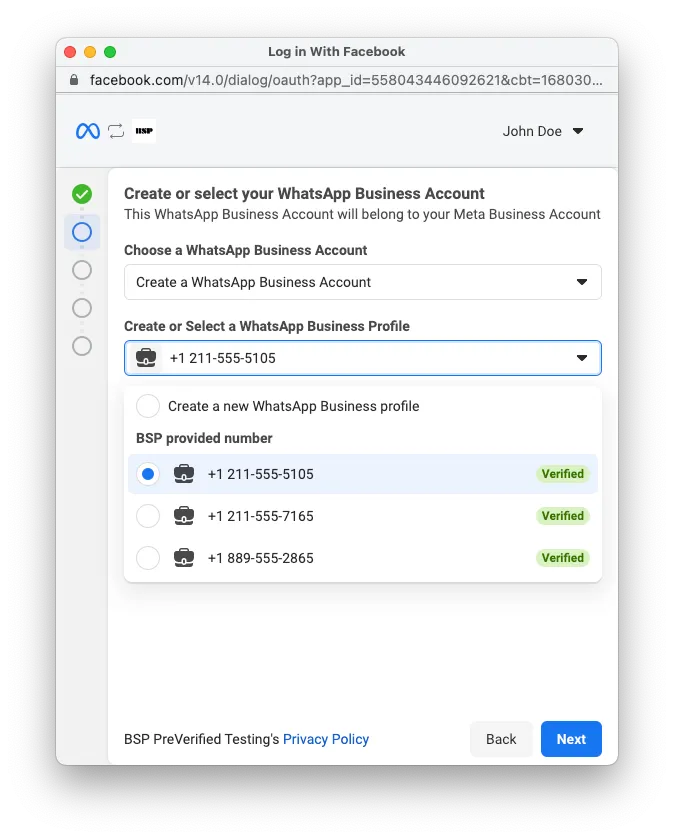
Note that pre-verified business phone numbers are represented by [WhatsApp Business Pre-Verified Phone Number](/documentation/business-messaging/whatsapp/reference/business/whatsapp-business-pre-verified-phone-numbers-api) objects, which are **temporary**. When a business customer selects one of these numbers and completes the Embedded Signup flow, the temporary object will be replaced by a valid [WhatsApp Business Phone Number](/documentation/business-messaging/whatsapp/reference/whatsapp-business-phone-number/whatsapp-business-account-phone-number-api) object. You must [get this new object's ID](#bkmrk-getting-and-register-1) and use it to [register the number](/books/meta-whatsapp/page/registering-business-phone-numbers-developer-documentation) within 90 days.
### Requirements
Your business must be an approved Solution Partner.The app user must be a business admin on the business account that pre-verified business phone numbers are added to.A [User](/books/meta-whatsapp/page/access-tokens-guide-developer-documentation) or [System User access token](/books/meta-whatsapp/page/access-tokens-guide-developer-documentation).The [business\_management](https://developers.facebook.com/docs/permissions/reference/business_management) permission.Business phone numbers [must be valid](/books/meta-whatsapp/page/business-phone-numbers-developer-documentation).
### Limitations
You are responsible for keeping track of who has claimed a pre-verified business phone number.If a pre-verified business phone number is not claimed by an end client in the Embedded Signup flow within 90 days of verification, the number will revert to an unverified status and must be verified again to have its status restored for another 90 days.Unclaimed pre-verified business phone numbers can't be re-verified until 45 days before they are scheduled to revert to an unverified status. This time is indicated by the [`verification_expiry_time` field](/documentation/business-messaging/whatsapp/reference/business/whatsapp-business-pre-verified-phone-numbers-api#fields).If you add a phone number to your pool of pre-verified business phone numbers (Step 1) but do not verify it within 90 days (Step 3), it will be removed from your pool and you will have to add it again.Once a business customer claims a pre-verified business phone number, you have 90 days to register it.
### Displaying pre-verified numbers in Embedded Signup
You can display pre-verified business phone numbers in the Embedded Signup flow using [pre-filled form data](/documentation/business-messaging/whatsapp/embedded-signup/pre-filled-data). To do this, add a `preVerifiedPhone` object with an `ids` property to the `setup` object and assign the IDs of your pre-verified business phone numbers as an array of strings to the `ids` property:
Note that if a pre-verified business phone number with a status of `VERIFIED` is not claimed within 90 days of verification, its status will be set to `UNVERIFIED` but it will still appear in the Embedded Signup flow. If a business customer attempts to claim an unverified number, they must complete verification on their own, which means they must request a one-time password from you.
To prevent this experience, **we recommend that you keep track of when you verified a number and re-verify it before it reverts to an unverified state.**
If you don't know when you last verified a given pre-verified business phone number, request the `code_verification_time` and `verification_expiry_time` fields on the pre-verified business phone number ID. These fields indicate its most recent verification time and its verification expiration time.
### Determining if a number has been claimed through Embedded Signup
See [Getting claimed phone number IDs](#bkmrk-getting-and-register-1).
### Getting and registering claimed phone numbers
Once a business customer claims a pre-verified business phone number, it will be replaced with a verified WhatsApp business phone number (a [WhatsApp Business Phone Number](/documentation/business-messaging/whatsapp/reference/whatsapp-business-phone-number/whatsapp-business-account-phone-number-api#Reading) object with a `code_verification_status` set to `VERIFIED`).
You will have 90 days to [register this number](/books/meta-whatsapp/page/registering-business-phone-numbers-developer-documentation) using its ID. If you do not register it within this time frame, it will revert to an `UNVERIFIED` status and you will have to [request a new verification code](/books/meta-whatsapp/page/registering-business-phone-numbers-developer-documentation) and use the code to [verify the WhatsApp business phone number](/books/meta-whatsapp/page/registering-business-phone-numbers-developer-documentation) again.
#### Getting claimed numbers via session logging
If you are using [session logging](/books/meta-whatsapp/page/implementation-developer-documentation), the ID will be returned in a message event and captured by your event listener. Send this ID to your server and then use it to register the WhatsApp business phone number.
#### Getting claimed numbers via API
Parse for the `display_phone_number` property on each object returned in the result set. If an object in the result set has a `display_phone_number` value that matches a number you used to create a pre-verified business phone number, the object represents the WhatsApp business phone number that has replaced the pre-verified business phone number. Copy this object's ID and use it to register the WhatsApp business phone number.
Alternatively, you can use the same endpoint with `field` expansion to request the `display_phone_number` field and specify the display phone number. For example:
### Get pre-verified business phone numbers
Results are automatically sorted in order of creation time. You can also use field expansion to request the `code_verification_status` field to have the API only return pre-verified business phone numbers with the indicated verification state:
If you have customized Embedded Signup to [bypass the phone number addition screen](/books/meta-whatsapp/page/bypassing-the-phone-number-addition-screen-developer-documentation), you can register pre-verified business phone numbers on an onboarded business customer's WhatsApp Business Account programmatically. To do this, first complete all of the steps to [create a pre-verified number](#bkmrk-creating-pre-verifie-1), then use the pre-verified number ID to complete **Step 1** and **Step 4** in the [Register Phone Numbers](/books/meta-whatsapp/page/registering-business-phone-numbers-developer-documentation) document.
# Bypassing the phone number addition screen | Developer Documentation
## Bypassing the phone number addition screen
Updated: Nov 14, 2025
This document describes how to customize Embedded Signup to bypass the [phone number addition screen](/books/meta-whatsapp/page/customizing-the-default-flow-developer-documentation) (shown below) and [phone number verification screen](/books/meta-whatsapp/page/customizing-the-default-flow-developer-documentation).
If you don’t want your business customers to have to enter or choose a business phone number in the phone number addition screen, you can customize Embedded Signup to skip the screen entirely. However, after a customer successfully completes the customized flow, you must [programmatically create and register their business phone number](/books/meta-whatsapp/page/registering-business-phone-numbers-developer-documentation), or build a UI in your app that allows them to do this.
### Enabling the feature
To enable this feature, set `featureType` to `only_waba_sharing` in the [launch method and callback registration](/books/meta-whatsapp/page/implementation-developer-documentation) portion of the Embedded Signup code:
```
// Launch method and callback registrationconst launchWhatsAppSignup =()=>{
FB.login(fbLoginCallback,{
config_id:'',// your configuration ID goes here
response_type:'code',
override_default_response_type:true,
extras:{
setup:{},
featureType:'only_waba_sharing',// set to only_waba_sharing
sessionInfoVersion:'3',}});}
```
When a business customer successfully completes the flow, the [session logging message event](/books/meta-whatsapp/page/implementation-developer-documentation) will have `event` set to `FINISH_ONLY_WABA`:
# Website field optional | Developer Documentation
## Website field optional
Updated: Nov 4, 2025
This feature is currently only available to approved **Select Solution** and **Premier** Solution Partners. See our [Sign up for partner-led business verification?](https://www.facebook.com/business/help/1091073752691122) Help Center article to learn how to request approval.
By default, the website field is required in the [business portfolio screen](/books/meta-whatsapp/page/customizing-the-default-flow-developer-documentation). If you have been approved for [Partner-led Business Verification](/books/meta-whatsapp/page/partner-led-business-verification-developer-documentation) however, the website field will become optional and will be accompanied by a **My business does not have a website or profile page** checkbox:
When a business customer checks this box and completes the flow, the customer's WhatsApp assets and exchangeable token code will be generated and returned in a [message event](/books/meta-whatsapp/page/implementation-developer-documentation) and [JavaScript response](/books/meta-whatsapp/page/implementation-developer-documentation), as usual.
However, the [account\_update webhook](#bkmrk-webhook-1) that's triggered when the customer completes the flow will have `event` set to `PARTNER_CLIENT_CERTIFICATION_NEEDED`, which indicates that you must verify their business as part of the onboarding process.
Onboard the customer as you normally would, and when you're done, complete the steps described in our [Partner-led Business Verification](/books/meta-whatsapp/page/partner-led-business-verification-developer-documentation) document to verify their business. **The customer will not be able to send messages until their business is verified.**
[Onboarding business customers as a Solution Provider](/books/meta-whatsapp/page/onboarding-business-customers-as-a-solution-partner-developer-documentation)[Onboarding business customers as a Tech Provider](/books/meta-whatsapp/page/onboarding-business-customers-as-a-tech-provider-or-tech-partner-developer-documentation)
Note that if you are unable to verify your customer's business, the customer must first add a website on their own using [Meta Business Suite > Settings > Business info?](https://business.facebook.com/settings/info), or they won't be able to send messages. Once they have added a website and it has been accepted, they can also [verify their business?](https://www.facebook.com/business/help/2058515294227817) on their own, if they choose to do so.
If you don’t want to implement Embedded Signup by adding JavaScript code to your website or customer portal, you can instead use a link that, when clicked, displays a web page describing onboarding steps, and a button that launches the Embedded Signup flow:
Hosted Embedded Signup (“Hosted ES”) can only be used to onboard business customers to Cloud API, and the flow cannot be customized.
### Requirements
You must have completed the steps to become a Solution Partner or Tech Provider.If your app is for messaging, it must be able to send messages, manage templates, and have a properly configured production webhook endpoint.Your app must be subscribed to the [account\_update](/documentation/business-messaging/whatsapp/webhooks/reference/account_update) webhook.Solution Partners must have a line of credit.
You will also need:
Your [system token](/books/meta-whatsapp/page/access-tokens-guide-developer-documentation).Your app secret.
### Step 1: Create a Facebook Login for Business configuration
If you don’t already have a Facebook Login for Business configuration, you must create one. A Facebook Login for Business configuration defines which permissions to request, and what additional information to collect, from business customers who access Embedded Signup.
Navigate to **Facebook Login for Business** > **Configurations** and click the **+ Create configuration** button to access the configuration flow.
Use a name that will help you differentiate this configuration from any others you may create in the future. When completing the flow, be sure to select the WhatsApp Embedded Signup login variation:
For example, if you select the **Catalogs** asset but don’t actually need access to customer catalogs, your customers will likely abandon the flow at the catalog selection screen and ask you for clarification.
### Step 2: Get the Hosted ES URL
Navigate to the **WhatsApp** > **Quickstart** panel and click the **View onboarding** button.
Click the **Copy button** to copy the URL to your clipboard. Map this URL to a button on your website or customer portal that, when clicked, opens the URL in a new browser window.
To see what this looks like, you can load the URL in a new browser window or tab, or click the blue “new window” icon, which does the same thing.
Click the **Get started** button. This is the flow that business customers who click the button on your website or customer portal will see. Complete the flow if you wish.
### Step 3: Capture customer asset IDs
### Step 4: Generate an HMAC-SHA256 hash
Generate an HMAC-SHA256 hash of your app secret and system token.
`` — Your system token.`` — Your app secret ([**App Dashboard**](/apps) > **App settings** > **Basic**)
### Step 5: Get a business token
### Step 7: Onboard the customer
Onboard the business customer by completing the steps in the appropriate onboarding guide below:
[Onboarding business customers as a Tech Provider or Tech Partner](/books/meta-whatsapp/page/onboarding-business-customers-as-a-tech-provider-or-tech-partner-developer-documentation) (skip step 1)[Onboarding business customers as a Solution Partner](/books/meta-whatsapp/page/onboarding-business-customers-as-a-solution-partner-developer-documentation) (skip step 1)
# Automatic Events API | Developer Documentation
## Automatic Events API
Updated: Nov 18, 2025
Business customers who access Embedded Signup can opt in to automatic event identification:
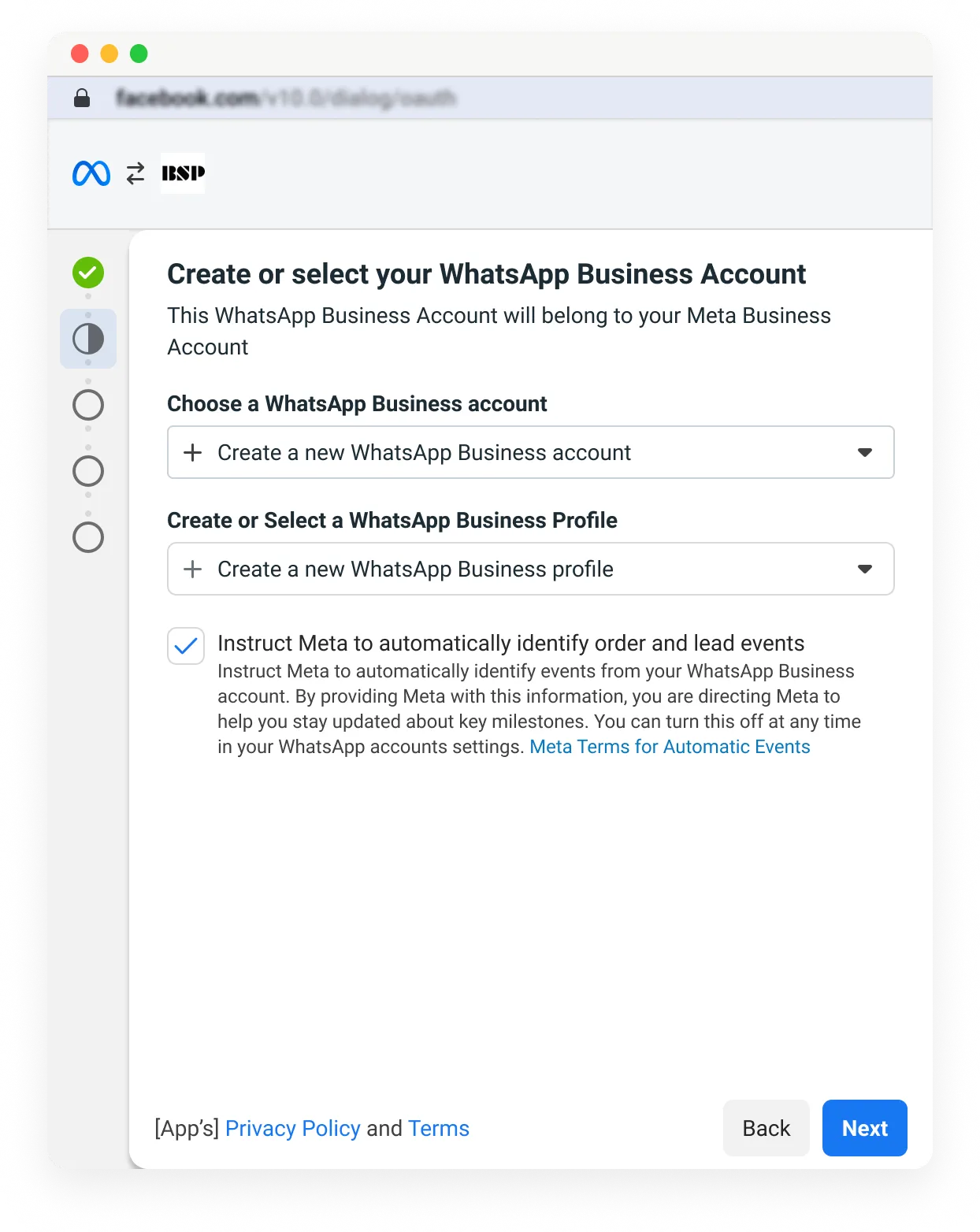
If a business customer opts in, Meta use a combination of regex and natural language processing to analyze the customer’s new message threads originating from Click-to-WhatsApp ads. If our analysis determines that a lead gen or purchase event occurred, an [automatic\_events](/books/meta-whatsapp/page/automatic-events-webhook-reference-developer-documentation) webhook is triggered, describing the event. You can then report the event for the customer using the [Conversions API](https://developers.facebook.com/docs/marketing-api/conversions-api) so the customer can use it on a Meta surface (in 2026, see [Limitations](#bkmrk-limitations-1) below).
To learn more about how this feature works, see these [additional resources](https://l.facebook.com/l.php?u=https%3A%2F%2Fmeta.highspot.com%2Fitems%2F6839e4fecd0bb354418ee7ec&h=AT5hf4PvOjJ2FESmflL5yRwOnD3Vqw7s3Z2dtG9ET8oRj2yl5Y9lzMjyYZ1NkK3joSx93uvicJaJJpmDRP9WUw4eSC3I-BnSPpQGOM5BY3eCQM8HLmzGGzxeMnuc3VV7SAG0m-QtHe47ckg4RAc9zA).
### Limitations
Automatic event identification is a new feature. Your business customers won’t see or use automatic events reported via Conversions API in Meta surfaces until 2026. However, you can surface this information to your customers using your own solution before then. This allows them to gain a deeper understanding of their own customers’ needs, preferences, and ad performance.Automatic event identification is not available to business customers in the European Union, United Kingdom, or Japan.
### Requirements
You have already [implemented](/books/meta-whatsapp/page/implementation-developer-documentation) Embedded Signup and are able to onboard business customers who complete the flow.Your [webhook server](/books/meta-whatsapp/page/create-a-webhook-endpoint-developer-documentation) is successfully processing webhooks.
### Enabling and disabling via Meta Business Suite
Business customers who have already been onboarded via Embedded Signup can enable automatic event identification using Meta Business Suite.
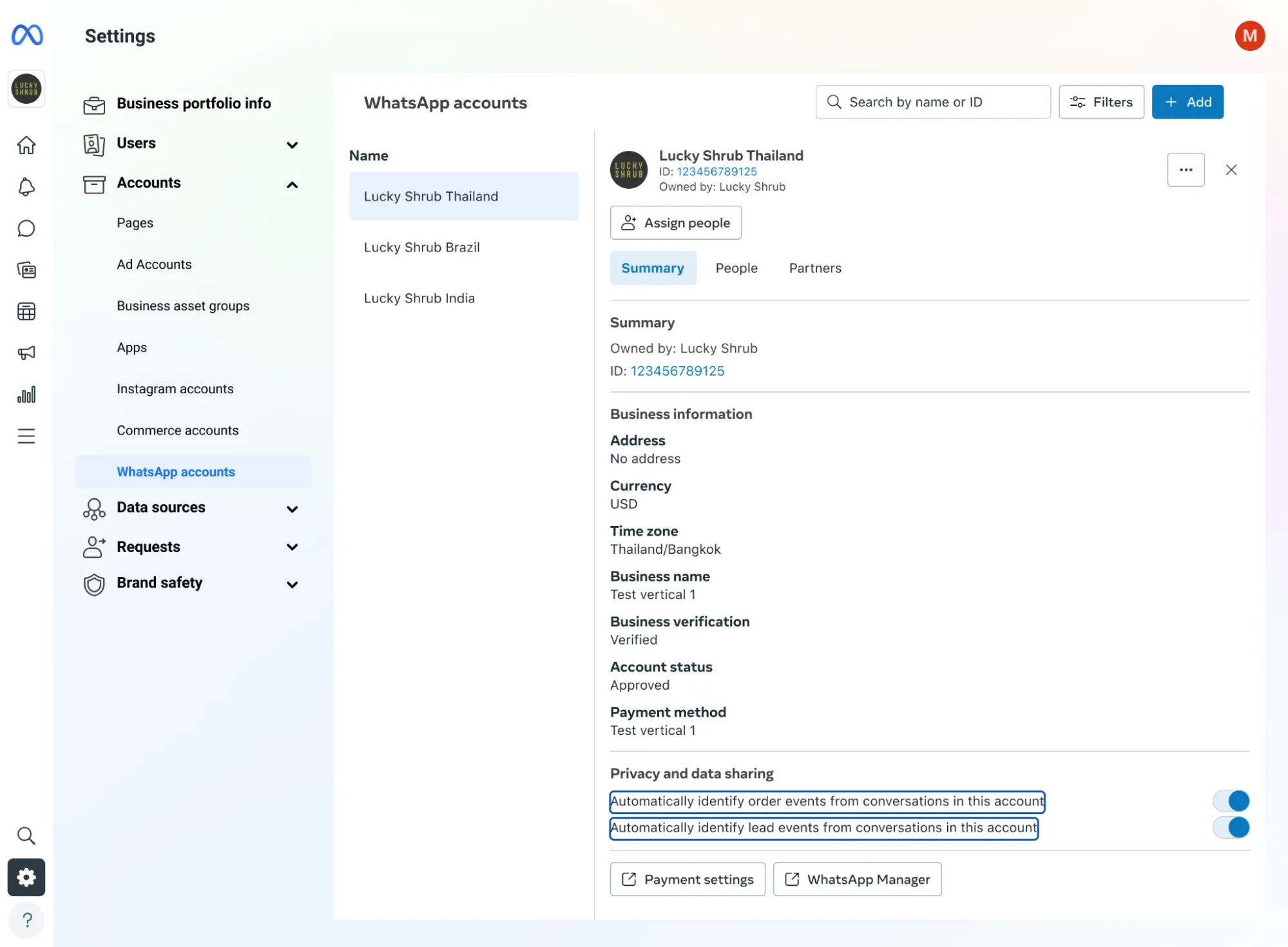
If a business customer who you have already onboarded wants to enable this feature, you can send them these instructions:
Access Meta Business Suite at [https://business.facebook.com](https://business.facebook.com).Navigate to **Settings** > **Accounts** > **WhatsApp accounts** and click your WhatsApp Business Account.Scroll down to **Privacy and data sharing** in the **Summary** tab.Use the “**Automatically identify**... “ toggles to enable or disable automatic event identification as desired.
# Versions | Developer Documentation
## Versions
Updated: Dec 11, 2025
The latest Embedded Signup Version is: `v4`
This guide provides an overview on versioning in Embedded Signup. The versioning cadence will align with Graph API. The versions are not exclusive, partners can gradually roll out a new version of ES to reduce risk. The Embedded Signup version is determined inside of the **extras object** of the implementation code.
**Note: The refreshed UI, currently available in the public preview, will be rolled out to all versions of Embedded Signup in early September.**
[Session Info Logging](/books/meta-whatsapp/page/implementation-developer-documentation)
Products (via login config)
`v4`
`whatsapp_business_app_onboarding`
`app_only_install`
Users can finish with a verified, unverified or no phone number
Can fill business information, no screens will be skipped.
Sent back for all flows
Marketing Messages API for WhatsApp(MM API for WhatsApp)
Click to WhatsApp Ads (CTWA)
Conversions API (WhatsApp)
`v3-public-preview`
`whatsapp_business_app_onboarding`
`app_only_install`
`marketing_messages_lite`
Users can finish with a verified, unverified or no phone number
Can fill business information, no screens will be skipped.
Sent back for all flows
Not supported
`v2-public-preview`
`only_waba_sharing`
`whatsapp_business_app_onboarding`
`marketing_messages_lite`
`app_only_install`
`marketing_messages_lite`
Users will finish with a verified phone number
Can fill business information, no screens will be skipped.
Sent back for all flows
Not supported
`v3`
`whatsapp_business_app_onboarding`
`app_only_install`
`marketing_messages_lite`
Users can finish with a verified, unverified or no phone number
Can fill business information, no screens will be skipped.
Sent back for all flows
Not supported
`v2`
`only_waba_sharing`
`whatsapp_business_app_onboarding`
`marketing_messages_lite`
`marketing_messages_lite`
Users will finish with a verified phone number
Can fill business information and skip screens
Partners are required to add a `sessionInfoVersion` to receive the callback
Not supported
### Version 4
**Released:** October 8, 2025 | [Detailed changes](/books/meta-whatsapp/page/version-4-developer-documentation)
**Login Configuration**
**Extras Configuration**
```
extras:{}// The extras object is purposely empty for v4.
```
To use v4: You need to create a new [Facebook Login for Business Configuration](/books/meta-whatsapp/page/implementation-developer-documentation), and select your desired products. Selecting the products will automatically set you to v4.
Prefilled business data to inject data into Embedded Signup.
``
Indicates a flow or feature to enable.
**Possible Values:**
`app_only_install` - Allows partners to access WABAs via API using a granular token (BISU), without creating a (SUAT)
`marketing_messages_lite` - Enables the [Marketing Messages API for WhatsApp onboarding](/books/meta-whatsapp/page/marketing-messages-api-for-whatsapp-developer-documentation) flow.
``
Indicates a flow or feature to enable.
**Possible Values:**
`whatsapp_business_app_onboarding` - Enables the [WhatsApp Business App phone number onboarding](/books/meta-whatsapp/page/onboarding-whatsapp-business-app-users-aka-coexistence-developer-documentation) custom flow.
Leave **blank** to enable the default onboarding flow.
Prefilled business data to inject data into Embedded Signup.
``
Indicates a flow or feature to enable.
**Possible Values:**
`app_only_install` - Allows partners to access WABAs via API using a granular token (BISU), without creating a (SUAT)
`marketing_messages_lite` - Enables the [MM API for WhatsApp onboarding](/books/meta-whatsapp/page/marketing-messages-api-for-whatsapp-developer-documentation) flow.
``
Indicates a flow or feature to enable.
**Possible Values:**
`whatsapp_business_app_onboarding` - Enables the [WhatsApp Business App phone number onboarding](/books/meta-whatsapp/page/onboarding-whatsapp-business-app-users-aka-coexistence-developer-documentation) custom flow.
`only_waba_sharing` - Enables the [WhatsApp Business App phone number onboarding](/books/meta-whatsapp/page/onboarding-whatsapp-business-app-users-aka-coexistence-developer-documentation) custom flow. Will **NOT** show the new consolidated UI.
`marketing_messages_lite` - Enables the [MM API for WhatsApp onboarding](/books/meta-whatsapp/page/marketing-messages-api-for-whatsapp-developer-documentation) custom flow. Will **NOT** show the new consolidated UI.
Leave **blank** to enable the default onboarding flow.
Prefilled business data to inject data into Embedded Signup.
``
Indicates a flow or feature to enable.
**Possible Values:**
`app_only_install` - Allows partners to access WABAs via API using a granular token (BISU), without creating a (SUAT)
`marketing_messages_lite` - Enables the [MM API for WhatsApp onboarding](/books/meta-whatsapp/page/marketing-messages-api-for-whatsapp-developer-documentation) flow.
``
Indicates a flow or feature to enable.
**Possible Values:**
`whatsapp_business_app_onboarding` - Enables the [WhatsApp Business App phone number onboarding](/books/meta-whatsapp/page/onboarding-whatsapp-business-app-users-aka-coexistence-developer-documentation) custom flow.
Leave **blank** to enable the default onboarding flow.
Head to the [pre-fill screens page](/documentation/business-messaging/whatsapp/embedded-signup/pre-filled-data#injecting-data) to see how to inject customer business data into Embedded Signup.
Placeholder
Description
Example Value
``
Prefilled business data to inject data into Embedded Signup.
``
Indicates a flow or feature to enable.
**Possible Values:**
`app_only_install` - Allows partners to access WABAs via API using a granular token (BISU), without creating a (SUAT)
`marketing_messages_lite` - Enables the [MM API for WhatsApp onboarding](/books/meta-whatsapp/page/marketing-messages-api-for-whatsapp-developer-documentation) flow.
``
Indicates a flow or feature to enable.
**Possible Values:**
`whatsapp_business_app_onboarding` - Enables the [WhatsApp Business App phone number onboarding](/books/meta-whatsapp/page/onboarding-whatsapp-business-app-users-aka-coexistence-developer-documentation) custom flow.
`only_waba_sharing` - Enables the [WhatsApp Business App phone number onboarding](/books/meta-whatsapp/page/onboarding-whatsapp-business-app-users-aka-coexistence-developer-documentation) custom flow.
`marketing_messages_lite` - Enables the [MM API for WhatsApp onboarding](/books/meta-whatsapp/page/marketing-messages-api-for-whatsapp-developer-documentation) custom flow.
Leave **blank** to enable the default onboarding flow.
Release date: October 8, 2025. Check back soon for updates on additional supported products.
To upgrade to the v4 experience: You need to create a new [Facebook Login for Business Configuration](/books/meta-whatsapp/page/implementation-developer-documentation), and select your desired products. Selecting the products will automatically set you to v4.
See [screenshots](/books/meta-whatsapp/page/version-4-developer-documentation) below.
### Overview of v4 changes
Simplified onboarding experience for businesses: You can onboard businesses to more business messaging in a single flow ([see supported products](/books/meta-whatsapp/page/version-4-developer-documentation)).Asset selection, business information, and permissions are each consolidated onto a single page.Asset admins can share assets from other business portfolios.Phone numbers are auto-linked to Facebook Pages when onboarding to ads that click to WhatsApp via the Marketing API.Value proposition and Terms of Service are clearly presented.The [Facebook Login for Business Configuration](/books/meta-whatsapp/page/version-4-developer-documentation) is used to define which products to add into your onboarding flow.
### Learn more
[v4 - Cloud API flow](/books/meta-whatsapp/page/customizing-the-default-flow-developer-documentation)
### Supported products
v4 supports additional business messaging products, ensuring businesses to set up and manage multiple communication channels from a single platform:
**Conversions API (WhatsApp)**: Track and optimize messaging interactions by selecting the messaging platform you want to monitor, enabling enhanced measurement and optimization.**Click to WhatsApp Ads (CTWA)**: Create ads that direct users to initiate WhatsApp conversations with your business.**Click to Messenger Ads (CTM)**: Run advertising campaigns that start conversations with users on Facebook Messenger.**Click to Direct Ads (CTD)**: Launch Instagram ad campaigns that drive users to direct messaging conversations on Instagram Direct.
### All other supported products
v4 continues to support existing business messaging products, allowing businesses to seamlessly manage their established communication channels.
**Cloud API**: Integrate and manage WhatsApp messaging at scale, enabling businesses to send and receive messages, automate workflows, and access advanced messaging features.**Marketing Messages API for WhatsApp**: Utilize to manage optimized marketing messaging , providing tools for message analytics, and enhanced customer engagement.**WhatsApp Business App users (aka “Coexistence”) support**: Onboarding via Coexistence continues to be supported through the [`feature_type` parameter](/books/meta-whatsapp/page/onboarding-whatsapp-business-app-users-aka-coexistence-developer-documentation).**Partner-led Business Verification (PLBV) support**: [PLBV](/books/meta-whatsapp/page/partner-led-business-verification-developer-documentation) enables partners to verify business after onboarding via Embedded Signup. If you are considering this option, ensure you are an approved Select Solution or Premier Solution Partner, and [approved for access](https://www.facebook.com/business/help/1091073752691122).**Automatic Events API**: [Automatic Events API](/books/meta-whatsapp/page/automatic-events-api-developer-documentation) notifies your application about key events that occur through Click-to-WhatsApp ads.
### Use the Facebook Login for Business Configuration to get started with v4
v4 enables you to easily set up and change which products you want to include in your onboarding flow:
Step 1: Navigate to [App Dashboard](https://developers.facebook.com/apps) > **Facebook Login for Business** > **Configurations** to create a new configuration.
Step 2: Select **Embedded Signup** as the login variation.
When selecting products for v4, the flow will automatically select all necessary permissions and assets. You will need advanced access for all permissions automatically selected in the flow. If needed, you can select additional assets and permissions. The table below is a reference on what assets and permissions you need depending on what product you would like to offer.
[Click to WhatsApp (CTWA on Marketing API)](https://developers.facebook.com/docs/marketing-api/ad-creative/messaging-ads/click-to-whatsapp)
WhatsApp Business accounts
Facebook Pages
Ad accounts
ads_read
ads_management
pages_manage_ads
pages_read_engagement
pages_show_list
[Click to Messenger (CTM on MAPI)](https://developers.facebook.com/docs/marketing-api/ad-creative/messaging-ads/click-to-messenger)
Facebook Pages
Ad accounts
ads_management
pages_manage_ads
pages_read_engagement
pages_show_list
[Click to Instagram (CTD on MAPI)](https://developers.facebook.com/docs/marketing-api/ad-creative/messaging-ads/click-to-instagram)
Facebook Pages
Ad accounts
Instagram accounts
ads_management
pages_manage_ads
pages_read_engagement
pages_show_list
[Marketing Messages API for WhatsApp](/books/meta-whatsapp/page/marketing-messages-api-for-whatsapp-developer-documentation)
WhatsApp Business accounts
whatsapp_business_management
whatsapp_business_messaging
[Conversions API for CTWA](https://developers.facebook.com/docs/marketing-api/conversions-api/business-messaging#ads-that-click-to-whatsapp)
WhatsApp Business accounts
Pixels
whatsapp_business_manage_events
[Conversions API for CTM](https://developers.facebook.com/docs/marketing-api/conversions-api/business-messaging#ads-that-click-to-messenger)
Facebook Pages
Ad accounts
Pixels
page_events
[Conversions API for CTD](https://developers.facebook.com/docs/marketing-api/conversions-api/business-messaging#ads-that-click-to-instagram-direct)
Facebook Pages
Ad accounts
Instagram accounts
Pixels
instagram_manage_events
# Version 3 | Developer Documentation
## Version 3
Updated: Dec 11, 2025
We are introducing versioning cadence to Embedded Signup that will align with Graph API. v3 will be released on May 29th for all partners to adopt, which will include the following changes.
### Business customers can now complete the flow without a phone number
Previously in v2, you would always be required to register a verified phone number (unless partners enabled the bypass phone numbers flow) to complete the flow. You can now complete the flow with statuses like verified, unverified, or no phone number at all. You can either go through Embedded Signup again, go on WhatsApp manager, or the partner can utilize [API calls to verify the number](/books/meta-whatsapp/page/registering-business-phone-numbers-developer-documentation).
To determine the status of the phone number, visit the documentation on session info logging.
### Session Info Logging is automatically enabled
All partners who are on v3 will have session info logging enabled automatically. Partners will still have to add an event listener on the same window of Embedded Signup to process the incoming information.
### Adding the `features` property in the configuration
You can now utilize the features property to enable a range of features in Embedded Signup. The property allows you to add multiple features instead of just one in the featureType property from v2.
#### v3 request syntax
```
// Launch method and callback registration
const launchWhatsAppSignup = () => {
FB.login(fbLoginCallback, {
config_id: '', // your configuration ID goes here
response_type: 'code',
override_default_response_type: true,
extras: {
version: 'v3'
setup: {},
features: [],
featureType: ''
}
}
```
Placeholder
Description
Example
``
Name of feature to enable in ES configuration.
Note: You can leave the value blank to follow the default flow.
Values can be:
`app_only_install` — Allows partners to only access WABAs via API using a [business token](/books/meta-whatsapp/page/access-tokens-guide-developer-documentation).`marketing_messages_lite` — Enables the MM API for WhatsApp onboarding flow.
Name of feature types to enable in ES configuration.
Value can only be `whatsapp_business_app_onboarding`, which enables the WhatsApp Business App phone number onboarding custom flow.
`whatsapp_business_app_onboarding`
### Removal of multiple `featuretype` options in the ES Configuration
In [v2](/books/meta-whatsapp/page/versions-developer-documentation), business customers enabling a custom flow would be required to complete the embedded sign up multiple times depending on the number of featureTypes added to the configuration.
#### Removing `only_waba_sharing`
The [bypass phone number screen flow](/books/meta-whatsapp/page/bypassing-the-phone-number-addition-screen-developer-documentation) allows for a streamlined onboarding process where the WABA is shared without the need to go through the phone number setup steps. This flow will no longer be supported in v3. If you want to use the flow, use v2.
#### Removing `marketing_messages_lite`
Marketing Messages API for WhatsApp will still be supported through the features argument. If you would still like to use the flow, update your configuration to the following.
#### Removing `coexistence`
To launch the WhatsApp Business App Onboarding flow, partners will have to use `whatsapp_business_app_onboarding` instead of `coexistence`.
### Embedded Signup Pre-Filled will no longer skip screens.
Partners will still be able to pre-fill business information in Embedded Signup, but the business customer will not have the option to bypass any screens in the flow. For partners who would still like to use the flow, you should stick to using v2.
### Measurement Partners must remain on v2
Please note that Measurement product onboarding will only be supported on v2 for the time being. Continuing to support Measurement partners is important and will be supported in a future version.
# Version 3 Public Preview | Developer Documentation
## Version 3 Public Preview
Updated: Nov 4, 2025
We are updating the UI for Embedded Signup. You can get a preview of what it looks like by enabling v3-public-preview. The new version will give partners a preview on what’s to come for Embedded Signup in the near future. Functionality between v3-public-preview and v3 are identical; the key difference is a simplified UI on v3-public-preview.
#### Authentication screen
This screen authenticates business customers using their Facebook or Meta Business Suite credentials.
This screen indicates that we successfully created and associated all of the business customer’s assets (business portfolio, WABA, phone number display profile, and business phone number).
When the customer clicks Finish, a message event will be triggered, containing the customer’s WABA ID and business phone number ID, which you must then use to onboard the customer to the platform.
# Version 2 Public Preview | Developer Documentation
## Version 2 Public Preview
Updated: Nov 4, 2025
We are updating the UI for Embedded Signup. You can get a preview of what it looks like by enabling v2-public-preview. The new version will give partners a preview on what’s to come for Embedded Signup in the near future. Functionality between v2-public-preview and v2 are identical; the key difference is a simplified UI on v2-public-preview.
#### Authentication screen
This screen authenticates business customers using their Facebook or Meta Business Suite credentials.
This screen indicates that we successfully created and associated all of the business customer’s assets (business portfolio, WABA, phone number display profile, and business phone number).
When the customer clicks Finish, a message event will be triggered, containing the customer’s WABA ID and business phone number ID, which you must then use to onboard the customer to the platform.
You can configure Embedded Signup so that only [business tokens](/books/meta-whatsapp/page/access-tokens-guide-developer-documentation) can be used to access assets owned by customers onboarded via the flow. This approach offers enhanced security by reducing risk associated with [system tokens](/books/meta-whatsapp/page/access-tokens-guide-developer-documentation), flexibility in simplifying onboarding for other Meta assets, and scalability to support a larger number of onboardings. By using a granular token, you can also reduce the negative impact in case of a compromised token, making it a more secure and efficient way to manage your business customer assets.
Note that App-Only Install can't be used to [onboard WhatsApp Business app users](/books/meta-whatsapp/page/onboarding-whatsapp-business-app-users-aka-coexistence-developer-documentation).