# Payments
# Payments API — India | Developer Documentation
## Payments API — India
Updated: Nov 26, 2025
The Payments API enables you to accept payments from your customers through all UPI apps installed on their devices and other payment methods like cards, NetBanking, and wallets via WhatsApp.
You can send invoice (`order_details`) messages to your customers, then get notified about payment status updates through webhook notifications from the payment gateway.
### Know the differences in the models of integration
The integration model you use depends on your payment gateway. The two models differ in the following ways:
**[UPI Intent Mode](/documentation/business-messaging/whatsapp/payments/payments-in/upi-intent)**: This mode can be used with any Payment Gateway provided they support UPI Intent generation.**[Payment Gateway Deep Integration Mode](/books/meta-whatsapp/page/receive-payments-via-payment-gateways-on-whatsapp-developer-documentation)**: Currently supported for Razorpay, PayU, Billdesk and Zaakpay only.| User Experience | UPI Intent Mode | Payment Gateway Deep Integration Mode |
|---|
**Native support for “Other payment methods”** For example: Netbanking, cards, wallets | Alternative: Send payment links | |
**Native support for UPI Intent** | | |
**Native Payment Status Notification** | | |
| Integration Features | UPI Intent Mode | Payment Gateway Deep Integration Mode |
|---|
**Refunds from WhatsApp APIs** | | |
**Payment Status from WhatsApp webhooks** | | |
### Prerequisites for integration
#### Full payment gateway deep integration mode
### Example use cases and features needed
| Use case | Essential Feature Set |
|---|
**Buying Tickets** For example: Metro, bus, event tickets |
Order Details MessagePayment Status Webhook/APIOrder Status MessageRefund |
**Payment Reminders** Example: Bill payments, subscription renewals, insurance renewals |
Order Details TemplatePayment Status Webhook/APIOrder Status MessageRefund |
## Onboarding APIs
Updated: Nov 14, 2025
To receive payments on WhatsApp, you must have a payment configuration linked to the corresponding WhatsApp Business Account. Each payment configuration is associated with a unique name. As part of the order_details message, you can specify the payment configuration to use for a specific checkout.
Onboarding APIs allows you to programatically perform certain operations:
Get all payment configurations linked to a WhatsApp Business Account.Get a specific payment configuration linked to a WhatsApp Business Account.Create a payment configuration.Regenerate payment gateway OAuth link to link payment configuration to a payment gateway.Remove a payment configuration.### Payment Configuration Webhook
Businesses receive updates via WhatsApp webhooks when the status of the payment configuration changes.
To receive webhook, Businesses must subscribe to “payment_configuration_update” event for their respective application.
Webhook contains the following fields:
| Field | Description |
|---|
`configuration_name` string | **Required.** The name of the payment configuration to be used in the Order Details message. |
| **Required.** Provider name of the payment configuration. Must be one of [“razorpay”, “payu”, “zaakpay”]. |
| **Required.** Payment gateway account merchant ID. |
| **Required.** Status of the payment configuration. Must be one of [“Active”, “Needs_Connecting”, “Needs_Testing”]. |
`created_timestamp` integer | **Required.** Time when payment configuration was created. |
`updated_timestamp` integer | **Required.** Time when payment configuration was last updated. |
#### Sample Payment Configuration Webhook
###### WhatsApp Payments Terms of Service Acceptance Pending
If you see the following error, accept the WhatsApp Payments terms of service using the link provided in the error message before trying again.
For all other errors that can be returned and guidance on how to handle them, see [WhatsApp Cloud API, Error Codes](/documentation/business-messaging/whatsapp/support/error-codes).
## Receive UPI Payments Through WhatsApp(Recommended)
Updated: Mar 11, 2026
For businesses working with Billdesk or Zaakpay payment gateways, use the deeper integration with these PGs. Refer to [Payment Gateway Integration Guide](/books/meta-whatsapp/page/receive-payments-via-payment-gateways-on-whatsapp-developer-documentation)
For businesses working with Razorpay, PayU, or Cashfree payment gateways, use a faster integration path. Refer to [Enhanced Payment Links](/books/meta-whatsapp/page/enhanced-payment-links-developer-documentation)
This is the recommended UPI Intent integration. Using the older payment configuration method? [See previous docs](/documentation/business-messaging/whatsapp/payments/payments-in/upi-intent/) and plan to migrate to dynamic VPA.
Your business can enable customers to pay for their orders using all the UPI Apps installed on their devices via WhatsApp. Businesses can send customers invoice (`order_details`) messages, then get notified about payment status updates via webhook notifications from Payment Gateway.
Currently, customers browse business catalogs, add products to cart, and send orders in with our set of commerce messaging solutions, which includes [Single Product Message, Multi Product Message, and Product Detail Page](/books/meta-whatsapp/page/share-products-with-whatsapp-users-developer-documentation).
With the WhatsApp Payments API, businesses can send customers a bill so the customer can complete their order with all the UPI Apps.
The business must send an `order_details` message for the consumer to initiate payment. This type of message is a new type of interactive message, which always contains the same 4 main components: **header**, **body**, **footer**, and **action**. Inside the **action** component, the business includes all the information needed for the customer to complete their payment.
An order_details message contains the following fields that are worth noting:
`upi_intent_link` - Fields that will be supplied by your payment gateway and denote where a payment will be sent.`reference_id` - This is used to track the lifecycle of the order. Payment statuses are published against this ID. This could be order-id or transaction-id used to create the upi-intent at payment gateway.Once the message is sent, the business waits for a payment or transaction status updates directly from Payment Gateway. Upon receiving payment signal for an order, Business should relay this payment signal to consumer through interactive order status (`order_status`) message.
Updating users about the payment signal is important as this message updates the order details message and order details view for the consumer reflecting the order confirmation from the merchant. This is shown with an example in subsequent sections.
In the WhatsApp customer app, the purchase flow has the following steps:
Customer sends an order with selected products to the business, or the business identifies the products that the customer has shown interest to purchase.
After receiving the order/identifying the product, if a merchant accepts payment methods other than UPI, such as credit cards and payment wallets, then the merchant will send a message to the user to get their preferred payment method for the order.
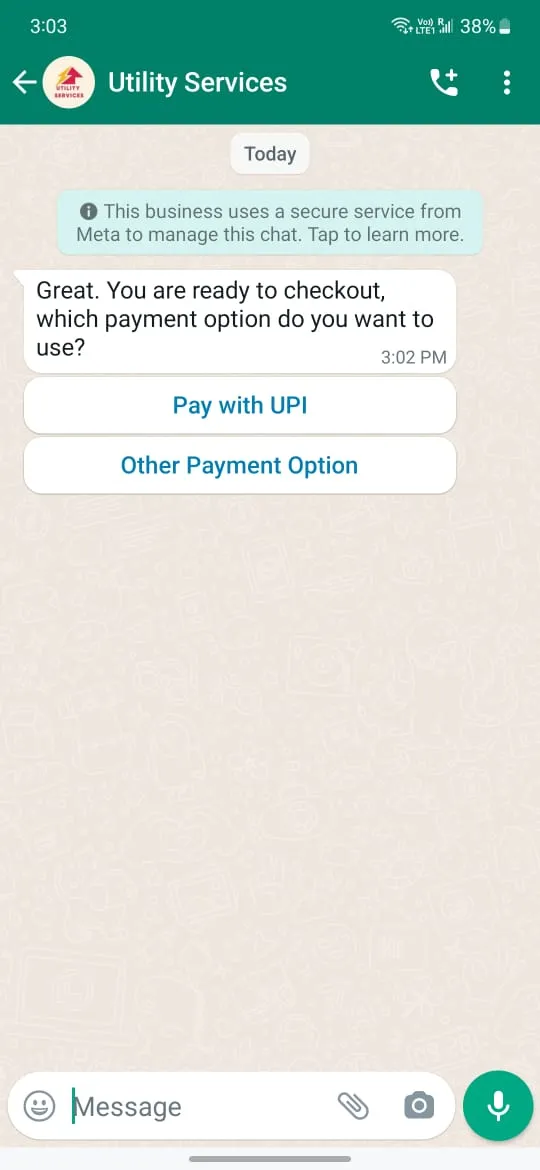
When consumers want to pay using UPI payment method, then merchants should retrieve the UPI payment intent by calling Payment Gateway. Merchant needs to use UPI intent to construct order details messages and send it to the consumer.
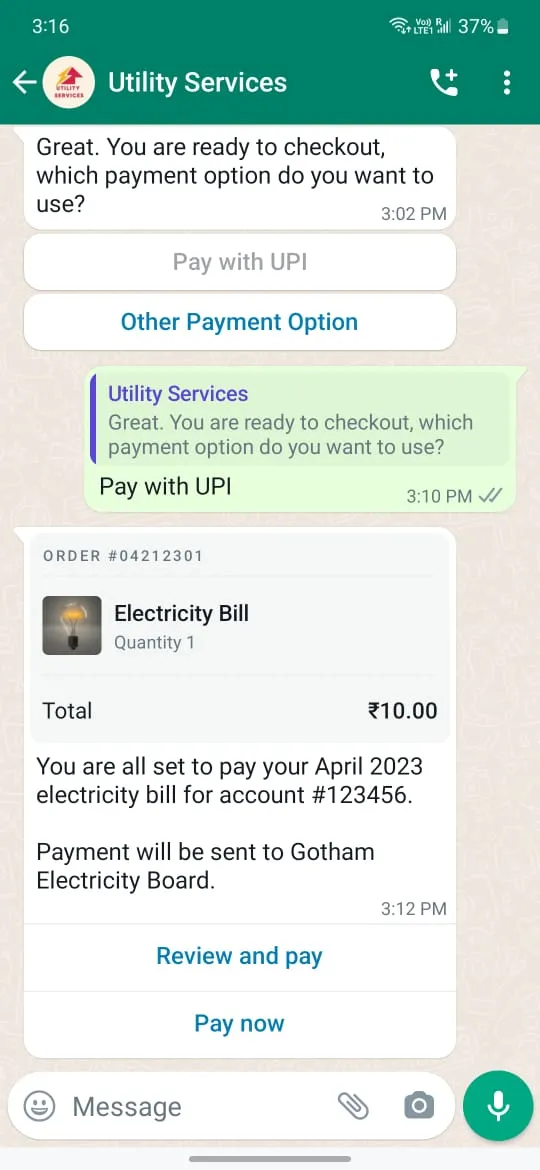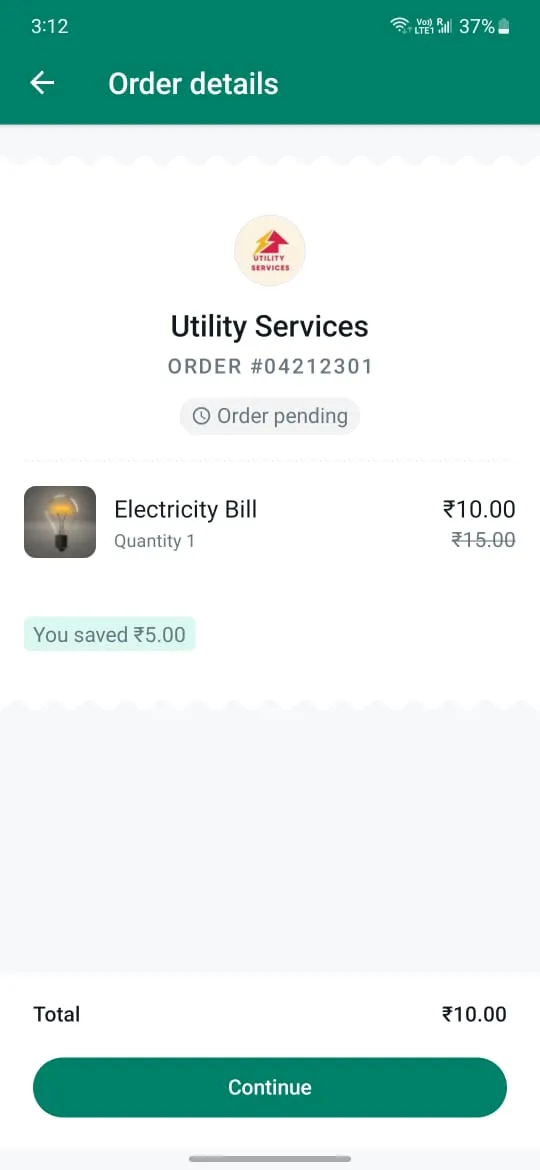
When the consumer taps the Pay now/continue button, they will be given the option to choose UPI payment Apps - WhatsApp or any other UPI payments apps. Consumers may choose any UPI option to pay for the order.
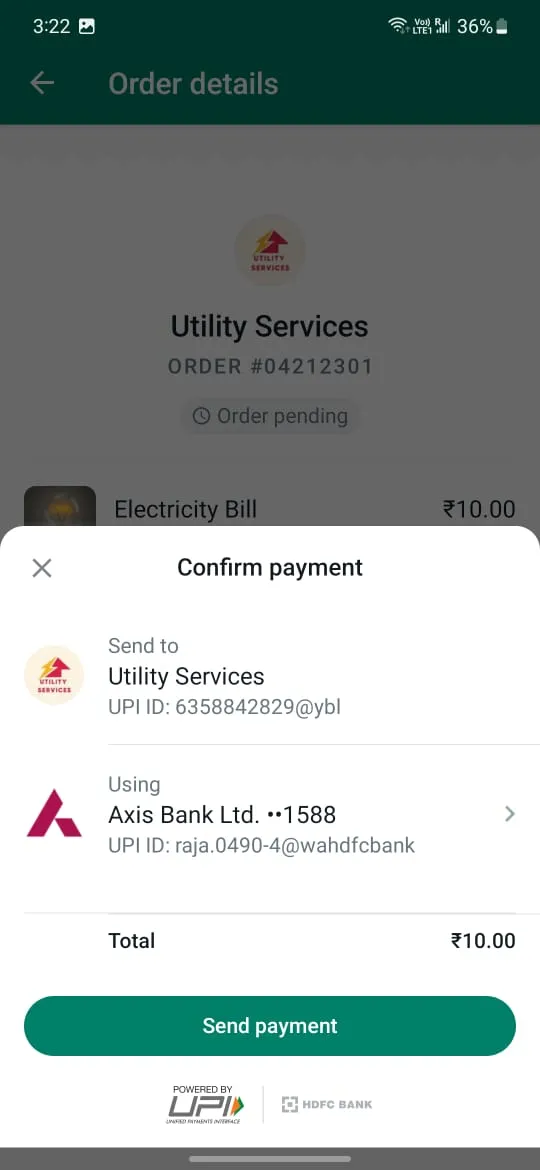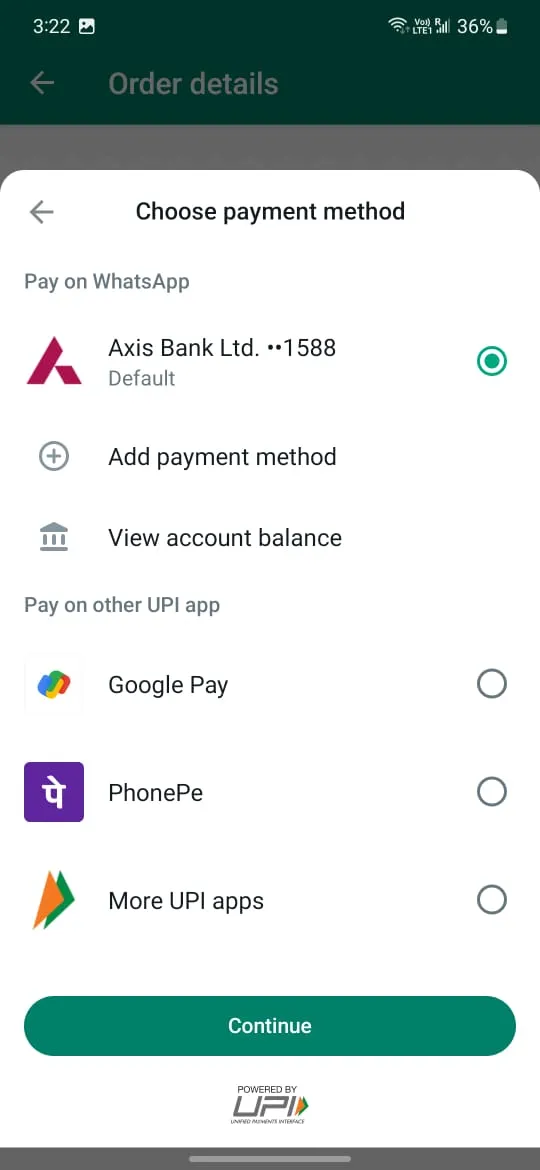
Consumer pays for the order and the payment method is saved for the future and automatically selected for the next payment transaction. Also, one quick note is the order details screen order-status will continue to show “Order pending” until the merchant sends order status interactive message.
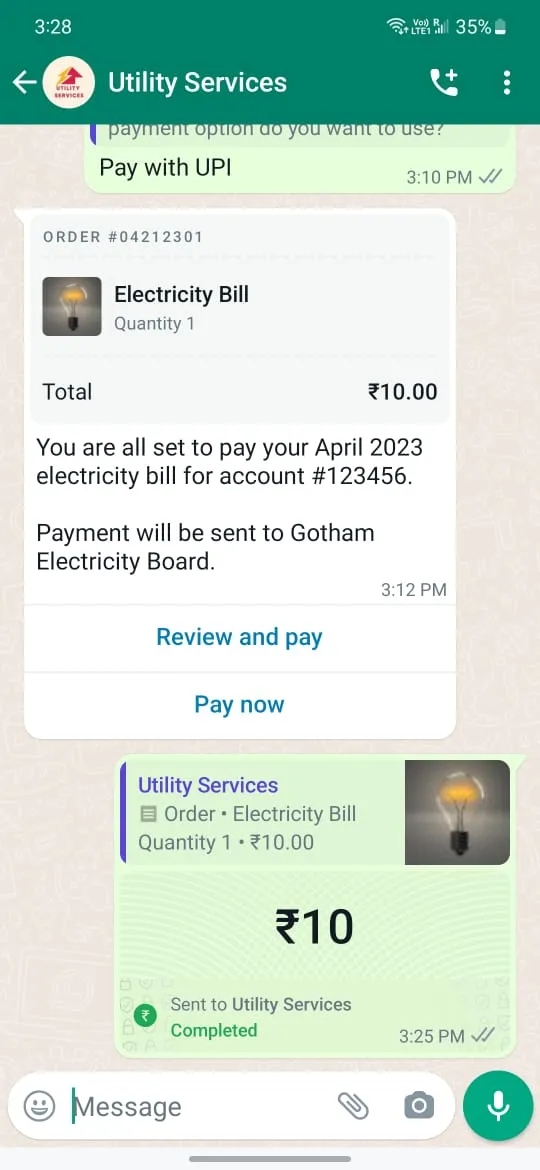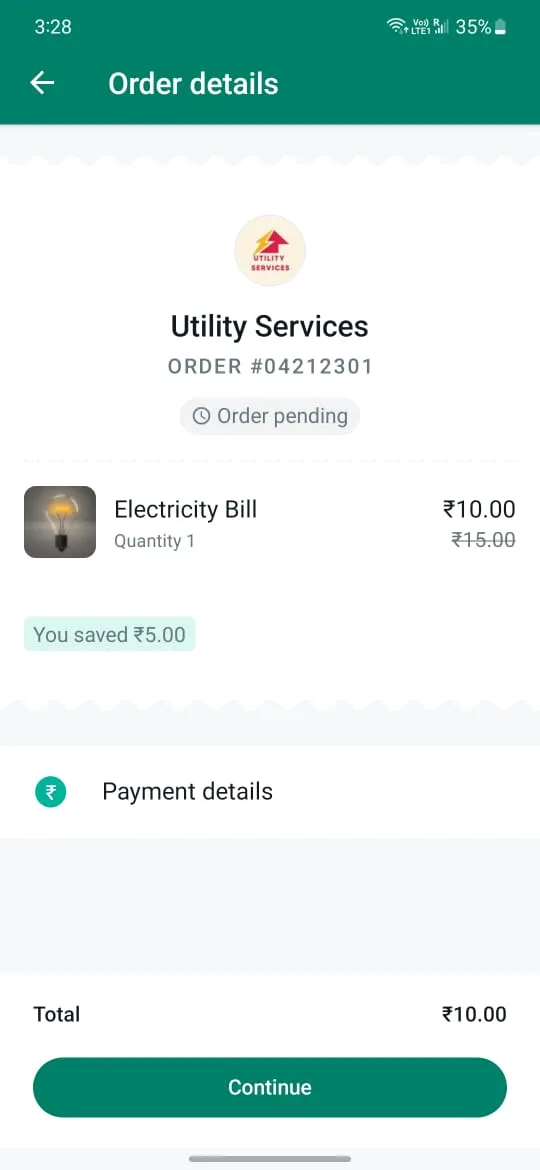
Once the payment is complete, the business receives a notification from Payment Gateway and the merchant needs to send order status updates to the consumer client notifying consumers about the progress to the order, this will update the order details message CTAs and order details screen - order status description.
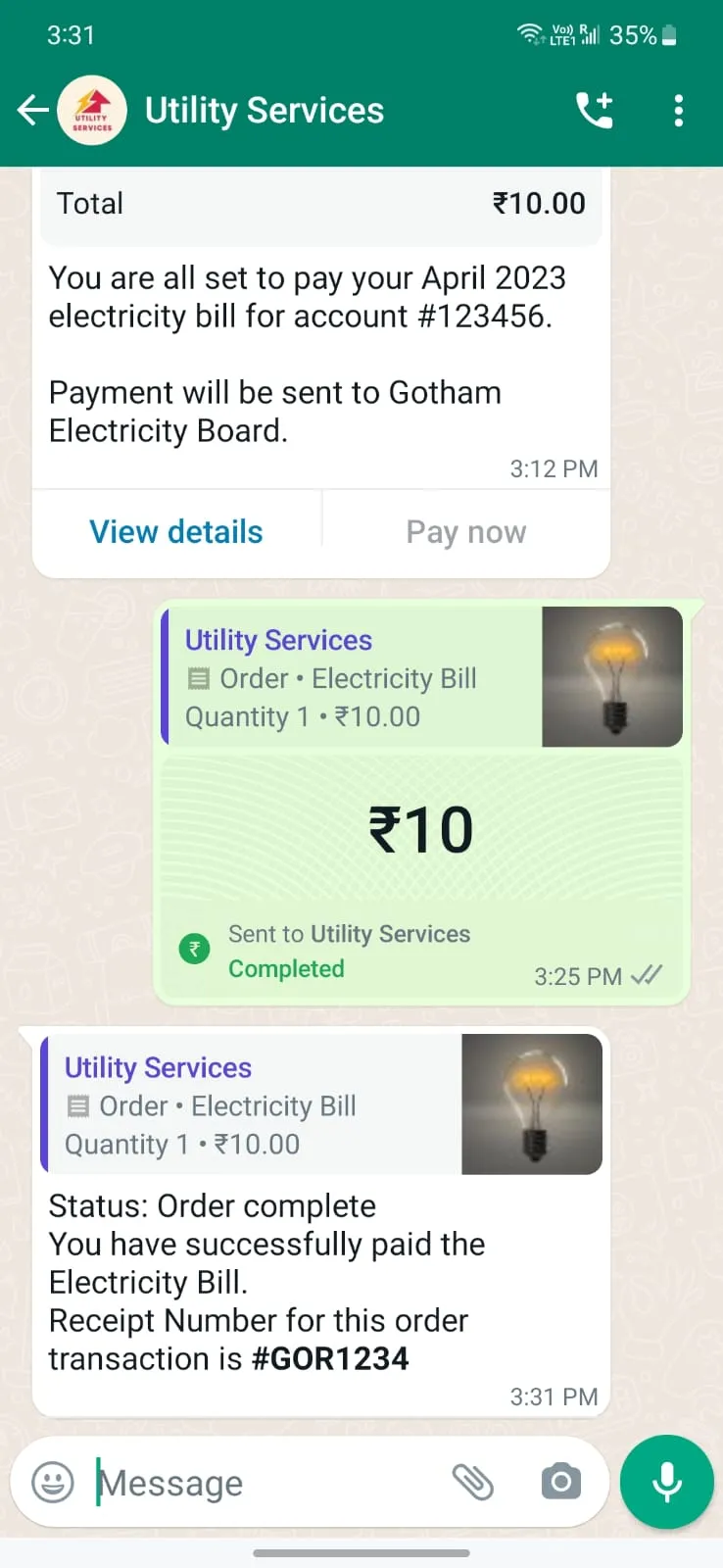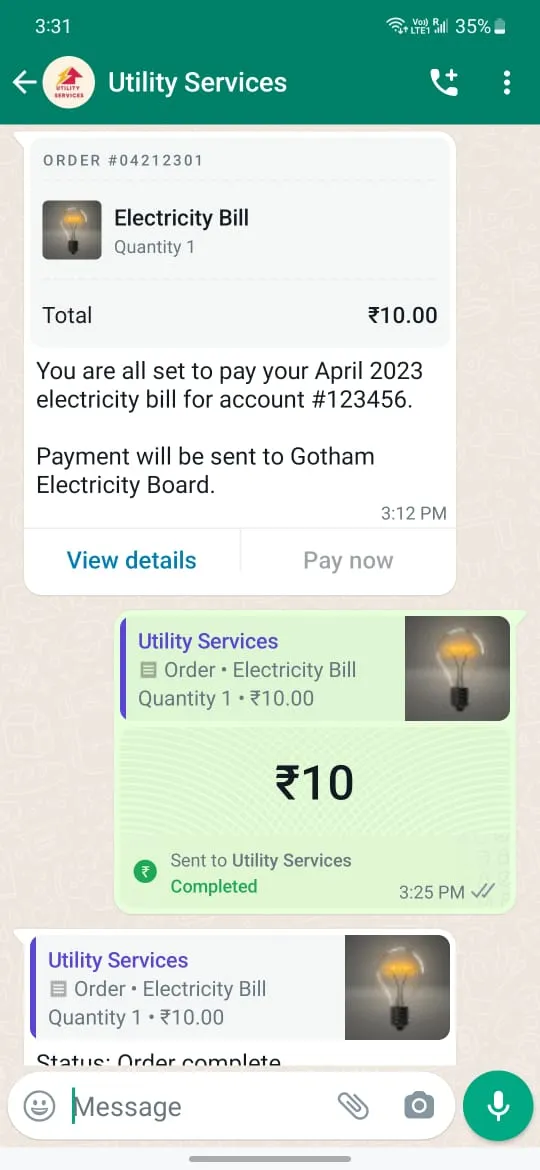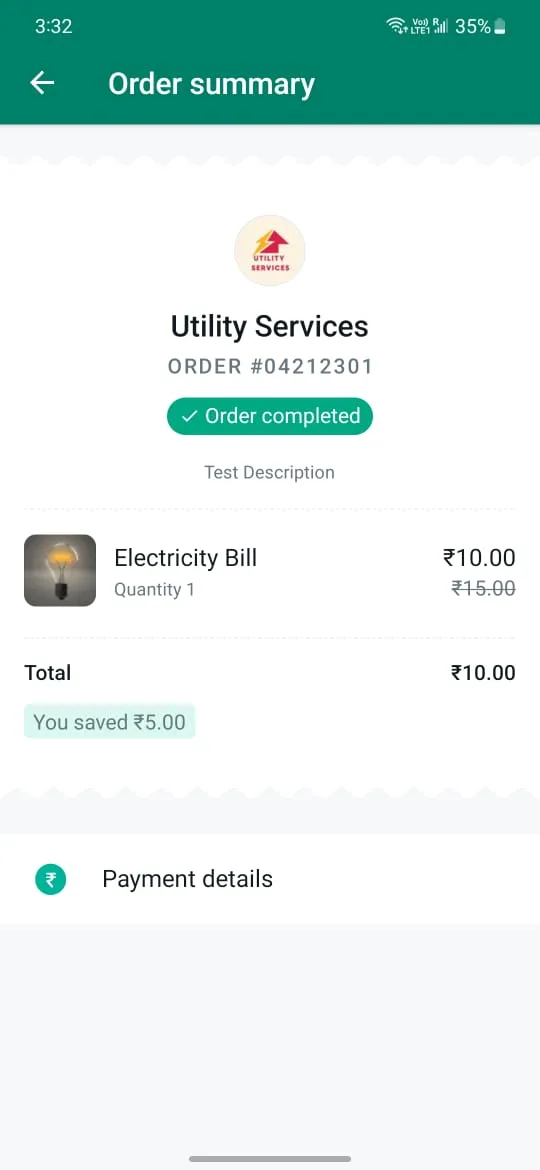
The steps outlined below assume that the business is about to send order details message to the consumer client.
The following sequence diagram demonstrates the typical integration flow for WA Payments API: 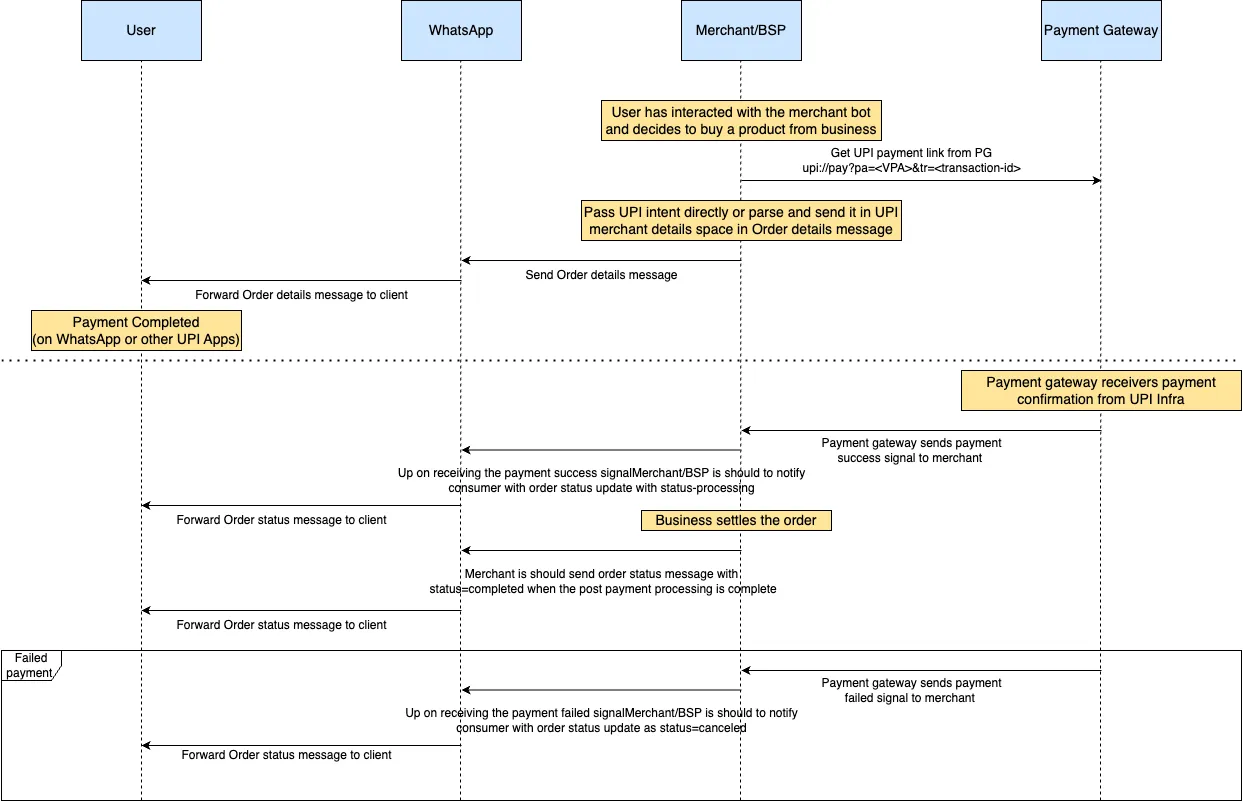
#### Step 1: Get UPI Intent from Payment Gateway
Once the consumer has expressed their interest to purchase an item using UPI payment method, merchant needs to call payment gateway to create a UPI intent, the following is the sample UPI intent link:
```
upi://pay?pa=abc@psp&pn=ABC&tr=877376394&
am=10.00&cu=INR&mode=00&purpose=00&mc=5399&tn=877376394
```
Merchant/Partner could send the entire UPI intent as it is in the `upi_intent_link` type payload. These will be discussed in detail below.
#### Step 2: Assemble the Interactive Object
To send an `order_details` message, businesses must assemble an [interactive object](/books/meta-whatsapp/page/sending-messages-developer-documentation) of type `order_details` with the following components:
| Object | Description |
|---|
| **Required.** Must be “order_details”. |
| **Optional.** Header content displayed on top of a message. If a header is not provided, the API uses an image of the first available product as the header |
| **Required.** An object with the body of the message. The object contains the following field: `text` string **Required** if `body` is present. The content of the message. Emojis and markdown are supported. Maximum length is 1024 characters |
| **Optional.** An object with the footer of the message. The object contains the following fields: `text` string **Required** if `footer` is present. The footer content. Emojis, markdown, and links are supported. Maximum length is 60 characters |
| **Required.** An action object you want the user to perform after reading the message. This action object contains the following fields: `name` string **Required**. Must be “review\_and\_pay”`parameters` object See [Parameters Object](#bkmrk-parameters-object-1) for information |
| Object | Description |
|---|
| **Required.** Unique identifier for the order or invoice provided by the business. It is case sensitive and cannot be an empty string and can only contain English letters, numbers, underscores, dashes, or dots, and should not exceed 35 characters. The reference_id must be unique for each order_details message for a given business. If there is a need to send multiple order_details messages for the same order, it is recommended to include a sequence number in the reference_id (for example, “BM345A-12”) to ensure reference_id uniqueness. |
| **Required.** The type of goods being paid for in this order. Current supported options are `digital-goods` and `physical-goods` |
| **Required for shipped physical-goods.** An array of beneficiaries for this order. A beneficiary is an intended recipient for shipping the physical goods in the order. It contains the following fields: Beneficiary information isn’t shown to users but is needed for legal and compliance reasons. `name` string **Required.** Name of the individual or business receiving the physical goods. Cannot exceed 200 characters`address_line1` string **Required.** Shipping address (Door/Tower Number, Street Name etc.). Cannot exceed 100 characters`address_line2` string **Optional.** Shipping address (Landmark, Area, etc.). Cannot exceed 100 characters`city` string **Required.** Name of the city.`state` string **Required.** Name of the state.`country` string **Required.** Must be “India”.`postal_code` string **Required.** 6-digit zip code of shipping address. |
| **Required.** The currency for this order. Currently the only supported value is `INR`. |
| **Required.** The `total_amount` object contains the following fields: `offset` integer **Required.** Must be `100` for `INR`.`value` integer **Required.** Positive integer representing the amount value multiplied by offset. For example, ₹12.34 has value 1234.`total_amount.value` must be equal to `order.subtotal.value` + `order.tax.value` + `order.shipping.value` - `order.discount.value`. |
| **Required.** See [Payment Settings object](#bkmrk-payment-settings-obj-1) for more information. |
| **Required.** See [order object](#bkmrk-order-object-1) for more information. |
##### Payment Settings Object
You can pass UPI intent as it is or parse the UPI intent parameters and pass them in a json structure. We support both the formats, so following are the two variants of payments settings objects:
###### Payment Settings Object for UPI intent link
| Object | Description |
|---|
| **Required.** Must be set to **“upi\_intent\_link”** |
| **Required.** An object that describes payment account information: `link` string **Required.** The UPI intent that is generated from Payment gateway. The UPI intent only supports the following “`&`” separated attributes- pa, pn, mc, purpose and trExample: `upi://pay?pa=merchant_vpa&pn=Merchant_Name&mc=merchant_category_code&purpose=purpose_code&tr=pg_generated_id` |
| Object | Description |
|---|
| **Required.** Only supported value in the `order_details` message is `pending`. In an `order_status` message, `status` can be: `pending`, `captured`, or `failed`. |
| **Optional.** Only supported value is `quick_pay`. When this field is passed in we hide the “Review and Pay” button and only show the “Pay Now” button in the order details bubble. |
| **Required.** An object with the list of items for this order, containing the following fields: `retailer_id` string **Optional.** Content ID for an item in the order from your catalog.`name` string **Required.** The item’s name to be displayed to the user. Cannot exceed 60 characters`image` object **Optional.** Custom image for the item to be displayed to the user. See [item image object](#bkmrk-item-image-object-1) for informationUsing this image field will limit the items array to a maximum of 10 items and this cannot be used with `retailer_id` or `catalog_id`. `amount` amount object with value and offset -- refer total amount field above **Required.** The price per item`sale_amount` amount object **Optional.** The discounted price per item. This should be less than the original amount. If included, this field is used to calculate the subtotal amount`quantity` integer **Required.** The number of items in this order, this field cannot be decimal, has to be integer.`country_of_origin` string **Required** if `catalog_id` is not present. The country of origin of the product`importer_name` string **Required** if `catalog_id` is not present. Name of the importer company`importer_adress` string **Required** if `catalog_id` is not present. Address of importer company |
| **Required.** The value **must be equal** to sum of `order.amount.value` * `order.amount.quantity`. Refer to `total_amount` description for explanation of `offset` and `value` fields The following fields are part of the `subtotal` object: `offset` integer **Required.** Must be `100` for `INR``value` integer **Required.** Positive integer representing the amount value multiplied by offset. For example, ₹12.34 has value 1234 |
| **Required.** The tax information for this order which contains the following fields: `offset` integer **Required.** Must be `100` for `INR``value` integer **Required.** Positive integer representing the amount value multiplied by offset. For example, ₹12.34 has value 1234`description` string **Optional.** Max character limit is 60 characters |
| **Optional.** The shipping cost of the order. The object contains the following fields: `offset` integer **Required.** Must be `100` for `INR``value` integer **Required.** Positive integer representing the amount value multiplied by offset. For example, ₹12.34 has value 1234`description` string **Optional.** Max character limit is 60 characters |
| **Optional.** The discount for the order. The object contains the following fields: `offset` integer **Required.** Must be `100` for `INR``value` integer **Required.** Positive integer representing the amount value multiplied by offset. For example, ₹12.34 has value 1234`description` string **Optional.** Max character limit is 60 characters`discount_program_name` string **Optional.** Text used for defining incentivised orders. If order is incentivised, the merchant needs to define this information. Max character limit is 60 characters |
| **Optional.** Unique identifier of the Facebook catalog being used by the business. If you do not provide this field, you must provide the following fields inside the items object: `country_of_origin`, `importer_name`, and `importer_address` |
| **Optional.** Expiration for that order. Business must define the following fields inside this object: `timestamp` string – UTC timestamp in seconds of time when order should expire. Minimum threshold is 300 seconds `description` string – Text explanation for expiration. Max character limit is 120 characters |
| Object | Description |
|---|
| **Required.** A link to the image that will be shown to the user. Must be an `image/jpeg` or `image/png` and 8-bit, RGB or RGBA. Follows same requirements as image in [media](/books/meta-whatsapp/page/media-developer-documentation) |
By the end, the interactive object should look something like this for a merchant upi intent type catalog-based integration:
#### Step 3: Add Common Message Parameters
Once the interactive object is complete, append the other parameters that make a message: `recipient_type`, `to`, and `type`. Remember to set the `type` to `interactive`.
These are [parameters common to all message types](/books/meta-whatsapp/page/sending-messages-developer-documentation).
#### Step 4:Make a POST Call to Messages Endpoint
Make a POST call to the [`/[PHONE_NUMBER_ID]/messages`](/books/meta-whatsapp/page/sending-messages-developer-documentation) endpoint with the `JSON` object you have assembled. If your message is sent successfully, you get the following response:
###### WhatsApp Payments Terms of Service Acceptance Pending
If you see the following error, accept the WhatsApp Payments terms of service using the link provided in the error message before trying again.
For all other errors that can be returned and guidance on how to handle them, see [WhatsApp Cloud API, Error Codes](/documentation/business-messaging/whatsapp/support/error-codes).
#### Step 5: Consumer Pays for the Order
Consumers can pay using WhatsApp payment method or using any UPI supported app that is installed on the device.
#### Step 6: Get Notified About Transaction Status Updates from payment gateway
Businesses receive updates to the invoice via payment gateway webhooks, when the status of the user-initiated transaction changes. The unique identifier reference-id passed in `order_details` message can be used to map the transaction to the consumer invoice or interactive order details message.
Please refer to our PG integration guide for the exact payment signals. [Cashfree](/books/meta-whatsapp/page/cashfree-payment-gateway-integration-guide-developer-documentation) and [CCAvenue](/books/meta-whatsapp/page/cashfree-payment-gateway-integration-guide-developer-documentation)
#### Step 7: Update order status
Upon receiving transaction signals from payment gateway through webhook, the business must update the order status to keep the user up to date. Currently we support the following order status values:
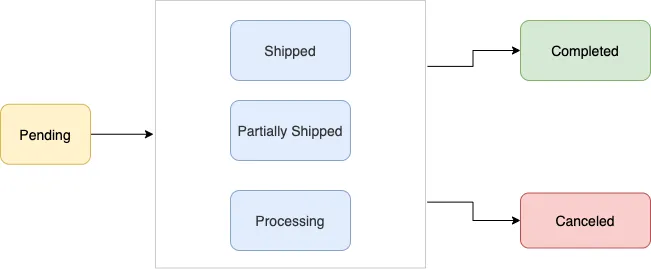
| Value | Description |
|---|
| User has not successfully paid yet |
| User payment authorized, merchant/partner is fulfilling the order, performing service, etc. |
| A portion of the products in the order have been shipped by the merchant |
| All the products in the order have been shipped by the merchant |
| The order is completed and no further action is expected from the user or the partner/merchant |
| The partner/merchant would like to cancel the `order_details` message for the order/invoice. The status update will fail if there is already a `successful` or `pending` payment for this `order_details` message |
Typically businesses update the `order_status` using either the WhatsApp payment status change notifications or their own internal processes. To update `order_status`, the partner sends a `order_status` message to the user.
The following table describes the returned values:
| Value | Description |
|---|
| The ID provided by the partner in the `order_details` message |
| |
| Optional text for sharing status related information in `order_details`. Could be useful while sending cancellation. Max character limit is 120 characters |
Merchant should always post this order-status message to the consumer after receiving transaction updates for an order. As the order_details message and order details screen experience is tied to to the order status updates.
### Security Considerations
Businesses should comply with local security and regulatory requirements in India. They should not rely solely on the status of the transaction provided in the webhook and must use payment lookup API to retrieve the statuses directly from WhatsApp. Businesses must always sanitize/validate the data in the API responses or webhooks to protect against SSRF attacks.
### Checklist for Integrated Merchants
Ensure that an `order_status` message is send to consumer informing them about updates to an order after receiving transaction updates for an order.
Ensure the merchant is verified and WABA contact is marked with a verified check.
Verify the WABA is mapped to appropriate merchant initiated messaging tier(1k, 10k and 100k per day)
Merchant should list the customer support information in the profile screen in case the consumer wants to report any issues.
## Cashfree Payment Gateway Integration Guide
Updated: Oct 31, 2025
The purpose of this document is to lay down the payment integration with Cashfree that is required for a merchant or Solution Partner that has setup a chatbot using WhatsApp Business APIs and needs to receive payments from WhatsApp users.
This document covers the set of APIs that need to be integrated and how the integration works in tandem with the WhatsApp Business API integration. For additional details regarding Cashfree payment integration, please refer to the Cashfree documentation.
Where this fits into the entire flow in terms of integration to the WA P2M product : The following document covers the requests, responses in red in the flow diagram below. 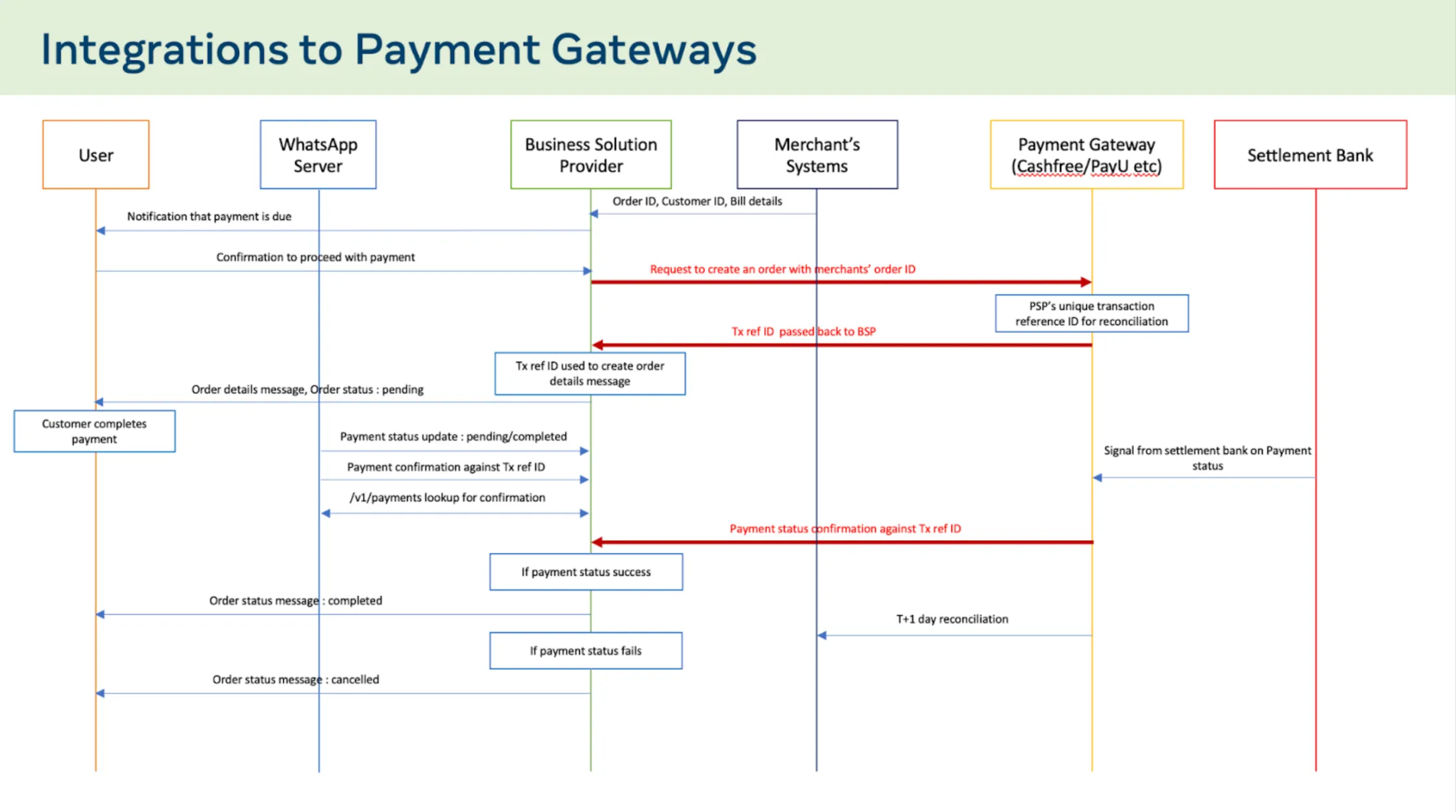
### Handling Special cases
#### Handling failed payments
#### Canceling Order for successful transaction
There may arise a scenario where Cashfree shared a successful payment signal but the order cannot be fulfilled by the merchant. In such scenario, process refund for the payment via one of the following mechanisms:
Use Refund API.Use Cashfree dashboard for merchants.## Billdesk Payment Gateway Integration Guide
Updated: Nov 14, 2025
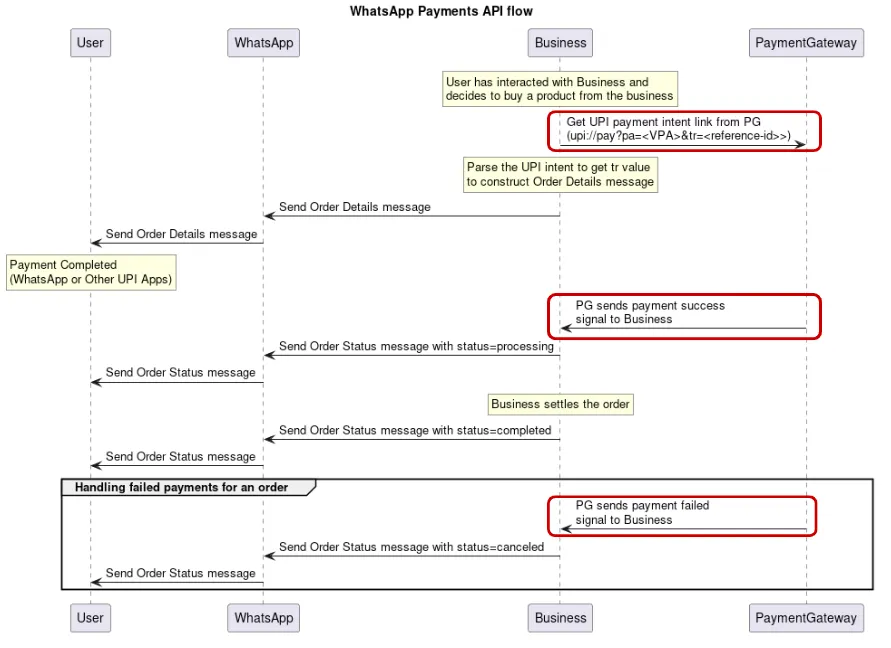
The purpose of this document is to lay down the payment integration with Billdesk that is required for a merchant, or a Solution Partner, that has implemented a chatbot using WhatsApp Business APIs and needs to accept payments from WhatsApp users.
This document outlines the necessary APIs that must be integrated and how the integration works in conjunction with the WhatsApp Business API integration. While not a comprehensive guide, it serves as a general overview to assist in understanding the payment gateway integration process. Any specific or unique details related to the payment gateway must be determined by the merchant or Solution Partner.
In terms of integrating with the WA P2M product, this document covers the requests and responses highlighted in red in the flow diagram.
### Billdesk payment integration
To authenticate with Billdesk's API, a client must be created and an authentication method must be selected between HMAC and Javascript Object Signing and Encryption (JOSE) with JOSE being the preferred method. These methods are used to encrypt/decrypt the request/response from Billdesk's APIs.
To simplify the explanation, the following examples will only address the body of final payload that will ultimately be included in the final object required for successful authentication with their API. It is important to consult Billdesk's documentation for guidance on how this final object must be structured.
You must have the following details before you can proceed:
Client ID and secret key from BilldeskDetails from the payment configuration you already configured on the WhatsApp Business Account
Merchant category codeMerchant's VPAMerchant NameUse the value of `wa_txnid` on the response and pass it as the `reference_id` while setting up the `parameters` object to send for the [order details message](/documentation/business-messaging/whatsapp/payments/payments-in/upi-intent#paramobject) using the API.
Make sure to verify the values in the intent you receive:
The `intent` key has the base64 encoded value of the intentDecoding the `intent` should give a value that should be similar to this: `upi://pay?pa=billdesk@hdfcbank&pn=SIDDHIVINKamp;mc=6300&tr=XHD50477676443&tn=Pay&am=2.00&malORS`The value of `pa` is the merchant `VPA`. This value must match the VPA on the `payment_configuration` you send in the `parameters` objectBilldesk will post a transaction object to the return URL (`ru`) you specified in the initiate payment API.
| Key | Data type | Description |
|---|
| | String representing the object's type. This value will be fixed as transaction |
| | Unique transaction ID generation by BillDesk for the transaction |
| | Unique orderid generated by merchant to for the transaction |
| | Unique identifier as defined by BillDesk for each merchant |
| | BillDesk transaction date and time in YYYY-MM DDThh:mm:ssTZD format |
| | Transaction amount in two decimals |
| | Customer surcharge in two decimals applied to the transaction amount, if any |
| | Customer discount in two decimals applied to the transaction amount, if any |
| | Total charge to the customer |
| | ISO currency of the transaction amount |
| | Indicates transaction processing type. Intent for payment_method_type is upi and the method of payment is UPI intent |
| | BillDesk defined unique identifier for bank or acquirer |
| | Indicates transaction processing type. Intent for payment_method_type is upi and the method of payment is UPI intent. |
| | |
| | Array of 10 `additional_info` values that can be attached to the transaction. Note: Merchant is advised to not pass customer PII information in additional info fields. |
| | Itemcode value provided by BillDesk, with a default value of `DIRECT` |
| | Transaction reference number generated by bank or acquirer |
| | Represents the authorization status of the transaction with the possible values:
`0300` - transaction is successful`0002` - transaction is pending for authorization`0399` - transaction failed |
| | Settlement line of business pre-configured by BillDesk for funds settlement to merchant account |
| | |
| | |
| | Represents the error code for a transaction with `0399` status |
| | Represents the standard error category for a transaction with `0399` status |
| | Represents the description of the error code for a transaction with `0399` status |
| | Authorization code received from the acquirer for a successfully authorized card transaction |
| | eci value for the authentication taken for the card transaction |
| | Represents the method of payment e.g. upi |
| | Payment method object (applicable when payment method is card) |
| | Unique customer identifier as per merchant |
| | Associated links with the object |
#### Parsing the response
Use the `auth_status` retrieved from the response above and transmit the corresponding [status message](https://developers.facebook.com/docs/whatsapp/cloud-api/payments-api/upi#step-7--update-order-status) via the WhatsApp API.
## CCAvenue Payment Gateway Integration Guide
Updated: Dec 10, 2025
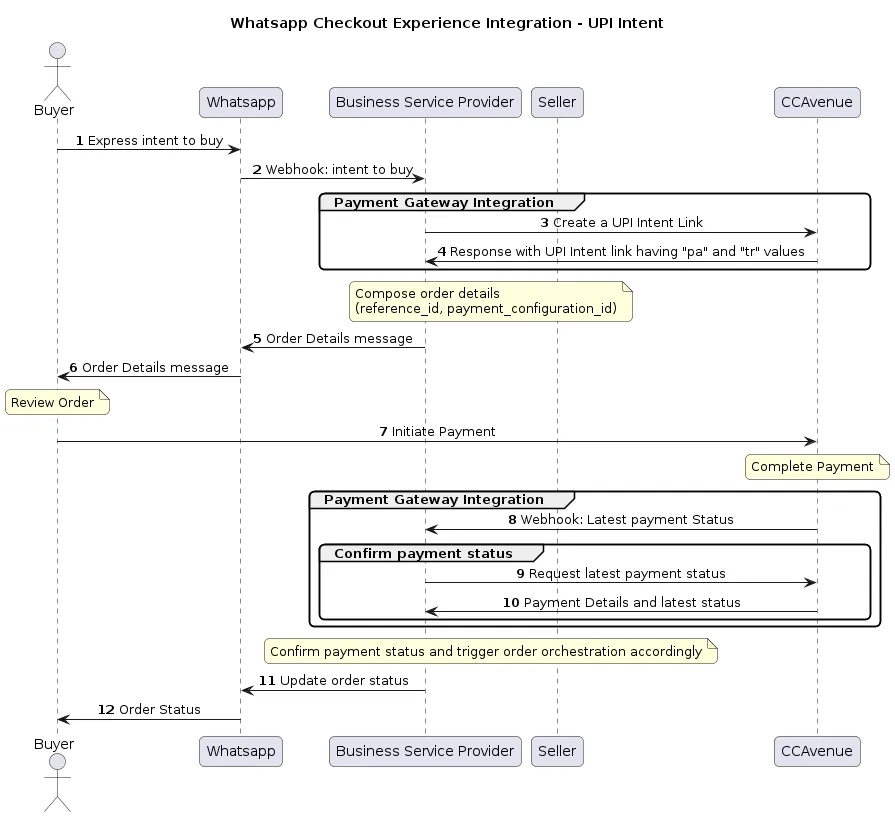
The purpose of this document is to lay down the payment integration with CCAvenue that is required for a merchant (or BSP) that has implemented a chatbot using WhatsApp Business APIs and needs to accept payments from WhatsApp users.
This document outlines the necessary APIs that must be integrated and how the integration works in conjunction with the WhatsApp Business API integration. While not a comprehensive guide, it serves as a general overview to assist in understanding the payment gateway integration process. Any specific or unique details related to the payment gateway must be determined by the merchant (or BSP).
In terms of integrating with the WA P2M product, this document covers the requests and responses highlighted in red within the flow diagram.
## Accept Payments via Payment Links
Updated: Nov 14, 2025
This feature is not publicly available yet. Please reach out to whatsappindia-bizpayments-support@meta.com to know more.
Your businesses can enable customers to pay for their orders by bringing in all the payment methods supported on your platform to WhatsApp. Businesses can send customers invoice(`order_details`) messages, then get notified about payment status updates via webhook notifications from Payment Gateway.
Currently, customers browse business catalogs, add products to cart, and send orders in with our set of commerce messaging solutions, which includes [Single Product Message, Multi Product Message, and Product Detail Page](/books/meta-whatsapp/page/share-products-with-whatsapp-users-developer-documentation).
With the WhatsApp Messaging API, businesses can send customers a bill to complete the order with one of the supported payment instrument.
The business must send an `order_details` message for the consumer to initiate payment. This type of message is a new type of interactive message, which always contains the same 4 main components: **header**, **body**, **footer**, and **action**. Inside the **action** component, the business includes all the information needed for the customer to complete their payment.
Each `order_details` message contains a unique `reference_id` provided by the business, and that unique number is used throughout the flow to track the order. This `reference_id` is used to generate the payment link from Payment Gateway.
Once the message is sent, the business waits for a payment or transaction status updates directly from Payment Gateway. Upon receiving payment signal for an order, business should relay this payment signal to consumer client through interactive order status(`order_status`) message.
Updating user about the payment signal is important as this message updates the order details message and order details view for the consumer reflecting the order confirmation from merchant. This is shown with an example in subsequent sections.
In the WhatsApp customer app, the purchase flow has the following steps:
Customer sends an order with selected products to the business or business identifies the products that the customer has shown interest to purchase.
After receiving the order or identifying the product, if a business accepts payment methods other than UPI, such as credit cards and payment wallets, etc. then business will send a message to the user to get their preferred payment method for the order.
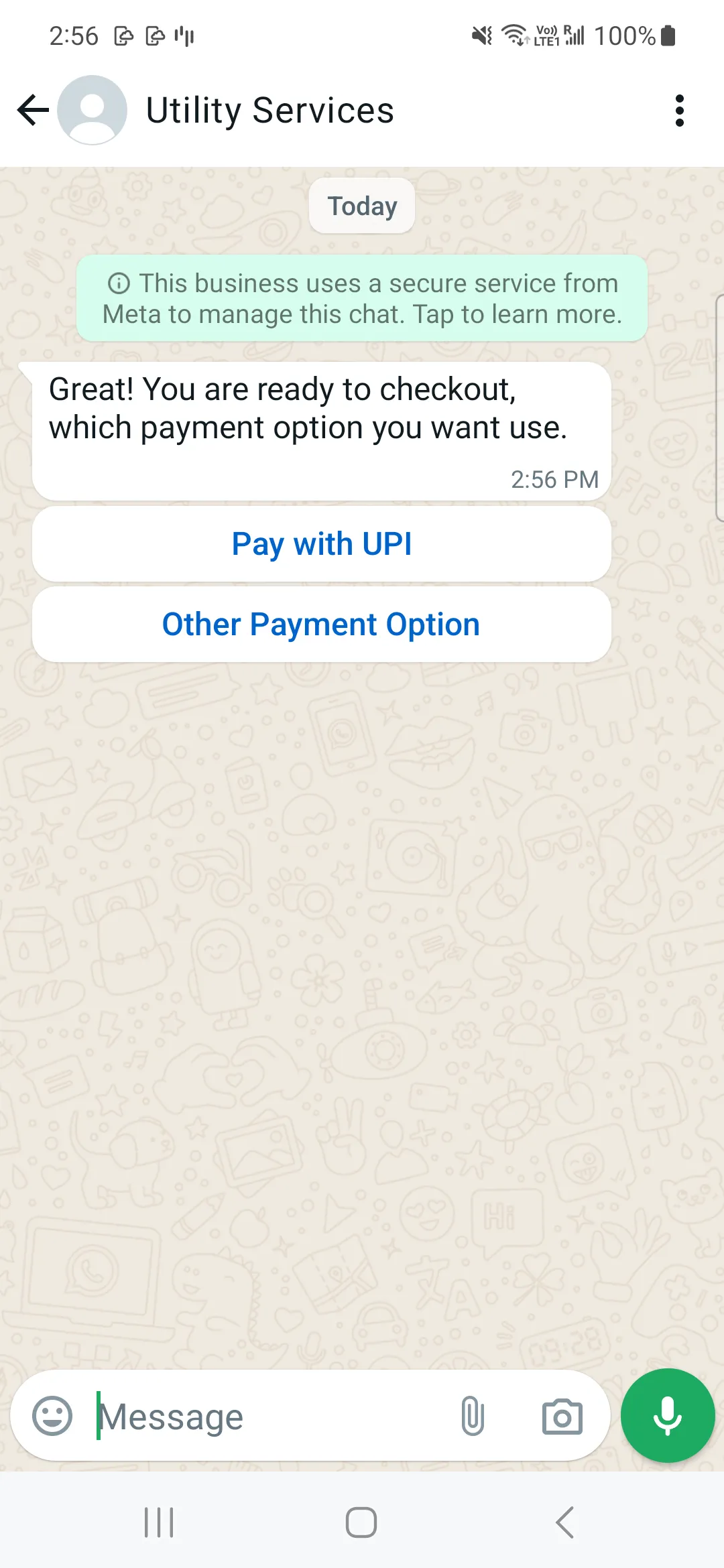
When consumers want to pay using other payment method option, the business should generate the payment link by calling Payment Gateway by providing the unique “reference-id” and other information like amount, validity etc, then business can use the generated payment link to construct the order details message and send to the consumer.
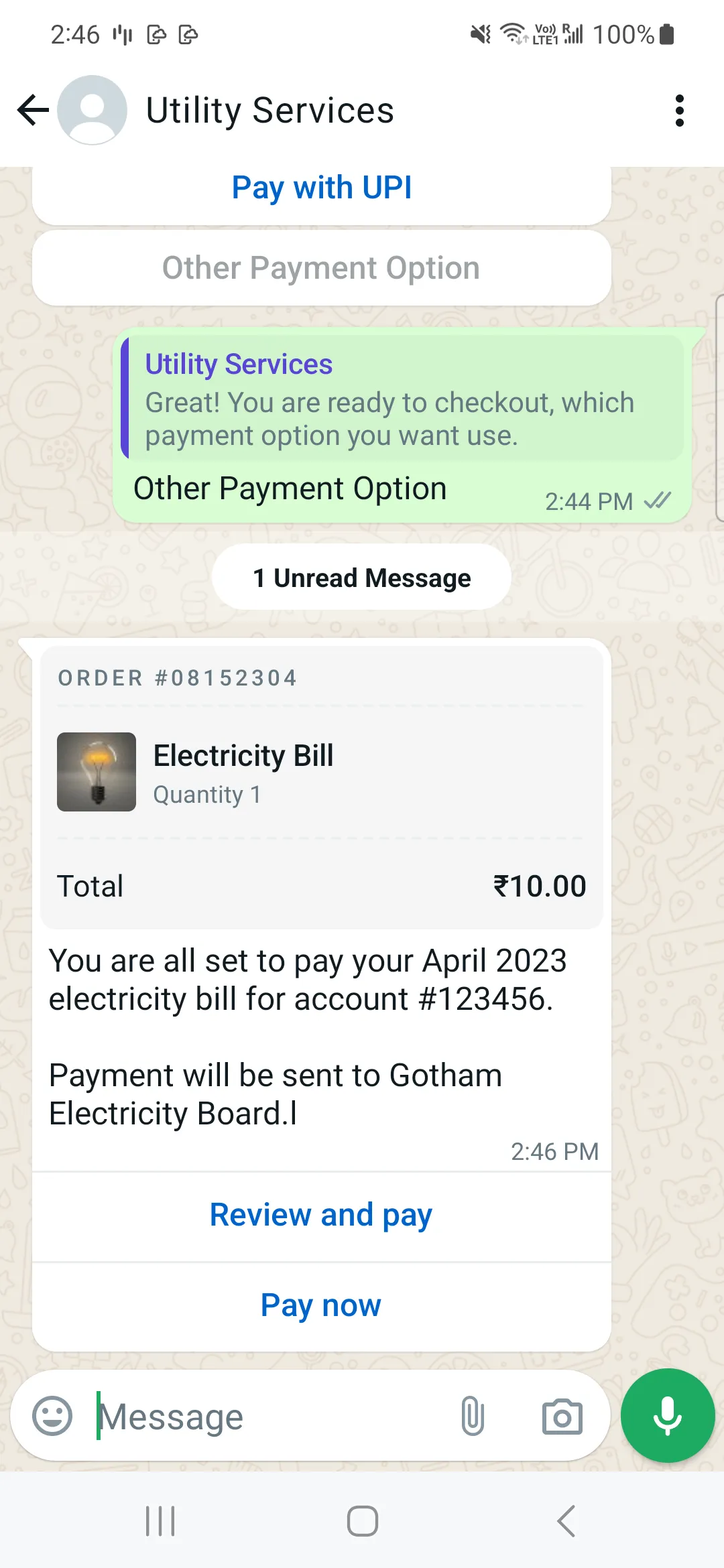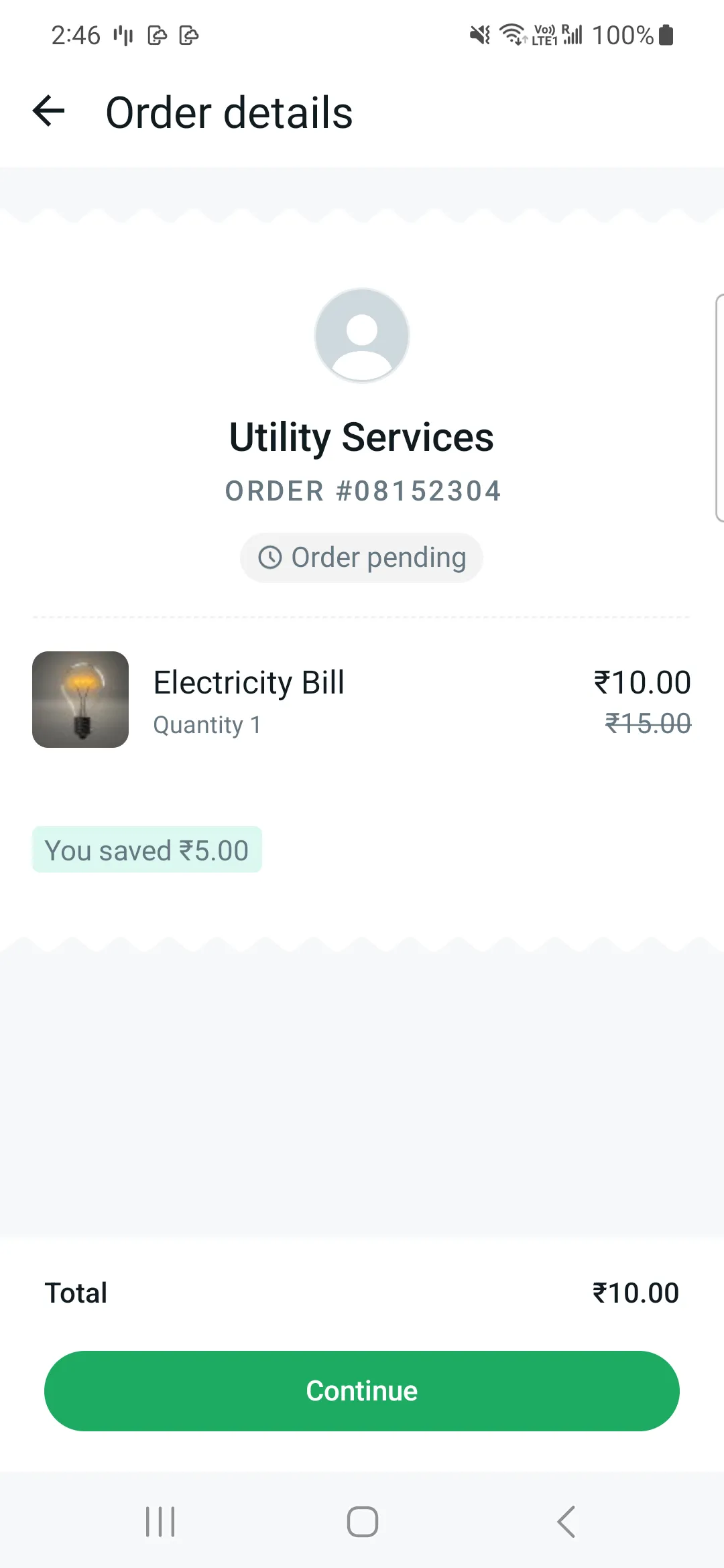
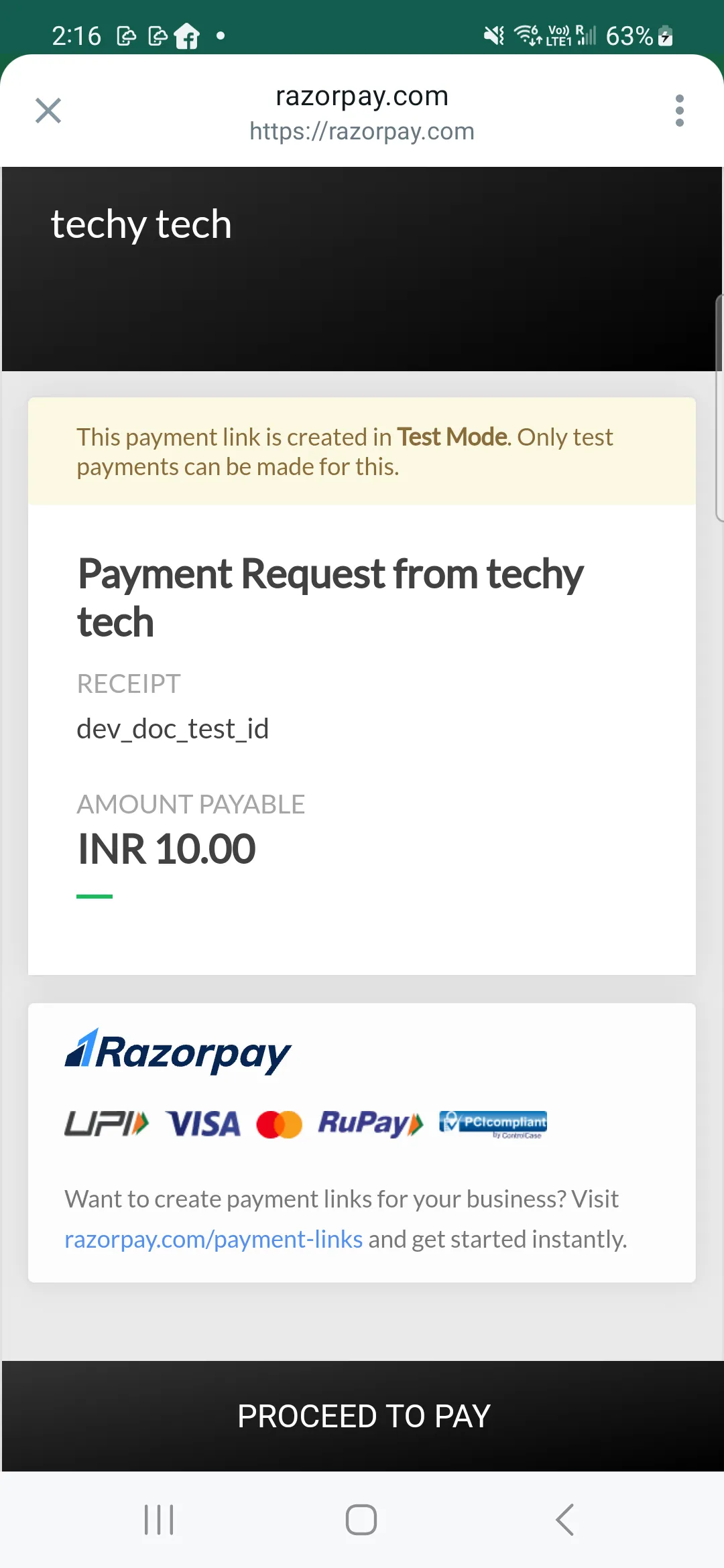
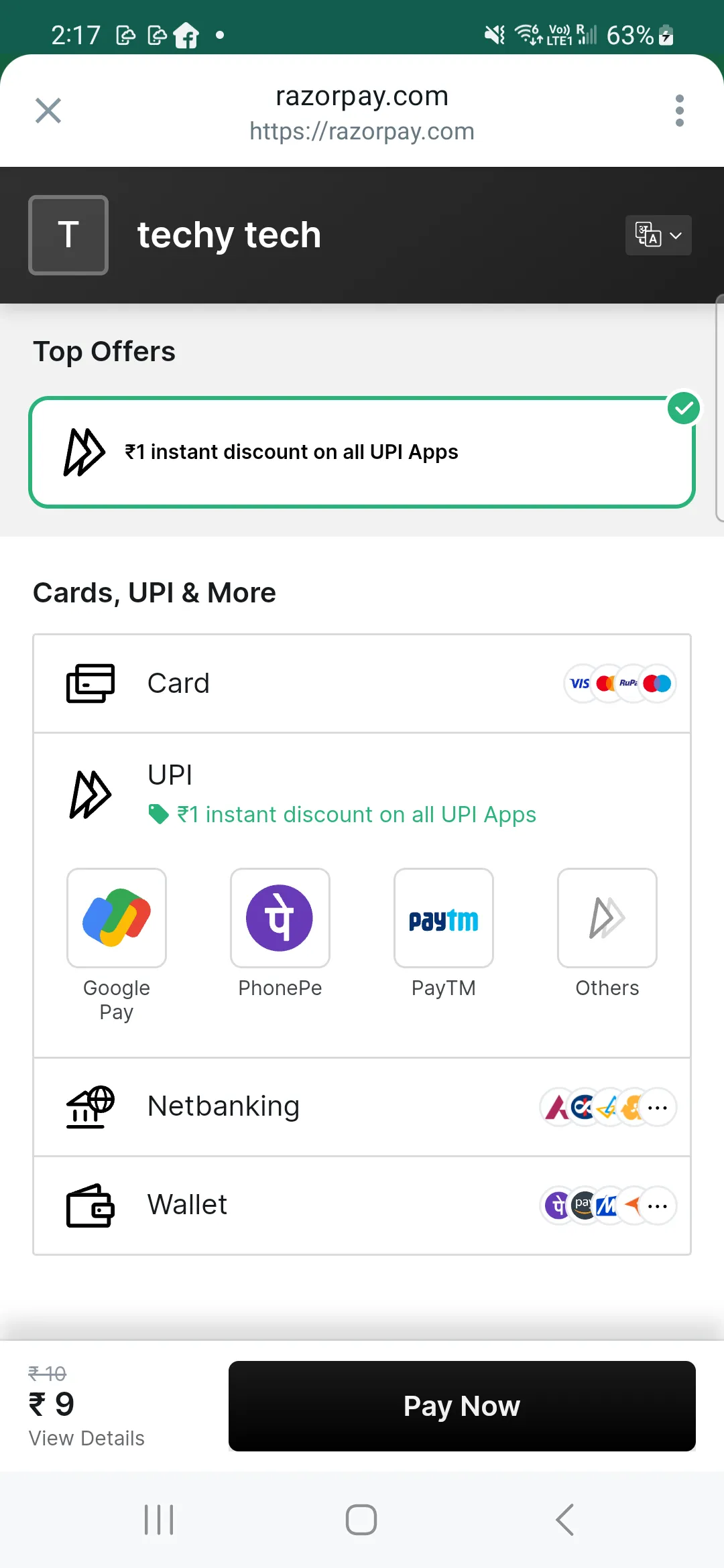
When the consumer taps the Pay now/continue button, consumer will be redirected to the payment link within specially designed In-App browser to present with the list of supported payment options such as credit card, debit card, wallet or UPI apps. Consumers can choose any one of the payment option to pay for the order.
The following is a sample payment link redirect within In-App Browser accepting various payment methods like credit, debit, wallet and UPI apps.
Once the payment is complete, the business will receive a notification from Payment Gateway and the business needs to send order status updates to the consumer client notifying consumers about the progress on their order, this will update the order details message CTAs, Order details screen and Order status. The order status should contain the matching “reference-id” of order details.
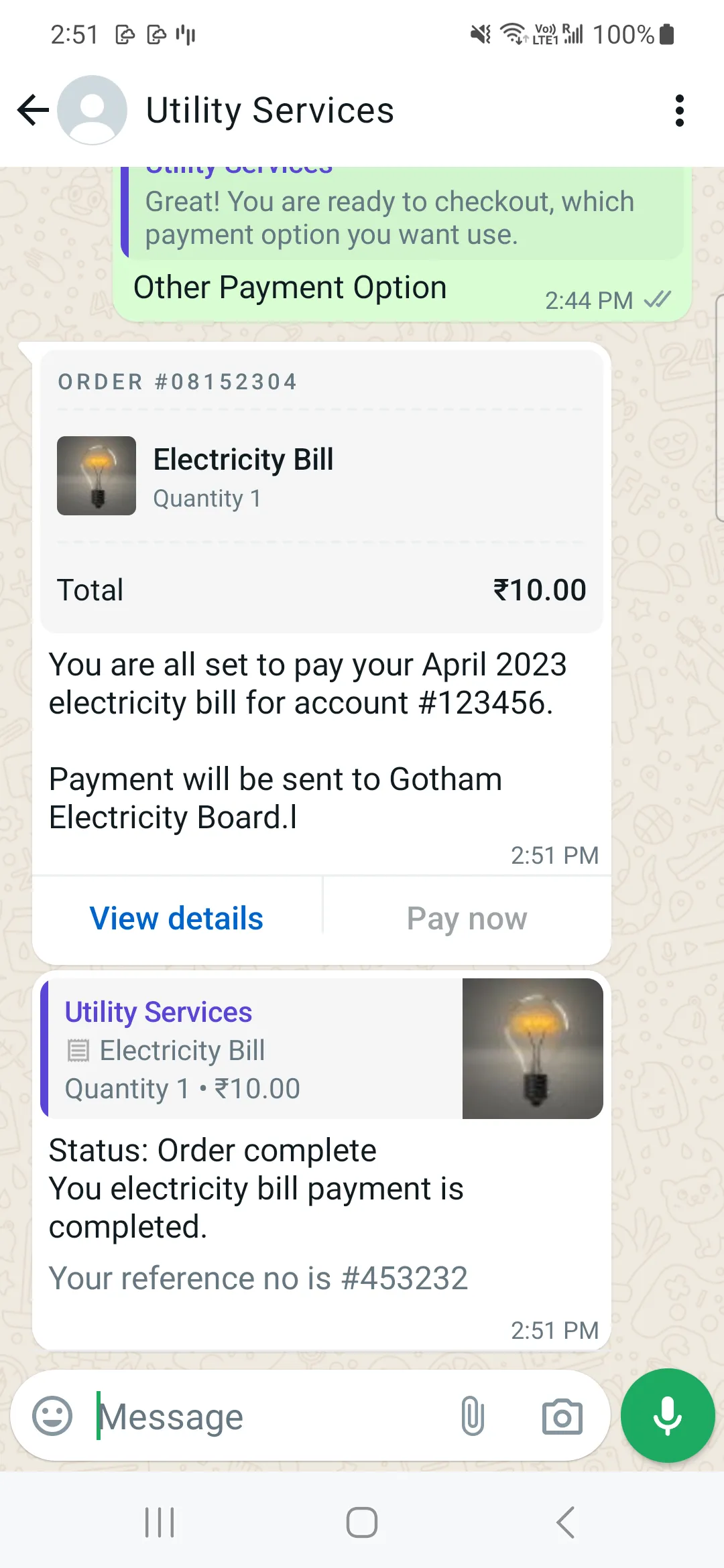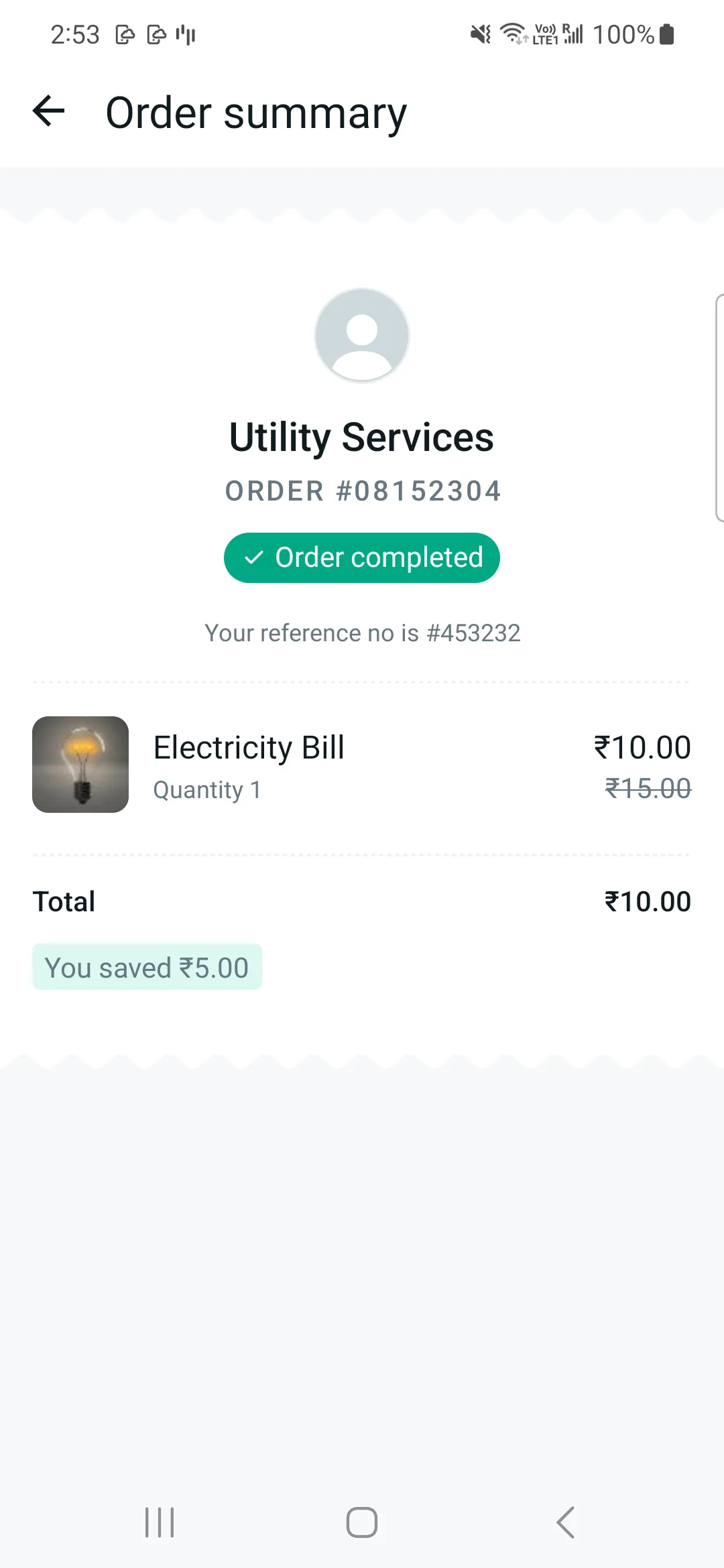
The steps outlined below assume that the business is about to send order details message to consumer client.
The following sequence diagram demonstrates the typical integration flow for WA Payments API: 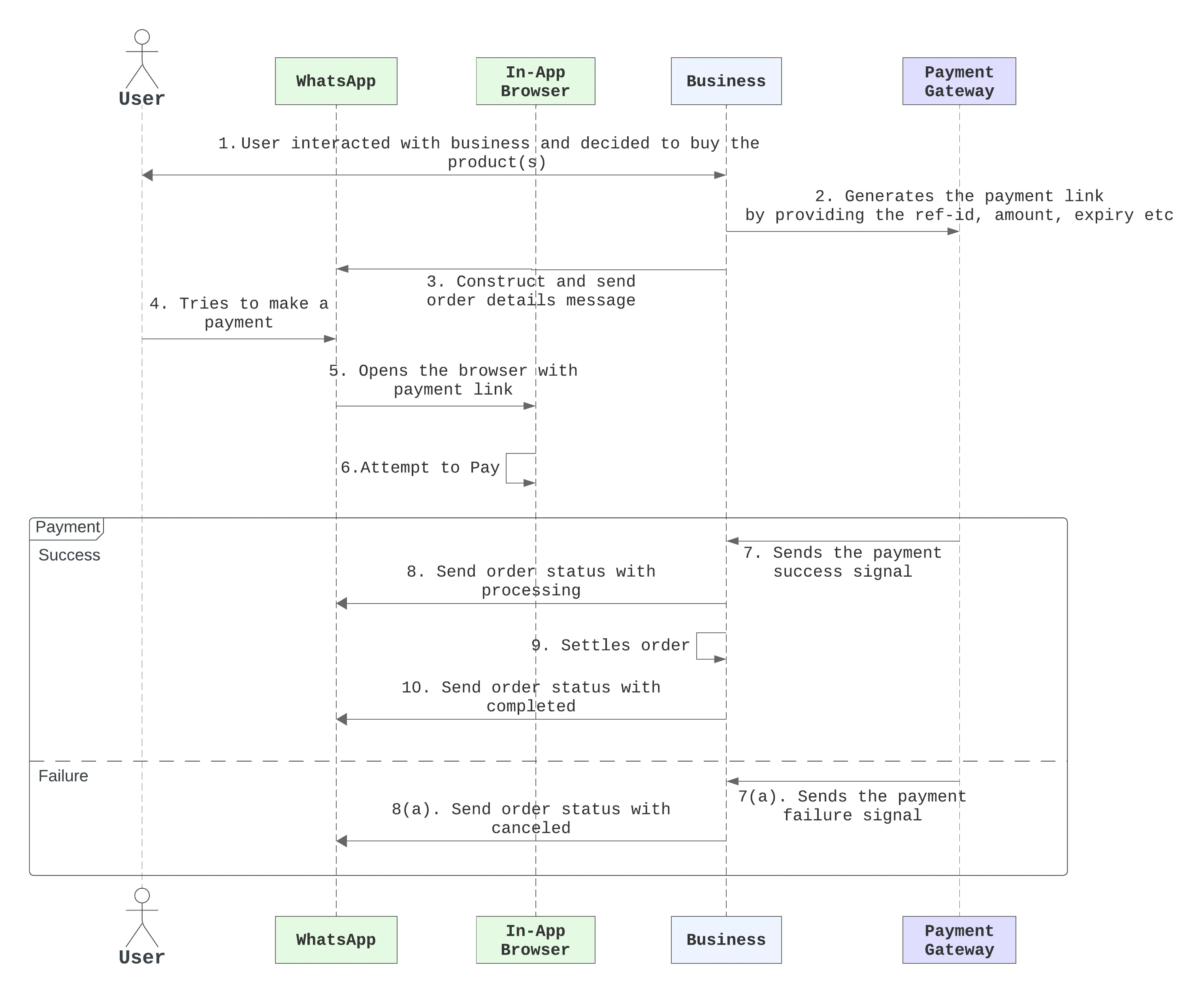
#### Step 1: Get Payment Link from Payment Gateway
Once the consumer has expressed their interest to purchase an item using payment link. Business needs to call payment gateway with necessary information like reference-id, amount and validity to generate the payment link. Following is a sample payment link:
```
https://rzp.io/i/rNiAagU8y
```
Business needs to use the same reference-id, amount and expiration in invoice(`order_details`) interactive message.
#### Step 2: Assemble the Interactive Object
To send an `order_details` message, businesses must assemble an [interactive object](/books/meta-whatsapp/page/sending-messages-developer-documentation) of type `order_details` with the following components:
| Object | Description |
|---|
| **Required.** Must be “order_details”. |
| **Optional.** Header content displayed on top of a message. If a header is not provided, the API uses an image of the first available product as the header |
| **Required.** An object with the body of the message. The object contains the following field: `text` string **Required** if `body` is present. The content of the message. Emojis and markdown are supported. Maximum length is 1024 characters |
| **Optional.** An object with the footer of the message. The object contains the following fields: `text` string **Required** if `footer` is present. The footer content. Emojis, markdown, and links are supported. Maximum length is 60 characters |
| **Required.** An action object you want the user to perform after reading the message. This action object contains the following fields: `name` string **Required**. Must be “review\_and\_pay”`parameters` object See [Parameters Object](#bkmrk-parameters-object-1) for information |
| Object | Description |
|---|
| **Required.** Unique identifier for the order or invoice provided by the business. It is case sensitive and cannot be an empty string and can only contain English letters, numbers, underscores, dashes, or dots, and should not exceed 35 characters. The `reference_id` must be unique for each `order_details` message for the same business. If the partner would like to send multiple order_details messages for the same order, invoice, etc. it is recommended to include a sequence number in the `reference_id` (for example, <order-or-invoice-id>-<sequence-number>) to ensure `reference_id` uniqueness. |
| **Required.** The type of goods being paid for in this order. Current supported options are `digital-goods` and `physical-goods` |
| **Required for shipped physical-goods.** An array of beneficiaries for this order. A beneficiary is an intended recipient for shipping the physical goods in the order. It contains the following fields: Beneficiary information isn’t shown to users but is needed for legal and compliance reasons. `name` string **Required.** Name of the individual or business receiving the physical goods. Cannot exceed 200 characters`address_line1` string **Required.** Shipping address (Door/Tower Number, Street Name etc.). Cannot exceed 100 characters`address_line2` string **Optional.** Shipping address (Landmark, Area, etc.). Cannot exceed 100 characters`city` string **Required.** Name of the city.`state` string **Required.** Name of the state.`country` string **Required.** Must be “India”.`postal_code` string **Required.** 6-digit zipcode of shipping address. |
| **Required.** Must be “upi”. |
| **Required.** See [Payment Settings Object](#bkmrk-payment-setting-obje-1) for more details. |
| **Required.** The currency for this order. Currently the only supported value is `INR`. |
| **Required.** The `total_amount` object contains the following fields: `offset` integer **Required.** Must be `100` for `INR`.`value` integer **Required.** Positive integer representing the amount value multiplied by offset. For example, ₹12.34 has value 1234.`total_amount.value` must be equal to `order.subtotal.value` + `order.tax.value` + `order.shipping.value` - `order.discount.value`. |
| **Required.** See [order object](#bkmrk-order-object-1) for more information. |
##### Payment Setting Object
| Object | Description |
|---|
| **Required.** Must be `payment_link`. |
| **Required.** Refer [Payment Link Object](#bkmrk-payment-link-object-1) for more information. |
##### Payment Link Object
| Object | Description |
|---|
| **Required.** A valid payment link generated through payment gateway. Generated payment links domains needs to be enabled to accept payments. Please reach out to whatsappindia-bizpayments-support@meta.com to know more. |
| **Optional.** The flow terminated with success status, when success_url is hit. |
| **Optional.** The flow ends with failure, when the cancel_url is triggered. |
| Object | Description |
|---|
| **Required.** Only supported value in the `order_details` message is `pending`. In an `order_status` message, `status` can be: `pending`, `captured`, or `failed`. |
| **Optional.** Only supported value is `quick_pay`. When this field is passed in we hide the “Review and Pay” button and only show the “Pay Now” button in the order details bubble. |
| **Required.** An object with the list of items for this order, containing the following fields: `retailer_id` string **Optional.** Content ID for an item in the order from your catalog.`name` string **Required.** The item’s name to be displayed to the user. Cannot exceed 60 characters`image` object **Optional.** Custom image for the item to be displayed to the user. See [item image object](#bkmrk-item-image-object-1) for informationUsing this image field will limit the items array to a maximum of 10 items and this cannot be used with `retailer_id` or `catalog_id`. `amount` amount object with value and offset -- refer total amount field above **Required.** The price per item`sale_amount` amount object **Optional.** The discounted price per item. This should be less than the original amount. If included, this field is used to calculate the subtotal amount`quantity` integer **Required.** The number of items in this order, this field cannot be decimal has to be integer.`country_of_origin` string **Required** if `catalog_id` is not present. The country of origin of the product`importer_name` string **Required** if `catalog_id` is not present. Name of the importer company`importer_adress` string **Required** if `catalog_id` is not present. Address of importer company |
| **Required.** The value **must be equal** to sum of `order.amount.value` * `order.amount.quantity`. Refer to `total_amount` description for explanation of `offset` and `value` fields The following fields are part of the `subtotal` object: `offset` integer **Required.** Must be `100` for `INR``value` integer **Required.** Positive integer representing the amount value multiplied by offset. For example, ₹12.34 has value 1234 |
| **Required.** The tax information for this order which contains the following fields: `offset` integer **Required.** Must be `100` for `INR``value` integer **Required.** Positive integer representing the amount value multiplied by offset. For example, ₹12.34 has value 1234`description` string **Optional.** Max character limit is 60 characters |
| **Optional.** The shipping cost of the order. The object contains the following fields: `offset` integer **Required.** Must be `100` for `INR``value` integer **Required.** Positive integer representing the amount value multiplied by offset. For example, ₹12.34 has value 1234`description` string **Optional.** Max character limit is 60 characters |
| **Optional.** The discount for the order. The object contains the following fields: `offset` integer **Required.** Must be `100` for `INR``value` integer **Required.** Positive integer representing the amount value multiplied by offset. For example, ₹12.34 has value 1234`description` string **Optional.** Max character limit is 60 characters`discount_program_name` string **Optional.** Text used for defining incentivised orders. If order is incentivised, the merchant needs to define this information. Max character limit is 60 characters |
| **Optional.** Unique identifier of the Facebook catalog being used by the business. If you do not provide this field, you must provide the following fields inside the items object: `country_of_origin`, `importer_name`, and `importer_address` |
| **Optional.** Expiration for that order. Business must define the following fields inside this object: `timestamp` string – UTC timestamp in seconds of time when order should expire. Minimum threshold is 300 seconds `description` string – Text explanation for expiration. Max character limit is 120 characters |
| Object | Description |
|---|
| **Required.** A link to the image that will be shown to the user. Must be an `image/jpeg` or `image/png` and 8-bit, RGB or RGBA. Follows same requirements as image in [media](/books/meta-whatsapp/page/media-developer-documentation) |
The `parameters` value is a stringified JSON object.
By the end, the interactive object should look something like this for a catalog-based integration:
The `parameters` value is a stringified JSON object.
For a non-catalog based integration i.e. when catalog-id is not present, an example payload looks as follows:
#### Step 3: Add Common Message Parameters
Once the interactive object is complete, append the other parameters that make a message: `recipient_type`, `to`, and `type`. Remember to set the `type` to `interactive`.
These are [parameters common to all message types](/books/meta-whatsapp/page/sending-messages-developer-documentation).
#### Step 4:Make a POST Call to Messages Endpoint
Make a POST call to the [`/[PHONE_NUMBER_ID]/messages`](/books/meta-whatsapp/page/sending-messages-developer-documentation) endpoint with the `JSON` object you have assembled. If your message is sent successfully, you get the following response:
###### WhatsApp Payments Terms of Service Acceptance Pending
If you see the following error, accept the WhatsApp Payments terms of service using the link provided in the error message before trying again.
For all other errors that can be returned and guidance on how to handle them, see [WhatsApp Cloud API, Error Codes](/documentation/business-messaging/whatsapp/support/error-codes).
#### Step 5: Consumer Pays for the Order
Consumers can pay using WhatsApp payment method or using any UPI supported app that is installed on the device.
#### Step 6: Get Notified About Transaction Status Updates from payment gateway
Businesses receive updates to the invoice via payment gateway webhooks, when the status of the user-initiated transaction changes. The unique identifier reference-id passed in `order_details` message can be used to map the transaction to the consumer invoice or interactive order details message.
#### Step 7: Update order status
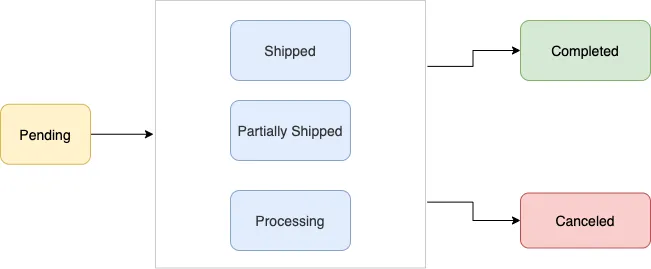
Upon receiving transaction signals from payment gateway through webhook, the business must update the order status to keep the user up to date. Currently we support the following order status values:
| Value | Description |
|---|
| User has not successfully paid yet |
| User payment authorized, merchant/partner is fulfilling the order, performing service, etc. |
| A portion of the products in the order have been shipped by the merchant |
| All the products in the order have been shipped by the merchant |
| The order is completed and no further action is expected from the user or the partner/merchant |
| The partner/merchant would like to cancel the `order_details` message for the order/invoice. The status update will fail if there is already a `successful` or `pending` payment for this `order_details` message |
Typically businesses update the `order_status` using either the WhatsApp payment status change notifications or their own internal processes. To update `order_status`, the partner sends an `order_status` message to the user.
The following table describes the returned values:
| Value | Description |
|---|
| The ID provided by the partner in the `order_details` message |
| |
| Optional text for sharing status related information in `order_details`. Could be useful while sending cancellation. Max character limit is 120 characters |
Merchant should always post this order-status message to consumer after receiving transaction updates for an order. As the order_details message and order details screen experience is tied to to the order status updates.
#### Step 8: Reconcile Payments
Businesses should use their bank statements to reconcile the payments using the `reference_id` provided in the `order_details` messages.
### Checklist for Integrated Merchants
Ensure that `order_status` message is send to consumer informing them about updates to an order after receiving transaction updates for an order.
Ensure the merchant is verified and WABA contact is marked with a verified check.
Verify the WABA is mapped to appropriate merchant initiated messaging tier(1k, 10k and 100k per day)
Merchant should list the customer support information in the profile screen incase consumer wants to report any issues.
## Enhanced Payment Links
Updated: Dec 12, 2025
Enhanced Payment Links is a feature that transforms existing payment gateway URLs into rich, native payment experiences within WhatsApp.
It converts existing payment links into an in-app checkout flow - no changes to your payment backend, reconciliation, or callback setup are required. When a supported payment link is sent through a message template, it automatically renders as a structured payment bubble featuring:
**Amount and currency** clearly displayed**“Pay Now” CTA** for seamless checkout**In-app checkout** via UPI Intent or hosted payment pageThis feature significantly improves payment conversion rates by reducing checkout friction and increasing consumer trust.
**Superfast Setup**: Merchants can independently create the required [WhatsApp templates](#bkmrk-template-requirement-1) and embed payment links from [supported payment gateways](#bkmrk-supported-payment-ga-1) - no BSP involvement is needed.
This feature is not publicly available yet. To request access, please reach out to your BSP or Meta representative with your **WABA ID**, **sample payment link**, and **preferred Payment Gateway** (Razorpay, PayU, or Cashfree).
On supported WhatsApp versions, the payment link renders as an enhanced bubble:

**Rich Payment Card**: Displays Amount, currency, and CTA button**In-App Checkout**:
*UPI*: Direct app-switch to UPI apps (Google Pay, PhonePe, Paytm, etc.)*Other methods*: In-app browser for cards, net banking, or wallets**Automatic Status Updates**: The payment card automatically updates to reflect the payment status on completion or expiry, and disables the “Pay Now” button to prevent duplicate payments.Enhanced Payment Links is an experience that works with both existing BSP APIs and WhatsApp Business Cloud API. Neither BSPs nor merchants need to make any backend, API, reconciliation, or callback changes to enable this feature. Your existing payment gateway integration remains completely unchanged.
To use Enhanced Payment Links:
| Requirement | Description |
|---|
**Allowlisted WABA** | Your WABA ID must be enabled for Enhanced Payment Links. Submit a request to your BSP or Meta representative with your WABA ID, preferred payment gateway(s), and sample payment links for validation. |
**Supported Payment Gateway** | An active account with Razorpay, PayU, or Cashfree |
**Compliant Template** | A message template configured with no header and a dynamic URL button (see [Template Requirements](#bkmrk-template-requirement-1)) |
#### Supported Payment Gateways
| Payment Gateway | Status |
|---|
Razorpay | ✅ Supported |
PayU | ✅ Supported |
Cashfree | ✅ Supported |
The following diagram illustrates the end-to-end flow, from sending an Enhanced Payment Link to payment completion and callbacks:
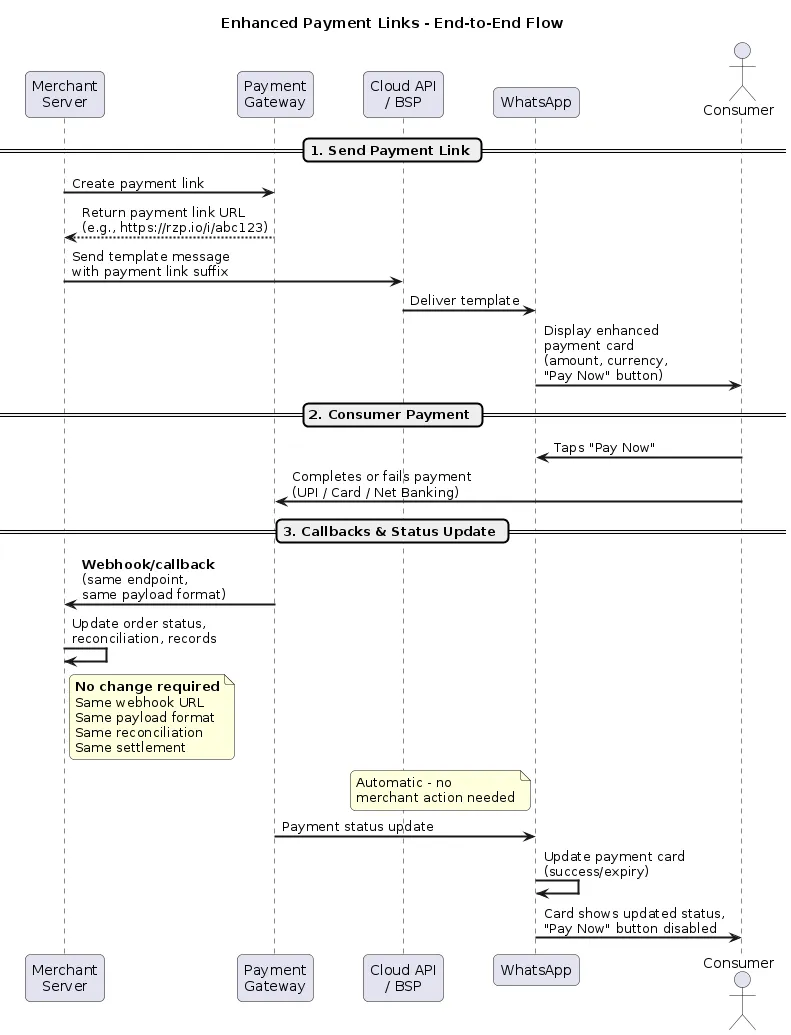
**Steps:**
**Generate payment link** - Your server calls the payment gateway API (Razorpay, PayU, or Cashfree) to create a payment link for the transaction.**Receive payment link URL** - The payment gateway returns a URL (for example, `https://rzp.io/i/abc123XYZ`).**Send template message** - Your server sends a template message via the Cloud API or your BSP, embedding the dynamic portion of the payment link (the suffix) in the button component.**Message delivered on WhatsApp** - The consumer receives an enhanced payment bubble with the amount, currency, and a “Pay Now” button for in-app checkout.**Consumer completes payment** - The consumer taps “Pay Now” and pays via UPI apps, cards, net banking, or wallets within WhatsApp.**Payment gateway sends callback to merchant** - Your existing webhook endpoint receives the payment status callback with the same payload format as before. No changes to your webhook URL, payload handling, or reconciliation logic are needed.**WhatsApp updates the payment card** - The payment card automatically reflects the payment status (success, or expiry) and disables the “Pay Now” button to prevent duplicate payments. This happens independently and requires no merchant action.### Template Requirements
Enhanced Payment Link templates must follow these constraints:
| Component | Requirement |
|---|
**Header** | None — templates must **not** include a media header (image, video, or document) |
**Button** | Exactly **one** dynamic URL button with a [supported PG link prefix](#bkmrk-dynamic-url-prefix-c-1) |
Merchants can independently create these templates without involving their BSP. Templates can be created using any one of the following methods:
[Template Library](/books/meta-whatsapp/page/template-library-developer-documentation) (recommended)[WhatsApp Manager](https://business.facebook.com/wa/manage/message-templates)[Business Management API](https://developers.facebook.com/docs/whatsapp/business-management-api/message-templates)BSP Dashboard#### Example Template Configuration
Your business can enable customers to pay using their favorite UPI apps or other payment methods accepted by supporting Payment Gateways without leaving WhatsApp.
```
Body:"Hi 1, reminder to pay for your insurance renewal #2. Amount: ₹3"Button:-Type of Action:"Visit website"-ButtonText:"Pay Now"- URL Type:Dynamic-Website URL: https://pg.io/i/
```
>
**Important**: The button URL must be configured as **dynamic** to pass the payment link at send time.
#### Dynamic URL Prefix Configuration
When creating your template, the dynamic URL button requires a **URL prefix** that matches your payment gateway’s domain. Use one of the following prefixes based on your PG:
| URL Prefix |
|---|
`https://rzp.io/rzp/` |
`https://rzp.io/i/` |
| URL Prefix |
|---|
`https://pmny.in/PAYUMN/` |
`https://api.payu.in/` |
`https://u.payu.in/PAYUMN/` |
| URL Prefix |
|---|
`https://payments.cashfree.com/links` |
`https://payments.cashfree.com/link/` |
`https://cfre.in/CSHFRE/` |
>
**Note**: The URL prefix you configure in your template must match the format of payment links generated by your PG. When sending the message, pass only the dynamic portion (e.g., the link ID) in the button parameter.
### Payment Link Requirements
| Requirement | Details |
|---|
Environment | Must be from production environment (not sandbox/test mode) |
Status | Link must be active and not expired |
Gateway | Must be from a supported PG (see [Supported Payment Gateways](#bkmrk-supported-payment-ga-1)) |
URL Format | Must match one of the supported URL prefixes for your PG |
**Using wrapped or redirected payment links?** Enhanced Payment Links requires direct payment gateway URLs that match the [supported URL prefixes](#bkmrk-dynamic-url-prefix-c-1). If your implementation wraps payment gateway links under your own domain (e.g., `yourdomain.com/pay/...`) or redirects to the payment gateway from a hosted page, the enhanced experience will not render automatically. In such cases, you will need to update your workflow to pass the direct payment gateway link in the template button instead of your wrapped or redirected URL.
#### Generating Payment Links
Refer to your payment gateway’s documentation:
**Razorpay**: [Create Payment Link (API)](https://l.facebook.com/l.php?u=https%3A%2F%2Frazorpay.com%2Fdocs%2Fapi%2Fpayments%2Fpayment-links%2Fcreate-standard%2F&h=AT6x8UuYubBo7_o0nWKLaGwT5USw8gtg0Sy-AvJyabDE516EqlCpX2z2aD1im_6A7qO-0pi-XEwE6F07SHCfj-ddPOXb5XSFJGdyIv6hYOpJfKphZVLrt5iLPyJu9rcUzfMgpKTH64XOL2LIEUfRmQ)[Dashboard](https://l.facebook.com/l.php?u=https%3A%2F%2Frazorpay.com%2Fdocs%2Fpayments%2Fpayment-links%2Fcreate%2F&h=AT6x8UuYubBo7_o0nWKLaGwT5USw8gtg0Sy-AvJyabDE516EqlCpX2z2aD1im_6A7qO-0pi-XEwE6F07SHCfj-ddPOXb5XSFJGdyIv6hYOpJfKphZVLrt5iLPyJu9rcUzfMgpKTH64XOL2LIEUfRmQ)**PayU**: [Payment Links](https://l.facebook.com/l.php?u=https%3A%2F%2Fdocs.payu.in%2Freference%2Fcreate-payment-links&h=AT6x8UuYubBo7_o0nWKLaGwT5USw8gtg0Sy-AvJyabDE516EqlCpX2z2aD1im_6A7qO-0pi-XEwE6F07SHCfj-ddPOXb5XSFJGdyIv6hYOpJfKphZVLrt5iLPyJu9rcUzfMgpKTH64XOL2LIEUfRmQ)**Cashfree**: [Payment Links](https://l.facebook.com/l.php?u=https%3A%2F%2Fwww.cashfree.com%2Fdocs%2Fpayments%2Fno-code%2Fpayment-link&h=AT6x8UuYubBo7_o0nWKLaGwT5USw8gtg0Sy-AvJyabDE516EqlCpX2z2aD1im_6A7qO-0pi-XEwE6F07SHCfj-ddPOXb5XSFJGdyIv6hYOpJfKphZVLrt5iLPyJu9rcUzfMgpKTH64XOL2LIEUfRmQ)### Payment Reconciliation and Callbacks
Enhanced Payment Links does not modify your existing payment processing or backend infrastructure. This means:
| Aspect | Impact |
|---|
**Payment callbacks/webhooks** | No change. Your existing webhook endpoints and callback flows from your payment gateway continue to work as-is. |
**Reconciliation** | No change. Reconciliation remains the same as configured on your payment gateway (Razorpay, PayU, or Cashfree). |
**Settlement** | No change. Settlement flows and timelines are unaffected. |
No backend integration changes are required to adopt Enhanced Payment Links.
Reporting for Enhanced Payment Links is split across two sources:
| Metric | Source | Details |
|---|
**Link clicks** | WhatsApp | Click metrics on payment gateway links are available from WhatsApp analytics. |
**Payment status, success/failure rates, refunds, settlements** | Payment gateway | All payment-level reporting remains on your payment gateway (Razorpay, PayU, or Cashfree). Use your existing dashboards and reports. |
No additional reporting setup is required. WhatsApp provides visibility into link engagement, while your payment gateway continues to be the source of truth for all payment and transaction metrics.
| Practice | Details |
|---|
**Use production links** | Sandbox/test links will not render enhanced bubbles |
**Set reasonable expiry** | 24-48 hours balances conversion and security |
**Include context** | Add amount and order details in the message body |
**One button only** | Multiple buttons are not supported |
**Match URL prefix** | Ensure template URL prefix matches your PG’s link format |
#### Payment link not rendering as enhanced bubble
| Check | Action |
|---|
WABA allowlisted? | Confirm with your BSP or Meta representative |
Supported PG? | Must be Razorpay, PayU, or Cashfree |
URL prefix correct? | Template URL prefix must match your PG’s supported formats |
Link active? | Verify link hasn’t expired |
Template compliant? | No header, single dynamic URL button |
>
**Note**: If your template gets miscategorized, you can appeal the assigned category. See the [Template Categorization Guide](/books/meta-whatsapp/page/template-categorization-developer-documentation) for details on the appeal process. To avoid categorization uncertainty altogether, consider using a [**Utility Template**](/books/meta-whatsapp/page/template-library-developer-documentation) from the template library, this ensures correct categorization and provides guidance on template content structure.
**Direct API users or Meta Managed Businesses**: Contact your Meta representative**BSP partners**: Reach out to your BSP for integration support**Payment gateway issues**: Consult your PG’s documentation or support team---
*See also: [Message Templates](https://developers.facebook.com/docs/whatsapp/business-management-api/message-templates), [Cloud API Messages](/books/meta-whatsapp/page/sending-messages-developer-documentation), [Payments Overview](/books/meta-whatsapp/page/payments-api-india-developer-documentation)*
## Send order details template message
Updated: Oct 31, 2025
Order details message template is a template with [interactive components](/books/meta-whatsapp/page/templates-developer-documentation) that extends the call-to-action button to support sending order details and provides a richer experience compared to templates with only text components.
Once your Order details message templates have been created and approved, you can use the approved template to send the template message with order or bill information to prompt them to make a payment.
Before sending an order details template message, businesses need to create a template with an “open order details” call-to-action button. See [Create Message Templates for Your WhatsApp Business Account](https://www.facebook.com/business/help/2055875911147364?id=2129163877102343) for more information on prerequisites and how to create a template.
### Creating an order details template on WhatsApp Manager
To create an order details template, business needs a business portfolio with a WhatsApp Business Account.
In **WhatsApp Manager** > **Account tools**:
Click on `create template`Select `Utility` category to expand `Order details message` optionEnter the desired `template name` and supported `locale` Depending on the number of `locales` selected there will be an equal number of template variants and businesses need to fill in the template details in respective locale.Please fill in template components such as `Header`, `Body` and optional `footer` text and submit.Once submitted, templates will be [categorized as per the guidelines](/books/meta-whatsapp/page/template-categorization-developer-documentation) and undergo the [approval process](/books/meta-whatsapp/page/template-review-developer-documentation) refrain from having [marketing content](/books/meta-whatsapp/page/template-categorization-developer-documentation) as part of template components.The template will be approved or rejected after the template components are verified by the system. If business believe the category determined is not consistent with our template category guidelines, please confirm there are no [common issues](/books/meta-whatsapp/page/template-review-developer-documentation) that leads to rejections and if you are looking for further clarification you may [request a review](/books/meta-whatsapp/page/template-categorization-developer-documentation) of the template via [Business Support](https://business.facebook.com/business-support-home/)Once approved template [status](/books/meta-whatsapp/page/templates-developer-documentation) will be changed to `ACTIVE` Please be informed that template’s status can change automatically from `ACTIVE` to `PAUSED` or `DISABLED` based on customer feedback and engagement. We recommend that you [monitor status changes](/books/meta-whatsapp/page/template-review-developer-documentation) and take appropriate actions whenever such change occurs.
### Sending order details template message
Order details template message allows the businesses to send invoice(order_details) message as predefined `Open order details` call-to-action button component parameters. It supports businesses to send all payment integration (such as [UPI Intent](/documentation/business-messaging/whatsapp/payments/payments-in/upi-intent#step-2--assemble-the-interactive-object), [Payment Gateway](/books/meta-whatsapp/page/receive-payments-via-payment-gateways-on-whatsapp-developer-documentation) or [Payment Links](/books/meta-whatsapp/page/accept-payments-via-payment-links-developer-documentation)) integration as button parameters.
To send an order details template message, make a `POST` call to `/PHONE_NUMBER_ID/messages` endpoint and attach a message object with `type=template`. Then, add a template object with a predefined `Open order details` call-to-action button.
For example following sample describes how to send [UPI Intent](/documentation/business-messaging/whatsapp/payments/payments-in/upi-intent#step-2--assemble-the-interactive-object) in order details template message parameters to prompt the consumer to make a payment.
The below example shows an example payload with `upi` as the payment type. For other variants of the `payment_settings` block (for example, for the type `payment_gateway` type), refer to this [document](/books/meta-whatsapp/page/receive-payments-via-payment-gateways-on-whatsapp-developer-documentation).
Once the order details template message is delivered, a successful response will include an object with an identifier prefixed with wamid. Use the ID listed after wamid to track your message status.
### Post order details template message flow
After the order details template message delivery the rest of the payment flow is the same as “Sending invoice in customer session window” and depends on the chosen [payment integration](/books/meta-whatsapp/page/payments-api-india-developer-documentation) order details parameters. For more details refer [UPI Intent](/documentation/business-messaging/whatsapp/payments/payments-in/upi-intent#step-5--consumer-pays-for-the-order), [Payment Gateway](/books/meta-whatsapp/page/receive-payments-via-payment-gateways-on-whatsapp-developer-documentation) and [Payment Links](/books/meta-whatsapp/page/accept-payments-via-payment-links-developer-documentation) post payments flows.
## Send order status template message
Updated: Nov 14, 2025
An Order status template is a template with interactive [components](/books/meta-whatsapp/page/template-components-developer-documentation) that extends the call-to-action button to support updating order status through a template. It allows the businesses to update the order status outside of the [customer session window](/books/meta-whatsapp/page/sending-messages-developer-documentation) in use cases such as charging the card for past order and updating about a shipment on order placed in the past.
Upon receiving the payment signals, the businesses must update the order status to keep the user up to date. Currently we support the following order status values
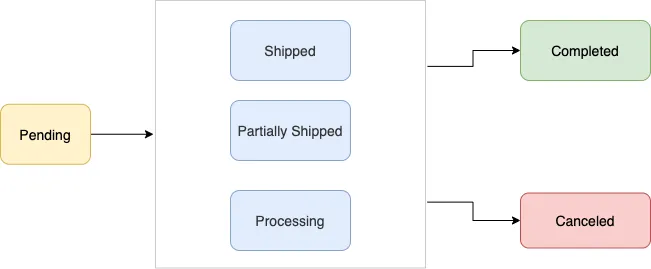
| Value | Description |
|---|
| User has not successfully paid yet |
| User payment authorized, merchant/partner is fulfilling the order, performing service, etc. |
| A portion of the products in the order have been shipped by the merchant |
| All the products in the order have been shipped by the merchant |
| The order is completed and no further action is expected from the user or the partner/merchant |
| The partner/merchant would like to cancel the `order_details` message for the order/invoice. The status update will fail if there is already a `successful` or `pending` payment for this `order_details` message |
### Creating an order status template
To create an order status template, the business needs a business portfolio with a WhatsApp Business Account, and access to the WhatsApp Manager.
In **WhatsApp Manager** > **Account tools**:
Click on `create template`Select `Utility` category to expand `Order details message` optionEnter the desired `template name` and supported `locale` Depending on the number of `locales` selected there will be an equal number of template variants and businesses need to fill in the template details in respective locale.Please fill in template components such as `Body` and optional `footer` text and submit.Once submitted, templates will be [categorized as per the guidelines](/books/meta-whatsapp/page/template-categorization-developer-documentation) and undergo the [approval process](/books/meta-whatsapp/page/template-review-developer-documentation) refrain from having [marketing content](/books/meta-whatsapp/page/template-categorization-developer-documentation) as part of template components.The template will be approved or rejected after the template components are verified by the system. If business believe the category determined is not consistent with our template category guidelines, please confirm there are no [common issues](/books/meta-whatsapp/page/template-review-developer-documentation) that leads to rejections and if you are looking for further clarification you may [request a review](/books/meta-whatsapp/page/template-categorization-developer-documentation) of the template via [Business Support?](https://business.facebook.com/business-support-home/)Once approved template [status](/books/meta-whatsapp/page/templates-developer-documentation) will be changed to `ACTIVE` Please be informed that template's status can change automatically from `ACTIVE` to `PAUSED` or `DISABLED` based on customer feedback and engagement. We recommend that you [monitor status changes](/books/meta-whatsapp/page/template-review-developer-documentation) and take appropriate actions whenever such change occurs.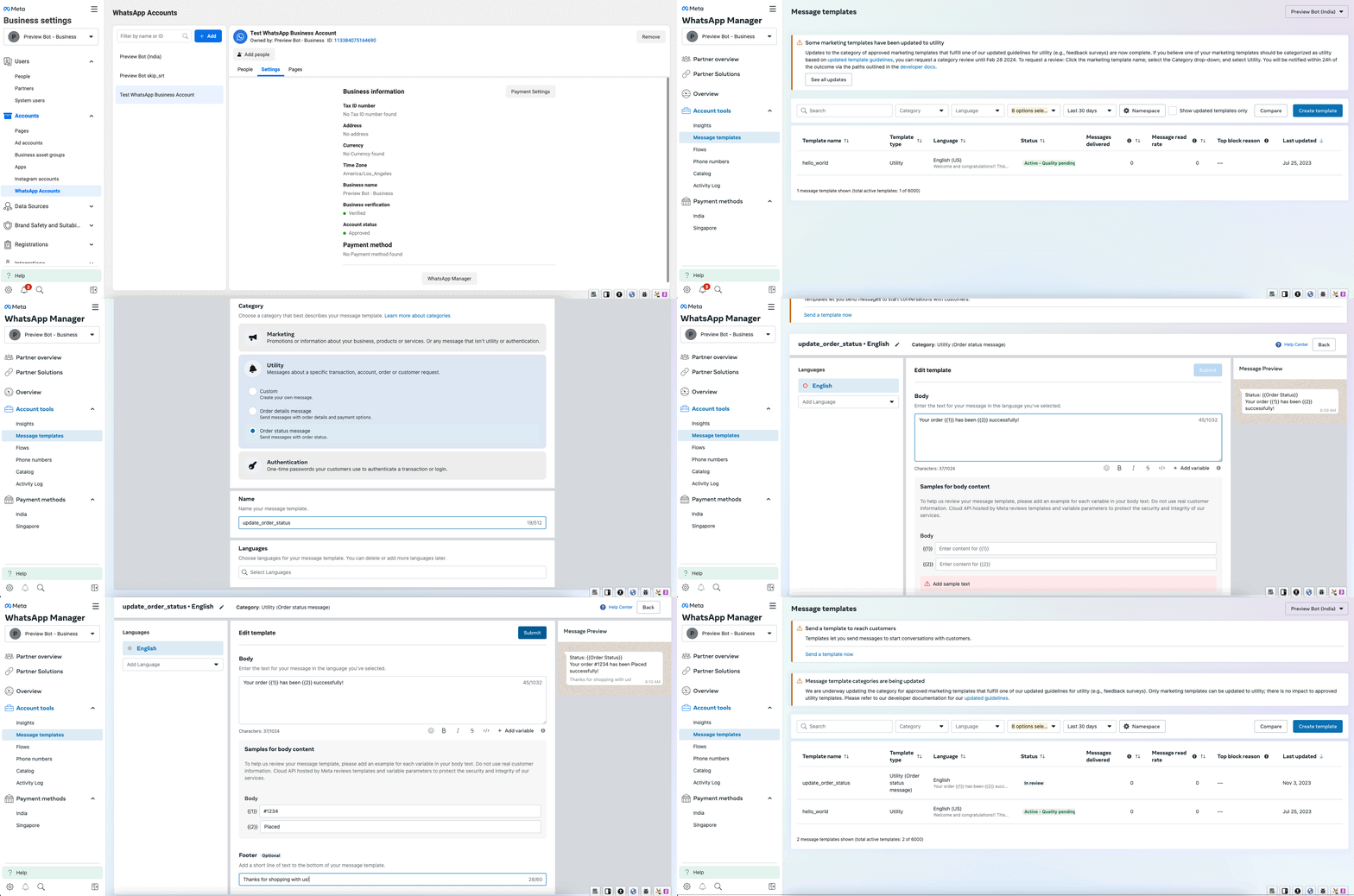
### Sending order status template message
Order status template message allows the businesses to send update on the status of the order as template component parameters.
To send an order status template message, make a `POST` call to `/
/messages` endpoint and attach a message object with `type=template`. Then, add a [template object](/books/meta-whatsapp/page/sending-messages-developer-documentation) with a `order_status` component and parameters with latest status on order with order `reference-id`.For example, the following sample describes how to send `shipped` status on the placed order.
Upon sending an `order_status` message with an invalid transition, you will receive an error webhook with the error code `2046` and message `New order status was not correctly transitioned`.
An order can be canceled by sending an `order_status` message with the status `canceled`. The customer cannot pay for an order that is canceled. The customer receives an `order_status` message and the order details page is updated to show that the order is canceled and the `Continue` button removed. The optional text shown below `Order canceled` on the order details page can be specified using the description field in the `order_status` message.
An order can be canceled only if the user has not already paid for the order. If the user has paid and the business sends a order_status message with canceled status will receive an error webhook with error code `2047` and message `Could not change order status to 'canceled'`.
## Checkout button templates
Updated: Dec 12, 2025
Checkout button templates are marketing templates that can showcase one or more products along with corresponding checkout buttons that WhatsApp users can use to make purchases without leaving the WhatsApp client.
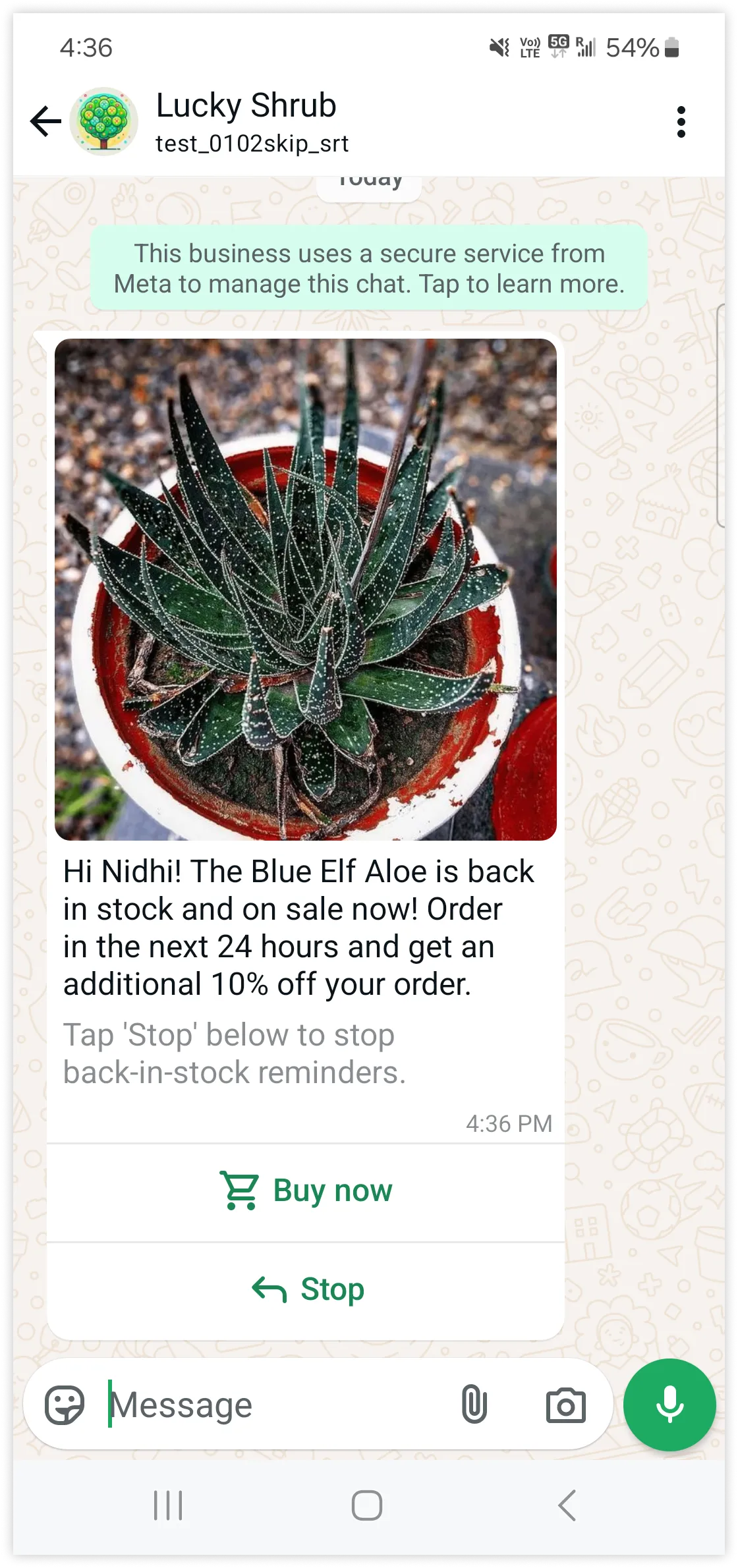
Checkout button templates can show a single product image or video header, along with message body text, message footer, a single checkout button, and up to 9 quick-reply buttons.
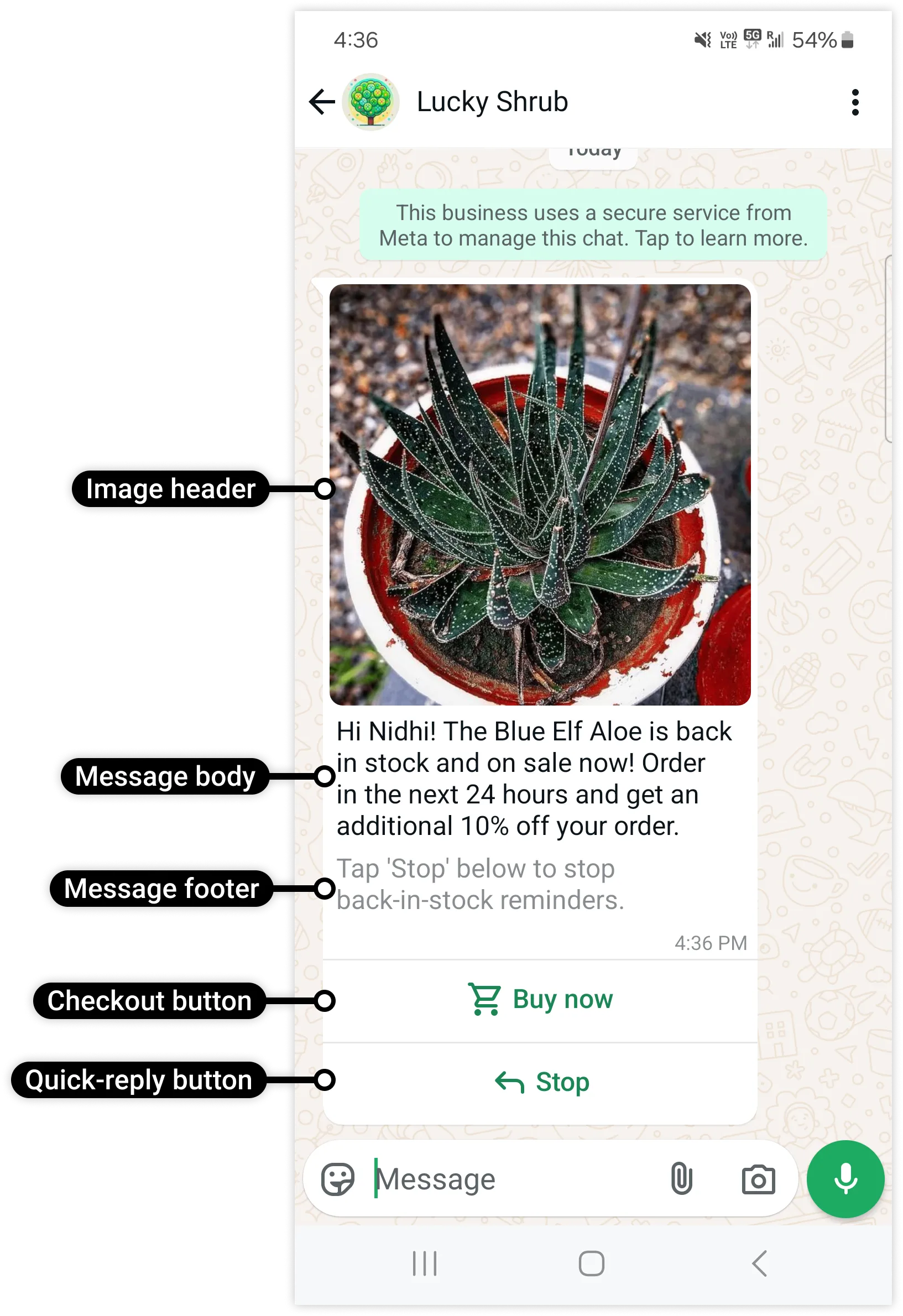
WhatsApp users who tap the button will see details of the order:
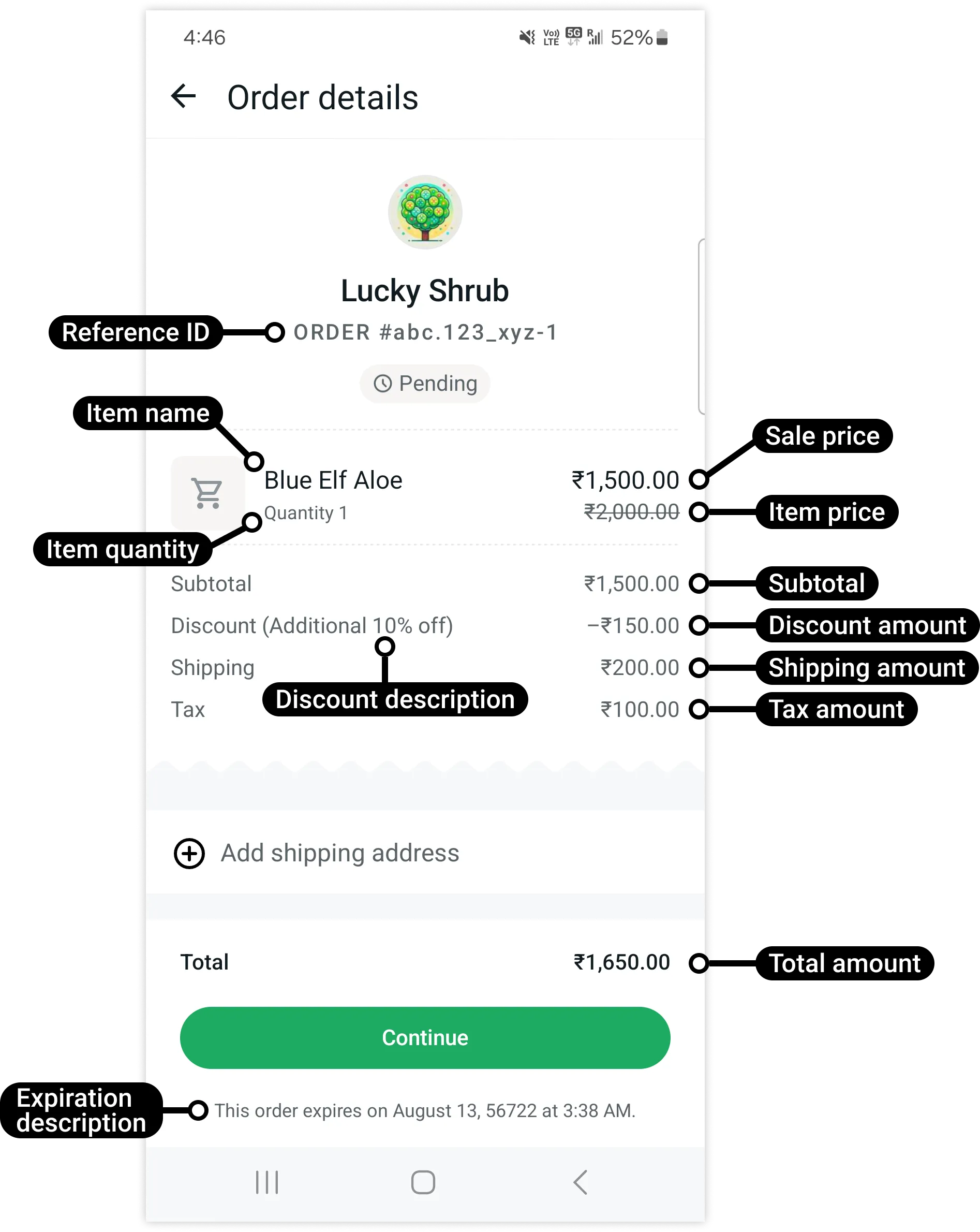
Users can proceed by selecting shipping information provided by you (if you know their information and supplied it in the send message payload)...
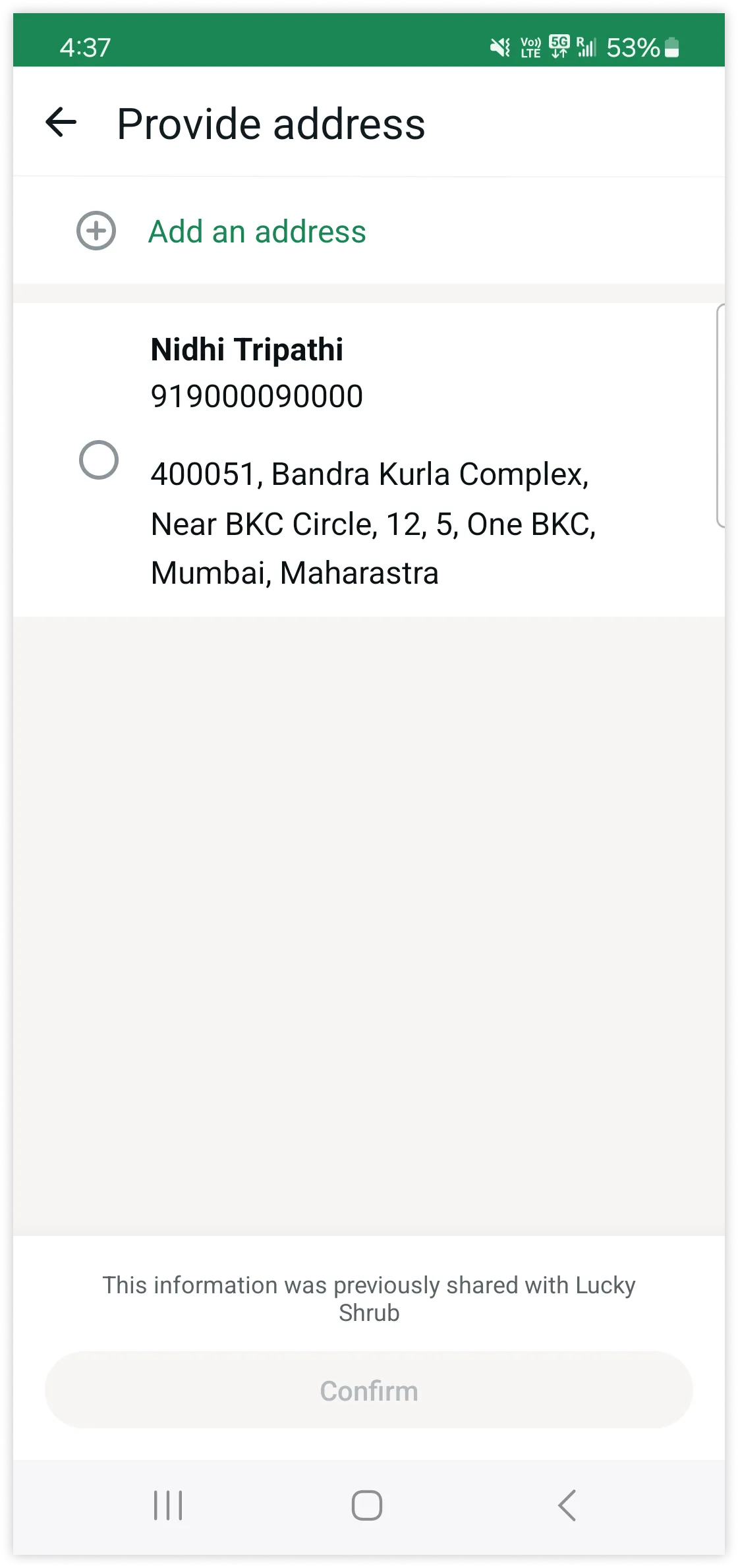
... or can add their own shipping information:
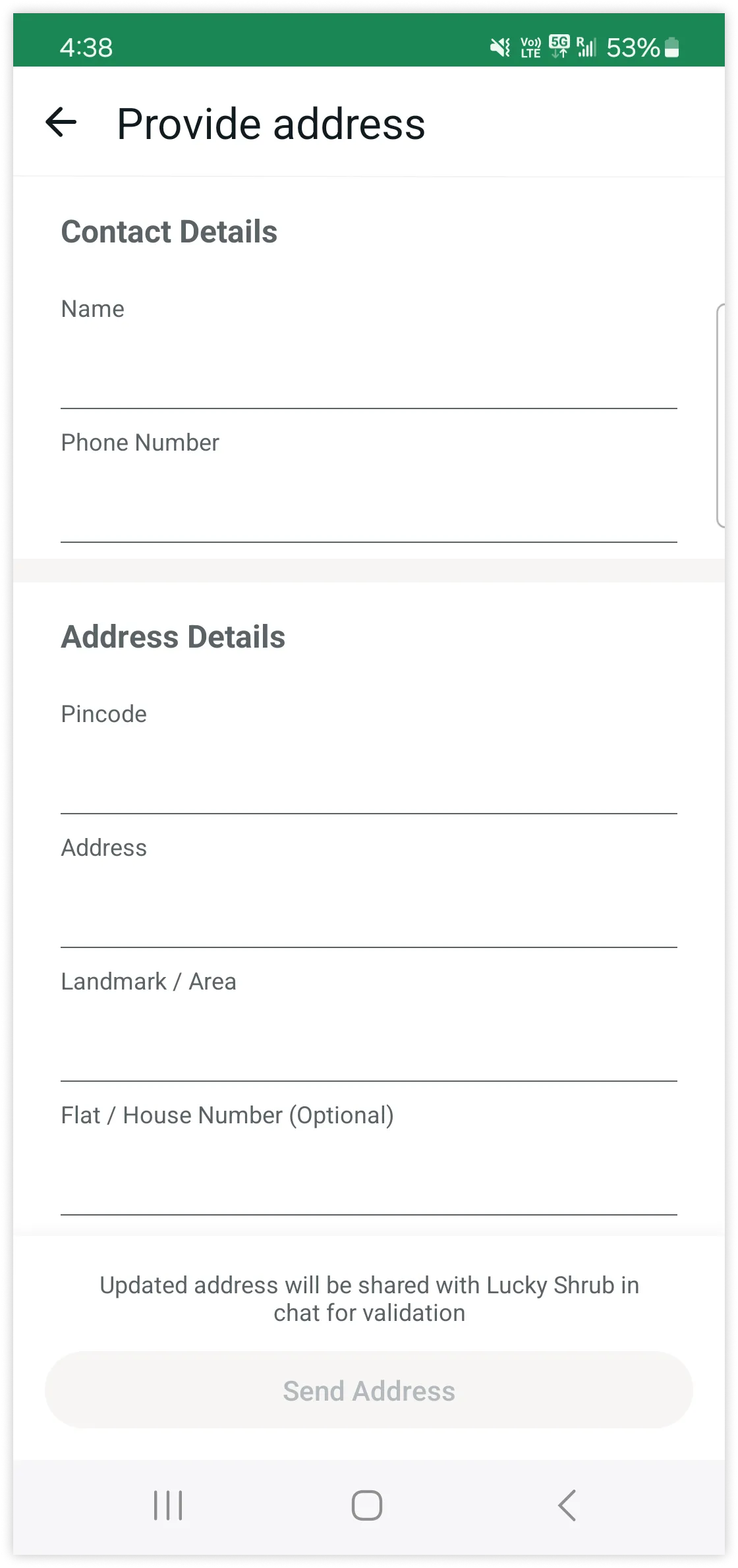
### Enabling coupons, realtime inventory, and pricing updates
Enabling coupons, realtime inventory and pricing updates is currently in beta and only available to India businesses and WhatsApp users with an India country calling code. Please reach out to whatsappindia-bizpayments-support@meta.com to know more.
To enable coupons, realtime inventory and pricing updates, you can set up a checkout endpoint that can exchange data in real time to update the order on the WhatsApp client. It enables businesses to receive the shipping address and offers coupons based on the order and allows users to apply the coupon. It also enables businesses to validate inventory and serviceability on the order before the user completes the checkout.
Setting up the checkout endpoint consists of the following steps and it's the same method that [WhatsApp Flows endpoint](https://developers.facebook.com/docs/whatsapp/flows/guides/implementingyourflowendpoint#implementing-endpoint-for-flows) uses to share the data with WhatsApp clients.
Create a key pair and upload and sign the public key using the [Cloud API](https://developers.facebook.com/docs/whatsapp/cloud-api/reference/whatsapp-business-encryption#set-business-public-key).[Setup the endpoint](#bkmrk-set-up-the-endpoint-1)[Implement Payload Encryption/Decryption](#bkmrk-implement-encryption-1)[Link the checkout endpoint with payment configuration](#bkmrk-link-the-checkout-en-1)[Implement checkout endpoint logic](#bkmrk-implement-checkout-e-1)WhatsApp client makes a HTTPS request to exchange the data with the business endpoint. You should make sure the endpoint is configured probably to accept the request and link the endpoint url with the [payment configuration](/books/meta-whatsapp/page/receive-payments-via-payment-gateways-on-whatsapp-developer-documentation):
```
https://business.com/checkout
```
Your server must be enabled to receive and process `POST` requests, use `HTTPS` and have a valid TLS/SSL certificate installed. This certificate does not have to be used in payload encryption/decryption.
#### Implement Encryption/Decryption
The body of each request contains the encrypted payload and has the following form:
##### Sample endpoint request syntax
```
{
encrypted_flow_data: "<ENCRYPTED_FLOW_DATA>",
encrypted_aes_key: "<ENCRYPTED_AES_KEY>",
initial_vector: "<INITIAL_VECTOR>"
}
```
| Parameter | Description |
|---|
`encrypted_flow_data` string | **Required.** The encrypted request payload. |
`encrypted_aes_key` string | **Required.** The encrypted 128-bit AES key. |
| **Required.** The 128-bit initialization vector. |
After processing the decrypted request, create a response and encrypt it before sending it back to the WhatsApp client. Encrypt the payload using the AES key received in the request and send it back as a Base64 string.
You can refer to examples of how to [decrypt and encrypt](https://developers.facebook.com/docs/whatsapp/flows/guides/implementingyourflowendpoint#request-decryption-and-encryption).
If a request can not be decrypted, the endpoint should return HTTP 421 response status code (see [Business Endpoint Error Codes](https://developers.facebook.com/docs/whatsapp/flows/reference/error-codes#endpoint_error_codes) for more details).
#### Link the checkout endpoint with payment configuration
The business should have payment gateway based [payment configuration](/books/meta-whatsapp/page/receive-payments-via-payment-gateways-on-whatsapp-developer-documentation) and reach out to whatsappindia-bizpayments-support@meta.com to enable the WhatsApp business account for checkout endpoint linking with with payment configuration.
Prior to linking the checkout endpoint, you should create a [payment configuration](/books/meta-whatsapp/page/receive-payments-via-payment-gateways-on-whatsapp-developer-documentation) and link with the payment gateway account. We advise you to use the linked payment configuration only with checkout button template integration.
You can achieve the endpoint linking with payment configuration by following [Onboarding API's - Link data endpoint](/books/meta-whatsapp/page/onboarding-apis-developer-documentation)
#### Implement checkout endpoint logic
WhatsApp checkout endpoint integration inherits the 'data_exchange' similar to Flows and supports a set of subactions based on the user interaction and passes the relevant information in each of these actions to allow businesses to provide user specific coupons and enable businesses to update the pricing information accordingly.
| Sub Action | Method | Description |
|---|
| | When users click on a savings offer CTA, WhatsApp passes [order parameters](/books/meta-whatsapp/page/receive-payments-via-payment-gateways-on-whatsapp-developer-documentation) excluding the [payment settings](/books/meta-whatsapp/page/receive-payments-via-payment-gateways-on-whatsapp-developer-documentation). It also passes the `user phone number` as an input parameter. Refer [get coupons request](#bkmrk-get-coupons---endpoi-1) example to understand the order and input parameters |
| | Checkout endpoint expected to pass the list of coupon information, such as code, id and description. Refer [get coupons response](#bkmrk-get-coupons---endpoi-4) example to understand the expected response. |
| | When users select or enter a coupon, WhatsApp passes [order parameters](/books/meta-whatsapp/page/receive-payments-via-payment-gateways-on-whatsapp-developer-documentation) excluding the [payment settings](/books/meta-whatsapp/page/receive-payments-via-payment-gateways-on-whatsapp-developer-documentation). It also passes the `user phone number` and information about the coupon to be applied as an input parameter. Refer [apply coupon request](#bkmrk-apply-coupon---endpo-1) example to understand the order and input parameters |
| | Checkout endpoint expected to update the item and order pricing in [order parameters](/books/meta-whatsapp/page/receive-payments-via-payment-gateways-on-whatsapp-developer-documentation) and attach the coupon with the order Refer to [apply coupon response](#bkmrk-apply-coupon---endpo-4) example to understand the expected response. |
| | When users try to remove an applied coupon, WhatsApp passes [order parameters](/books/meta-whatsapp/page/receive-payments-via-payment-gateways-on-whatsapp-developer-documentation) excluding the [payment settings](/books/meta-whatsapp/page/receive-payments-via-payment-gateways-on-whatsapp-developer-documentation). It also passes the `user phone number` as an input parameter. Refer [remove coupon request](#bkmrk-remove-coupon---endp-1) example to understand the expected response. |
| | Checkout endpoint expected to update the item and order pricing in [order parameters](/books/meta-whatsapp/page/receive-payments-via-payment-gateways-on-whatsapp-developer-documentation) and remove the coupon attached with the order. Refer [remove coupon response](#bkmrk-remove-coupon---endp-4) example to understand the expected response. |
| | When users try to submit a shipping address, WhatsApp passes [order parameters](/books/meta-whatsapp/page/receive-payments-via-payment-gateways-on-whatsapp-developer-documentation) excluding the [payment settings](/books/meta-whatsapp/page/receive-payments-via-payment-gateways-on-whatsapp-developer-documentation). It also passes the `user phone number` and shipping information as an input parameter. Refer to the [apply shipping request](#bkmrk-apply-shipping---end-1) example to understand the expected response. |
| | Checkout endpoint expected to update the item and shipping pricing in [order parameters](/books/meta-whatsapp/page/receive-payments-via-payment-gateways-on-whatsapp-developer-documentation). Refer to the [apply shipping response](#bkmrk-apply-shipping---end-4) example to understand the expected response. |
We have created a [checkout endpoint example?](https://l.facebook.com/l.php?u=https%3A%2F%2Fgithub.com%2FWhatsApp%2FWhatsApp-Checkout-Button-Template-Endpoint&h=AT5XJ5__rAvqCztGbeHJ8sRlVIHN6gj-TilwOCqgzP-_mvDzrR1DSAGz-ng9SY4wpndfQL7v0S7VGjBK0dCtiNA7oW1JzN8DyrpjA5K37diGYAEyTLPMb0zSmkKEVMl0_h-9J7RIi8kyGJ0NcvITWg) in Node.js that you can clone (remix) on Glitch to create your own endpoint and quickly prototype your checkout logic. Follow the instructions in the [README.md?](https://l.facebook.com/l.php?u=https%3A%2F%2Fgithub.com%2FWhatsApp%2FWhatsApp-Checkout-Button-Template-Endpoint%2Fblob%2Fmain%2FREADME.md&h=AT5XJ5__rAvqCztGbeHJ8sRlVIHN6gj-TilwOCqgzP-_mvDzrR1DSAGz-ng9SY4wpndfQL7v0S7VGjBK0dCtiNA7oW1JzN8DyrpjA5K37diGYAEyTLPMb0zSmkKEVMl0_h-9J7RIi8kyGJ0NcvITWg) file to get started. Using Glitch is entirely optional. You can clone the example code from Glitch and run it in any environment you prefer.
Upon completing the above steps, when business sends the checkout template with the linked payment configuration, WhatsApp enables the coupons, realtime inventory and pricing updates and allows users to apply coupons and share shipping addresses.
When enabled the `Apply a savings offer` will appear in the order summary screen
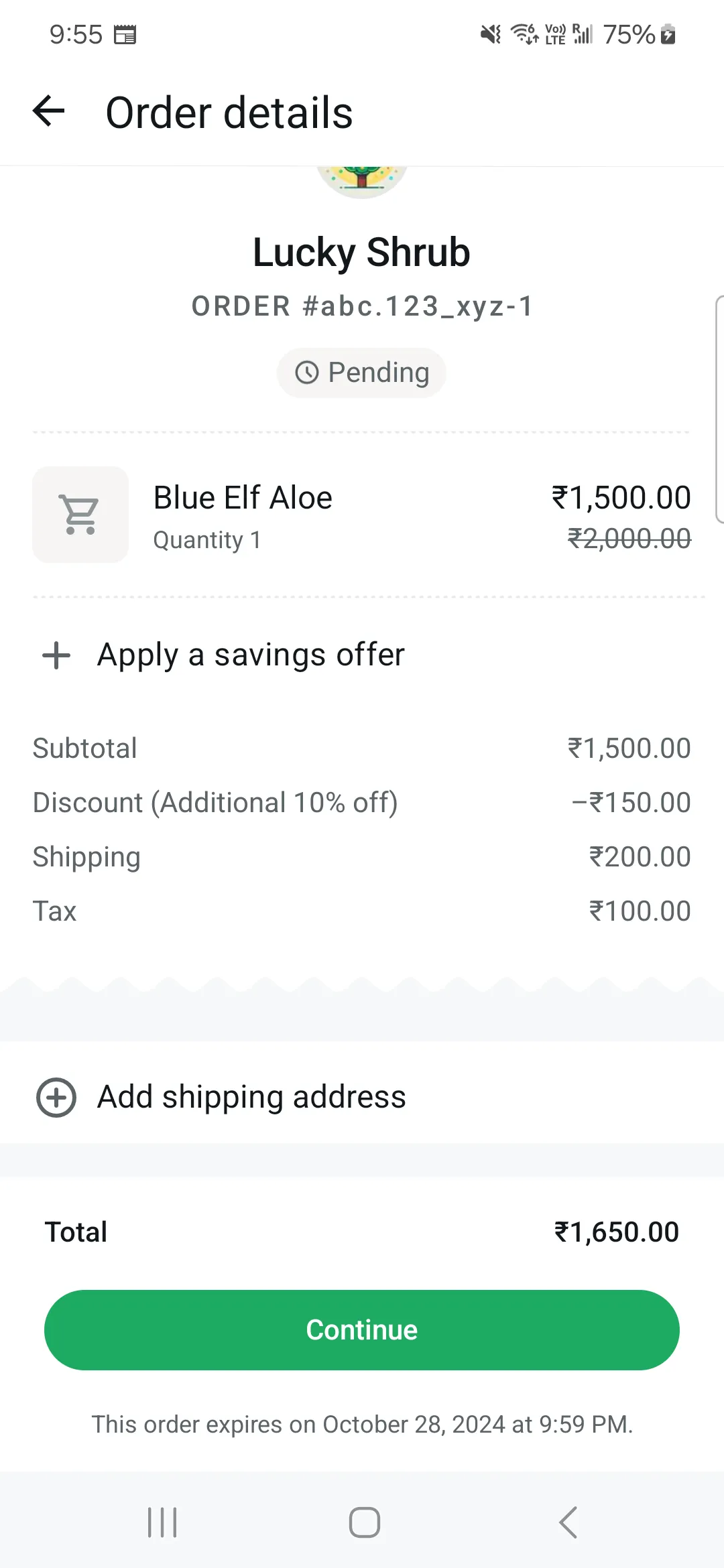
User can click on `Apply a savings offer` to explore the coupons, at this point WhatsApp makes `get_coupons` request to fetch the list coupons based on the passed order and `user phone number` information.
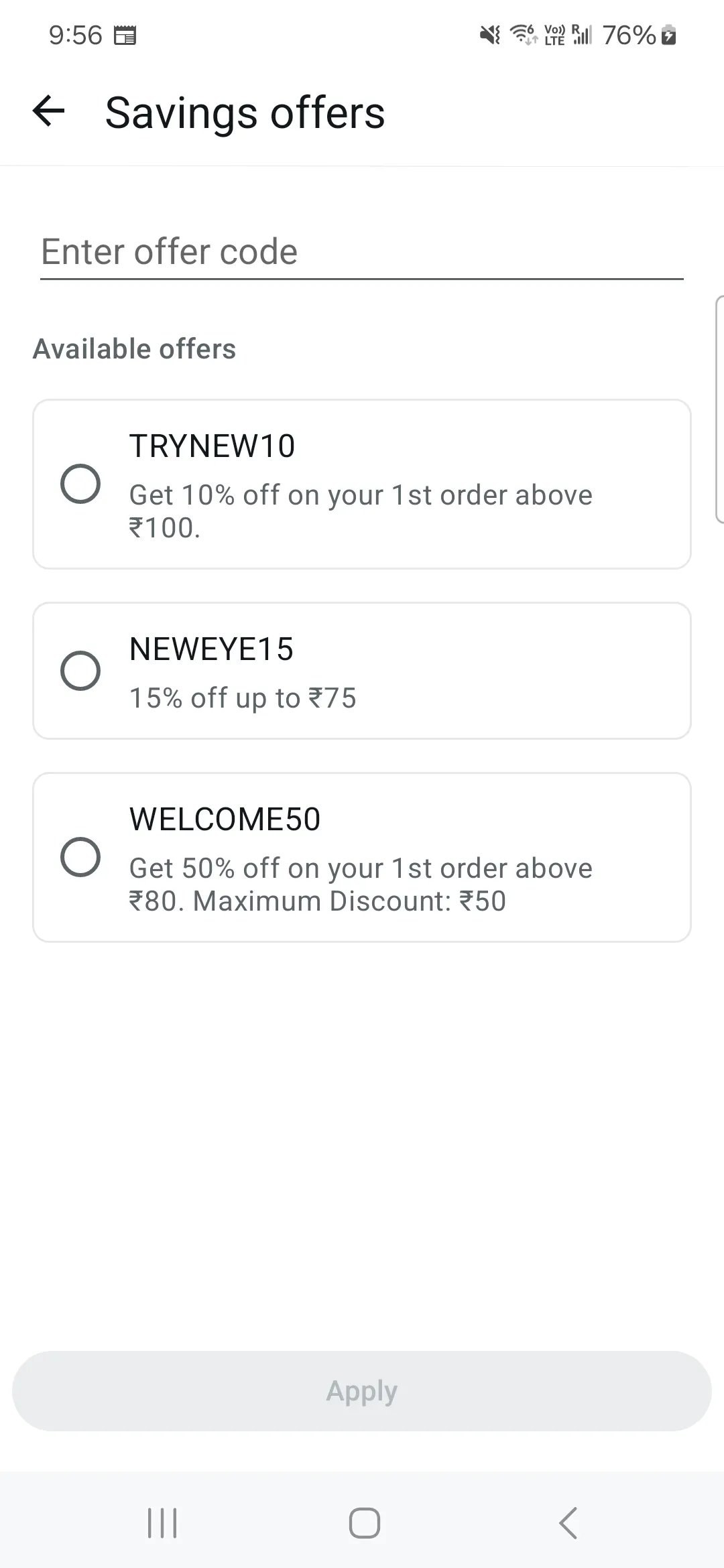
When the user tries to apply a coupon, WhatsApp makes `apply_coupon` and allow businesses to update the order or item pricing based on the selected coupon.
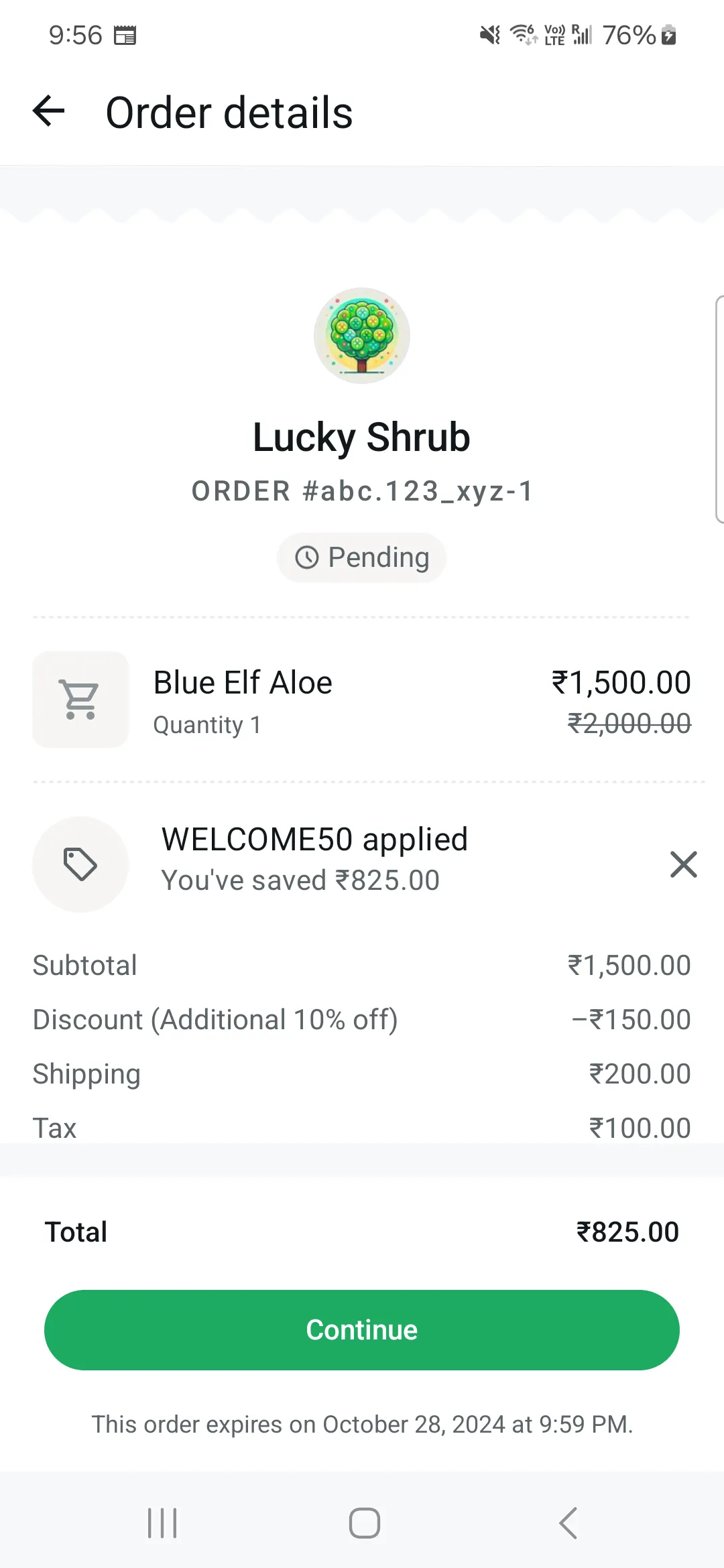
Similar to coupons, user can share the shipping address by clicking on `Add shipping address` and select the addresses saved with the businesses or add new address. WhatsApp makes `apply_shipping` request when user tries to submit the address and allow businesses to check inventory and logistics based on the address provided.
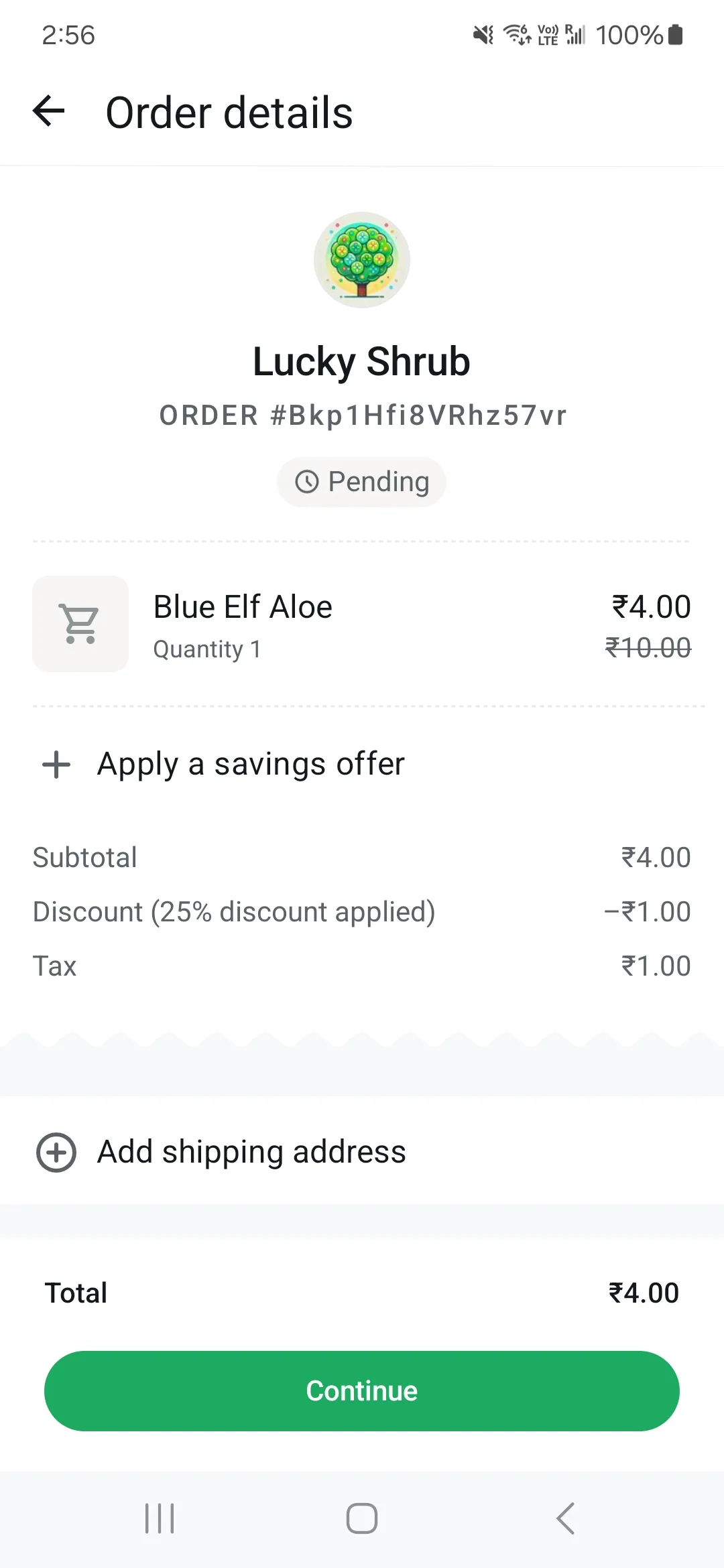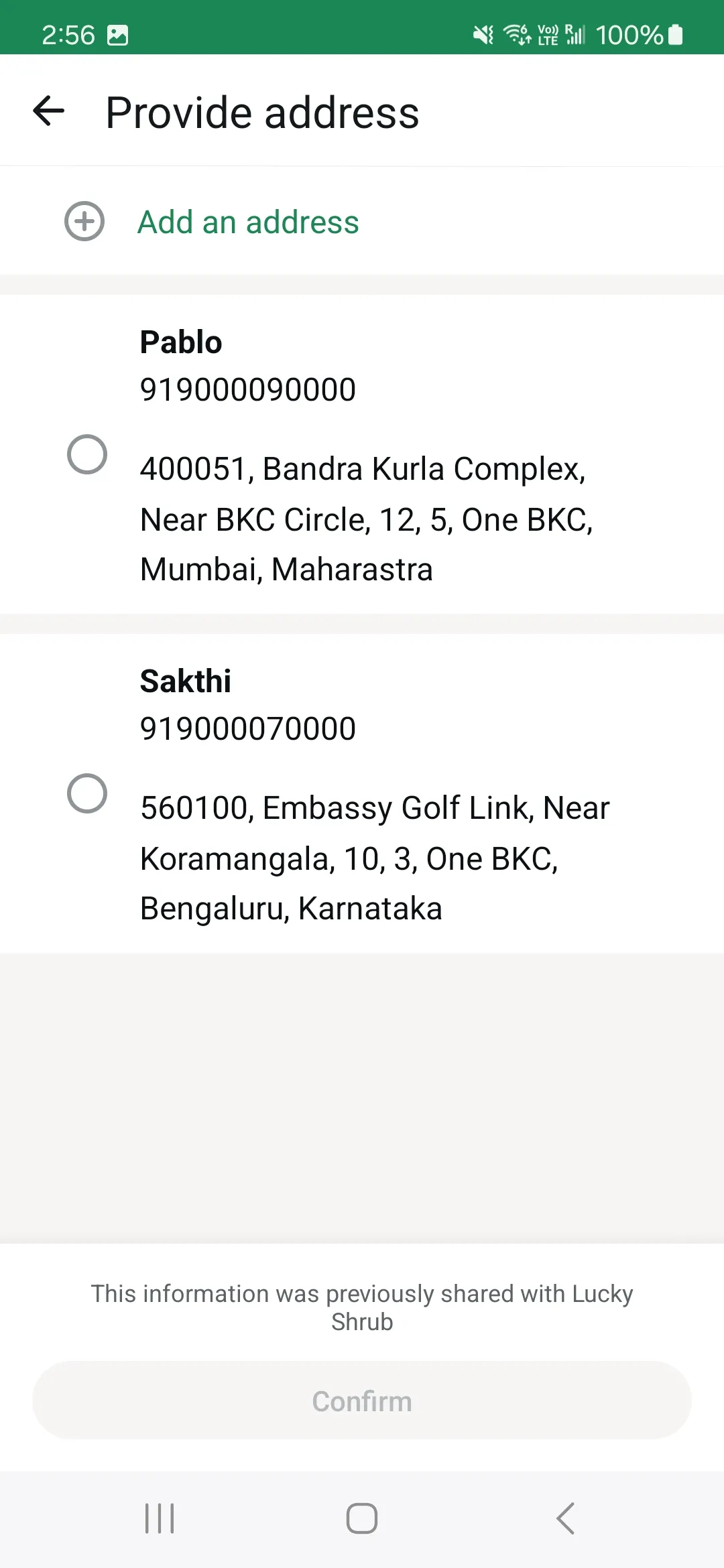
Users can then continue to place the order using their preferred payment method set up in the WhatsApp client:
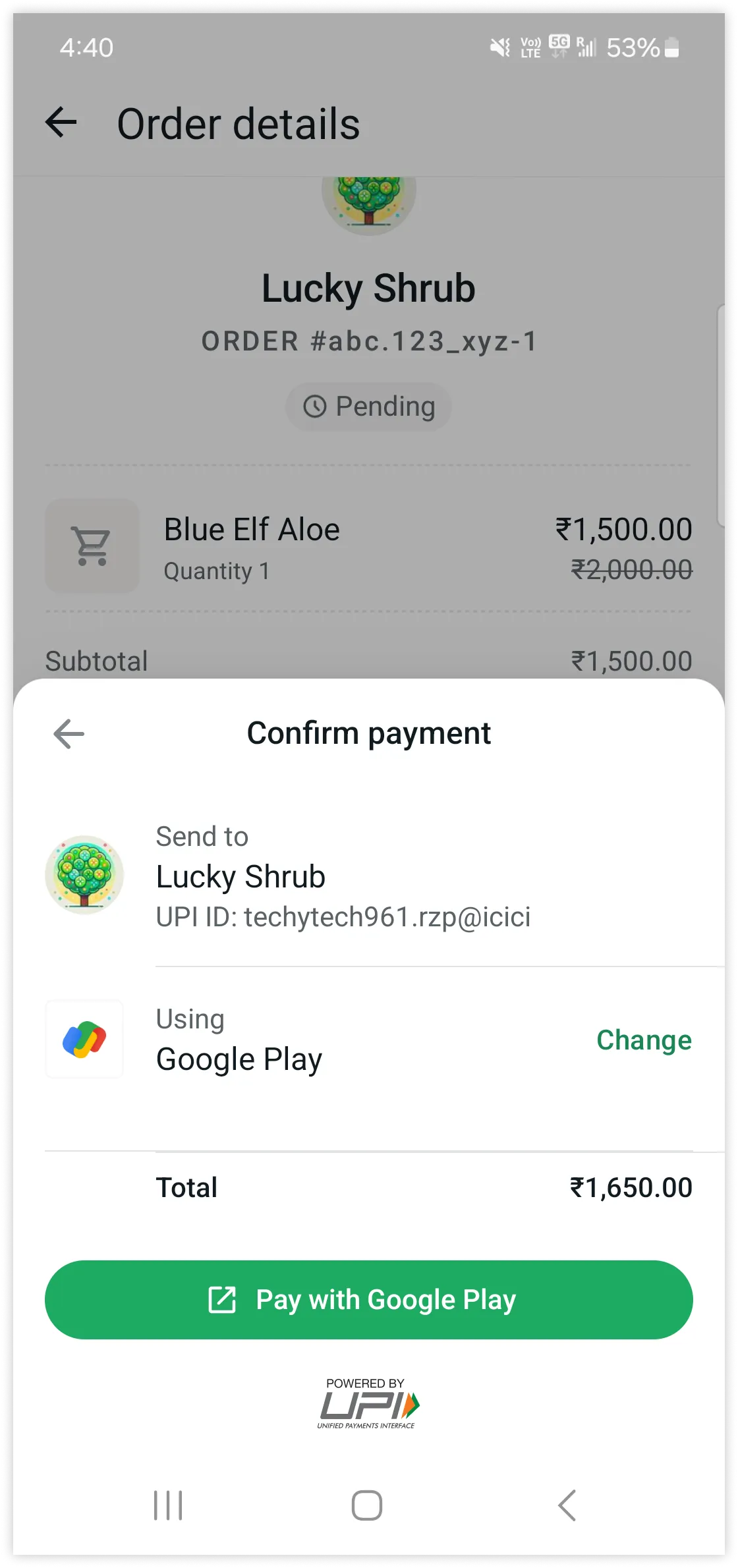
Once the order is processed, a [payment webhook](/books/meta-whatsapp/page/receive-payments-via-payment-gateways-on-whatsapp-developer-documentation) is triggered.
You can create a [media card carousel template](/documentation/business-messaging/whatsapp/templates/marketing-templates/media-card-carousel-templates) that showcases up to 10 products in a card carousel, each with their own checkout button. To do this, simply create a media card carousel template as you normally would, but replace one of the buttons with a [checkout button](#bkmrk-checkout-buttons-1), and make sure that it is the first button in the card.
Checkout buttons in media card carousel templates trigger the same order and payment flow as checkout buttons in templates that showcase a single product.
Each checkout button in a template must correspond to a single product. Checkout buttons, when creating a template, must have the following non-customizable syntax:
Note that this is simply a button definition. The actual details about the product that maps to this button are included when you [send the template](#bkmrk-send-a-checkout-butt-1) in a template message. For example:
If you are sending a [media card carousel template](/documentation/business-messaging/whatsapp/templates/marketing-templates/media-card-carousel-templates) (which can have two or more products), each checkout button must be defined in the template, and the item details that map to each button must be included when sending the template.
### Send a checkout button template
Once your checkout button template or carousel template has been approved, you can send it in a template message.
This post body syntax is for a checkout button template. See [Sending Media Card Carousel Templates](/documentation/business-messaging/whatsapp/templates/marketing-templates/media-card-carousel-templates) for media card carousel template post body payload syntax.
#### Post body parameters
| Placeholder | Description | Example Value |
|---|
| **Required if using a discount.** Discount amount, multiplied by discount.offset value. For example, to represent a discount of ?2, the value would be `200`. Discount amount applies to the order subtotal. | |
| **Optional.** Discount description. Maximum 60 characters. | |
| **Required if using an order expiration.** UTC timestamp indicating when we should disable the **Buy now** button. The timestamp will be used to generate a text string that appears at the bottom of the **Order details** window. For example: *This order expires on September 30, 2024 at 12:00 PM.* WhatsApp users who view the message after this time will be unable to purchase the item using the checkout button. Values must represent a UTC time at least 300 seconds from when the send message request is sent to us. | |
| **Required.** Importer address, line 1 (door, tower, number, street, etc.). Maximum 100 characters. | |
| **Optional.** Importer address, line 2 (landmark, area, etc.). Maximum 100 characters. | |
| **Required.** Importer city. Maximum 120 characters. | |
| **Required.** Importer name. Maximum 200 characters. | `Lucky Shrub Imports and Exports` |
| **Required.** Importer 6-digit postal index number. Maximum 6 digits. | |
| **Required.** Importer two-letter zone code. | |
| **Required.** Item's country of origin. Maximum 100 characters. | |
| **Required.** Item name. Maximum 60 characters. | |
| **Required.** Individual item price (price per item), multiplied by amount.offset value. For example, to represent an item price of ?12.99, the value would be `1299`. | |
| **Required.** Number of items in order, if order is placed. Maximum 100 integers. | |
| **Required if template message body text uses variables, otherwise omit.** Object describing a message variable. If the template uses multiple variables, you must define an object for each variable. Supports `text`, `currency`, and `date_time` types. See [Messages Parameters](/books/meta-whatsapp/page/sending-messages-developer-documentation). There is no maximum character limit on this value, but it does count against the message body text limit of 1024 characters. | |
| | |
| **Required.** Indicates header type and a matching property name. Note that the `` placeholder appears twice in the post body example above, as it serves as a placeholder for the type property's value and its matching property name. Value can be `image` or `video`. | |
| **Required.** Configuration name of payment gateway you have [configured](/books/meta-whatsapp/page/onboarding-apis-developer-documentation) on your WhatsApp Business Account. | `prod-razor-pay-config-05` |
| **Required.** Name of payment gateway you have [configured](/books/meta-whatsapp/page/onboarding-apis-developer-documentation) on your WhatsApp Business Account. Values can be: `razorpay``payu``zaakpay` | |
| **Required.** Product type. Value can be `digital-goods` or `physical-goods`. | |
| **Optional.** Value to be included in messages webhooks (`messages.button.payload`) when the button is tapped. | |
| **Required.** Your unique order or invoice reference ID. Case-sensitive. Cannot be empty. Will be preceded by a hash (#) symbol in the checkout flow. Value must be unique for each checkout button template message. If sending a carousel template, each checkout button must have a unique reference ID. If you need to send multiple messages for the same order/invoice, it is recommended to append a sequence number to the value (for example, -1). Values can only contain English letters, numbers, underscores, dashes, or dots. Maximum 35 characters. | |
| **Required if using a sale amount.** Sale price, multiplied by `sale.offset` value. For example, to represent a sale price of ?10, the value would be `1000`. | |
| **Required.** Order shipping cost, multiplied by `shipping.offset` value. For example, to represent a shipping cost of ?.99, the value would be `99`. | |
| **Required if you know the recipient's shipping information.** Product recipient's address. Maximum 512 characters. | |
| **Optional.** Product recipient's building name. Maximum 128 characters. | |
| **Required if you know the recipient's shipping information.** Full name of product recipient's city. Maximum 100 characters. | |
| **Optional.** Product recipient's floor number. Maximum 10 characters. | |
| **Optional.** Product recipient's house number. Maximum 8 characters. | |
| **Required if you know the recipient's shipping information.** Product recipient's postal index number. Maximum 6 characters. | |
| **Optional.** Product recipient's landmark area. Maximum 128 characters. | |
| **Required if you know the recipient's shipping information.** Product recipient's full name. Maximum 256 characters. | |
| **Required if you know the recipient's shipping information.** Product recipient's WhatsApp phone number. Maximum 12 characters. | |
| **Required if you know the recipient's shipping information.** Full name of product recipient's state. Maximum 100 characters. | |
| **Optional.** Product recipient's tower number. Maximum 8 characters. | |
| **Required.** Order subtotal. Calculate by multiplying `` by `` by `subtotal.offset`. For example, if the template is for placing a single order containing 2 items priced at ?12.99, the value would be `2598`. | |
| **Required.** Tax amount, multiplied by `tax.offset`. For example, to represent a tax amount of ?5, the value would be `500`. | |
| **Optional.** Tax description. Maximum 60 characters. | |
| **Required.** Template [language and locale code](/books/meta-whatsapp/page/template-library-developer-documentation). | |
| **Required.** Template name. Maximum 512 characters. | |
| **Required.** Total amount of order, multiplied by `total_amount.offset` value. For example, to represent a total amount of ?18, value be `1800`. Must be a sum of: `order.subtotal.value``order.shipping.value``order.tax.value`Minus: `order.discount.value` | |
| **Required.** WhatsApp user phone number. | |
The following sample request and responses are only supported with [Enabling coupons, realtime inventory and pricing updates](#bkmrk-enabling-coupons%2C-re-1) feature and it is currently in beta and only available to India businesses and WhatsApp users with an India country calling code. Please reach out to whatsappindia-bizpayments-support@meta.com to know more.
## Payments API - Brazil
Updated: Nov 14, 2025
Payments API enable businesses to accept payments from their customers via WhatsApp. Businesses send `order_details` messages ([Orders API](/books/meta-whatsapp/page/orders-developer-documentation)) to their customers, then get notified about payment status updates via webhook notifications.
Based on the selected use case, businesses can collect payment from the customers using one of the following integrations:
[Dynamic Pix Codes](/books/meta-whatsapp/page/offsite-pix-payments-developer-documentation)[Payment Links](/books/meta-whatsapp/page/payment-links-developer-documentation)[Boleto](/books/meta-whatsapp/page/boleto-developer-documentation)[One-click offsite card payment](/books/meta-whatsapp/page/one-click-payments-developer-documentation)[Order Details Template](/documentation/business-messaging/whatsapp/payments/payments-br/orderdetailstemplate)First, the business composes and sends an `order_details` message, which is a new type of interactive message. It contains the same 4 main components: header, body, footer, and action. Inside the action component, the business includes all the information needed for the customer to complete their payment.
Each `order_details` message **must** contain a **unique `reference_id`** provided by the business. This reference id is used throughout the flow to track the order.
Once the message is sent, the business waits for a payment or transaction status update. The type of the update depends on the integration type (e.g.: [Pix](/books/meta-whatsapp/page/offsite-pix-payments-developer-documentation), [Payment Links](/books/meta-whatsapp/page/payment-links-developer-documentation), etc.). WhatsApp does **NOT** support payment reconciliations. The business must reconcile the payment with their payment service provider (PSP) using the `reference_id` of the order.
In the WhatsApp customer app, the purchase flow has the following steps:
Buyers communicate with businesses and select a product.Businesses send an `order_details` message to the buyer.Buyers pay the order. For Pix, they will switch to their bank app and use the Pix Copy and Paste functionality. For Payment Links, the payment/checkout link opens in the web browser, and they complete the payment there.Businesses send an `order_status` message indicating that the order is now `processing`.## Orders
Updated: Mar 25, 2026
Payments API introduces two new types of [interactive messages](/books/meta-whatsapp/page/sending-messages-developer-documentation): `order_details` and `order_status`. They are the entrypoint to collect payment in WhatsApp.
`order_details` messages are sent to create an order in the buyer’s WhatsApp client app. This message includes the payment settings used to collect payment and can optionally include an `order` object with itemized products, fees, and discounts. Without the `order` object, you can send a simplified order details message with just the total amount and payment settings. The payment settings will vary depending on the integration type ([Pix](/books/meta-whatsapp/page/offsite-pix-payments-developer-documentation), [payment links](/books/meta-whatsapp/page/payment-links-developer-documentation), [Boleto](/books/meta-whatsapp/page/boleto-developer-documentation), [One Click Payments](/books/meta-whatsapp/page/one-click-payments-developer-documentation)).`order_status` messages are sent when businesses update the order status either based on the WhatsApp payment status change notification or based on their internal processes. You can also send a simplified status update without the `order` object.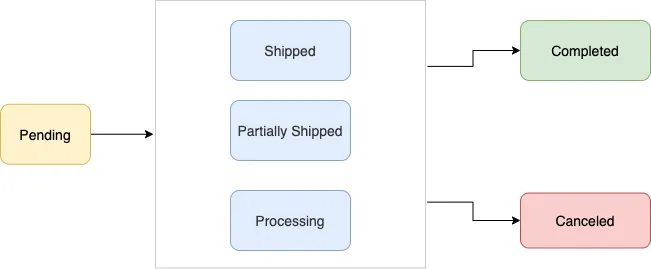
When attached to an order details message, orders start in `pending` status. When the merchant has fully fulfilled the order and the buyer should not expect any further updates, it must be marked as `completed`.
To send an order_details message, businesses must assemble an interactive object of type order_details with the following components:
| **Field Name** | **Optional?** | **Type** | **Description** |
|---|
| | | |
| | | Thumbnail image for order details message. It has the following fields:
`type`: Must be `image`.`image`: See [Image Object](#bkmrk-image-object-1).If the header is not present, the API finds the first product with an image and uses that for the thumbnail image. |
| | | An object with the body of the message. The object contains the following field:
`text` string: The content of the message. Emojis and markdown are supported. Maximum length is 1024 characters. |
| | | An object with the footer of the message. The object contains the following field:
`text` string: **Required** if footer is present. The footer content. Emojis, markdown, and links are supported. Maximum length is 60 characters. |
| | | See [Action Object](#bkmrk-action-object-1) below. |
| Field Name | Optional? | Type | Description |
|---|
| | | |
| | | Name of the url provider. |
| Field Name | Optional? | Type | Description |
|---|
| | | Must be `review_and_pay`. |
| | | See [Parameters Object](#bkmrk-parameters-object-1). |
| **Field Name** | **Optional?** | **Type** | **Description** |
|---|
| | | Unique identifier for the order or invoice provided by the business. This cannot be an empty string and can only contain English letters, numbers, underscores, dashes, or dots, and should not exceed 60 characters. The reference_id must be unique for each order_details message for the same business. If the partner would like to send multiple order_details messages for the same order, invoice, etc. it is recommended to include a sequence number in the reference_id to ensure reference_id uniqueness. |
| | | Must be one of `digital-goods` or `physical-goods`. |
| | | |
| | [Payment Settings Object](#bkmrk-payment-settings-1) | List of payment related configuration objects. |
| | | ISO 4217 currency code for the order. Must be `BRL` (Brazilian Real). |
| | | See [Amount Object](#bkmrk-amount-object-1). `total_amount.value` must be equal to `order.subtotal.value` + `order.tax.value` + `order.shipping.value` - `order.discount.value` |
| | | See [Order Object](#bkmrk-order-object-1). |
| Field Name | Optional? | Type | Description |
|---|
| | | One of `pix_dynamic_code`, `payment_link`, `boleto`. |
One of the following objects: `pix_dynamic_code`, `payment_link`, `boleto`. | | | Payment instructions which will be displayed to buyers during the checkout process. |
| **Field Name** | **Optional?** | **Type** | **Description** |
|---|
| | | Status of the order. Only supported value here is `pending`. |
| | | Unique identifier of the Facebook catalog being used by the business. |
| | | Expiration for that order. The CTA for payment will be disabled after expiry on the user end. See [Expiration Object](#bkmrk-expiration-object-1). |
| | | List must have at least one item. See [Item Object](#bkmrk-item-object-1). |
| | | See [Amount Object](#bkmrk-amount-object-1). The value **must be equal** to sum of (`item.amount.value` or `item.sale_amount.value`) * `item.quantity`. The following fields are part of the `subtotal` object: `offset` string
**Required.** Must be `100` for `BRL`.`value` string
**Required.** Positive integer representing the amount value multiplied by offset. For example, S$12.34. has value 1234 |
| | Amount With Description Object | The tax information for this order. Even though the object is required, the amount can be zero. When zero is used, the tax line is not rendered in the client. See [Amount With Description Object](#bkmrk-amount-object-%28with--1). |
| | Amount With Description Object | See [Amount Object](#bkmrk-amount-object-%28with--1). |
| | | The discount for the order. See [Discount object](#bkmrk-discount-object-1). |
| **Field Name** | **Optional?** | **Type** | **Description** |
|---|
| | | UTC time in seconds. Minimum threshold is 300 seconds. |
| | | Text explanation for when the order will expire. Max character limit is 120 characters. |
| **Field Name** | **Optional?** | **Type** | **Description** |
|---|
| | | Content ID for an item in the order from your catalog. |
| | | The item’s name to be displayed to the user. Cannot exceed 60 characters. |
| | | The price per item. See [Amount Object](#bkmrk-amount-object-1). |
| | | Number of items in this order. |
| | | The discounted price per item. This should be less than the original amount. If included, this field is used to calculate the subtotal amount. See [Amount Object](#bkmrk-amount-object-1). |
| **Field Name** | **Optional?** | **Type** | **Description** |
|---|
| | | Positive integer representing the amount value multiplied by offset. For example, 12.34 BRL has value 1234. |
| | | |
| | | Max character limit is 60 characters. |
| | | Text used for defining incentivised orders. If order is incentivised, the merchant needs to define this information. Max character limit is 60 characters. |
| **Field Name** | **Optional?** | **Type** | **Description** |
|---|
| | | Positive integer representing the amount value multiplied by offset. For example, 12.34 BRL has value 1234. |
| | | |
##### Amount Object (With Description)
| **Field Name** | **Optional?** | **Type** | **Description** |
|---|
| | | Positive integer representing the amount value multiplied by offset. For example, 12.34 BRL has value 1234. |
| | | |
| | | Max character limit is 60 characters. |
To send an order_status message, businesses must assemble an interactive object of type order_status with the following components:
| **Field Name** | **Optional?** | **Type** | **Description** |
|---|
| | | |
| | | Optional object for the message’s header for the message. |
| | | An object with the body of the message. The object contains the following field:
`text` string: The content of the message. Emojis and markdown are supported. Maximum length is 1024 characters. |
| | | An object with the footer of the message. The object contains the following field:
`text` string: **Required** if footer is present. The footer content. Emojis, markdown, and links are supported. Maximum length is 60 characters. |
| | | See [Action Object](#bkmrk-action-object-4) below. |
| Field Name | Optional? | Type | Description |
|---|
| | | |
| | | See [Parameters Object](#bkmrk-parameters-object-4). |
| Field Name | Optional? | Type | Description |
|---|
| | | The unique ID provided in the `order_details` message. |
| | | See [Order Object](#bkmrk-order-object-4). |
| | | See [Payment Object](#bkmrk-payment-object-1). |
| Field Name | Optional? | Type | Description |
|---|
| | | The new order status. [See supported order status](#bkmrk-supported-order-stat-1). |
| | | Optional text for sharing status related information in order-details page. Could be useful while sending cancellation. Length should not exceed 120 characters. |
| Field Name | Optional? | Type | Description |
|---|
| | | The new payment status. [See supported payment status](#bkmrk-supported-payment-st-1). |
| | | Optional epoch timestamp in seconds |
##### Supported Order Status
Currently we support the following order status values:
| Value | Description |
|---|
| Order is pending / not processed yet. |
| Merchant/partner is fulfilling the order, performing service, etc. |
| Part of the products in order have been shipped by the merchant. |
| All the products in order have been shipped by the merchant. |
| The order is completed and no further action is expected from the user or the partner/merchant. |
| The partner/merchant would like to cancel the order_details message for the order/invoice. The status update will fail if there is already a successful or pending payment for this order_details message. |
##### Supported Payment Status
Currently we support the following payment status values:
| Value | Description |
|---|
| |
| Payment was successfully captured. Receiving this payment status will update the order bubble to include the “paid” label (with green checkmark). |
| |
These are the relevant errors for the WhatsApp Payments API:
| Error Code | Description |
|---|
`2040 - Message is not supported` | The message you are trying to send cannot be received by this user |
`2046 - Order status invalid transition` | The order status cannot be updated from the existing value to the new one |
`2047 - Order cancellation failure` | The order could not be cancelled |
For a comprehensive list with detailed descriptions of error codes and HTTP status codes, please refer to our [Error Codes](/documentation/business-messaging/whatsapp/support/error-codes) document.
## Offsite Pix payments
Updated: Nov 14, 2025
Payments API also enables businesses to collect payments from their customers via WhatsApp using dynamic Pix codes.
When using this integration, WhatsApp only facilitates the communication between merchants and buyers. Merchants are responsible for integrating with a bank or PSP in order to generate dynamic Pix codes, and confirm their payment.
Familiarize yourself with the [Orders API](/books/meta-whatsapp/page/orders-developer-documentation). Orders are the entrypoint for collecting payments in WhatsApp.You will need an existing integration with a bank or PSP to generate dynamic Pix codes and do automatic reconciliation when a payment is made. You must be able to update the order status as soon as a payment is made.## Payment links
Updated: Nov 14, 2025
Payments API also enables businesses to collect payments from their customers via WhatsApp using Payment Links.
When using this integration, WhatsApp only facilitates the communication between merchants and buyers. Merchants are responsible for integrating with a PSP from which they can generate Payment Links, and confirm their payment.
Familiarize yourself with the [Orders API](/books/meta-whatsapp/page/orders-developer-documentation). Orders are the entrypoint for collecting payments in WhatsApp.You will need an existing integration with a PSP to generate Payment Links and do automatic reconciliation when a payment is made.You must update the order status as soon as a payment is made.## Boleto
Updated: Nov 14, 2025
Payments API also enables businesses to collect payments from their customers via WhatsApp using Boleto.
When using this integration, WhatsApp only facilitates the communication between merchants and buyers. Merchants are responsible for integrating with a PSP from which they can generate Boleto codes, and confirm their payment.
Familiarize yourself with the [Orders API](/books/meta-whatsapp/page/orders-developer-documentation). Orders are the entrypoint for collecting payments in WhatsApp.You will need an existing integration with a PSP to generate Boleto codes and do automatic reconciliation when a payment is made.You must update the order status as soon as a payment is made.## One-Click Payments
Updated: Nov 14, 2025
This feature is not publicly available yet and is only available for businesses based in Brazil and their Brazilian customers. To enable payments for your businesses, please contact your Solution Partner.
Payments API also enables businesses to collect payments from their customers via WhatsApp using One-Click Payments.
When using this integration, WhatsApp facilitates communication between merchants and buyers. Merchants are responsible for storing payment credentials and integrating with a payment service provider (PSP) to submit these credentials, completing and confirming their payments.
Familiarize yourself with the [Orders API](/books/meta-whatsapp/page/orders-developer-documentation). Orders are the entrypoint for collecting payments in WhatsApp.You will need an existing integration with a PSP and do automatic reconciliation when a payment is made.You must update the order status as soon as a payment is made.## Send order details template message
Updated: Nov 4, 2025
Order details message template is a template with [interactive components](/books/meta-whatsapp/page/templates-developer-documentation) that extends the call-to-action button to support sending order details and provides a richer experience compared to templates with only text components.
Once your Order details message templates have been created and approved, you can use the approved template to send the template message with order or bill information to prompt customers to make a payment.
Before sending an order details template message, businesses need to create a template with an “order details” call-to-action button. See [Create Message Templates for Your WhatsApp Business Account](https://www.facebook.com/business/help/2055875911147364?id=2129163877102343) for more information on prerequisites and how to create a template.
### Creating an order details template on WhatsApp Manager
To create an order details template, business needs a business portfolio with a WhatsApp Business Account.
In **WhatsApp Manager** > **Account tools**:
Click on `create template`Select `Utility` or `Marketing` category to see the `Order details` template format option.Select `Order details` template format, and click **Next**Enter the desired `template name` and supported `locale` Depending on the number of `locales` selected there will be an equal number of template variants and businesses need to fill in the template details in respective locale.Fill in template components such as `Header`, `Body` and optional `footer` text. For the `Header`, you can choose one of three media types: `Text`, `Image` or `Document`. Choose `Document` if you want to send **PDF files** in the header of this template.Click submit.Once submitted, templates will be [categorized as per the guidelines](/books/meta-whatsapp/page/template-categorization-developer-documentation) and undergo the [approval process](/books/meta-whatsapp/page/template-review-developer-documentation).The template will be approved or rejected after the template components are verified by the system. If business believe the category determined is not consistent with our template category guidelines, please confirm there are no [common issues](/books/meta-whatsapp/page/template-review-developer-documentation) that leads to rejections and if you are looking for further clarification you may [request a review](/books/meta-whatsapp/page/template-categorization-developer-documentation) of the template via [Business Support](https://business.facebook.com/business-support-home/)Once approved template [status](/books/meta-whatsapp/page/templates-developer-documentation) will be changed to `ACTIVE` Please be informed that template’s status can change automatically from `ACTIVE` to `PAUSED` or `DISABLED` based on customer feedback and engagement. We recommend that you [monitor status changes](/books/meta-whatsapp/page/template-review-developer-documentation) and take appropriate actions whenever such change occurs.### Sending order details template message
Order details template message allows the businesses to send invoice (order_details) message as predefined `order details` call-to-action button component parameters. It supports businesses to send all payment integration (such as [Dynamic Pix code](/books/meta-whatsapp/page/offsite-pix-payments-developer-documentation), [Payment Links](/books/meta-whatsapp/page/payment-links-developer-documentation), [Boleto](/books/meta-whatsapp/page/boleto-developer-documentation), etc) integration as button parameters.
To send an order details template message, make a `POST` call to `/PHONE_NUMBER_ID/messages` endpoint and attach a message object with `type=template`. Then, add a template object with a predefined `order details` call-to-action button.
You can optionally include a **PDF file** as attachment in the `header` component of the template message. To do so, you use `type=document` in the `parameter` object of the `header` component object, as described in our [Components](/books/meta-whatsapp/page/template-components-developer-documentation) document.
For example following sample describes how to send [Copy Pix code](/books/meta-whatsapp/page/offsite-pix-payments-developer-documentation) in order details template message parameters to prompt the consumer to make a payment.
### Post order details template message flow
After the order details template message delivery the rest of the payment flow is the same as “Sending invoice in customer session window” and depends on the chosen [payment integration](/books/meta-whatsapp/page/payments-api-brazil-developer-documentation) order details parameters.
## Receive UPI Payments Through WhatsApp
Updated: Nov 14, 2025
This is NOT the recommended UPI Intent integration. [Migrate to dynamic VPA](/documentation/business-messaging/whatsapp/payments/payments-in/upi-intent/dynamic-vpa). With dynamic VPA, you can rotate VPAs on UPI intents without requiring any configuration changes on your end - simplifying integration and ongoing maintenance.
Your business can enable customers to pay for their orders using all the UPI Apps installed on their devices via WhatsApp. Businesses can send customers invoice(`order_details`) messages, then get notified about payment status updates via webhook notifications from Payment Gateway.
Currently, customers browse business catalogs, add products to cart, and send orders in with our set of commerce messaging solutions, which includes [Single Product Message, Multi Product Message, and Product Detail Page](/books/meta-whatsapp/page/share-products-with-whatsapp-users-developer-documentation).
With the WhatsApp Payments API, businesses can send customers a bill so the customer can complete their order with all the UPI Apps.
The business must send an `order_details` message for the consumer to initiate payment. This type of message is a new type of interactive message, which always contains the same 4 main components: **header**, **body**, **footer**, and **action**. Inside the **action** component, the business includes all the information needed for the customer to complete their payment.
Each `order_details` message contains a unique `reference_id` provided by the business, and that unique number is used throughout the flow to track the order. This `reference_id` is fetched from UPI intent link(**tr** value from the UPI payment intent) generated for a business order from Payment Gateway.
Once the message is sent, the business waits for a payment or transaction status updates directly from Payment Gateway. Upon receiving payment signal for an order, Business should relay this payment signal to consumer through interactive order status(`order_status`) message.
Updating user about the payment signal is important as this message updates the order details message and order details view for the consumer reflecting the order confirmation from merchant. This is shown with an example in subsequent sections.
In the WhatsApp customer app, the purchase flow has the following steps:
Customer sends an order with selected products to the business or Business identifies the products that the customer has shown interest to purchase.
After receiving the order/identifying the product, if a merchant accepts payment methods other than UPI, such as credit cards and payment wallets, then merchant will send a message to the user to get their preferred payment method for the order.
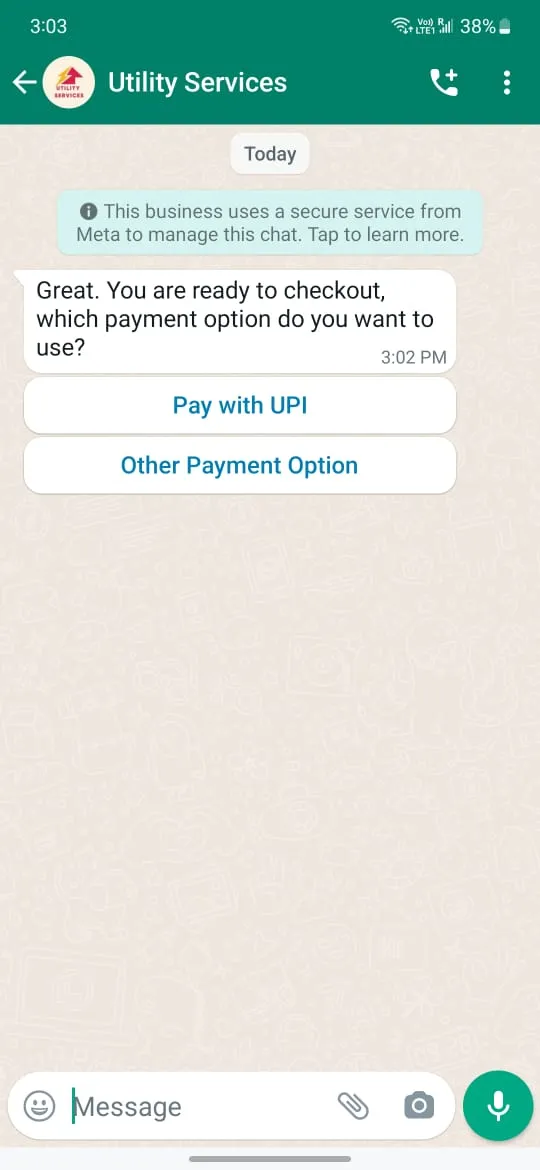
When consumers want to pay using UPI payment method, then merchants should retrieve the UPI payment intent by calling Payment Gateway. Merchant needs to use UPI intent to construct order details messages and send it to the consumer.
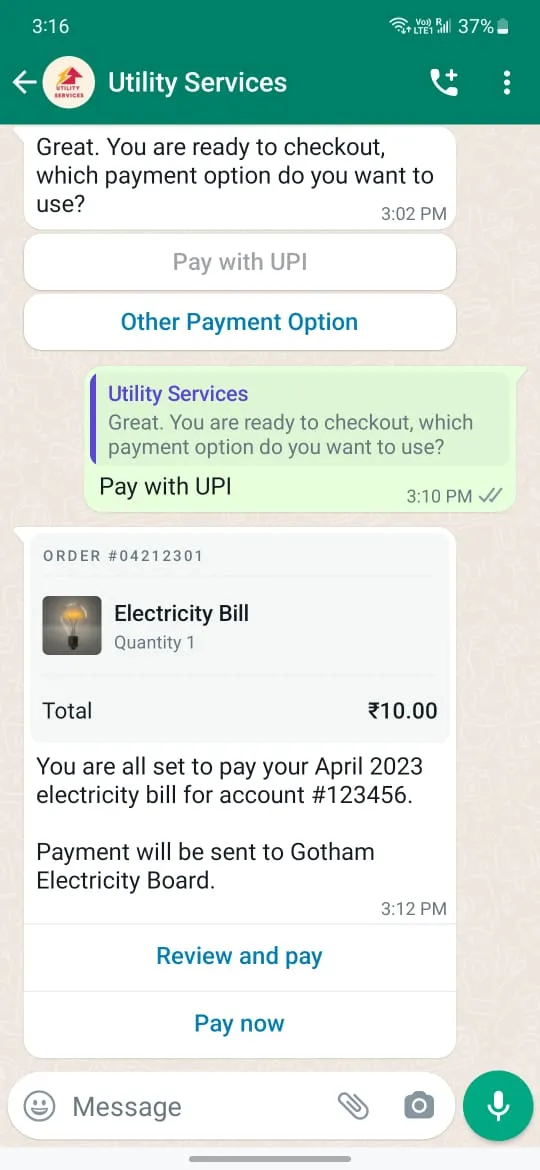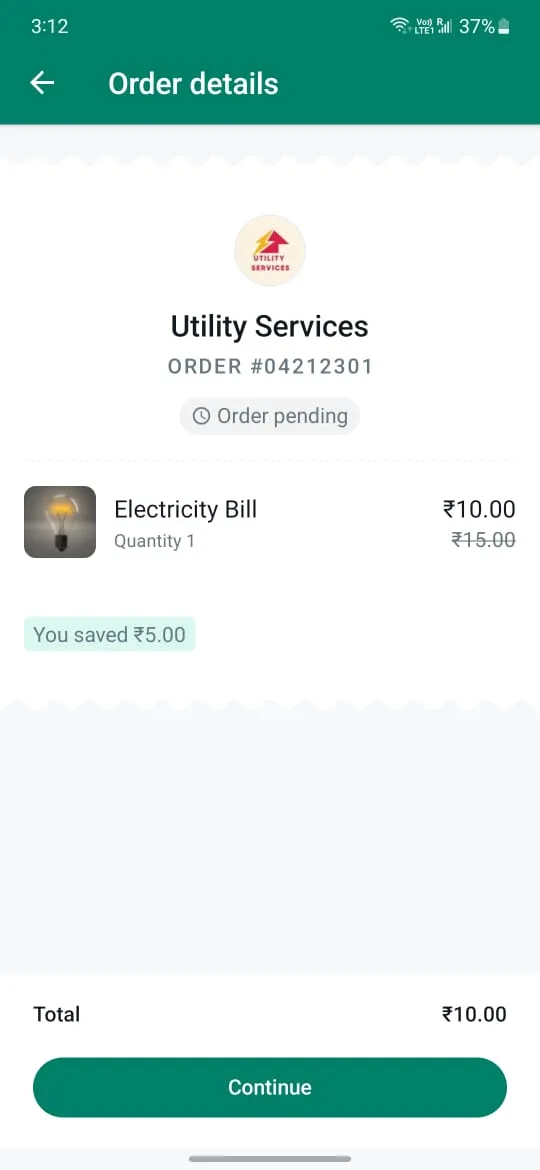
When the consumer taps the Pay now/continue button, they will be given the option to choose UPI payment Apps - WhatsApp or any other UPI payments apps. Consumers may choose any UPI option to pay for the order.
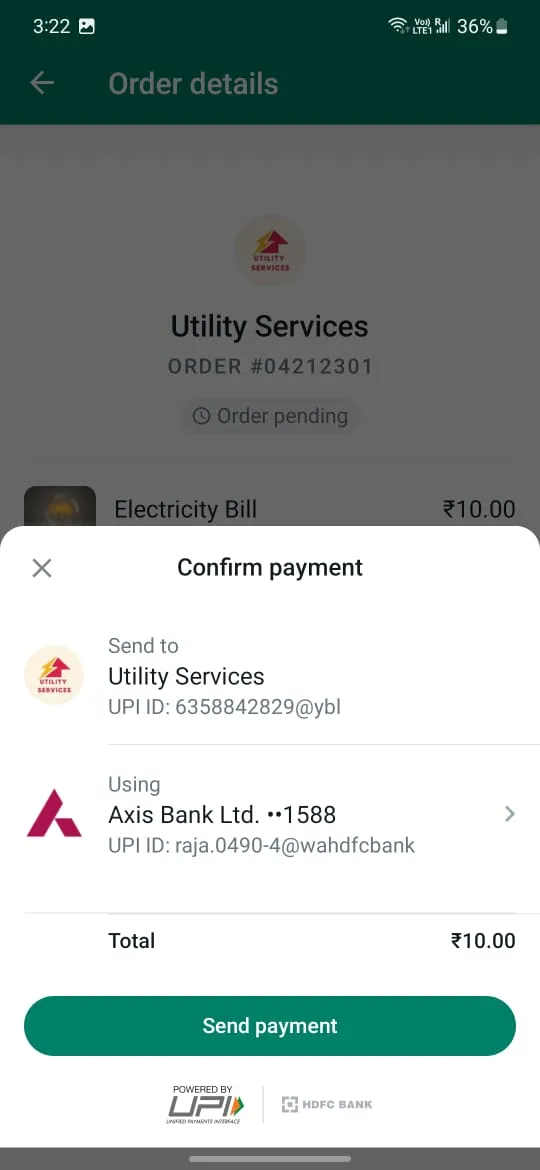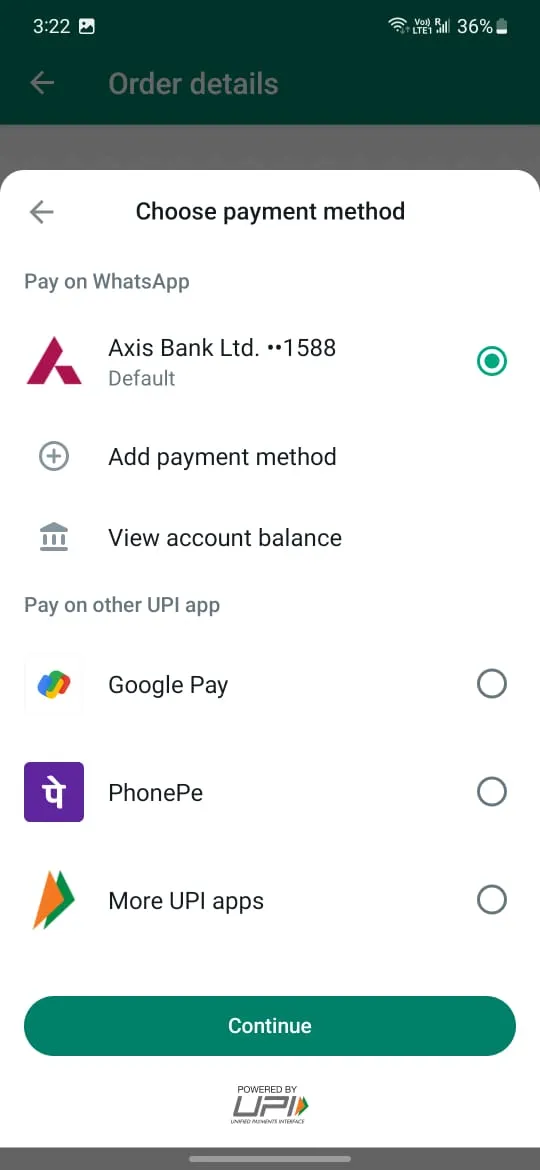
Consumer pays for the order and the payment method is saved for the future and automatically selected for the next payment transaction. Also, one quick note is the order details screen order-status will continue to show “Order pending” until merchant sends order status interactive message.
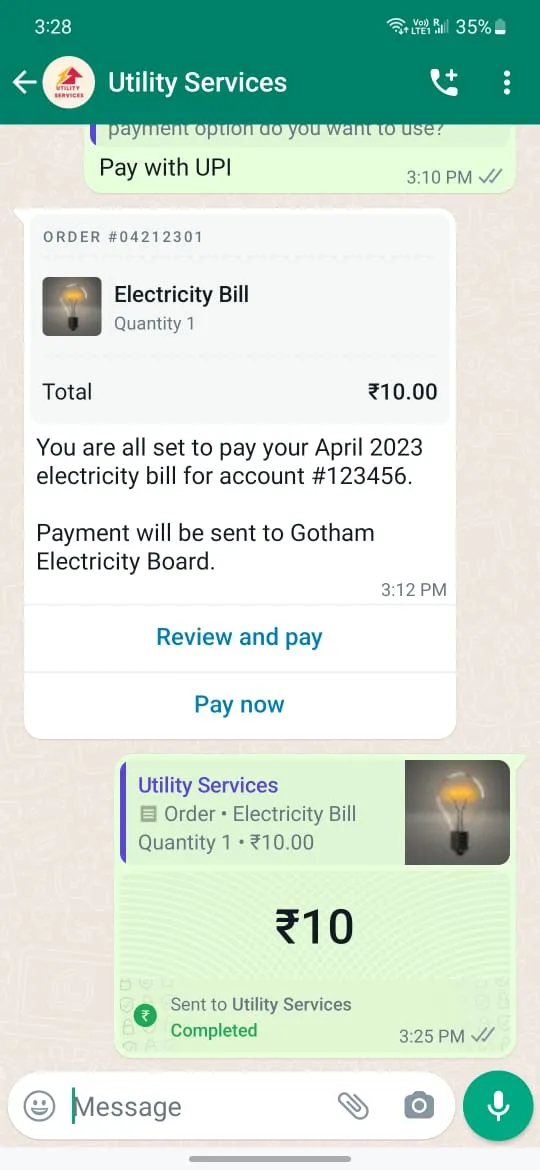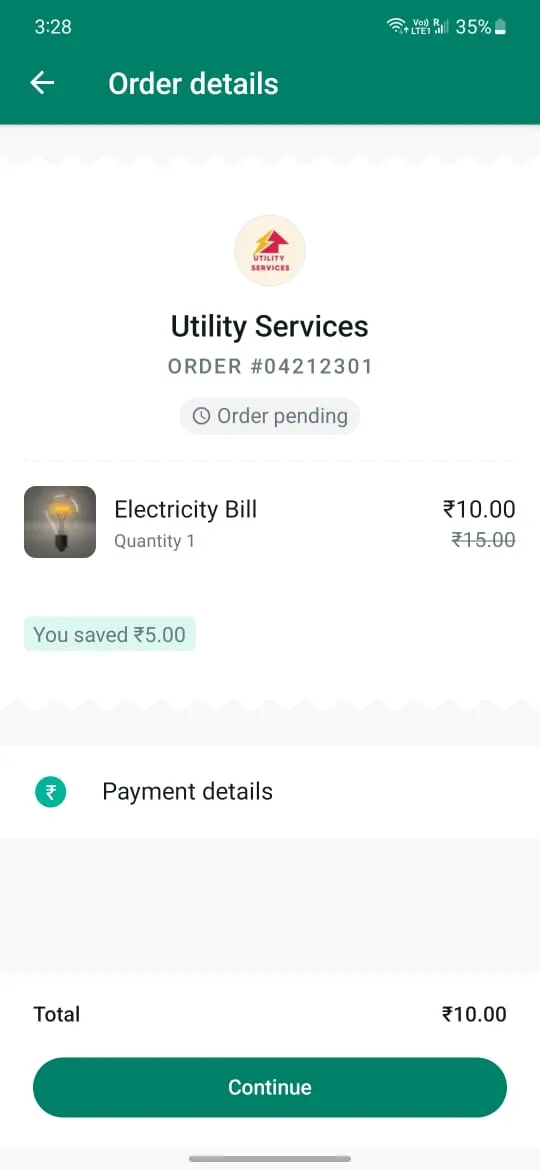
Once the payment is complete, the business receives a notification from Payment Gateway and the merchant needs to send order status updates to the consumer client notifying consumers about the progress to the order, this will update the order details message CTAs and order details screen - order status description.
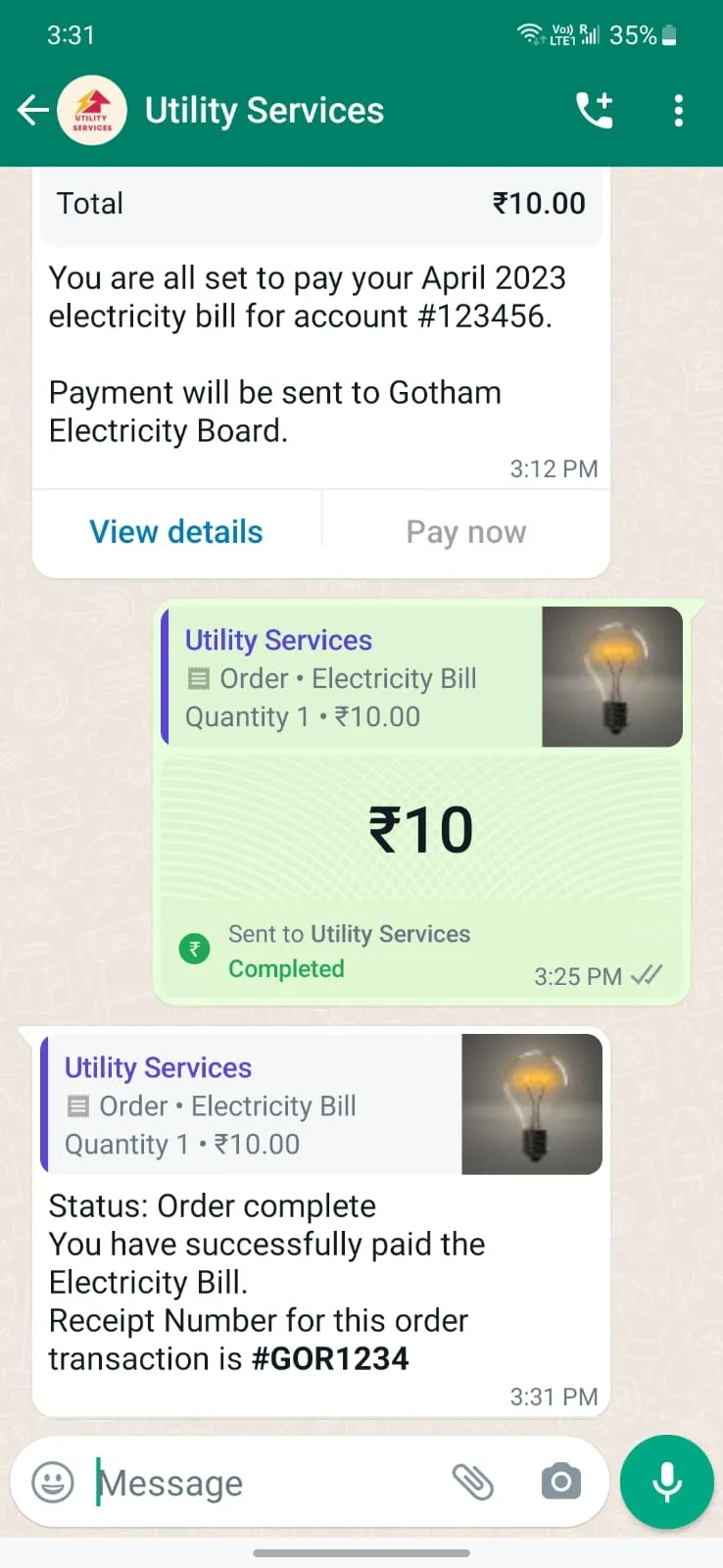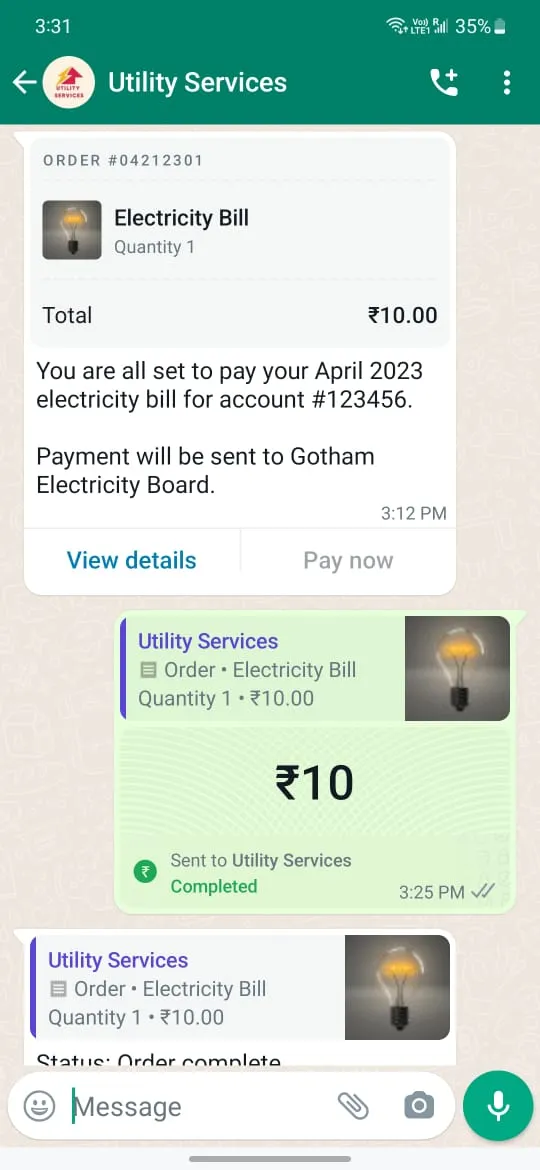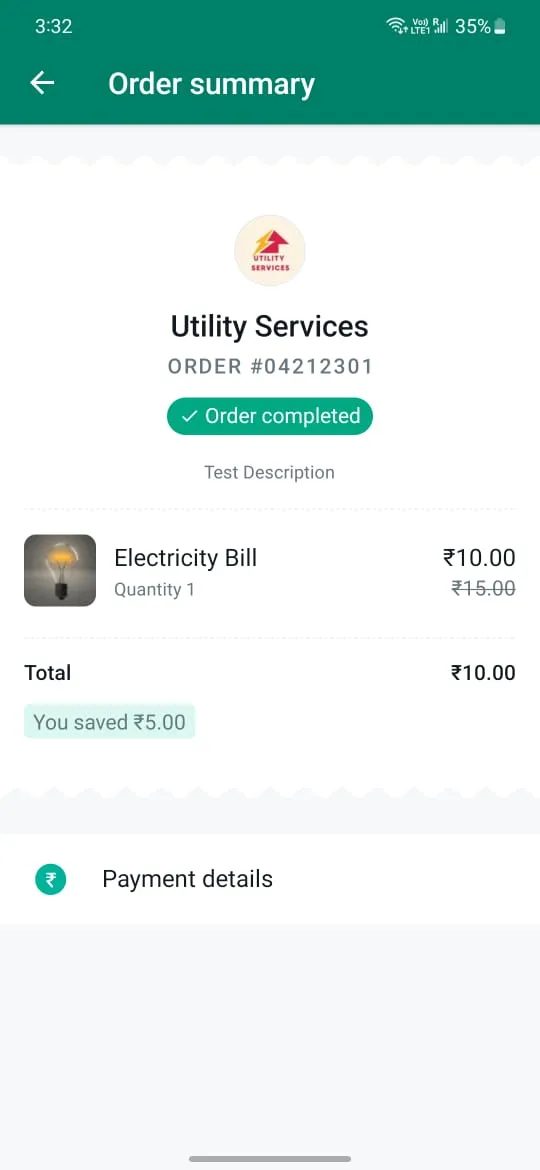
To receive UPI payments on WhatsApp merchants have to set up their VPA on WhatsApp Business Manager using the direct payment methods option.
Each configuration must have a unique name, merchant categorization code (mcc), purpose code, and VPA handles as shown below. A business can have multiple payment configurations, but for each order merchant must specify a specific configuration to be used for payment. See `payment_configuration` field in `order_details` message.
`name` for each payment type must be unique. `name` will be used to reference the specific configurations for each payment type. If WA is unable to find a payment configuration name, the user will not be able to make the payment upon receiving the `order_details` message. `mcc` refers to a [merchant categorization code](https://l.facebook.com/l.php?u=https%3A%2F%2Fen.wikipedia.org%2Fwiki%2FMerchant_category_code&h=AT4aQI3vEzVEGQIkERhgg-87uTsex9tz0Ki1bvUichbOLZfPPRAtYgP4iVX05KmasN0FrQzsCKp6gWX4e-Ek41tWevfkDxwdpxZxMPp3giaVL8eyaBcneA0GHvikcZfUIVHZxOqwSRZGnFRuKHdf7A) for the items in the order. `upi_pc` refers to the purpose of the transaction. Some sample codes are below:
If merchant/partner is not sure of the MCC and purpose code, then they may contact Payment Gateway to get this information as Payment Gateway sets up these values based on the type of business while generating business VPAs.
### Manage Your Payment Methods (Beta Feature)
Self-service Payment Configuration allows you to add multiple payment configurations to your WhatsApp Manager profile. Each payment configuration will have its own UPI handle(VPA), MCC, and purpose code (for physical goods) so that merchants can accept payments for different categories with different UPI accounts. After setup, merchant can send invoice(`order_details`) messages to users with the corresponding payment configuration to collect payments.
Manage Payment Methods feature is in Beta, so please contact Business Engineering team to allow merchants/partners access the page in WhatsApp Business Manager portal.
#### Steps to link Payment Configuration for a Business Service Provider
You can create a payment configuration for a WhatsApp Business Account using the ‘Payment configurations’ page and under ‘India’ in [WhatsApp Business Manager](https://business.facebook.com/wa/manage/home).
After linking your payment configuration, you must integrate with the Payments APIs below. This will allow you to send an `order_details` message to customers with the payment configuration to receive payments.
#### Steps to unlink Payment Configuration
Note: Make sure no new order messages requesting payment from consumer are sent with the payment config your are trying to remove before you perform the unlink action.
The steps outlined below assume that the business is about to send order details message to consumer client.
The following sequence diagram demonstrates the typical integration flow for WA Payments API: 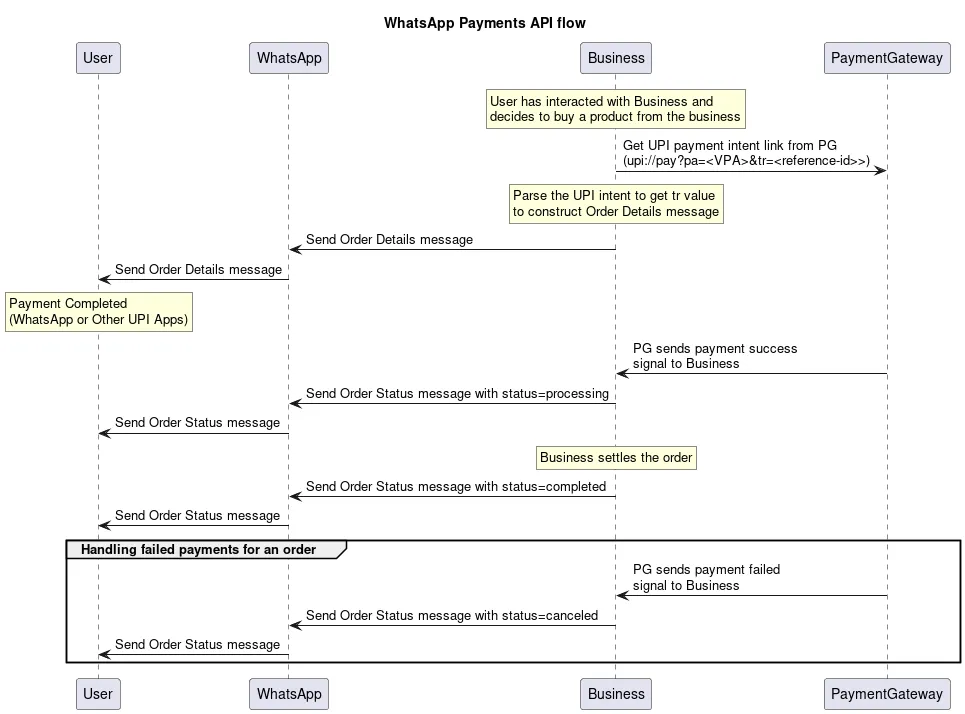
#### Step 1: Get UPI Intent from Payment Gateway
Once the consumer has expressed their interest to purchase an item using UPI payment method. Merchant needs to call payment gateway to create a UPI intent, the following is the sample UPI intent link:
```
upi://pay?pa=cfsukoonaa@yesbank&pn=Sukoon&tr=877376394&
am=10.00&cu=INR&mode=00&purpose=00&mc=5399&tn=877376394
```
Merchant needs to parse the `tr` value from the above URI and use this as the reference id in invoice(`order_details`) interactive message.
#### Step 2: Assemble the Interactive Object
To send an `order_details` message, businesses must assemble an [interactive object](/books/meta-whatsapp/page/sending-messages-developer-documentation) of type `order_details` with the following components:
| Object | Description |
|---|
| **Required.** Must be “order_details”. |
| **Optional.** Header content displayed on top of a message. If a header is not provided, the API uses an image of the first available product as the header |
| **Required.** An object with the body of the message. The object contains the following field: `text` string **Required** if `body` is present. The content of the message. Emojis and markdown are supported. Maximum length is 1024 characters |
| **Optional.** An object with the footer of the message. The object contains the following fields: `text` string **Required** if `footer` is present. The footer content. Emojis, markdown, and links are supported. Maximum length is 60 characters |
| **Required.** An action object you want the user to perform after reading the message. This action object contains the following fields: `name` string **Required**. Must be “review\_and\_pay”`parameters` object See [Parameters Object](#bkmrk-parameters-object-1) for information |
| Object | Description |
|---|
| **Required.** Unique identifier for the order or invoice provided by the business. This cannot be an empty string and can only contain English letters, numbers, underscores, dashes, or dots, and should not exceed 35 characters. The `reference_id` must be unique for each `order_details` message for the same business. If the partner would like to send multiple order_details messages for the same order, invoice, etc. it is recommended to include a sequence number in the `reference_id` (for example, <order-or-invoice-id>-<sequence-number>) to ensure `reference_id` uniqueness. |
| **Required.** The type of goods being paid for in this order. Current supported options are `digital-goods` and `physical-goods` |
| **Required for shipped physical-goods.** An array of beneficiaries for this order. A beneficiary is an intended recipient for shipping the physical goods in the order. It contains the following fields: Beneficiary information isn’t shown to users but is needed for legal and compliance reasons. `name` string **Required.** Name of the individual or business receiving the physical goods. Cannot exceed 200 characters`address_line1` string **Required.** Shipping address (Door/Tower Number, Street Name etc.). Cannot exceed 100 characters`address_line2` string **Optional.** Shipping address (Landmark, Area, etc.). Cannot exceed 100 characters`city` string **Required.** Name of the city.`state` string **Required.** Name of the state.`country` string **Required.** Must be “India”.`postal_code` string **Required.** 6-digit zipcode of shipping address. |
| **Required.** Must be “upi”. |
| **Required.** The name of the pre-configured payment configuration to use for this order and must not exceed 60 characters. |
| **Required.** The currency for this order. Currently the only supported value is `INR`. |
| **Required.** The `total_amount` object contains the following fields: `offset` integer **Required.** Must be `100` for `INR`.`value` integer **Required.** Positive integer representing the amount value multiplied by offset. For example, ₹12.34 has value 1234.`total_amount.value` must be equal to `order.subtotal.value` + `order.tax.value` + `order.shipping.value` - `order.discount.value`. |
| **Required.** See [order object](#bkmrk-order-object-1) for more information. |
| Object | Description |
|---|
| **Required.** Only supported value in the `order_details` message is `pending`. In an `order_status` message, `status` can be: `pending`, `captured`, or `failed`. |
| **Optional.** Only supported value is `quick_pay`. When this field is passed in we hide the “Review and Pay” button and only show the “Pay Now” button in the order details bubble. |
| **Required.** An object with the list of items for this order, containing the following fields: `retailer_id` string **Optional.** Content ID for an item in the order from your catalog.`name` string **Required.** The item’s name to be displayed to the user. Cannot exceed 60 characters`image` object **Optional.** Custom image for the item to be displayed to the user. See [item image object](#bkmrk-item-image-object-1) for informationUsing this image field will limit the items array to a maximum of 10 items and this cannot be used with `retailer_id` or `catalog_id`. `amount` amount object with value and offset -- refer total amount field above **Required.** The price per item`sale_amount` amount object **Optional.** The discounted price per item. This should be less than the original amount. If included, this field is used to calculate the subtotal amount`quantity` integer **Required.** The number of items in this order, this field cannot be decimal has to be integer.`country_of_origin` string **Optional** if `catalog_id` is not present. The country of origin of the product`importer_name` string **Optional** if `catalog_id` is not present. Name of the importer company`importer_adress` string **Optional** if `catalog_id` is not present. Address of importer company |
| **Required.** The value **must be equal** to `order.amount.value` multiplied by `order.amount.quantity`. Refer to `total_amount` description for explanation of `offset` and `value` fields The following fields are part of the `subtotal` object: `offset` integer **Required.** Must be `100` for `INR``value` integer **Required.** Positive integer representing the amount value multiplied by offset. For example, ₹12.34 has value 1234 |
| **Required.** The tax information for this order which contains the following fields: `offset` integer **Required.** Must be `100` for `INR``value` integer **Required.** Positive integer representing the amount value multiplied by offset. For example, ₹12.34 has value 1234`description` string **Optional.** Max character limit is 60 characters |
| **Optional.** The shipping cost of the order. The object contains the following fields: `offset` integer **Required.** Must be `100` for `INR``value` integer **Required.** Positive integer representing the amount value multiplied by offset. For example, ₹12.34 has value 1234`description` string **Optional.** Max character limit is 60 characters |
| **Optional.** The discount for the order. The object contains the following fields: `offset` integer **Required.** Must be `100` for `INR``value` integer **Required.** Positive integer representing the amount value multiplied by offset. For example, ₹12.34 has value 1234`description` string **Optional.** Max character limit is 60 characters`discount_program_name` string **Optional.** Text used for defining incentivised orders. If order is incentivised, the merchant needs to define this information. Max character limit is 60 characters |
| **Optional.** Unique identifier of the Facebook catalog being used by the business. |
| **Optional.** Expiration for that order. Business must define the following fields inside this object: `timestamp` string – UTC timestamp in seconds of time when order should expire. Minimum threshold is 300 seconds `description` string – Text explanation for expiration. Max character limit is 120 characters |
| Object | Description |
|---|
| **Required.** A link to the image that will be shown to the user. Must be an `image/jpeg` or `image/png` and 8-bit, RGB or RGBA. Follows same requirements as image in [media](/books/meta-whatsapp/page/media-developer-documentation) |
By the end, the interactive object should look something like this for a catalog-based integration:
For a non-catalog based integration i.e. when catalog-id is not present, an example payload looks as follows:
#### Step 3: Add Common Message Parameters
Once the interactive object is complete, append the other parameters that make a message: `recipient_type`, `to`, and `type`. Remember to set the `type` to `interactive`.
These are [parameters common to all message types](/books/meta-whatsapp/page/sending-messages-developer-documentation).
#### Step 4:Make a POST Call to Messages Endpoint
Make a POST call to the [`/[PHONE_NUMBER_ID]/messages`](/books/meta-whatsapp/page/sending-messages-developer-documentation) endpoint with the `JSON` object you have assembled. If your message is sent successfully, you get the following response:
For all errors that can be returned and guidance on how to handle them, see [WhatsApp Cloud API, Error Codes](/documentation/business-messaging/whatsapp/support/error-codes).
#### Step 5: Consumer Pays for the Order
Consumers can pay using WhatsApp payment method or using any UPI supported app that is installed on the device.
#### Step 6: Get Notified About Transaction Status Updates from payment gateway
Businesses receive updates to the invoice via payment gateway webhooks, when the status of the user-initiated transaction changes. The unique identifier tr(reference-id passed in `order_details` message) can be used to map the transaction to the consumer invoice or interactive order details message.
Please refer to your PG’s documentation for the exact payment signals. If you are not receiving webhooks from your PG, then work with them to enable it.
#### Step 7: Update order status
Upon receiving transaction signals from payment gateway through webhook, the business must update the order status to keep the user up to date. Currently we support the following order status values:
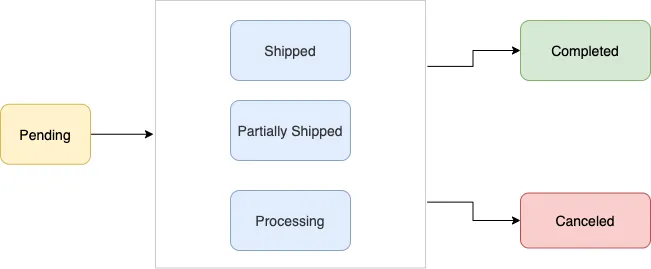
| Value | Description |
|---|
| User has not successfully paid yet |
| User payment authorized, merchant/partner is fulfilling the order, performing service, etc. |
| A portion of the products in the order have been shipped by the merchant |
| All the products in the order have been shipped by the merchant |
| The order is completed and no further action is expected from the user or the partner/merchant |
| The partner/merchant would like to cancel the `order_details` message for the order/invoice. The status update will fail if there is already a `successful` or `pending` payment for this `order_details` message |
Typically businesses update the `order_status` using either the WhatsApp payment status change notifications or their own internal processes. To update `order_status`, the partner sends an `order_status` message to the user.
The following table describes the returned values:
| Value | Description |
|---|
| The ID provided by the partner in the `order_details` message |
| |
| Optional text for sharing status related information in `order_details`. Could be useful while sending cancellation. Max character limit is 120 characters |
Merchant should always post this order-status message to consumer after receiving transaction updates for an order. As the order_details message and order details screen experience is tied to to the order status updates.
#### Step 8: Reconcile Payments
Businesses should use their bank statements to reconcile the payments using the `reference_id` provided in the `order_details` messages.
### Merchant Preferred UPI Payment Method
Now merchants can specify up to `one` UPI Payment app to showup in checkout flow. Merchant preferred payment app will be shown on top of the list of available UPI apps in - “Choose payment method” screen. To enable this capability we require partners to specify the external app-id in the Order Details or order-invoice message.
Note: This feature is available on consumer apps on and above version: 2.24.21.0
#### Updates to Order Details Payload
#### List of supported apps:
| UPI Application | Application ID to be passed in Order Details payload |
|---|
| |
| |
| |
| |
| |
| |
### Checklist for Integrated Merchants
Ensure that `order_status` message is send to consumer informing them about updates to an order after receiving transaction updates for an order.
Ensure the merchant is verified and WABA contact is marked with a verified check.
Verify the WABA is mapped to appropriate merchant initiated messaging tier(1k, 10k and 100k per day)
Merchant should list the customer support information in the profile screen incase consumer wants to report any issues.
## Receive payments via payment gateways on WhatsApp
Updated: Dec 12, 2025
Your business can enable customers to pay for their orders through our partner payment gateways without leaving WhatsApp. Businesses can send customers order_details messages, then get notified about payment status updates via webhook notifications.
Currently, customers browse business catalogs, add products to cart, and send orders with our set of commerce messaging solutions, which includes [Single Product Message, Multi Product Message, and Product Detail Page](/books/meta-whatsapp/page/share-products-with-whatsapp-users-developer-documentation). Now, with the Payments API, businesses can send customers a *bill*, so the customer can complete their order by paying the business without having to leave WhatsApp.
Our payments solution is currently enabled by BillDesk, Razorpay, PayU and Zaakpay, a third-party payments service provider. You must have a BillDesk, Razorpay, PayU or Zaakpay account in order to receive payments on WhatsApp.
We expect more payment providers to be added in the future.
First, the business composes and sends an `order_details` message. An `order_details` message is a new type of `interactive` message, which always contains the same 4 main components: **header**, **body**, **footer**, and **action**. Inside the `action` component, the business includes all the information needed for the customer to complete their payment.
Each `order_details` message contains a unique `reference_id` provided by the business, and that unique ID is used throughout the flow to track the order.
Once the message is sent, the business waits for a payment status update via webhooks. Businesses get notified when the payment status changes, but they must not solely rely on these webhooks notifications due to security reasons. WhatsApp also provides a payment lookup API that can be used to retrieve the payment statuses directly anytime.
In the WhatsApp Messenger App, the purchase flow has the following steps:
Customers send an order with selected products to the business either through simple text messages or using other interactive messages such as [Single Product Message, Multi Product Message, and Product Detail.](/books/meta-whatsapp/page/share-products-with-whatsapp-users-developer-documentation)
Once the business receives the order, they send an `order_details` message to the user. When the user taps on **Review and Pay**, they will see details about the order and total amount to be paid.
When the user taps the **Continue** button, they are able to choose to pay natively on WhatsApp or any other UPI app.
Checkout with WhatsApp Pay:
*\[image removed - too large for import\]*
Checkout on other UPI Apps:
*\[image removed - too large for import\]*
Once the payment has been confirmed by your payment gateway (PG) or payment service provider, the business can start processing the order.
Businesses can then send an `order_status` message to the consumer informing them about the status of the order. Each message will result in a message bubble (as shown below) that refers to the original order details message and also updates the status displayed on the order details page.
### Link your payment account
To receive payments on WhatsApp, you must add a *payment configuration* to the corresponding WhatsApp Business Account. A payment configuration allows you to link a payment gateway account to WhatsApp. Each payment configuration is associated with a *unique name*. As part of the `order_details` message, you can specify the payment configuration to use for a specific checkout. WhatsApp will then generate a checkout flow using the associated payment gateway account.
*\[image removed - too large for import\]*
After linking your payment partner account, you must integrate with the Payments APIs below. This will allow you to send an `order_details` message to customers with the payment configuration to receive payments.
#### Steps to unlink Payment Configuration
Note: Make sure no new order messages requesting payment from consumer are sent with the payment config your are trying to remove before you perform the unlink action.
The steps outlined below assume that the business already knows what the user is interested in through earlier chat threads. The Payments API is a standalone API and hence can work with various messages such as [List Messages, Reply Buttons, Single or Multi-Product Messages](/books/meta-whatsapp/page/sending-messages-developer-documentation).
The following sequence diagram demonstrates the typical integration flow for Payments API. The steps highlighted in green are the key integration steps.
*\[image removed - too large for import\]*
#### Step 1: Send Order Details Interactive Message
To send an `order_details` message, businesses must assemble an interactive object of type `order_details` with the following components:
| Object | Description |
|---|
| **Required.** Must be “order_details”. |
| **Optional.** Header content displayed on top of a message. If a header is not provided, the API uses an image of the first available product as the header |
| **Required.** An object with the body of the message. The object contains the following field: `text` string **Required** if `body` is present. The content of the message. Emojis and markdown are supported. Maximum length is 1024 characters |
| **Optional.** An object with the footer of the message. The object contains the following fields: `text` string **Required** if `footer` is present. The footer content. Emojis, markdown, and links are supported. Maximum length is 60 characters |
| **Required.** An action object you want the user to perform after reading the message. This action object contains the following fields: `name` string **Required**. Must be “review\_and\_pay”`parameters` object See [Parameters Object](#bkmrk-parameters-object-1) for information |
| Object | Description |
|---|
| **Required.** Unique identifier for the order or invoice provided by the business. It is case sensitive and cannot be an empty string and can only contain English letters, numbers, underscores, dashes, or dots, and should not exceed 35 characters. The reference_id must be unique for each order_details message for a given business. If there is a need to send multiple order_details messages for the same order, it is recommended to include a sequence number in the reference_id (for example, “BM345A-12”) to ensure reference_id uniqueness. |
| **Required.** The type of goods being paid for in this order. Current supported options are `digital-goods` and `physical-goods`. |
| **Required for shipped physical-goods.** An array of beneficiaries for this order. A beneficiary is an intended recipient for shipping the physical goods in the order. It contains the following fields: Note: Beneficiary information isn’t shown to users but is needed for legal and compliance reasons. `name` string **Required.** Name of the individual or business receiving the physical goods. Cannot exceed 200 characters`address_line1` string **Required.** Shipping address (Door/Tower Number, Street Name etc.). Cannot exceed 100 characters`address_line2` string **Optional.** Shipping address (Landmark, Area, etc.). Cannot exceed 100 characters`city` string **Required.** Name of the city.`state` string **Required.** Name of the state.`country` string **Required.** Must be “India”.`postal_code` string **Required.** 6-digit zipcode of shipping address. |
| **Required.** The currency for this order. Currently the only supported value is `INR`. |
| **Required.** The `total_amount` object contains the following fields: `offset` integer **Required.** Must be `100` for `INR`.`value` integer **Required.** Positive integer representing the amount value multiplied by offset. For example, ₹12.34 has value 1234.`total_amount.value` must be equal to `order.subtotal.value` + `order.tax.value` + `order.shipping.value` - `order.discount.value`. UPI transactions are limited to ₹5,00,000. For higher amounts, set `enabled_payment_options` to `["web"]`. See [Restrict Available Payment Options](#bkmrk-restrict-available-p-1). |
| **Required.** See [Payment Settings object](#bkmrk-payment-settings-obj-1) for more information. |
| **Required.** See [order object](#bkmrk-order-object-1) for more information. |
##### Payment settings object
| Object | Description |
|---|
| **Required.** Must be set to **“payment\_gateway”** |
| **Required.** An object that describes payment account information: `type` string **Required.** Unique identifier for an item in the order. You must set this to **“billdesk”** or **“razorpay”** or **“payu”** or **zaakpay**, if you have linked your BillDesk or Razorpay or PayU or Zaakpay payment gateway to accept payments`configuration_name` string **Required.** The name of the pre-configured payment configuration to use for this order and must not exceed 60 characters. This value must match with a payment configuration set up on the WhatsApp Business Manager.When `configuration_name` is invalid, the customer will be unable to pay for their order. We strongly advise businesses to conduct extensive testing of this setup during the integration phase. `billdesk/razorpay/payu/zaakpay` object **Optional.** For merchants/partners that want to use additional\_info1/7(for BillDesk), notes and receipt(for Razorpay) and UDF fields(for PayU) and extra1/2(for Zaakpay), they can now pass these values in Order Details message and we would use these to create transaction/order at respective PGs.Please refer [Payment Gateway specific UDF object](#bkmrk-billdesk%2C-razorpay%2C--1) for more information. |
##### BillDesk, RazorPay, PayU and Zaakpay fields
We now have support for partners and merchants to pass `notes`, `receipt` and `udf` fields in Order Details message and receive this data back in payment signals. Here we will take a look at merchants can pass additional_info for BillDesk, notes and receipt fields for Razorpay, udf for PayU, extra for Zaakpay PGs.
| Object | Description |
|---|
| **Optional.** Only supported for Razorpay payment gatewayThe object can be key value pairs with maximum 15 keys and each value limits to 256 characters. |
| **Optional.** Only supported for Razorpay payment gatewayReceipt number that corresponds to this order, set for your internal reference. Maximum length of 40 characters supported with minimum length greater than 0 characters. |
| **Optional.** Only supported for PayU payment gatewayUser-defined fields (udf) are used to store any information corresponding to a particular order. Each UDF field has a maximum character limit of 255. |
| **Optional.** Only supported for Zaakpay payment gatewayUser-defined fields (extra) are used to store any information corresponding to a particular order. Each extra field has a maximum character limit of 180. |
`additional_info1-7` String | **Optional.** Only supported for BillDesk payment gatewayUser-defined fields (extra) are used to store any information corresponding to a particular order. Each extra field has a maximum character limit of 120. |
| Object | Description |
|---|
| **Required.** Only supported value in the `order_details` message is `pending`. In an `order_status` message, `status` can be: `pending`, `captured`, or `failed`. |
| **Optional.** Only supported value is `quick_pay`. When this field is passed in we hide the “Review and Pay” button and only show the “Pay Now” button in the order details bubble. |
| **Required.** An object with the list of items for this order, containing the following fields: `retailer_id` string **Optional.** Content ID for an item in the order from your catalog.`name` string **Required.** The item’s name to be displayed to the user. Cannot exceed 60 characters`image` object **Optional.** Custom image for the item to be displayed to the user. See [item image object](#bkmrk-item-image-object-1) for informationUsing this image field will limit the items array to a maximum of 10 items and this cannot be used with `retailer_id` or `catalog_id`. `amount` amount object with value and offset -- refer total amount field above **Required.** The price per item`sale_amount` amount object **Optional.** The discounted price per item. This should be less than the original amount. If included, this field is used to calculate the subtotal amount.`quantity` integer **Required.** The number of items in this order, this field cannot be decimal has to be integer.`country_of_origin` string **Required** if `catalog_id` is not present. The country of origin of the product`importer_name` string **Required** if `catalog_id` is not present. Name of the importer company`importer_adress` string **Required** if `catalog_id` is not present. Address of importer company |
| **Required.** The value **must be equal** to sum of `order.amount.value` * `order.amount.quantity`. Refer to `total_amount` description for explanation of `offset` and `value` fields The following fields are part of the `subtotal` object: `offset` integer **Required.** Must be `100` for `INR``value` integer **Required.** Positive integer representing the amount value multiplied by offset. For example, ₹12.34 has value 1234 |
| **Required.** The tax information for this order which contains the following fields: `offset` integer **Required.** Must be `100` for `INR``value` integer **Required.** Positive integer representing the amount value multiplied by offset. For example, ₹12.34 has value 1234`description` string **Optional.** Max character limit is 60 characters |
| **Optional.** The shipping cost of the order. The object contains the following fields: `offset` integer **Required.** Must be `100` for `INR``value` integer **Required.** Positive integer representing the amount value multiplied by offset. For example, ₹12.34 has value 1234`description` string **Optional.** Max character limit is 60 characters |
| **Optional.** The discount for the order. The object contains the following fields: `offset` integer **Required.** Must be `100` for `INR``value` integer **Required.** Positive integer representing the amount value multiplied by offset. For example, ₹12.34 has value 1234`description` string **Optional.** Max character limit is 60 characters`discount_program_name` string **Optional.** Text used for defining incentivised orders. If order is incentivised, the merchant needs to define this information. Max character limit is 60 characters |
| **Optional.** Unique identifier of the Facebook catalog being used by the business. If you do not provide this field, you must provide the following fields inside the items object: `country_of_origin`, `importer_name`, and `importer_address` |
| **Optional.** Expiration for that order. Business must define the following fields inside this object: `timestamp` string – UTC timestamp in seconds of time when order should expire. Minimum threshold is 300 seconds `description` string – Text explanation for expiration. Max character limit is 120 characters |
| Object | Description |
|---|
| **Required.** A link to the image that will be shown to the user. Must be an `image/jpeg` or `image/png` and 8-bit, RGB or RGBA. Follows same requirements as image in [media](/books/meta-whatsapp/page/media-developer-documentation) |
The `parameters` value is a stringified JSON object.
By the end, the interactive object should look something like this for a BillDesk catalog-based integration:
The `parameters` value is a stringified JSON object.
By the end, the interactive object should look something like this for a RazorPay catalog-based integration:
The `parameters` value is a stringified JSON object.
For a PayU non-catalog based integration i.e. when catalog-id is not present, an example payload looks as follows:
For a Zaakpay non-catalog based integration i.e. when catalog-id is not present, an example payload looks as follows:
#### Step 2: Add Common Message Parameters
Once the interactive object is complete, append the other parameters that make a message: `recipient_type`, `to`, and `type`. Remember to set the `type` to `interactive`.
These are [parameters common to all message types](/books/meta-whatsapp/page/sending-messages-developer-documentation).
#### Step 3:Make a POST Call to Messages Endpoint
Make a POST call to the [`/[PHONE_NUMBER_ID]/messages`](/books/meta-whatsapp/page/sending-messages-developer-documentation) endpoint with the `JSON` object you have assembled. If your message is sent successfully, you get the following response:
For all errors that can be returned and guidance on how to handle them, see [WhatsApp Cloud API, Error Codes](/documentation/business-messaging/whatsapp/support/error-codes).
The customer receives an `order_details` message similar to the one below (left). When they click on “Review and Pay”, it opens up the order details screen as shown below (middle). Customer can then pay for their order using “Continue” button that opens up a bottom sheet with the payment options (right).
*\[image removed - too large for import\]*
*\[image removed - too large for import\]*
*\[image removed - too large for import\]*
#### Step 4: Receive Webhook about Transaction Status
Businesses receive updates via [messages webhooks](/books/meta-whatsapp/page/messages-webhook-reference-developer-documentation) when the status of the user-initiated transaction changes in a status of type “payment”. It contains the following fields:
| Object | Description |
|---|
| **Required.** Webhook ID for the notification. |
| **Required.** WhatsApp ID of the customer. |
| **Required.** For payment status update webhooks, type is “payment”. |
| **Required.** `captured`/`pending`: `captured` - when the payment is successfully completed, `pending` when the user attempted but yet to receive success transactions signal |
| **Required.** Contains the following field:
`reference_id` string Unique reference ID for the order sent in `order_details` message.
`amount` object Has value and offset fields corresponding to total amount that user has paid.
`currency `string currency is always INR.
`transaction `object Transaction attempt for this payment. Transaction object contains the following fields: `id` string **Required.** The alpha-numeric payment gateway order ID. `pg_transaction_id` string **Optional.** The alpha-numeric payment gateway payment ID. `type` string **Required.** The payment type for this transactions. Only, `billdesk` or `razorpay` or `payu` or `zaakpay` are supported. `status` string **Required.** The status of the transaction. Can be one of `pending` or `success` or `failed`. `created_timestamp` integer **Required.** Time when transaction was created in epoch seconds. `updated_timestamp` integer **Required.** Time when transaction was last updated in epoch seconds. `method` object (**Optional.** the payment method information might not be available for failed payments)`type` string **Required.** The describes the type of payment method used by consumer to pay for the order. Can be one of `upi` or `card` or `wallet` or `netbanking`. `error` object (**Optional.** the payment error details might not be available for all payments attempts)`code` string **Required.** The describes the payment failure reason that is generated by payment gateway and Meta returns this to partners.`reason` string **Required.** The describes the payment failure reason in plain text that is generated by payment gateway and Meta returns this to partners.
`additional_info1-7` string **Optional.** Only sent for billdesk payment gateway when the value is sent in order details message. Each of the keys additional_info1-4 has string values in them.
`notes `object **Optional.** Only sent for razorpay payment gateway when the value is sent in order details message. This contains key-value pair as passed in the Order Details message.
`receipt` string **Optional.** Only sent for razorpay payment gateway when the value is sent in order details message.
`udf1-4` string **Optional.** Only sent for payu payment gateway when the value is sent in order details message. Each of the keys udf1-4 has string values in them.
`extra1-2` string **Optional.** Only sent for zaakpay payment gateway when the value is sent in order details message. Each of the keys extra1-2 has string values in them.
`refunds` array **Optional.**The list of refunds for this order. Each refund object contains the following fields: `id` string **Required.** The alpha-numeric ID of the refund.`amount` object **Required.** The total amount of the refund.`speed_processed` string **Required.** Speed by which refund was processed. Can be one of `instant` or `normal`.`status` string **Required.** The status of the refund. Can be one of `pending`, `success` or `failed`.`created_timestamp` integer **Required.** Time when refund was created in epoch seconds.`updated_timestamp` integer **Required.** Time when refund was last updated in epoch seconds. |
| **Required.** Timestamp for the webhook. |
Here is an example status webhook of type `payment`:
For more information about other statuses, see [Messages Webhooks](/books/meta-whatsapp/page/messages-webhook-reference-developer-documentation).
#### Step 5: Confirm Payment
After receiving the payment status webhook, or at any time, the business can look up the status of the payment for the order. To do that, businesses must make a GET call to the payments endpoint as shown here:
```
GET <PHONE_NUMBER_ID>/payments/<PAYMENT_CONFIGURATION>/<REFERENCE_ID>
```
where `payment_configuration` and `reference_id` are same as that sent in the `order_details` message.
Businesses should expect a response in the same HTTP session (not in a webhook notification) that contains the following fields:
| Field | Description |
|---|
| **Required.** The ID sent by the business in the `order_details` message |
| **Required.** Status of the payment for the order. Can be one of `pending` or `captured`
Refer the table below for what these statuses mean. |
| **Required.** The currency for this payment. Currently the only supported value is `INR`. |
| **Required.** The amount for this payment. It contains the following fields: `offset` integer **Required.** Must be 100.`value` integer **Required.** Positive integer representing the amount value multiplied by offset. For example, ₹12.34 has value 1234. |
| **Optional.** The list of transactions for this payment. This field is only present when at least one payment attempt has been made. If the payment status is `pending` and no payment attempt has occurred, this field will not be returned. Each transaction object contains the following fields: `id` string **Required.** The alpha-numeric payment gateway order ID.`pg_transaction_id` string **Required.** The alpha-numeric payment gateway payment ID.`type` string **Required.** The payment type for this transactions. Only, `billdesk` or `razorpay` or `payu` or `zaakpay` are supported.`status` string **Required.** The status of the transaction. Can be one of `pending` or `success` or `failed`.At most one transaction can have a `success` status. `created_timestamp` integer **Required.** Time when transaction was created in epoch seconds.`updated_timestamp` integer **Required.** Time when transaction was last updated in epoch seconds.`method` object **Optional.** the payment method information might not be available for failed payments `type` string **Required.** The describes the type of payment method used by consumer to pay for the order. Can be one of `upi` or `card` or `wallet` or `netbanking`.`error` object **Optional.** the payment error details might not be available for all payments attempts `code` string **Required.** The describes the payment failure reason that is generated by payment gateway and Meta returns this to partners.`reason` string **Required.** The describes the payment failure reason in plain text that is generated by payment gateway and Meta returns this to partners.`refunds` array **Optional.** The list of refunds for this order. Each refund object contains the following fields: `id` string **Required.** The alpha-numeric ID of the refund.`amount` object **Required.** The total amount of the refund.`speed_processed` string **Required.** Speed by which refund was processed. Can be one of `instant` or `normal`.`status` string **Required.** The status of the refund. Can be one of `pending`, `success` or `failed`.`created_timestamp` integer **Required.** Time when refund was created in epoch seconds.`updated_timestamp` integer **Required.** Time when refund was last updated in epoch seconds. |
`additional_info1-7` string | **Optional.** Supported for only BillDesk PG, this contains string values sent as part of Order Details message. |
| **Optional.** Supported for only Razorpay PG, this contains the receipt-value sent as part of Order Details message. |
| **Optional.** Supported for only Razorpay PG, this contains the key-value pairs sent as part of Order Details message. |
| **Optional.** Supported for only PayU PG, this contains string values sent as part of Order Details message. |
| **Optional.** Supported for only Zaakpay PG, this contains string values sent as part of Order Details message. |
| Status | Description |
|---|
| The order has been created but payment has not yet been captured. This status covers two scenarios: **No payment attempt yet:** The `transactions` array will not be present in the response.**Payment attempted but failed:** The `transactions` array will contain one or more entries with `status` set to `failed`. |
| The payment was successfully captured. The `transactions` array will contain an entry with `status` set to `success`. |
An example successful response looks like this:
Shown here is an example for a generic error:
##### Response by Payment Stage
The response payload varies depending on the payment stage. Below are examples for each stage.
**No payment attempted** — The user has not yet attempted payment. Only order-level fields are returned; the `transactions` array is not present.
**Payment successful** — The user completed payment and the payment gateway confirmed capture. The `transactions` array contains the successful transaction with payment method details.
**Payment failed** — The user attempted payment but it failed. The overall payment status remains `pending` (the order is still awaiting successful payment), but the `transactions` array contains the failed attempt with error details.
#### Step 6: Update Order Status
Businesses *must* send updates to their order using the `order_status` message instead of text messages since the latest status of an order displayed on the order details page is only based on `order_status` messages.
To notify the customer with updates to an order, you can send an `interactive` message of type `order_status` as shown below.
The following table describes the fields in the `order_status` interactive message:
| Object | Description |
|---|
| **Required.** Must be “order_status” |
| **Required.** An object with the body of the message. The object contains the following field: `text` string **Required** if `body` is present. The content of the message. Emojis and markdown are supported. Maximum length is 1024 characters. |
| **Optional.** An object with the footer of the message. The object contains the following field: `text` string **Required** if `footer` is present. The footer content. Emojis, markdown, and links are supported. Maximum length is 60 characters. |
| **Required.** An action object you want the user to perform after reading the message. This action object contains the following fields: `name` string **Required**. Must be “review\_order”.`parameters` object See [Parameters Object](#bkmrk-parameters-object-4) for information. |
The `parameters` object contains the following fields:
| Value | Description |
|---|
| **Required.** The ID sent by the business in the `order_details` message. |
| **Required.** This object contains the following fields: `status` string **Required.** The new order `status`. Must be one of `processing`, `partially_shipped`, `shipped`, `completed`, `canceled`.`description` string **Optional.** Text for sharing status related information in `order_details`. Could be useful while sending cancellation. Max character limit is 120 characters. |
`order_status` message introduces two new errors that are summarized below.
| Error Code | Description |
|---|
`2046` - Invalid status transition | The order status transition is not allowed. |
`2047` - Cannot cancel order | Cannot cancel the order since the user has already paid for it. |
Customers receive each `order_status` update as a separate message in their chat thread, that references their original `order_details` message as shown below (left). The order details page always displays the latest valid status communicated to the customer using the `order_status` message as shown below (right).
*\[image removed - too large for import\]*
*\[image removed - too large for import\]*
##### Supported Order Status and Transitions
Currently we support the following order status values:
| Value | Description |
|---|
| User has not successfully paid yet |
| User payment authorized, merchant/partner is fulfilling the order, performing service, etc. |
| A portion of the products in the order have been shipped by the merchant |
| All the products in the order have been shipped by the merchant |
| The order is completed and no further action is expected from the user or the partner/merchant |
| The partner/merchant would like to cancel the `order_details` message for the order/invoice. The status update will fail if there is already a `successful` or `pending` payment for this `order_details` message |
Order status transitions are restricted for consistency of consumer experience. Allowed status transitions are summarized below:
Initial status of an order is always `pending`, which is sent in `order_details` message.`canceled` and `completed` are terminal status and cannot be updated to any other status.`pending` can transition to any of the other statuses including `processing`, `shipped`, `partially-shipped`.`processing`, `shipped` and `partially-shipped` are equivalent statuses and can transition between one another or to one of the terminal statuses.*\[image removed - too large for import\]*
Upon sending an `order_status` message with an invalid transition, you will receive an error webhook with the error code `2046` and message “New order status was not correctly transitioned.”
An order can be `canceled` by sending an `order_status` message with the status `canceled`. The customer cannot pay for an order that is canceled. The customer receives an `order_status` message and order details page is updated to show that the order is canceled and the “Continue” button removed. The *optional* text shown below “Order canceled” on the order details page can be specified using the `description` field in the `order_status` message.
An order can be canceled only if the user has not already paid for the order. If the user has paid and you send an `order_status` message with `canceled` status, you will receive an error webhook with error code `2047` and message “Could not change order status to ‘canceled’”.
#### Step 7: Reconcile Payments
WhatsApp does not support payment reconciliations. Businesses should use their payment gateway account to reconcile the payments using the `reference_id` provided in the `order_details` messages and the `id` of the transactions returned as part of the payment lookup query.
### Merchant Preferred UPI Payment Method
Now merchants can specify up to one UPI Payment app to showup in checkout flow. Merchant preferred payment app will be shown on top of the list of available UPI apps in the “Choose payment method” screen. To enable this capability we require partners to specify the external app-id in the Order Details or order-invoice message.
Note: This feature is available on consumer apps on and above version: 2.24.21.0
#### Updates to Order Details Payload
#### List of supported apps:
| UPI Application | Application ID to be passed in Order Details payload |
|---|
| |
| |
| |
| |
| |
| |
| |
### Restrict Available Payment Options
Merchants can specify which payment options to show in checkout flow between UPI and Web options. This will allow merchants to enable only UPI or credit card(any PG available option) to accept payments for invoices.
UPI transactions are limited to ₹5,00,000. For higher amounts, set `enabled_payment_options` to `["web"]` to use your payment gateway’s web checkout. Payments with UPI enabled above this limit will fail.
Note: This feature is available on consumer apps on and above version: 2.24.22.4
#### Updates to Order Details Payload
#### List of payment options
| Enabled Option | Experience in checkout flow |
|---|
| Only UPI apps are show in checkout flow |
| Payment gateway webpage is loaded and merchant payment gateway account configured payment options will be shown in the checkout flow. |
Some Payment Gateways allow customization of payment options that are shown in payment link or web based checkout flow. Please contact Payment Gateway to restricting payment options in payment link or web page.
### Third Party Validation with Razorpay and PayU Payment Gateways
We now support TPV for RazorPay and PayU merchants, this allows merchants to specify the consumer accounts from which orders needs to be paid. Since, the consumer bank account information is sensitive, please work with Payment Gateways to procure public encryption key and pass the encryption information as part of Order details message.
To use this feature which is in alpha testing, please reach out to Meta payments team - whatsappindia-bizpayments-support@meta.com
#### Updates to Order Details Payload to support TPV for Razorpay merchants
The raw value before encryption should look something like the following:
#### Updates to Order Details Payload to support TPV for PayU merchants
The raw value before encryption should look like the following:
Note please closely work with Meta and Payment Gateway teams(RazorPay or PayU) to unlock this feature as we are still in alpha testing phase.
### Security Considerations
Businesses should comply with local security and regulatory requirements in India. They should not rely solely on the status of the transaction provided in the webhook and must use payment lookup API to retrieve the statuses directly from WhatsApp. Businesses must always sanitize/validate the data in the API responses or webhooks to protect against SSRF attacks.
### Checklist for Integrated Merchants
Ensure that `order_status` message is send to consumer informing them about updates to an order after receiving transaction updates for an order.
Ensure the merchant is verified and WABA contact is marked with a verified check.
Verify the WABA is mapped to appropriate merchant initiated messaging tier(1k, 10k and 100k per day)
Merchant should list the customer support information in the profile screen incase consumer wants to report any issues.
Migrate to “payment_settings” in place of “payment_type” and “payment_configuration”. This is the recommended way, and gives access to features likes “notes” and “udf” fields. For an example, [view the payloads above](#bkmrk-step-1%3A-send-order-d-1).