WhatsApp for Albato.com
- Sending messages from Google Sheets to WhatsApp via Albato.com
- Getting message delivery statuses in WhatsApp via Albato.com
- How to integrate Salebot.pro with WhatsApp through Albato.com
- Set up a WhatsApp bot based on Albato.com
Sending messages from Google Sheets to WhatsApp via Albato.com
0. To connect your number and receive an access key, please write to our WhatsApp https://wa.me/421233221242
Or you can fill the form on our website https://www.chatarchitect.com/whatsapp/
1. Select Google Sheets, Event - New Row Created, select the desired table.

2. Adding our application ChatArchitect.com, Event - Send a Text. Add your ChatArchitect account (you must enter the app id and app secret that you received after connecting)

3. Specify from which column the numbers will be pulled up, in the Text field enter the text of a submitted template

4. After that, click on the "+" and select "Action"

5. Once again select Google Sheets, Action - Update a row by number, then add the same table as in the first case.

6. Then choose as in the screenshot:
1. Row number - Google Sheets: Row number
2. Column A - ChatArchitect.com for Whatsapp: Text
3. Column B - ChatArchitect.com for WhatsApp: Status
You can change the columns according to what you need.

7. After that, launch Albato; after launching, send a test message to your WABA number and check if the table has been updated.
It should look like this:

Getting message delivery statuses in WhatsApp via Albato.com
1. At the first stage, we add our application ChatArchitect.com for WhatsApp, Event - Watch New Message Events.

2. Next, add your Google account, action - Create / update a row

3. In column A we set the Payload Type. After that, you can run the trigger and start mailing.

4. In the table it will look like this:

How to integrate Salebot.pro with WhatsApp through Albato.com
In this instruction you will learn how to set up a simple Salebot.pro bot that will auto-answer on your clients WhatsApp.
After all steps are done you should get next result:

Step by Step guide
1. Go to your Salebot.pro account. Open project "Settings" (1). Find API key field (2) and press "Generate" button (3) after that copy generated key.

2. Go to your Albato account. Go to "Apps" page (1). Press "Add a connection" button (2). Click on "Select an App" field (3). Type "salebot" (4). Select app (5). Press "Add a connection button" (6)

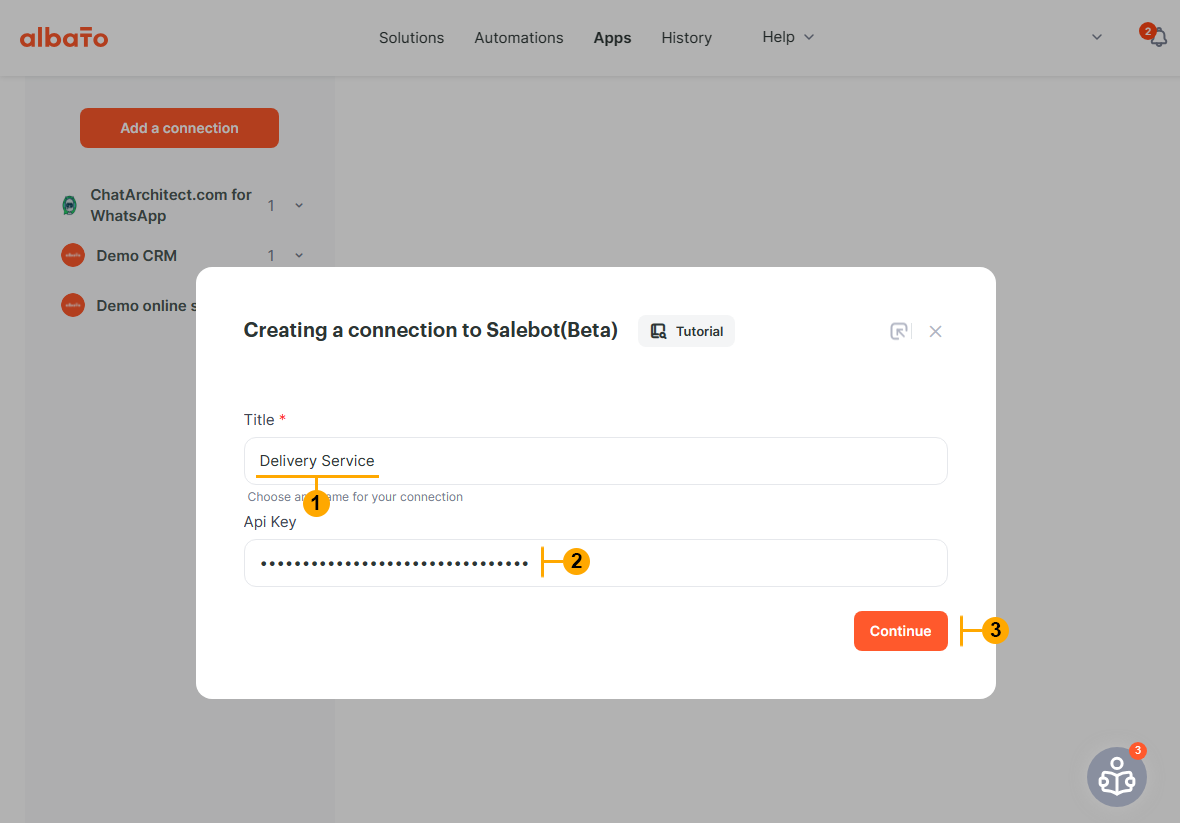
3. In the appeared window type Title for your project (1). Paste your Salebot.pro API key that you copied on "Step 1" (2). Press "Continue" button (3)
4. After "Step 3" Albato will create a Webhook URL (1). Press button (2) to copy this URL

5. Go to your Salebot.pro account. Open project "Settings" (1). Find "Webhook URL" field (2) and paste your Albato webhook from "Step 4". Press "Done" button (3)

6. Go to your Albato account. Go to "Apps" page (1). Press "Add a connection" button (2). Click on "Select an App" field (3). Type "whatsapp" (4). Select "Chatarchitect.com for WhatsApp" app (5). Press "Add a connection button" (6)

7. In the appeared window type Title for your project (1). Paste your "Application ID" (2) and "Secret ID" (3). Press "Continue" button (4).
NOTE: To get your "Application ID" and "Secret ID" please write to our customer support https://wa.me/421233221242

8. Create the first automation in Albato to receive messages from WhatsApp and send them to Salebot.pro. Go to Albato "Automations" page (1) and press "New" button (2)


8.2 Make selections (1), (2), (3) and press "Add a trigger" button (4)


8.4 Make selections (1), (2), (3) and press "Add an action" button (4)

8.5 In the appeared window make selection in "Phone" field like on screenshot (1). After that type "Group ID" (2) and press "Save" button (3)
NOTE: Name of "Group ID" can be any you want.

8.6 Now you need to add an action. Press "Plus" (+) and then press "Action" button (1)

8.7 Make selections (1), (2), (3) and press "Add an action" button (4)

8.8 In the window that appears after "Step 8.7" make next selections (1), (2) and press "Save" button (3)

9. Create the second automation in Albato to receive messages from Salebot.pro and send them to WhatsApp. Go to Albato "Automations" page and press "New" button. Same as in "Step 8"

9.2 Make selections (1), (2), (3) and press "Add a trigger" button (4)


9.4 In the next appeared window make selections (1), (2) and press "Save" button (3)

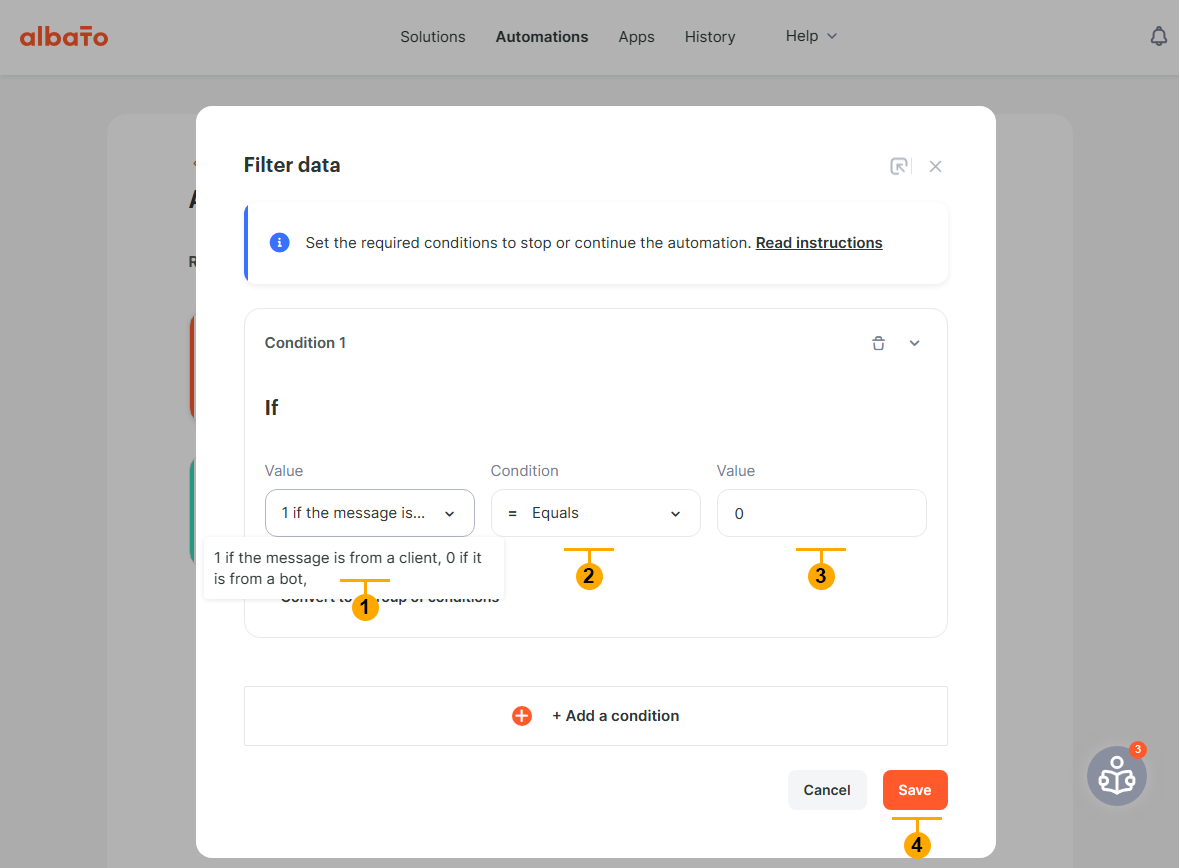
9.5 Now you need to adjust the filter to process only messages from Salebot.pro bot. To do this press "filter" button (1)

9.6 Adjust filter as shown below (1), (2), (3) and press "Save" button (4)
10 Go to "Automations" page and press the "Start" buttons on both automations (1), (2)

11. Write to your WhatsApp number to test connection. You should receive your message in the Salebot.pro "Customers" section.

12. Configure Salebot.pro workflow like on screenshot below:

13. Write to your phone number keyword "Hi". After some delay bot must reply "Hello"

Set up a WhatsApp bot based on Albato.com
Step by step instruction
1.1 Create an account on Albato.com and go to the Apps section
1.2 Add a connection to ChatArchitect.com for WhatsApp by clicking the Add a connection button

1.3 Add App ID and Secret ID

1. Making a bot using Albato tools without third-party integrations
2.1 We approve the message template on app.chatarchitect.com.

2.2 Add approved template in Albato automation. This message will be sent to all customers who contact us by default (i.e. if the keywords [Contact info], [Callback] or [Support] are not found)
2.3 To do this, go to the "Automations" section and click the "New" button

2.4

2.5

2.6

2.7

2.8 Add a rule to return a message to the number from which the message came to us and insert the text of the message

2.9 Add a filter for keywords, at the meeting of which the template will not be sent by default. In our case, these words are Contact info, Callback and Support.

2.10 Just do the same as in the screenshot

2.11 Add automation to send help messages according to the buttons pressed by customers. In the example, we will create a rule for the phrase "Contact info" (clicking the [Contact info] button by the client), the principle is the same for other key phrases / buttons.
Repeat steps 2.3 - 2.8. Only in paragraph 2.8 we add another text with contact information2.12 Click the filter button

2.13 Set up a filter for our keyword "Contact info"

We return to point 2.2 and do the same for the keywords [Callback] and [Support]
As a result, we will get such a bot:
