WhatsApp for HubSpot
- WhatsApp for HubSpot
- Initiation via HubSpot
- How to create a template for WhatsApp Business API
- How to improve your mailling
WhatsApp for HubSpot
HubSpot is a specially developed system for your business that gives you the ability to send emails, communicate directly with customers, keep track of company data.
Connecting HubSpot and ChatArchitect synchronizes your contacts and speeds up the process of interaction with the client.
After connecting, you will be able to customize your account according to your needs, as well as contact any of your clients.
Follow the instructions to set everything up correctly and make it easier for yourself to interact with the program in the future.
Installation instruction
1. First of all, install our application via the link (first, log in to your HubSpot account, then enter the keys that we will send you after the connection is completed)
https://wa.chatarchitect.com/email-hubspot/
2. Then enter the keys that we sent you

3. After connection is completed, click "Proceed to HubSpot" button

4. After installation, go to the tab Conversations - Inbox

5. Next, click on Inbox settings

6. In the HubSpot fallback email subsection, click Edit

7. Check the box Use the HubSpot email for sending messages and save it
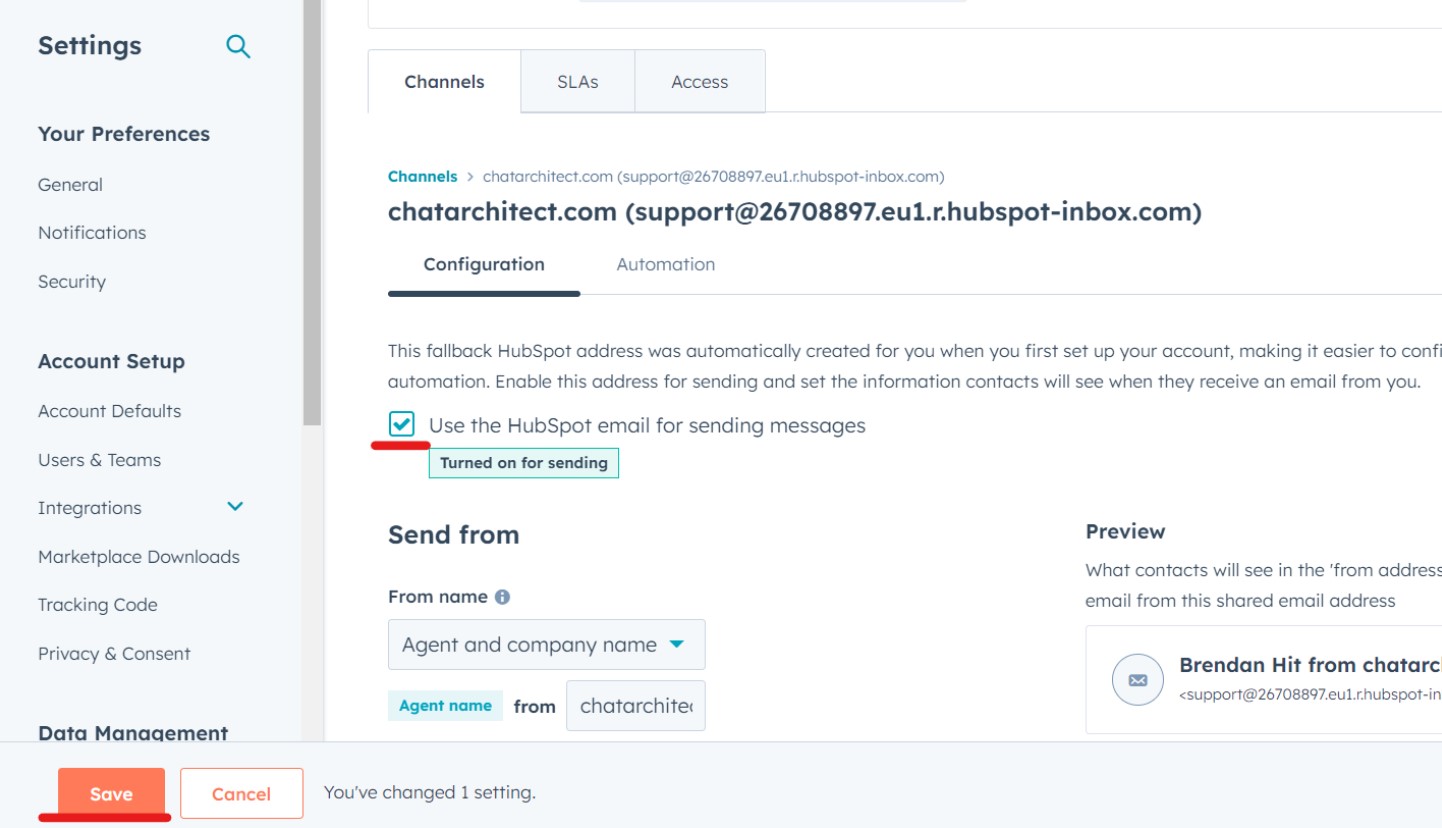
8. Now you can check your incoming messages. To do this, send a message to your number which you have linked to CRM. The message should appear in the "Conversations -> Inbox tab"

9. To send messages via HubSpot follow these instructions https://support.chatarchitect.com/l_eng/knowledge_base/item/298533?sid=63122
Initiation via HubSpot
In this guide, you will learn how to initiate a conversation with your client using a template message from HubSpot.
1. Go to the "Inbox"
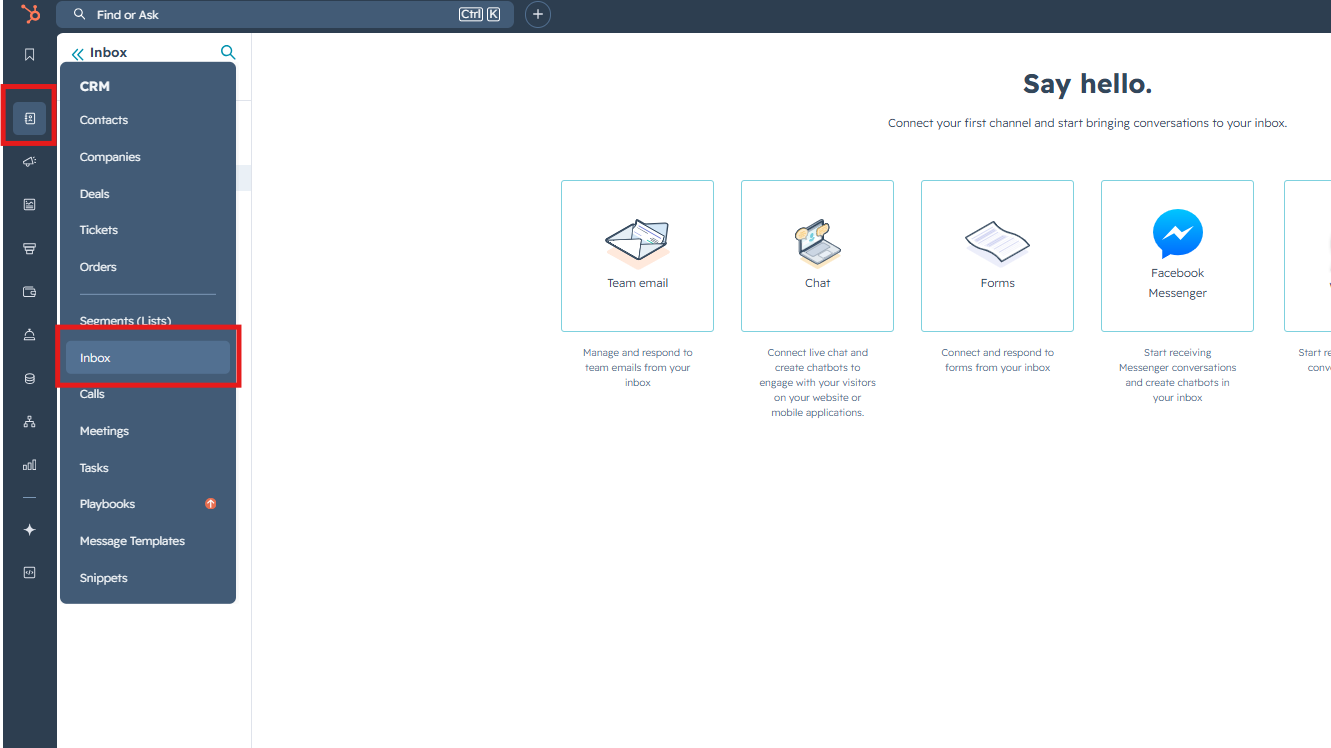
2. Press "Compose" button and fill in data like this:
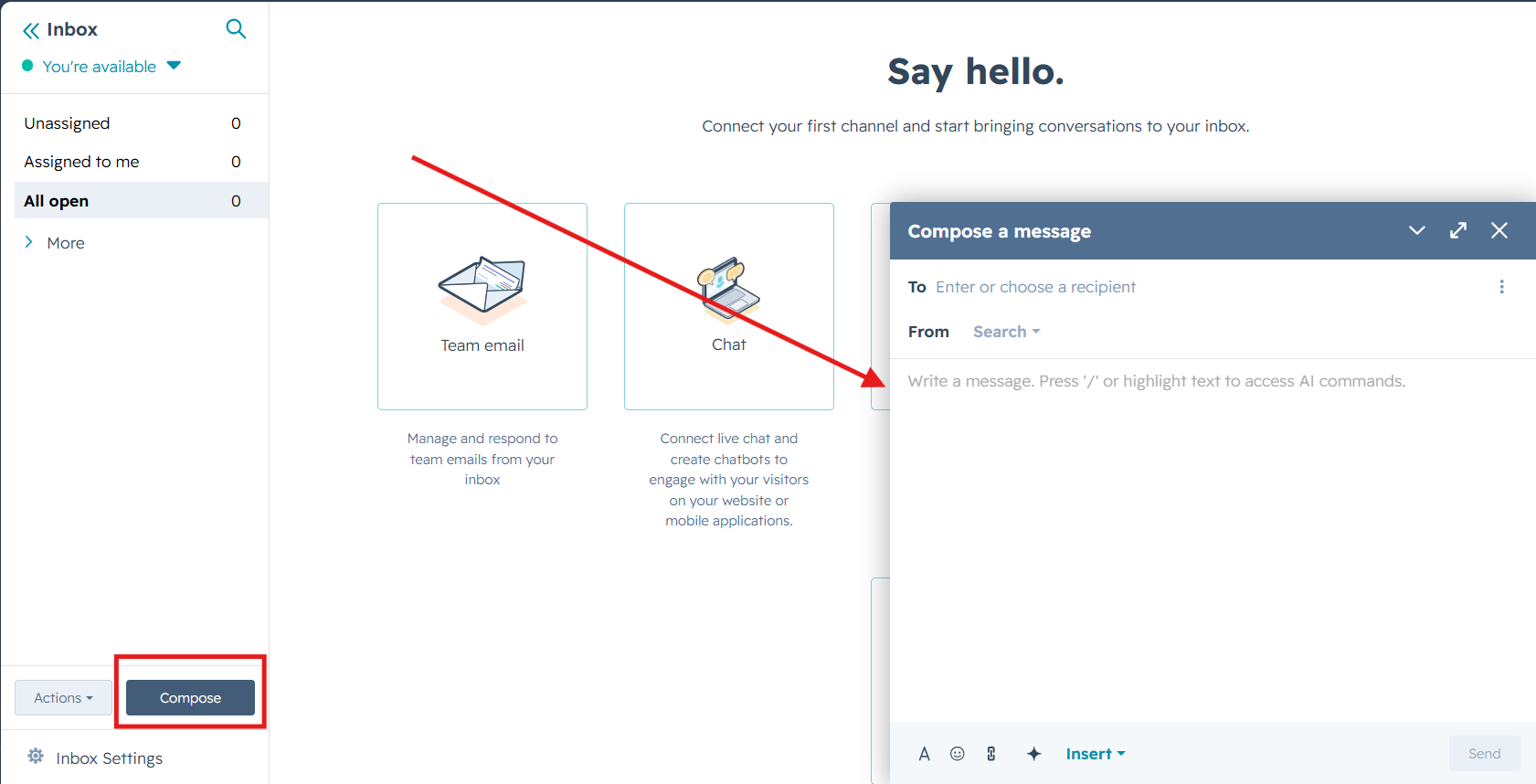
3. Fill in data like this:
To: phone number you are sending to + @em7741.chatarchitect.com (for example, 421233221242@em7741.chatarchitect.com )
From: DO NOT CHANGE
Subject: RE: whatsapp + WhatsApp Business API number ( for example, re: whatsapp 447418610794 )
Text field: copy a template from our app https://wtargeted.com/ and paste
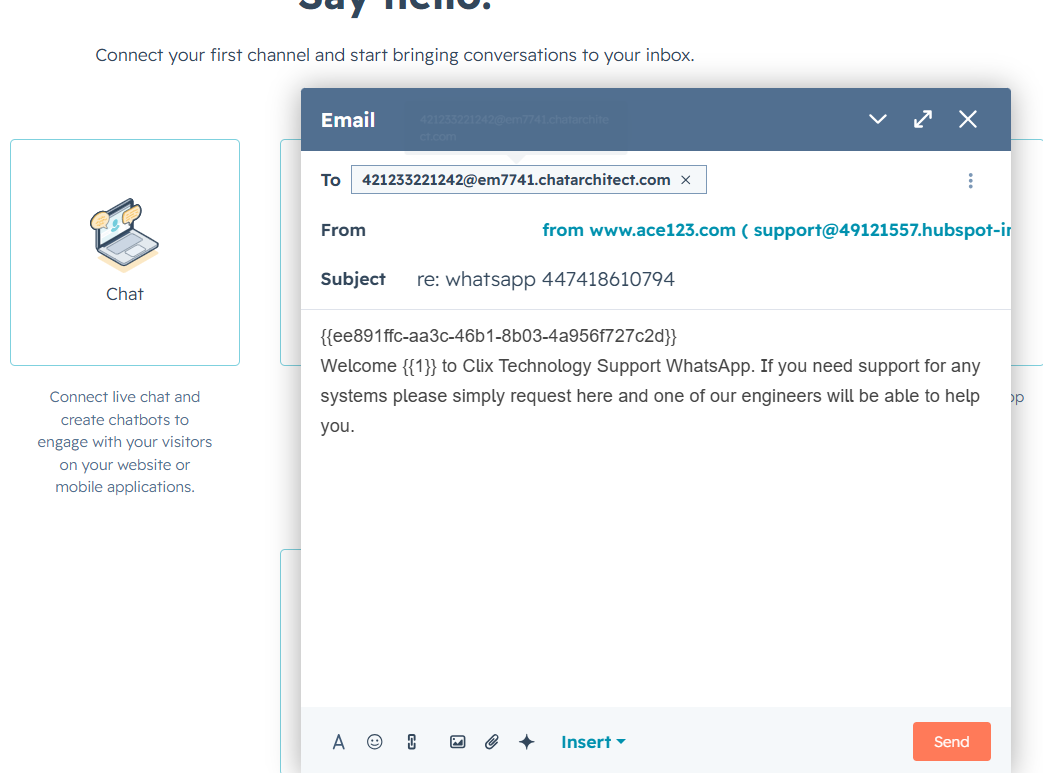
3. Click "Send". A message will appear indicating that the sending has been completed.
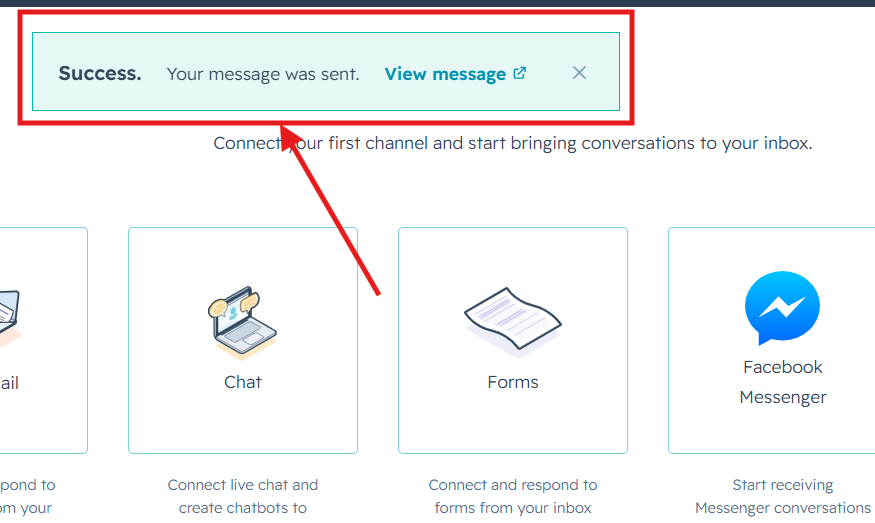
Done. Now you know how to send template messages from the HubSpot interface.
How to create a template for WhatsApp Business API
Step-by-step instructions how to create a template in our app
1. First of all, you need to open wtargeted.com/ and click on the "Facebook Login" button or "Google Login" button

2. After you have logged in to your google \ facebook account, you must enter your PERSONAL phone number on which there is a WhatsApp application, a verification code will be sent to it (not to be confused with the number that you connected with us)

3. Put your App key and Secret and press "Yes, continue".

4. After this, an app menu will be opened. Click on the "Submit template" button.

5. Select the desired language and template type.
Write your message with variables in the first column. For example, "Hello, our employee will answer you as soon as possible. Ticket {{1}} has been created." Variables should be in braces {{}}.
Write a sample message replacing the variables with meaningful information in the second column. For example, "Hello, our employee will answer you as soon as possible. Ticket [999TTT] has been created.". The placeholder is square brackets [].
Then click "Submit Template".

6. After review, your template will appear in "Approved templates".

Don't forget to click on the "refresh" button.
How to improve your mailling
How to improve your Template
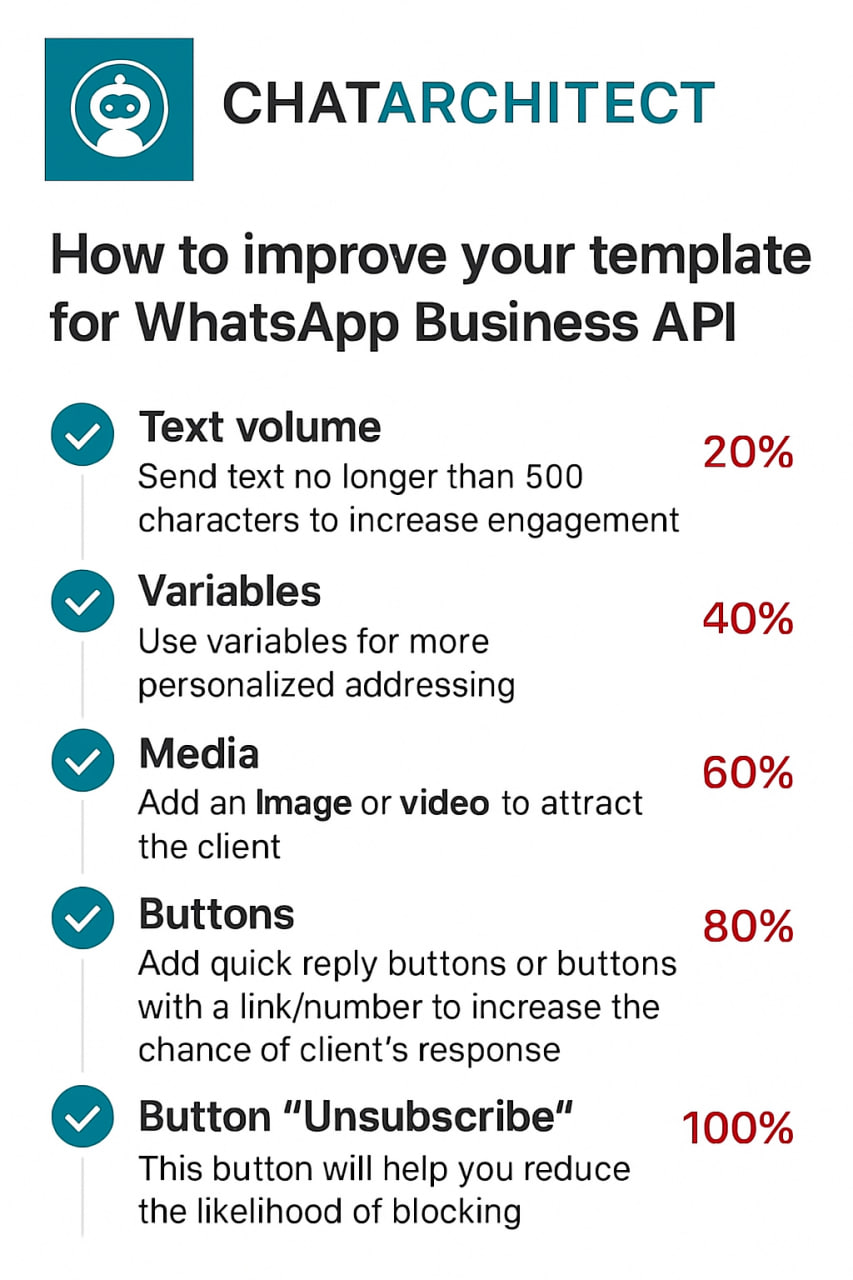
When preparing a mailing campaign, one of the most common questions is: How can I create an effective newsletter without risking being blocked? In this article, we’ll share practical recommendations to help you achieve that.
Text Length
Meta recommends keeping marketing templates under 500 characters to maximize customer engagement. The optimal range is 300–500 characters. In practice, this means keeping your message concise and focused: present the essence of your offer in just a few sentences instead of overwhelming readers with a wall of text.
Personalization with Variables
Personalization significantly improves the effectiveness of your campaigns. Using variables such as the customer’s name is a simple but powerful way to make your messages feel more personal. After all, everyone appreciates being addressed directly.
Use of Media
Adding visuals such as bright images or short videos is a proven way to increase click-through rates. High-quality media design not only attracts attention but also serves as an important driver of conversions.
Action Buttons
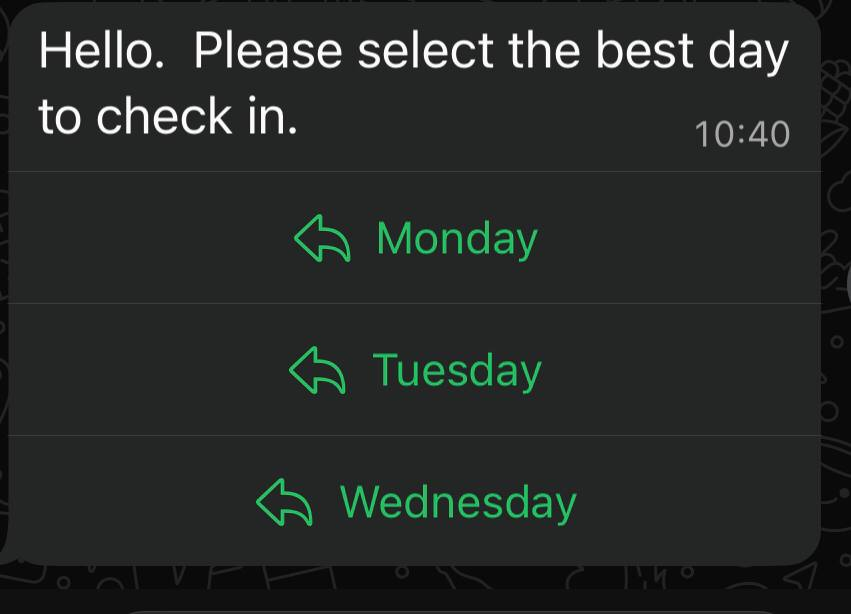
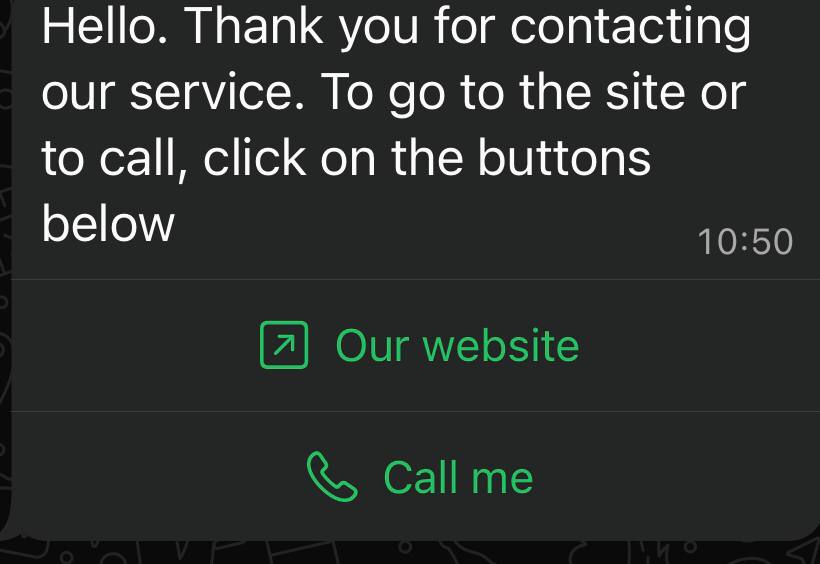
In addition, action buttons can redirect users directly to your website or phone number, making the communication process seamless and convenient.
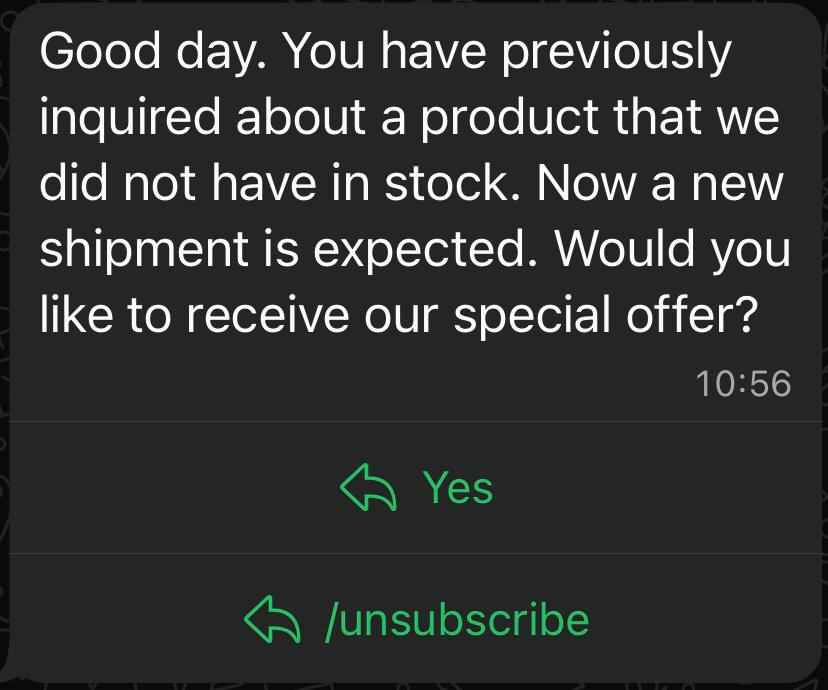
Unsubscribe Button
Meta recommends including an “Unsubscribe” button in mass-mailing templates, and we strongly support this practice. It’s much better to give customers an easy, native way to opt out than to risk complaints or negative feedback.
Conclusion
If you want your newsletter to deliver high engagement and strong conversion rates, make sure your template includes all of the elements listed above: concise copy, personalization, engaging visuals, action buttons, and an unsubscribe option.
Important Note: Templates containing images or call-to-action buttons (such as a website link or phone number) can only be approved via chat with our support team: wa.me/421233221242
wa.me/17377101702