# WhatsApp for CRM
# WhatsApp for RetailCRM.pro \ Simla.com
# How to create a template for WhatsApp Business API
## Step-by-step instructions how to create a template in our app
1\. First of all, you need to open [](https://app.chatarchitect.com/)[wtargeted.com/](https://wtargeted.com/) and click on the "Facebook Login" button or "Google Login" button
2\. After you have logged in to your google \\ facebook account, you must enter your PERSONAL phone number on which there is a WhatsApp application, a verification code will be sent to it (not to be confused with the number that you connected with us)
3\. Put your App key and Secret and press "Yes, continue".
4\. After this, an app menu will be opened. Click on the "Submit template" button.
5\. Select the desired language and template type.
Write your message with variables in the first column. For example, "Hello, our employee will answer you as soon as possible. Ticket {{1}} has been created." Variables should be in braces {{}}.
Write a sample message replacing the variables with meaningful information in the second column. For example, "Hello, our employee will answer you as soon as possible. Ticket \[999TTT\] has been created.". The placeholder is square brackets \[\].
Then click "Submit Template".
6\. After review, your template will appear in "Approved templates".
Don't forget to click on the "refresh" button.
# How to improve your mailing
# How to improve your Template
When preparing a mailing campaign, one of the most common questions is: *How can I create an effective newsletter without risking being blocked?* In this article, we’ll share practical recommendations to help you achieve that.
## Text Length
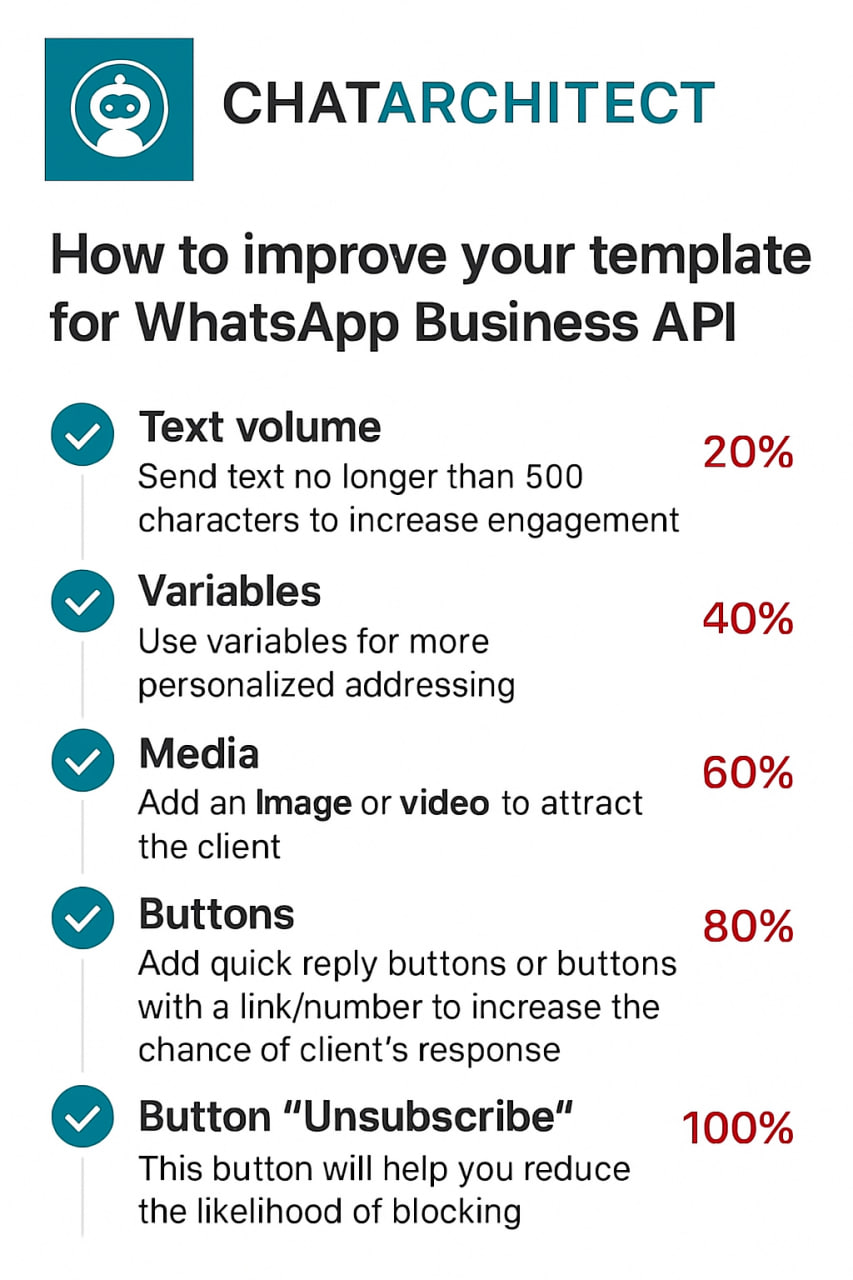
Meta recommends keeping marketing templates under 500 characters to maximize customer engagement. The optimal range is 300–500 characters. In practice, this means keeping your message concise and focused: present the essence of your offer in just a few sentences instead of overwhelming readers with a wall of text.
## Personalization with Variables
Personalization significantly improves the effectiveness of your campaigns. Using variables such as the customer’s name is a simple but powerful way to make your messages feel more personal. After all, everyone appreciates being addressed directly.
## Use of Media
Adding visuals such as bright images or short videos is a proven way to increase click-through rates. High-quality media design not only attracts attention but also serves as an important driver of conversions.
## Action Buttons
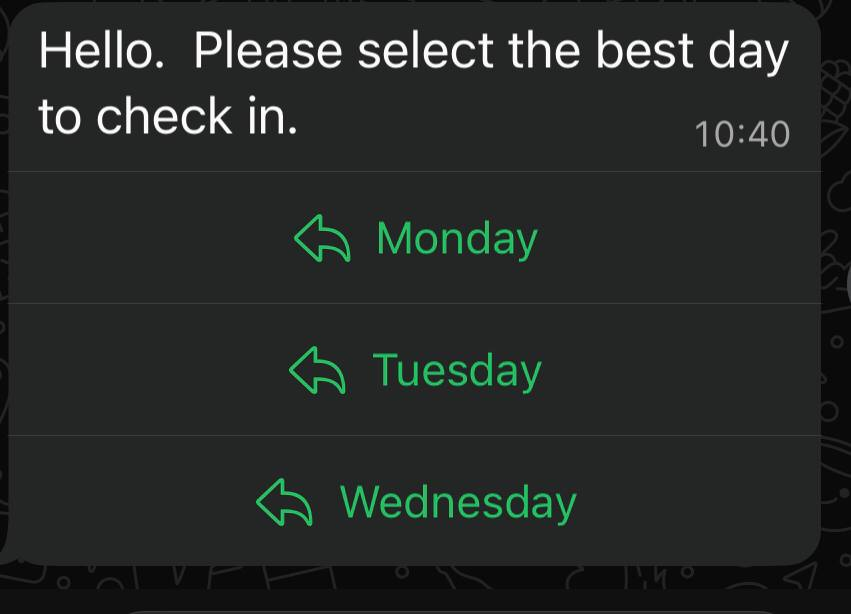
Quick-reply buttons are an excellent tool for faster customer interaction. A single click is always easier than typing a response.
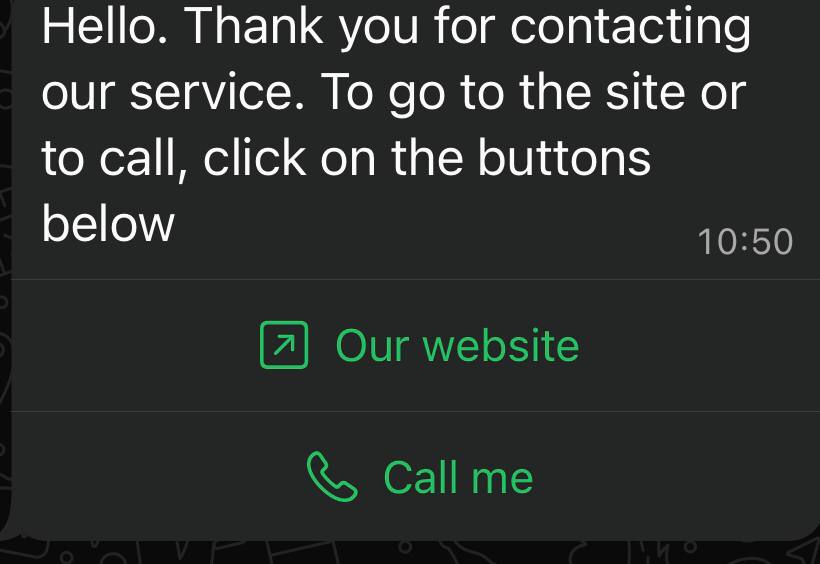
In addition, action buttons can redirect users directly to your website or phone number, making the communication process seamless and convenient.
## Unsubscribe Button
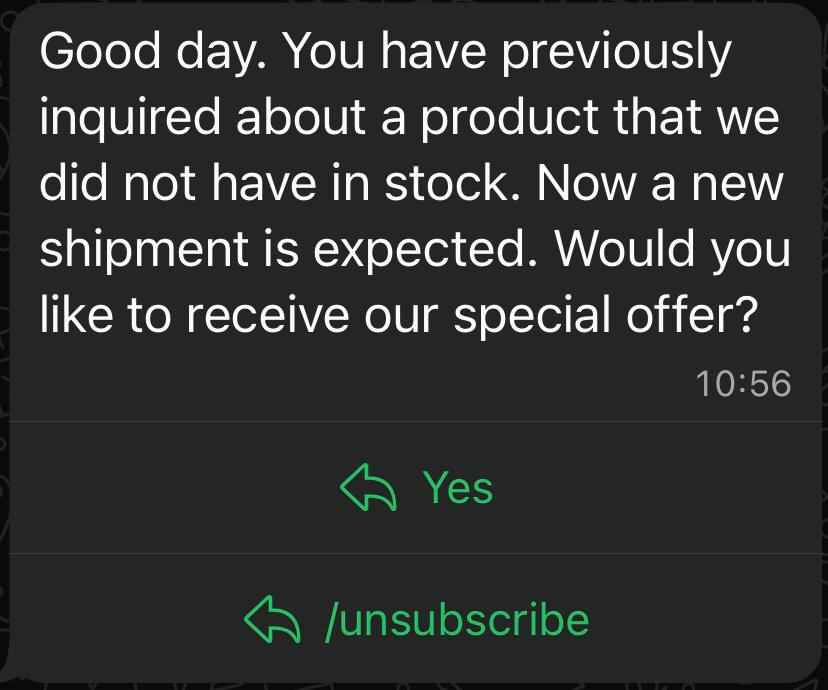
Meta recommends including an “Unsubscribe” button in mass-mailing templates, and we strongly support this practice. It’s much better to give customers an easy, native way to opt out than to risk complaints or negative feedback.
## Conclusion
If you want your newsletter to deliver high engagement and strong conversion rates, make sure your template includes all of the elements listed above: concise copy, personalization, engaging visuals, action buttons, and an unsubscribe option.
**Important Note:** Templates containing images or call-to-action buttons (such as a website link or phone number) can only be approved via chat with our support team: [wa.me/421233221242
wa.me/17377101702](https://wa.me/74956686361)
# RetailCRM
## Simla
### Installation1)API Key — which you create in your Simla account. Settings -> Integration -> API Access KeysAPI methods allowed:/Getting (integration\_read)/Editing (integration\_write)2)You will receive the AppID and Secret after setting up your WhatsApp number. Click Save.3)### How to check1)2)3)Write to the new WhatsApp number from your WhatsApp mobile app on your phone.
### Reply to an incoming message
# Mailing via RetailCRM \ Simla.com
1\. First of all, you need to create a segment Marketing - Segments - Create a segment
Enter segment name and select segment type
2\. Add the desired filter group. In our case, the filter is "Customer Data".
3\. Inside the filter group, add a filter, in our case it is "Registration date".
Select a range, in our case it is from 03.04 to 04.04
4\. Next, we need to send messages to clients from this segment. Go to the section "Sales" - "Customers" - "List". In the filter, select "Segment" and click "Apply". Clients will be sorted by the selected segment
5\. At the bottom of the page there is an "Actions" button. We need it. Select all elements on the page. The blue triangle in the table with clients is responsible for this. Then click on the "Actions" button and select "Write to WhatsApp"
6\. Select a template and click "Submit"
# Adding variables for templates in RetailCRM
1\. First of all, you need to add a template
Settings - Chat Templates - Add
2\. Choose template
3\. Select option for your variable and press Add

# How to set up Autoreply in RetailCRM.pro \ Simla.com
**In this tutorial, we'll show you how to create an auto-reply for clients**
1\. To set up autoreply you need to install "Bot Distributor"
Go to the "Settings" => "Marketplace" => "Bots"=> "Bot Distributor"

2\. Choose "Bot Distributor", check the box "Activity" and press "Go to account settings"

3\. Customize the bot the way you want
# Sending templates from Simla
**In this manual you will learn how to send templates from a customer card**
1\. First of all, you need to go to the Settings => Templates = > Chat templates
2\. After that you need to choose a template and activate it
3\. After this you need to go to the Sales = > Customers => List and choose a customer
4\. Open a customer's card, press "Chat templates' and choose a template that you want to send

# WhatsApp for Kommo.com \ AmoCRM.com
# WhatsApp Business API for Kommo: Installation and sending the first message.
## Step by step instruction
1\. First of all, go to the "Settings"
[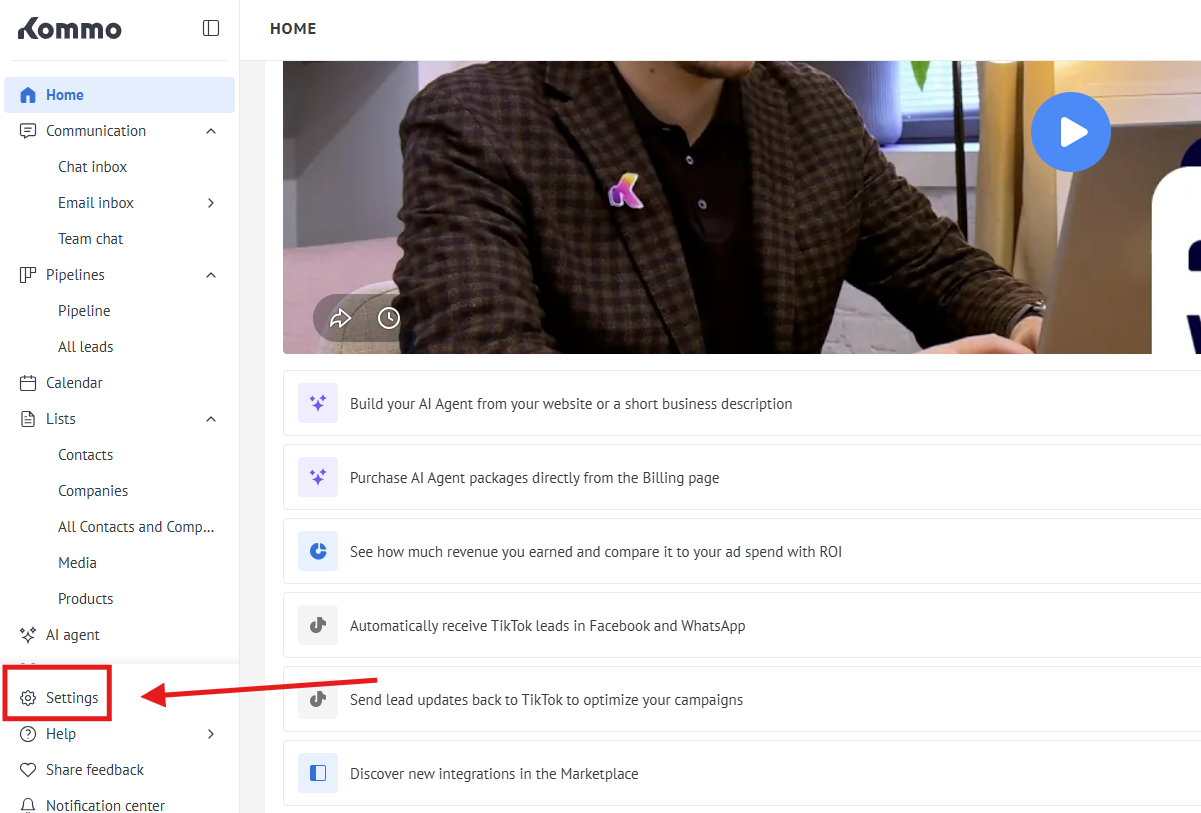](https://support.chatarchitect.com/uploads/images/gallery/2026-04/9eUimage.png)
2\. Go to the "Integration marketplace"
[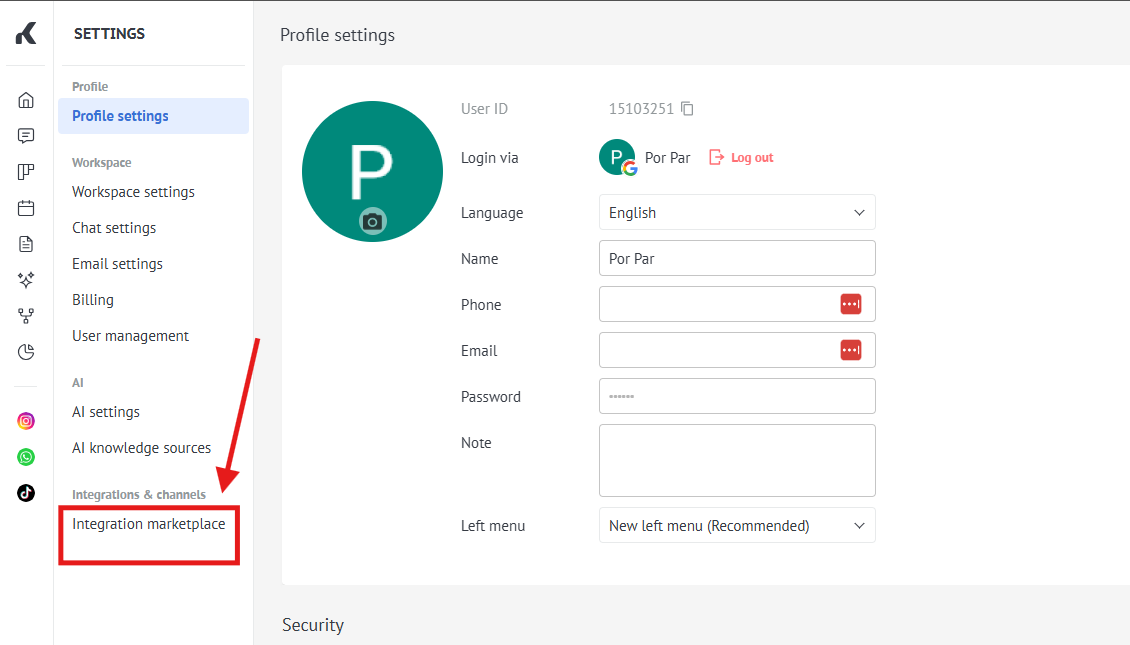](https://support.chatarchitect.com/uploads/images/gallery/2026-04/uAOimage.png)
3\. Choose our app WhatsApp Business API ( check a screenshot )
[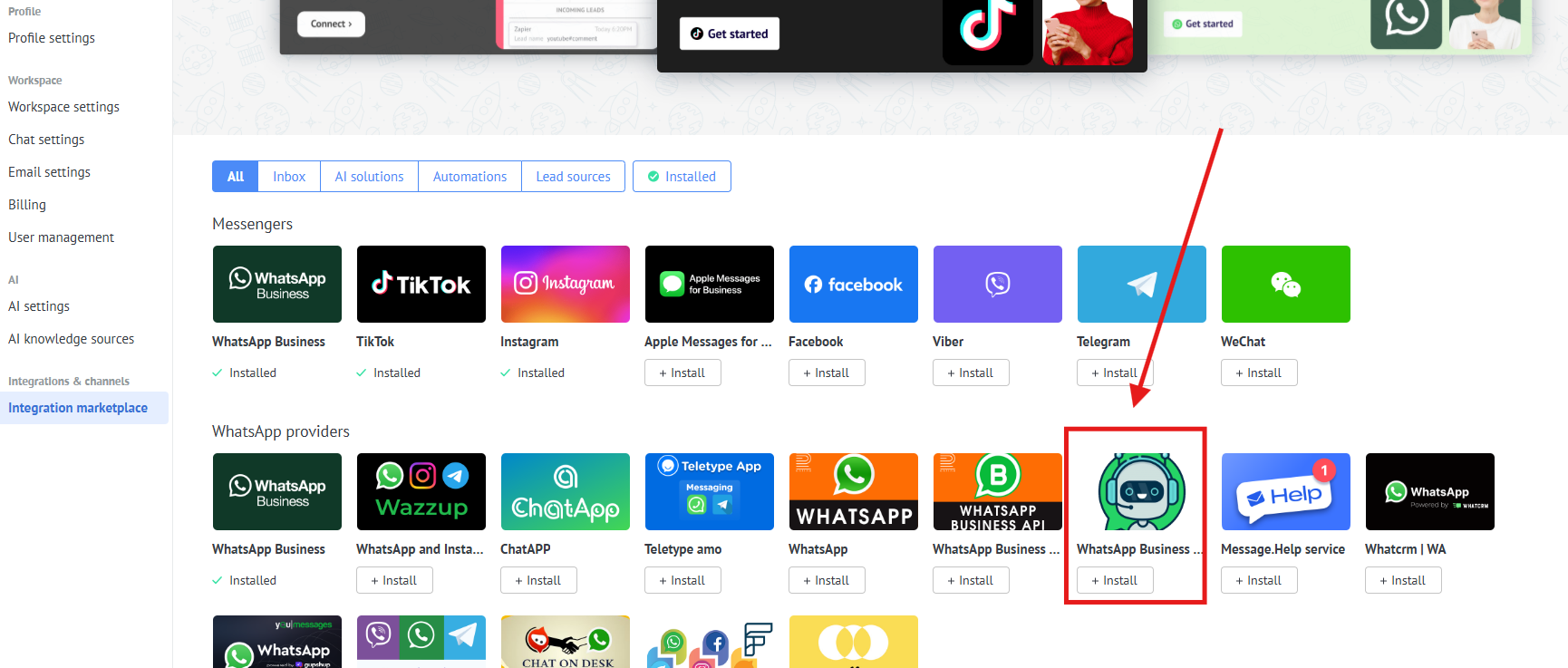](https://support.chatarchitect.com/uploads/images/gallery/2026-04/b72image.png)
4\. Fill in your **APP ID** and **APP SECRET**
[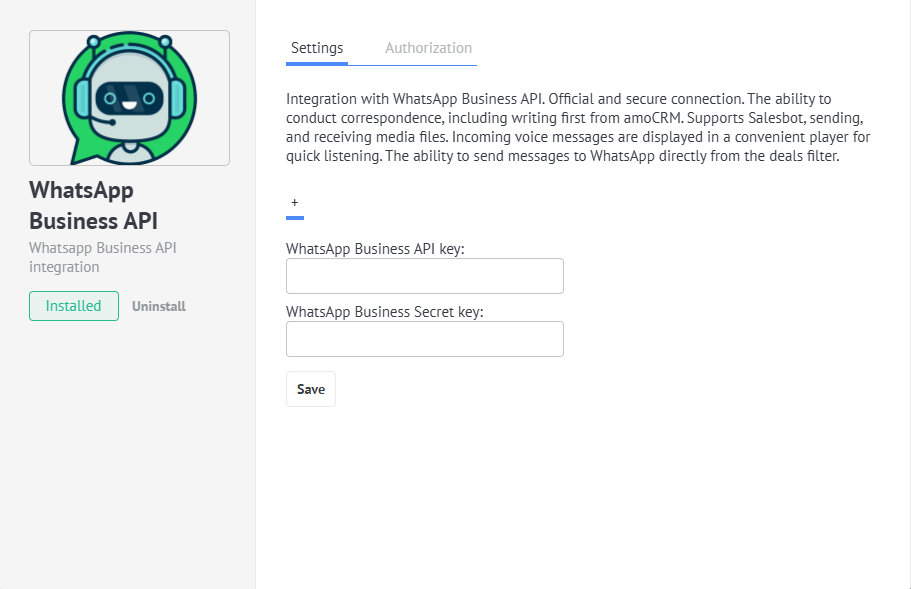](https://support.chatarchitect.com/uploads/images/gallery/2026-04/FsDimage.png)
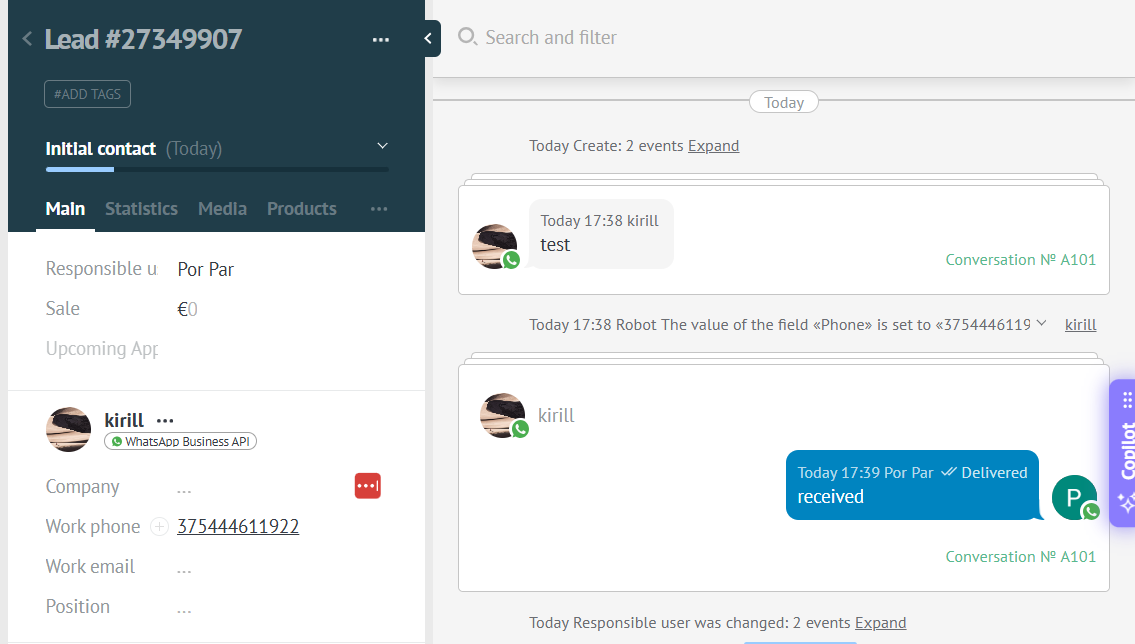
5\. Send your first message from your personal WhatsApp to your WhatsApp Business API number
[](https://support.chatarchitect.com/uploads/images/gallery/2026-04/3Grimage.png)
**Sending a message using templates**
**Video manual** : [https://www.youtube.com/watch?v=2S6VyKS0Rpg](https://www.youtube.com/watch?v=2S6VyKS0Rpg "How to send templates video")
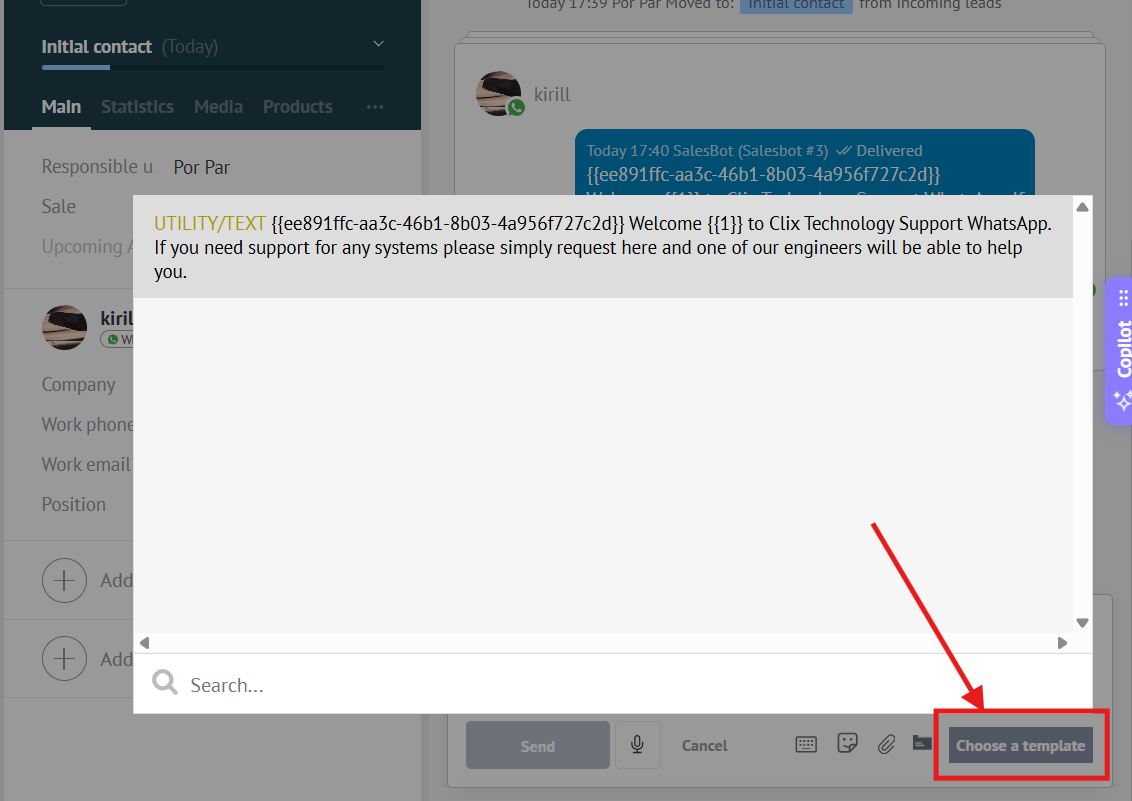
You can send templates from chats in Kommo by using the list of templates
[](https://support.chatarchitect.com/uploads/images/gallery/2026-04/ch7image.png)
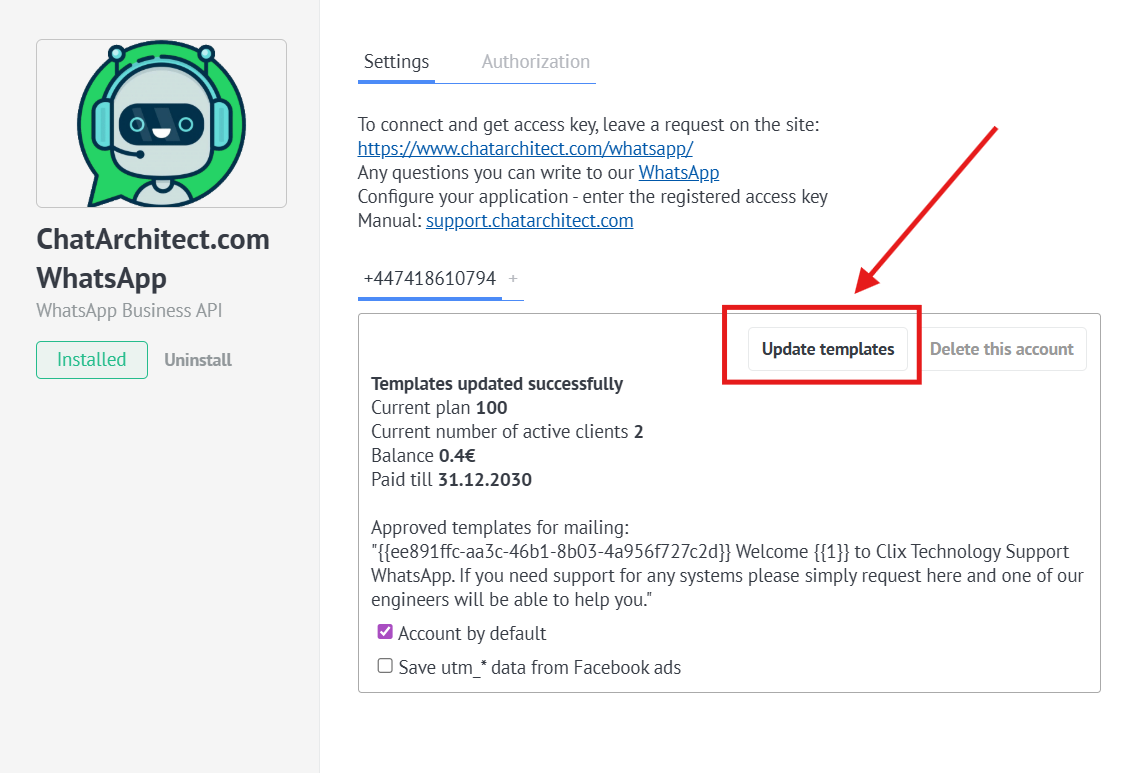
❗❗❗ In case the templates do not appear in the list, you need to:
Go to the "Settings" -> "Installed" -> Click on our application -> Press "Update templates" button
[](https://support.chatarchitect.com/uploads/images/gallery/2026-04/6oqimage.png)
# Disable link shortening in Kommo.com
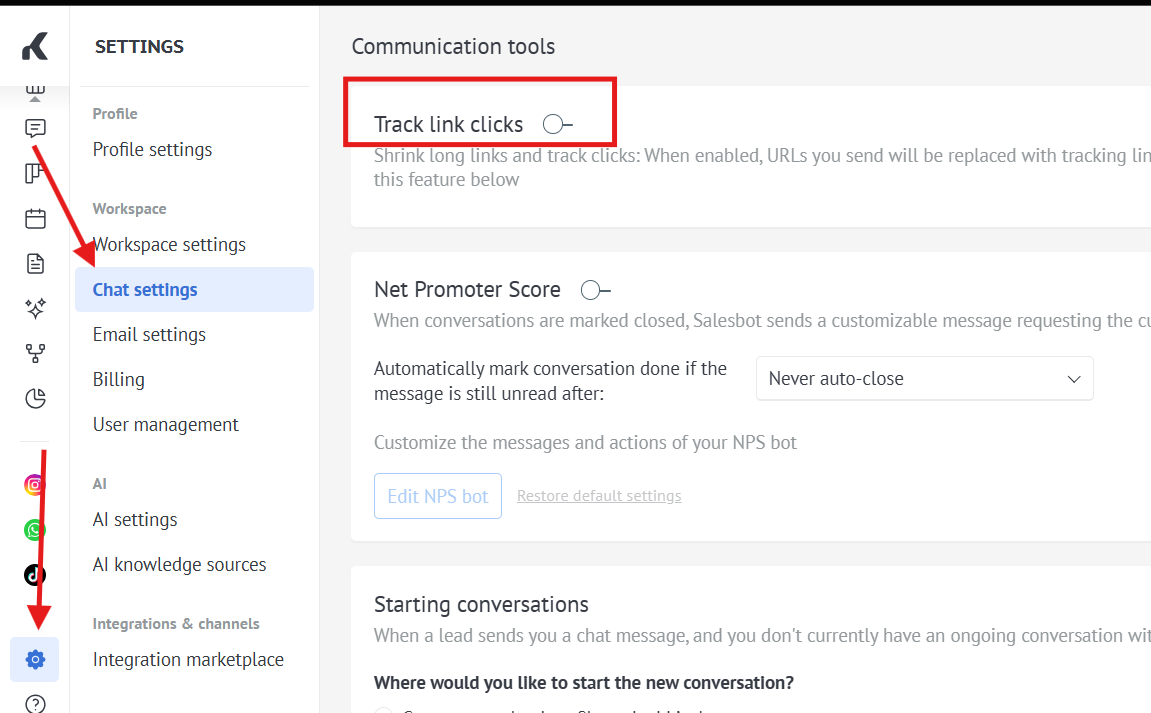
For templates to work correctly (if they contain a link), you need to disable the built-in link shortening in Kommo.
Go to the "Settings" -> "Chat settings" -> Turn off the **"Track link clicks"** toggle.
[](https://support.chatarchitect.com/uploads/images/gallery/2026-04/IBBimage.png)
# How to make independent salesbots for several WhatsApp numbers on one Kommo account \ AmoCRM.com
As a result of following all points of this instruction:
\- See live examples of creating bots in Kommo / AmoCRM.com
\- Learn to make independent salesbots for several WhatsApp numbers on one account.
## Step by step instruction
1\. Adding a new number for the second site/department to your app.chatarchitect.com and kommo.com accounts
1.1 Add a second number to your app.chatarchitect.com account. To do this, press the button (1). Fill in App ID and APP SECRET

1.2 Add a second number to your kommo.com account. To do this, go to the Settings (2) -> Integrations (3) section and click on the ChatArchitect application icon (4)

1.3 To add a new number, press the "+" button (5). In the window that appears, enter the API key and Secret Key of your second phone

2\. Approve template messages (which will be sent to all customers when interacting with WhatsApp chats of company sites/departments) on app.chatarchitect.com. In the screenshot, an example of the first template for the first number, the second template is added in the same way for the second number.

3\. Set up a personal SalesBot for each number separately.
3.1 To configure SalesBot, go to Settings (1) -> Communication tools (2) -> Click on the word "Create" (3)

3.2 In the window that appears, you can select the template "Set up actions based on the words in a client's message" (which means that the bot will read the chat and respond to the keywords that the client writes ("Message received" trigger)) OR you can configure the bot without a template on the "Any new conversation" trigger (which means that the bot will send a standard template ONLY during the FIRST contact of a client with your company via WhatsApp chat).
In this example, we will choose the template "Set up actions based on the words in a client's message" (4).

3.3 Set up the SalesBot script for the first phone as follows and click the "Save" button:

3.4 Now click on the trigger "Message received" (5)

3.5 In the pop-up window, in the "For all leads with" field, select "Source" -> Your first phone number and click the "Done" button

3.6 We do steps 3.1-3.5 for the second bot that will listen to the second number. But of course, in step 3.5, select your second number, and in step 3.3, specify the texts for the second Salesbot.
As a result, we will get the following:

# Distribution of chats from different numbers among managers in Salesbot
Video manual: [https://www.youtube.com/watch?v=uS8U-27okmQ](https://www.youtube.com/watch?v=uS8U-27okmQ)
This article will be useful if you have multiple numbers and each number is assigned to a separate manager. In this article, you will learn how to quickly set up the distribution of chats from different numbers among managers in Salesbot.
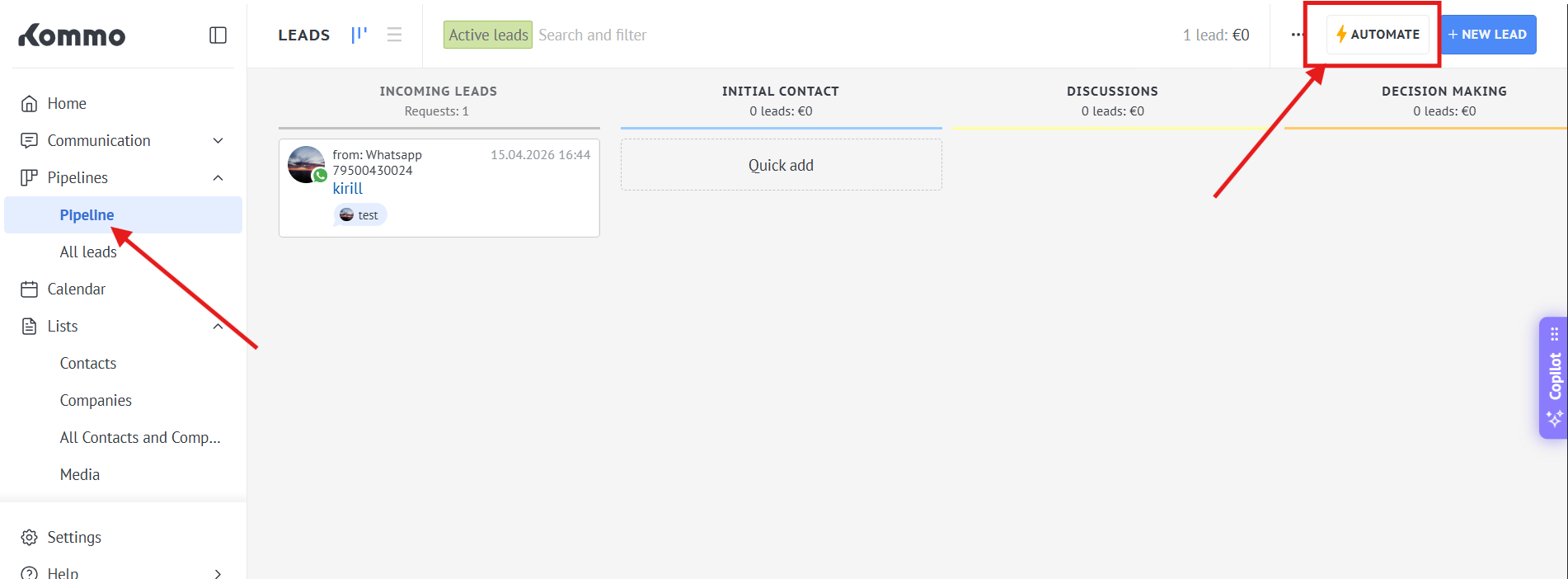
1\. **Go to the Pipeline - > Automate**
[](https://support.chatarchitect.com/uploads/images/gallery/2026-04/SORimage.png)
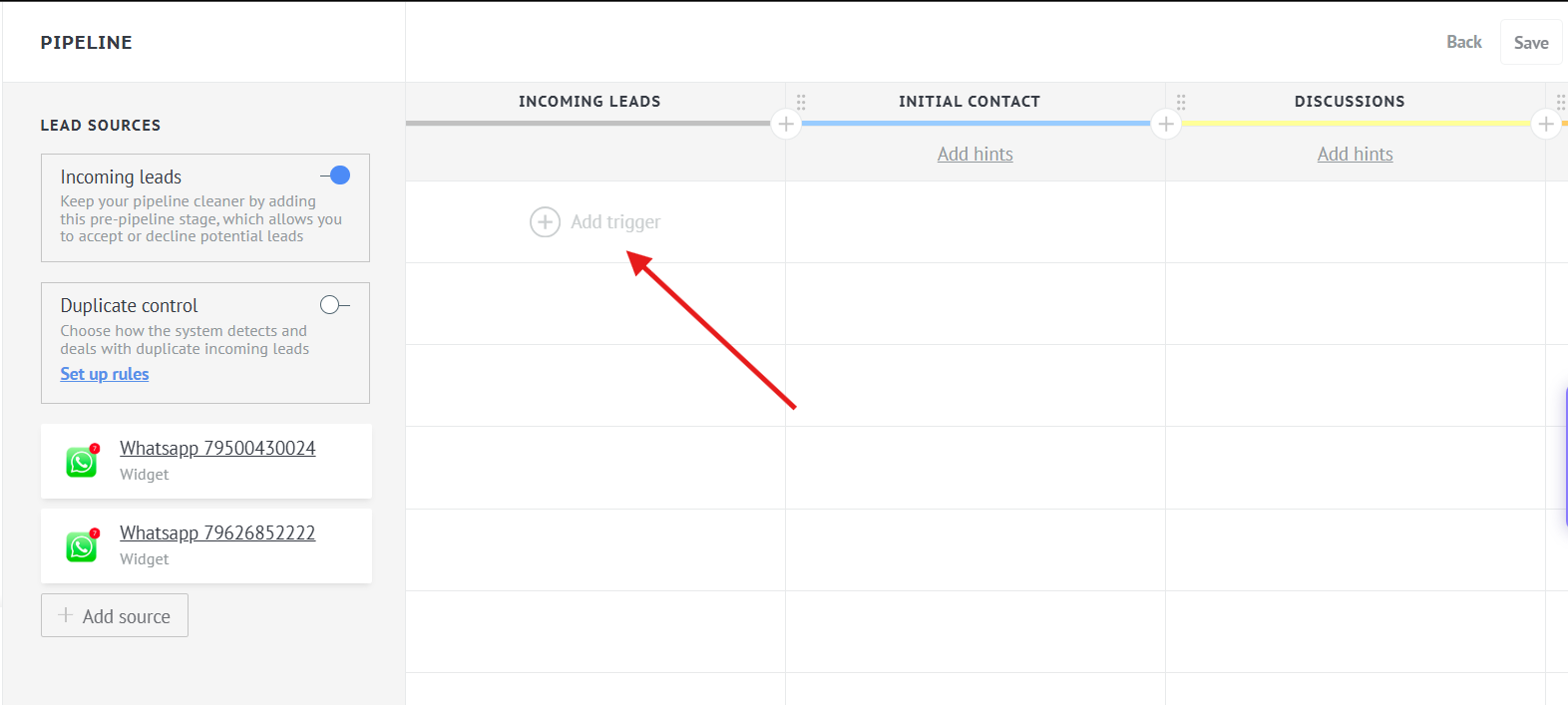
2\. **Press "Incoming leads" - > "Add trigger"**
[](https://support.chatarchitect.com/uploads/images/gallery/2026-04/M1Jimage.png)
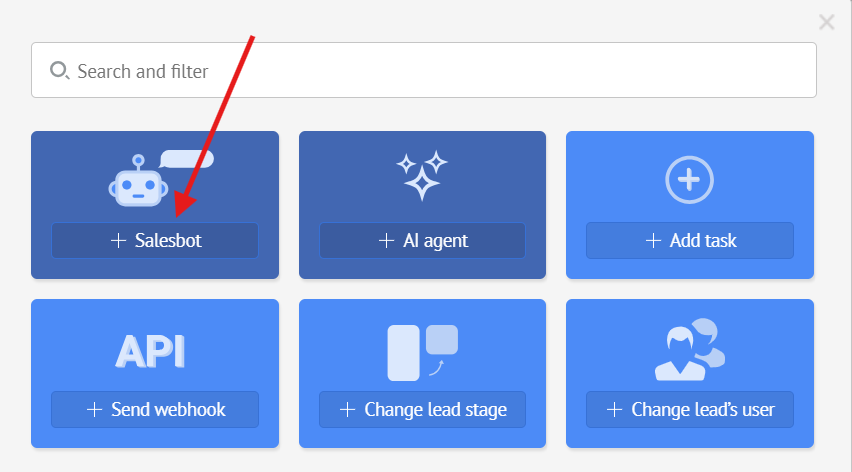
3\. **Select "Salesbot"**
[](https://support.chatarchitect.com/uploads/images/gallery/2026-04/oDjimage.png)
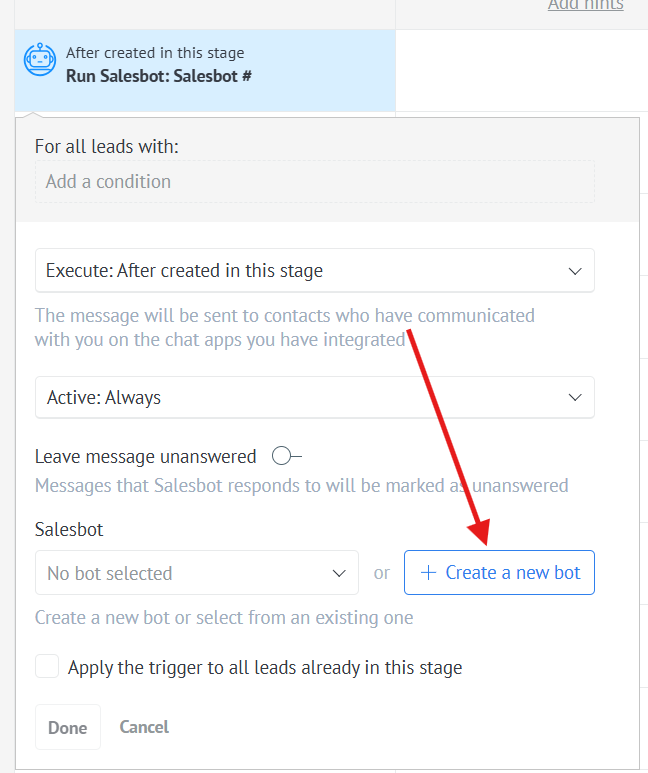
4\. **Choose** "**Create a new bot"**
[](https://support.chatarchitect.com/uploads/images/gallery/2026-04/rEuimage.png)
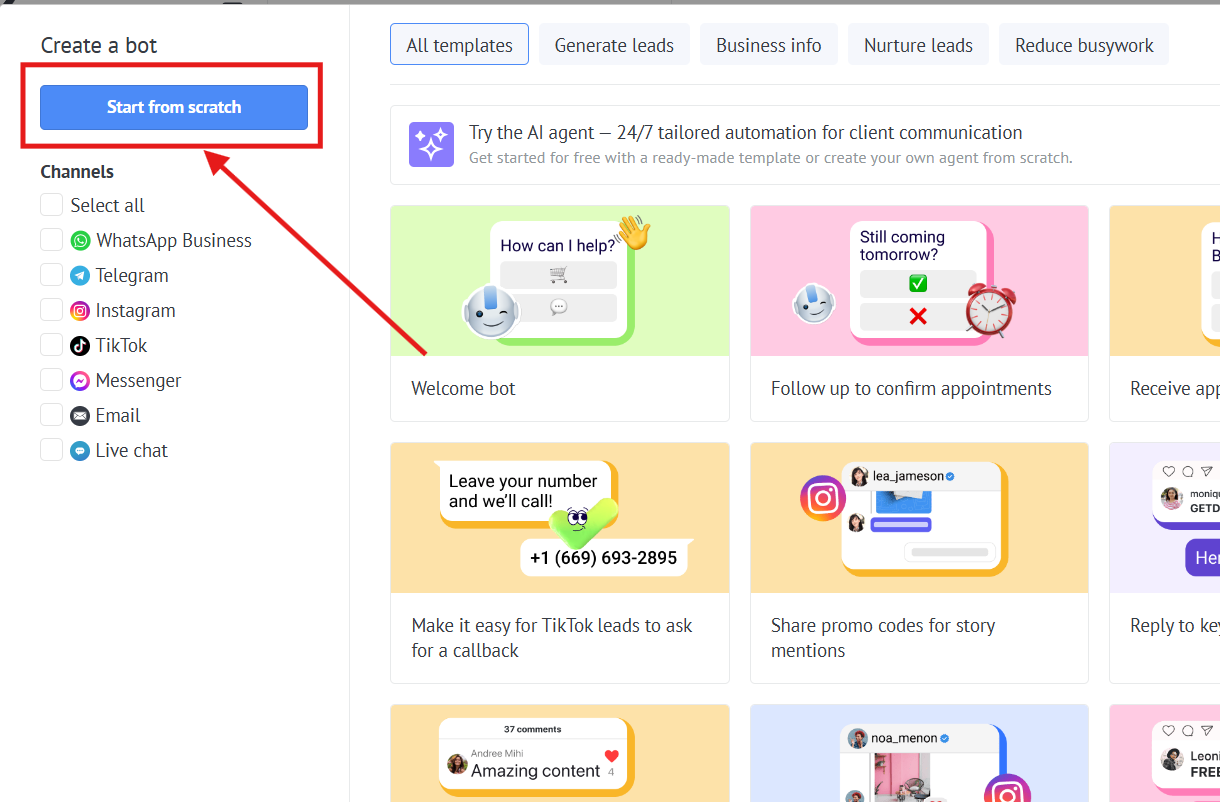
5\. **Press "Start from scratch" button**
[](https://support.chatarchitect.com/uploads/images/gallery/2026-04/LTnimage.png)
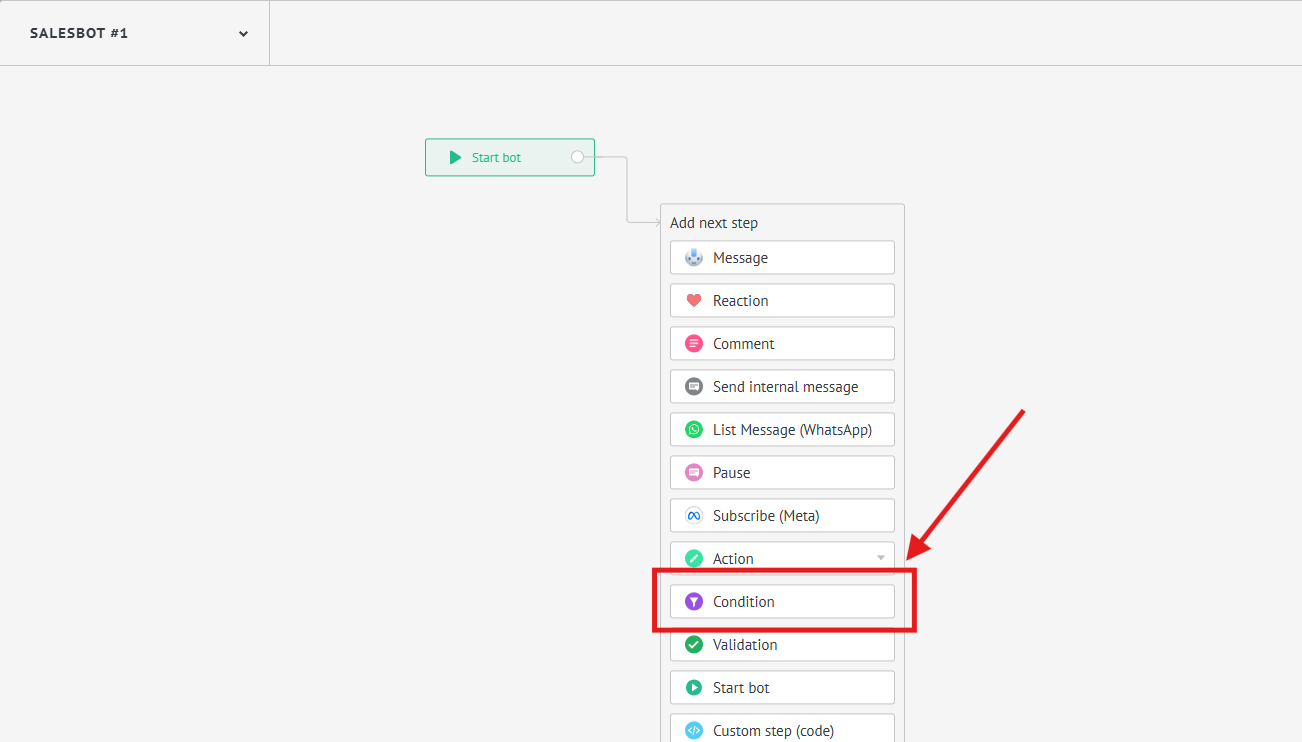
6\. **Choose "Condition"**
[](https://support.chatarchitect.com/uploads/images/gallery/2026-04/Iiyimage.png)
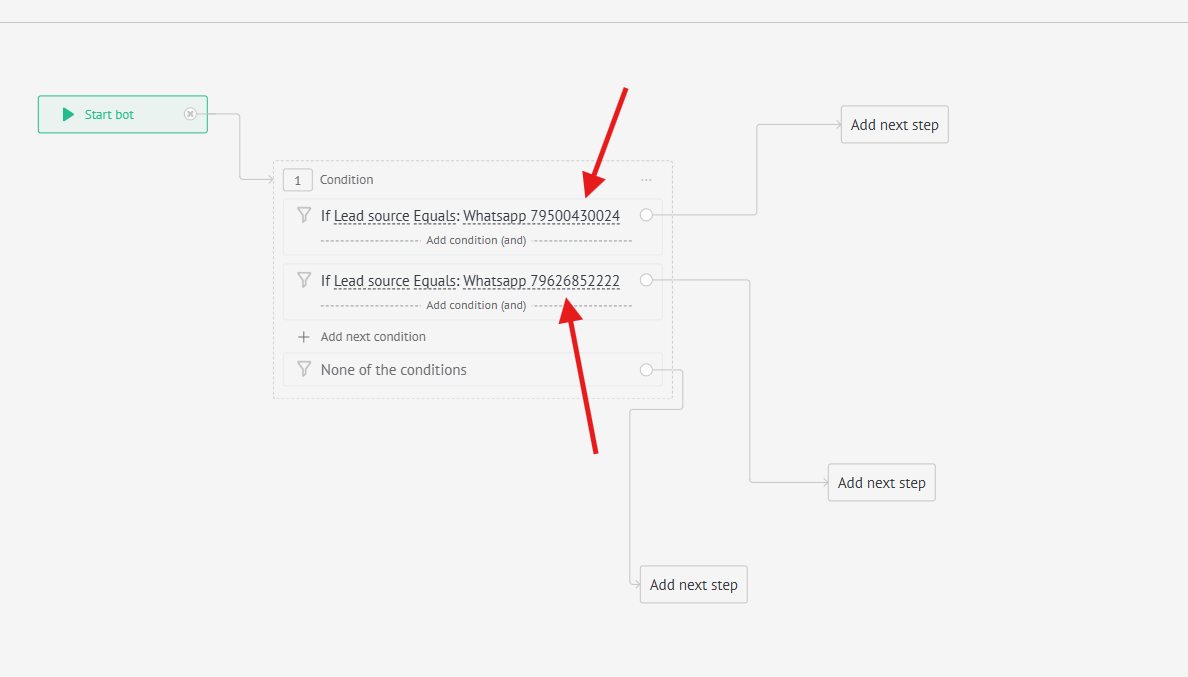
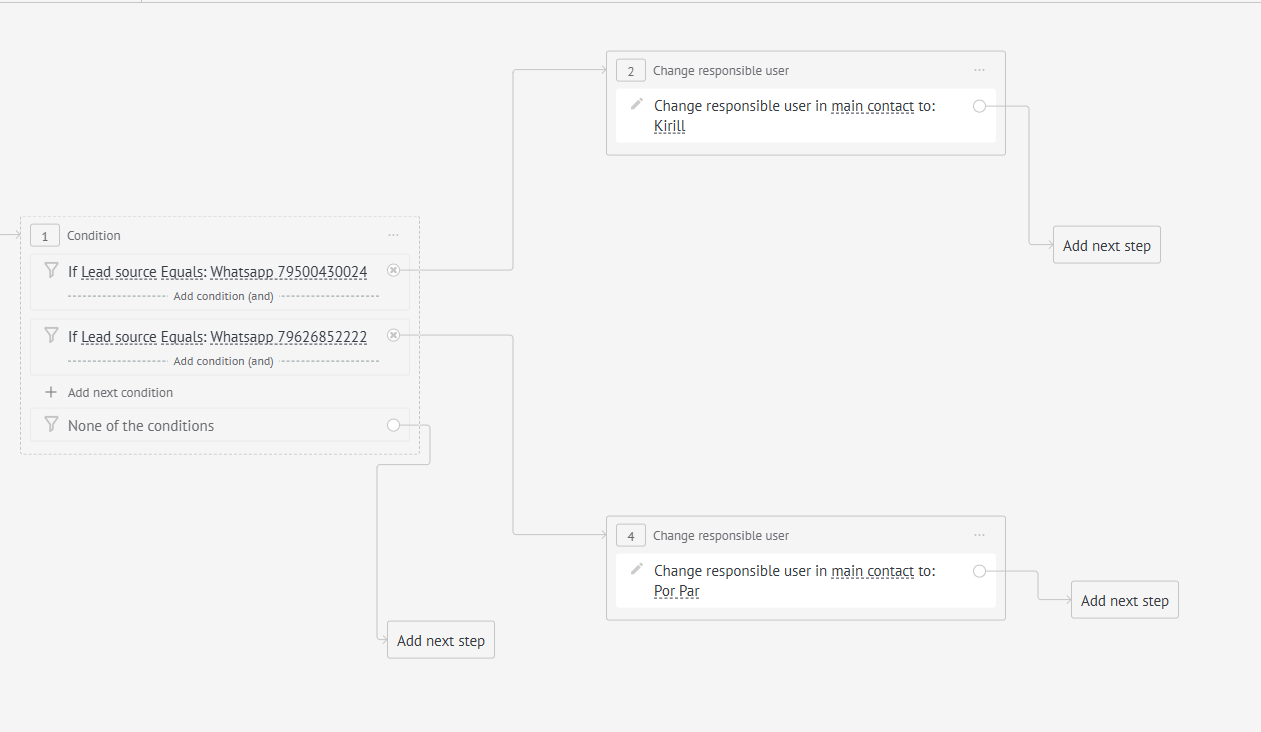
7\. **Add 2 conditions "If leads source Equals: and select a separate number for each condition"**
[](https://support.chatarchitect.com/uploads/images/gallery/2026-04/KfJimage.png)
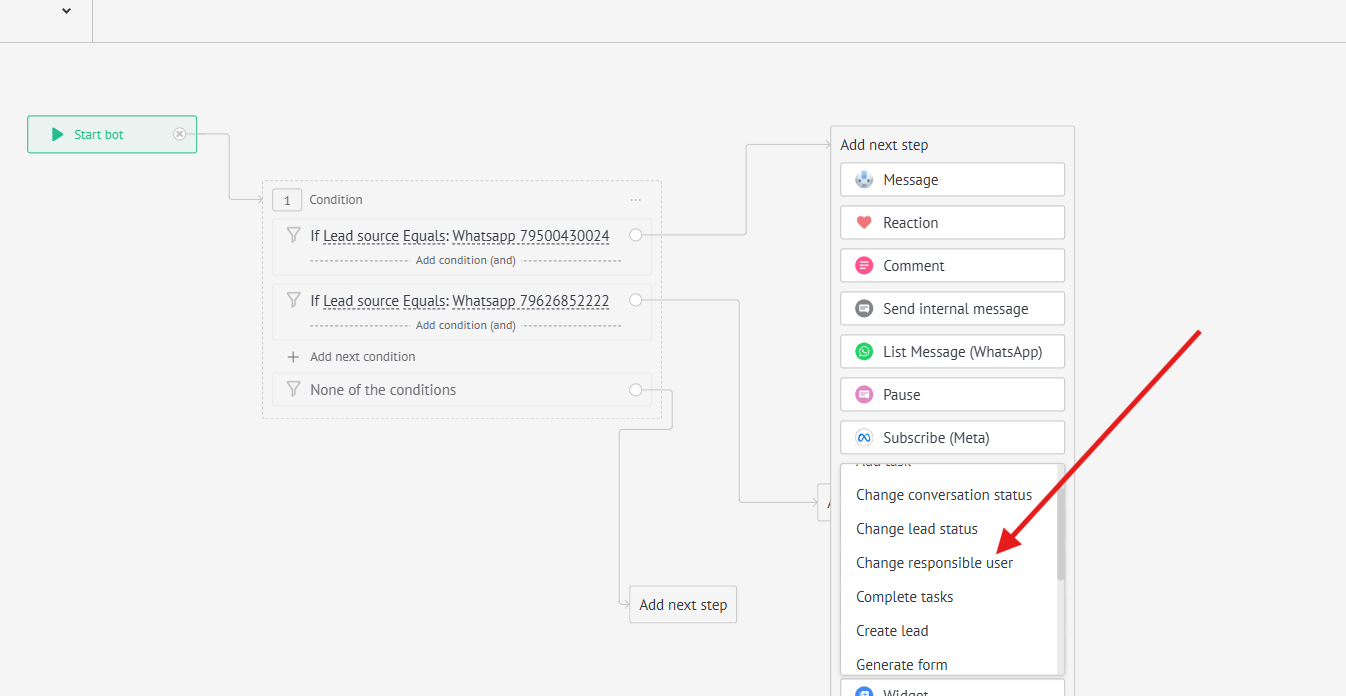
8\. **Press "Add next step" and choose "Action" -> "Change responsible User"**
[](https://support.chatarchitect.com/uploads/images/gallery/2026-04/Hbwimage.png)
9\. **Select the appropriate managers for each number**
[](https://support.chatarchitect.com/uploads/images/gallery/2026-04/b12image.png)
Done. Now the conversations will be distributed among managers based on this setup.
# Sending template messages using Salesbot
**In this guide, we will show you how to send template messages using Salesbot.**
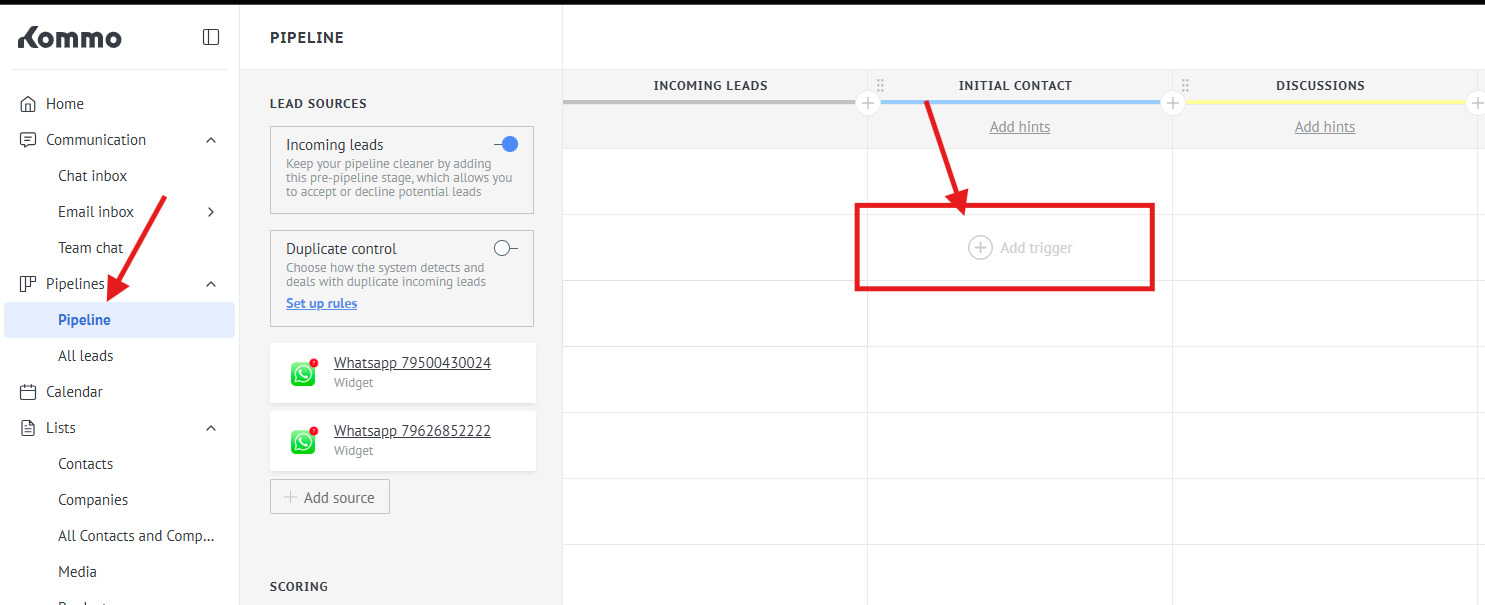
1\. First of all, you need to go to the "Pipeline" and choose a stage, where do you want to use your Salesbot
In my case, this is the **"Initial contact"** stage.
[](https://support.chatarchitect.com/uploads/images/gallery/2026-04/jmPimage.png)
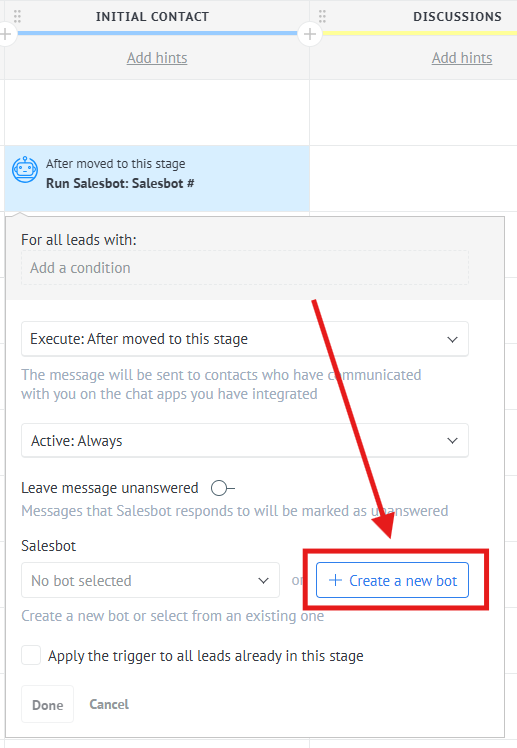
2\. Press "Add trigger" -> "Salesbot" -> "Create a new bot"
[](https://support.chatarchitect.com/uploads/images/gallery/2026-04/i7aimage.png)
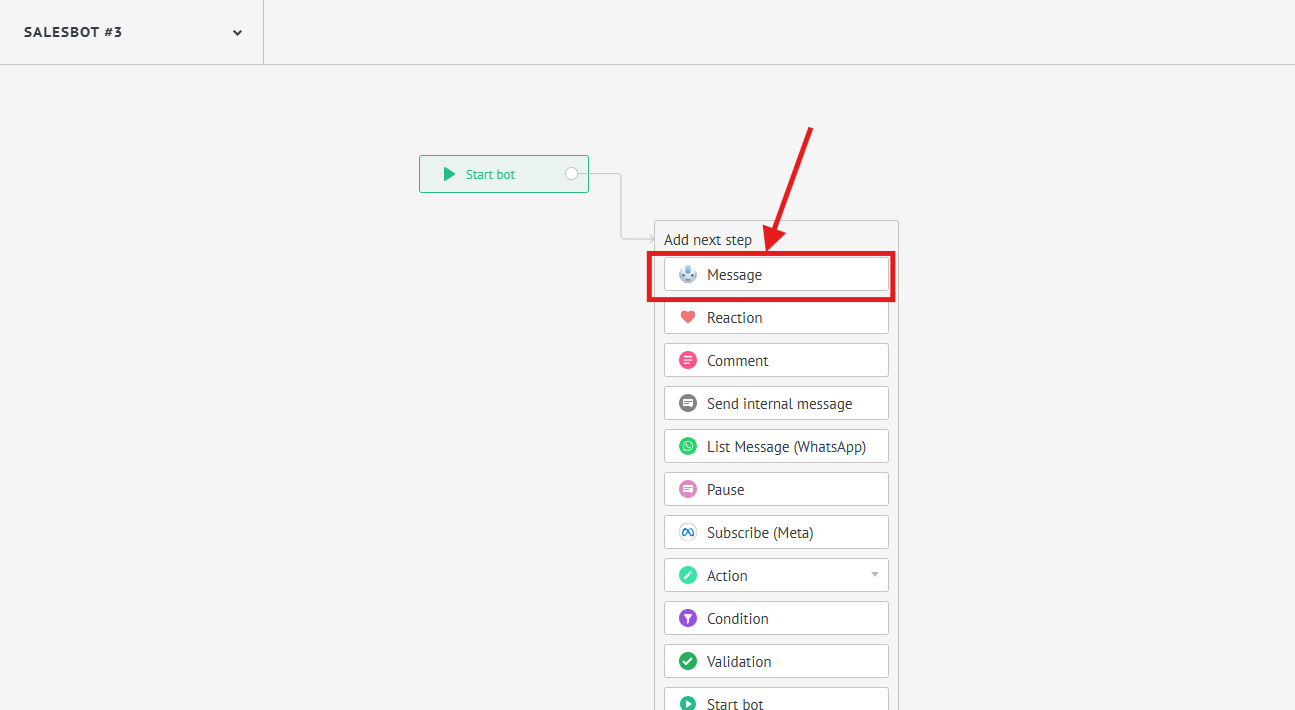
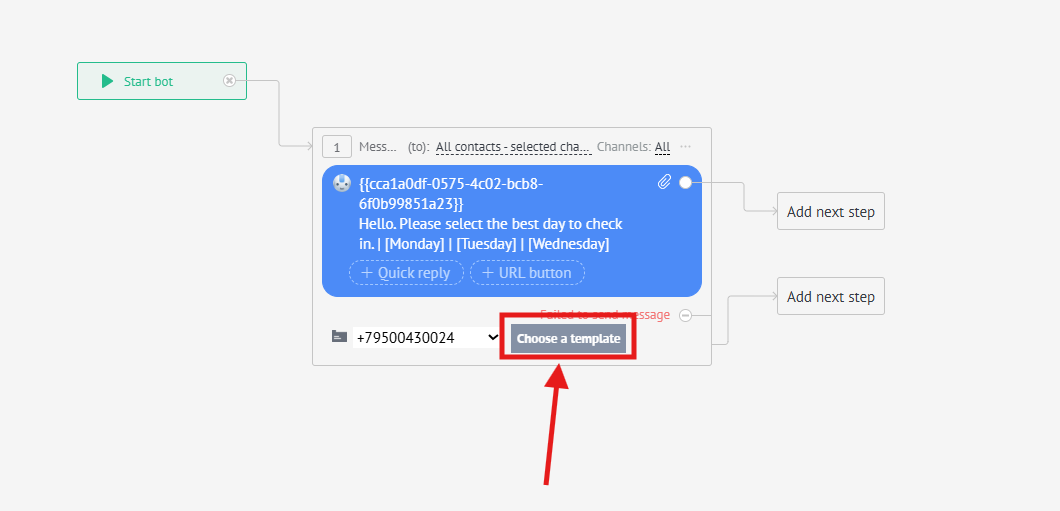
3\. Choose "Message" step
[](https://support.chatarchitect.com/uploads/images/gallery/2026-04/P8Himage.png)
4\. After that, select the template you want to use for sending.
[](https://support.chatarchitect.com/uploads/images/gallery/2026-04/ncGimage.png)
Done. Now all your deals that move to the **"Initial contact"** stage will receive the template you selected.
**Note:** At the moment, adding files of the following formats is available: **.png, .jfif, .pjpeg, .jpeg, .pjp, .jpg, .bmp, .dib, .webp, .m4v, .mp4** - the bot supports all video formats that can be chosen to send
# How to create a template for WhatsApp Business API
## Step-by-step instructions how to create a template in our app
1\. First of all, you need to open [wtargeted.com/](https://wtargeted.com/) and click on the "Facebook Login" button or "Google Login" button
2\. After you have logged in to your google \\ facebook account, you must enter your PERSONAL phone number on which there is a WhatsApp application, a verification code will be sent to it (not to be confused with the number that you connected with us)
3\. Put your App key and Secret and press "Yes, continue".
4\. After this, an app menu will be opened. Click on the "Submit template" button.
5\. Select the desired language and template type.
Write your message with variables in the first column. For example, "Hello, our employee will answer you as soon as possible. Ticket {{1}} has been created." Variables should be in braces {{}}.
Write a sample message replacing the variables with meaningful information in the second column. For example, "Hello, our employee will answer you as soon as possible. Ticket \[999TTT\] has been created.". The placeholder is square brackets \[\].
Then click "Submit Template".
6\. After review, your template will appear in "Approved templates".
Don't forget to click on the "refresh" button.
# How to improve your mailling
# How to improve your Template
When preparing a mailing campaign, one of the most common questions is: *How can I create an effective newsletter without risking being blocked?* In this article, we’ll share practical recommendations to help you achieve that.
## Text Length
Meta recommends keeping marketing templates under 500 characters to maximize customer engagement. The optimal range is 300–500 characters. In practice, this means keeping your message concise and focused: present the essence of your offer in just a few sentences instead of overwhelming readers with a wall of text.
## Personalization with Variables
Personalization significantly improves the effectiveness of your campaigns. Using variables such as the customer’s name is a simple but powerful way to make your messages feel more personal. After all, everyone appreciates being addressed directly.
## Use of Media
Adding visuals such as bright images or short videos is a proven way to increase click-through rates. High-quality media design not only attracts attention but also serves as an important driver of conversions.
## Action Buttons
Quick-reply buttons are an excellent tool for faster customer interaction. A single click is always easier than typing a response.
In addition, action buttons can redirect users directly to your website or phone number, making the communication process seamless and convenient.
## Unsubscribe Button
Meta recommends including an “Unsubscribe” button in mass-mailing templates, and we strongly support this practice. It’s much better to give customers an easy, native way to opt out than to risk complaints or negative feedback.
## Conclusion
If you want your newsletter to deliver high engagement and strong conversion rates, make sure your template includes all of the elements listed above: concise copy, personalization, engaging visuals, action buttons, and an unsubscribe option.
**Important Note:** Templates containing images or call-to-action buttons (such as a website link or phone number) can only be approved via chat with our support team: [wa.me/421233221242
wa.me/17377101702](https://wa.me/74956686361)
# WhatsApp for Bitrix24.com
# How to Hide agent information on Bitrix24
**Bitrix24 automatically adds agent's name to your message when answering via "Open Channel", disrupting the correct functioning of templates.**
To disable this feature, you have to:
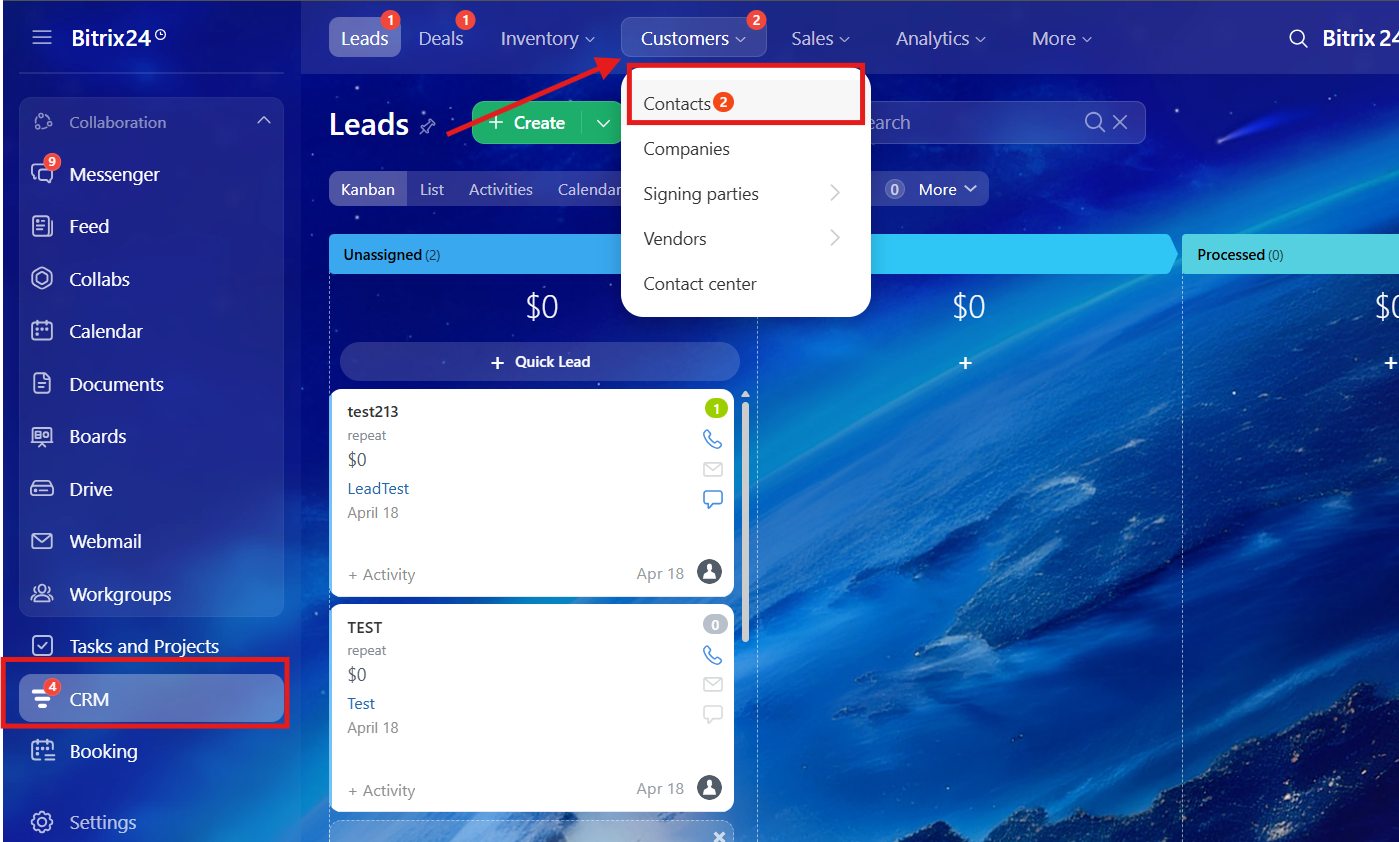
1\. **Open the "contact center" section**.
Go to the **"CRM"** -> **"Customers"** -> **"Contact Center"**
[](https://support.chatarchitect.com/uploads/images/gallery/2026-04/YFBimage.png)
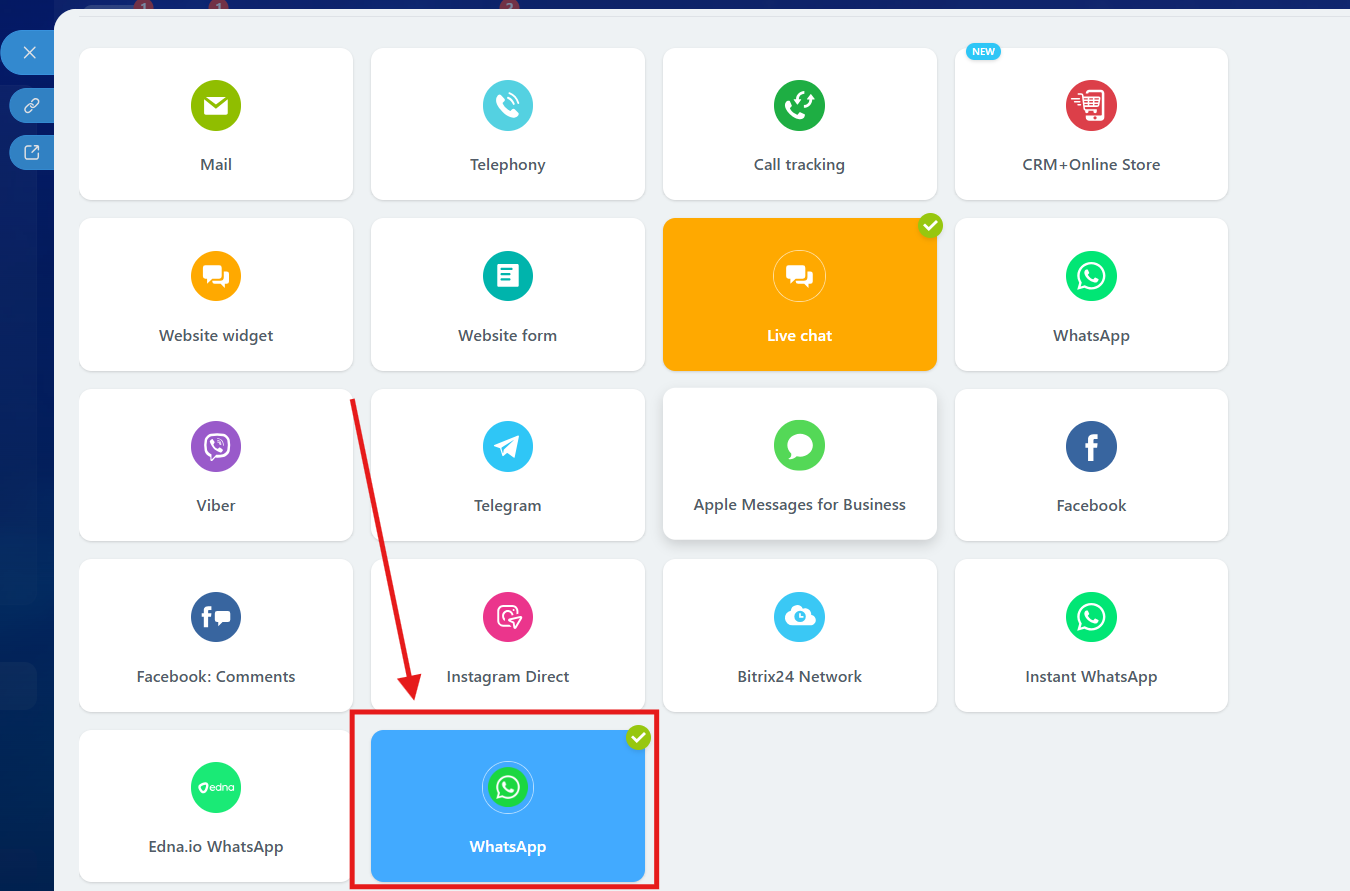
2\. In the contact center, you need to find our app and click on it
[](https://support.chatarchitect.com/uploads/images/gallery/2026-04/iyBimage.png)
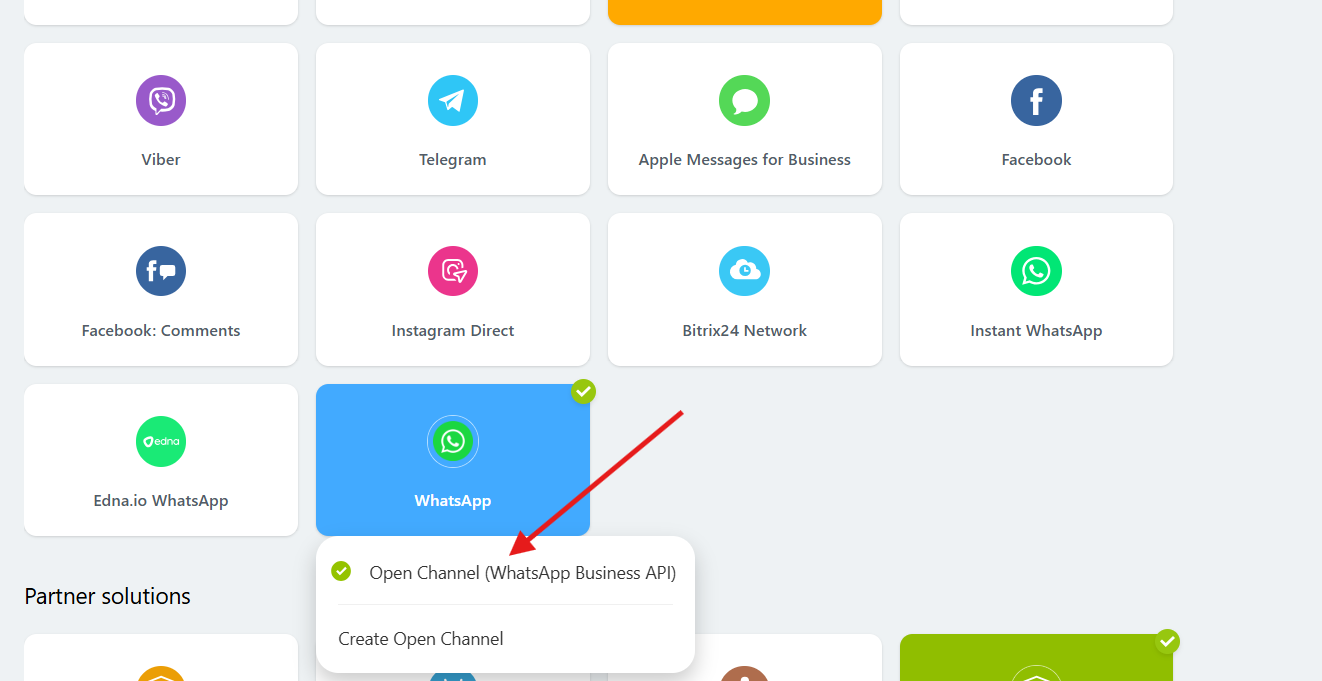
3\. After clicking on our app, you need to select "**Open Channel**".
[](https://support.chatarchitect.com/uploads/images/gallery/2026-04/znIimage.png)
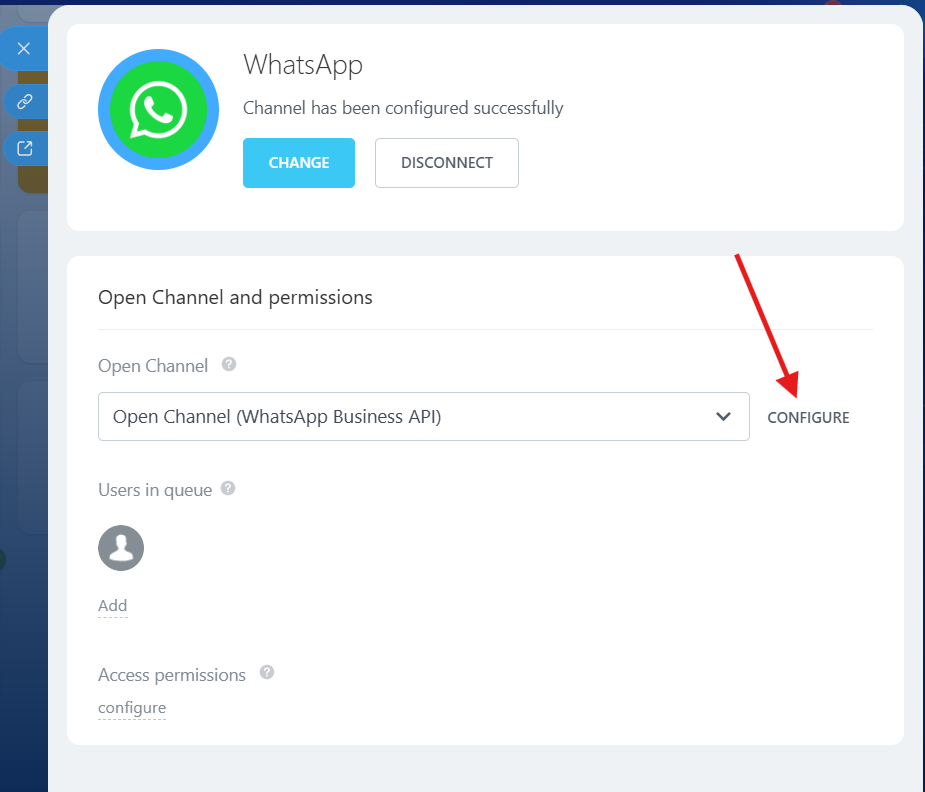
4\. Click on the "**Configure**" button.
[](https://support.chatarchitect.com/uploads/images/gallery/2026-04/QTBimage.png)
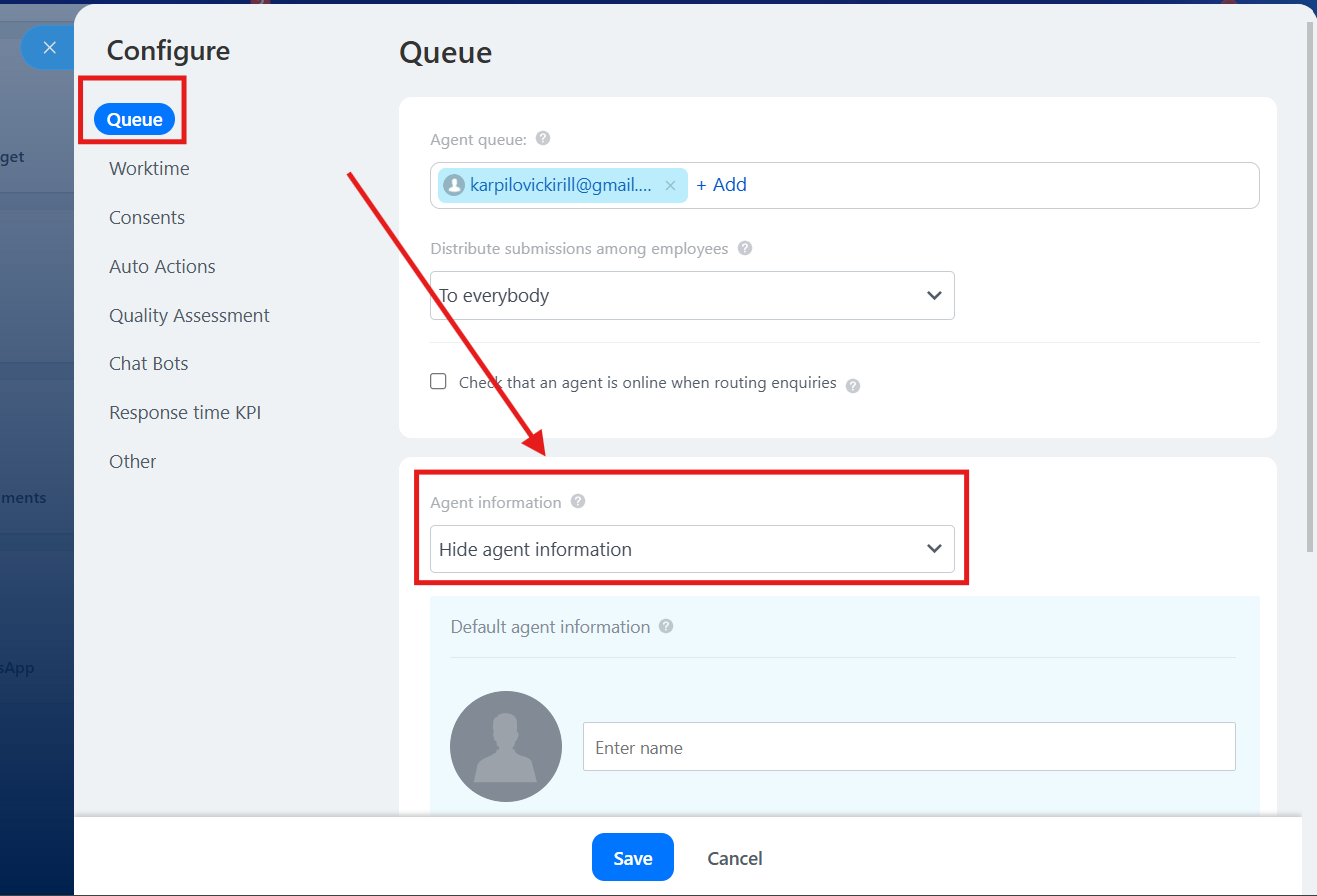
5\. In the configure menu, go to the **"Queue"** and in the **"Agent information"** section, select
"**Hide agent information"** and press **"Save"** button
[](https://support.chatarchitect.com/uploads/images/gallery/2026-04/2O4image.png)
Done. Now you can easily send templates from Open Lines without any issues.
# WhatsApp Business API for Bitrix24: Installation and sending the first message.
# Step by step instruction
1\. Go to Bitrix24 Market (1)
2\. Click on the “Search” field and type “whatsapp” (1). Find our app “WhatsApp Business API” (2) and click on it.
3\. In the appeared window check the correct developer - ChatArchitect.com (1) and click the “Install” button
4\. Follow the instructions (1) to get your App ID and App Secret keys. When done press the button (2)
5\. Press the “Connect” button (1)
NOTE: In very rare cases you wouldn’t see this window. If you face this situation please go to step 6 and then return to step 5
5.1 Enter your “App ID” (1) then enter your “App Secret” (2), and press the “Save” button (3)
NOTE: To get these keys write to our "Customer's Support WhatsApp chat": [https://wa.me/421233221242](https://wa.me/421233221242) ;
5.2 Congratulations! You can write your first message from WhatsApp to your WhatsApp Business API number
6\. Optional: If you somehow managed to skip steps 5-5.2 or can’t find “Contact center” in your menu to complete app connection then follow the next steps:
6.1 Find the “Search” field in the header (1) type “contact” then choose “Contact center” in the search results (2)
NOTE: Step 6.1 is an optional Step and must be skipped if steps 5-5.2 are done!
6.2 In the “Contact center” section click on the WhatsApp tile (1) IMPORTANT: Green icon with the blue stroke!
NOTE: Step 6.2 is an optional Step and must be skipped if steps 5-5.2 are done!
7\. Write your first message from WhatsApp to your WhatsApp Business API number. When you do it Bitrix24 should show you a popup with the message (1). To go into chats you can click this popup or press the “View open channel chat” button (2)
7.1 In the opened chat window click the “Reply” button (1) and write your answer

# Creating robots and sending template messages through them to Bitrix24
Video manual: [https://www.youtube.com/watch?v=fY\_vqW-Ijb8](https://www.youtube.com/watch?v=fY_vqW-Ijb8)
1\. Go to the "Deals", then "Automation rules"
2\. Press "Create"
3\. Choose stage, then Customer communication => Send SMS to customer
4\. Find our bot, click "Change". In the list of providers, select our integration, in the text field, enter the text of the template

# Simple Bitrix24 automation based on client message
In this guide, we will implement the next scenario: On incoming client message, the trigger moves the lead to the "Ask client" stage -> CRM automatically sends a message template to the client (lead) with text and two buttons (Invoice and Support) -> If a client presses the "Invoice" button, he moves to the Bitrix24 "Invoice" stage and receives an invoice link -> In case if client presses "Support" button he moves to the Bitrix24 "Tech support" stage and receives contact information of tech support.
NOTE: This instruction assumes that you have already completed the "WhatsApp Business API for Bitrix24: Installation and sending the first message" guide \[[Bitrix24 (chatarchitect.com)](https://support.chatarchitect.com/l_eng/knowledge_base/item/248963)\]
## Step by step instruction
1\. Go to "Deals" (1). Press the "+" button (2) on the first stage and create two new stages in "Ask client" (3) and "Tech support" (4). Then press the "Automations" button (6)
NOTE: "Invoice" stage (5) is a standard Bitrix24 stage, and we are assuming that you already have it.
2\. In the opened window (1) you need to create three triggers (2)(3)(4) that will listen to all incoming client messages and react to keywords in those messages.
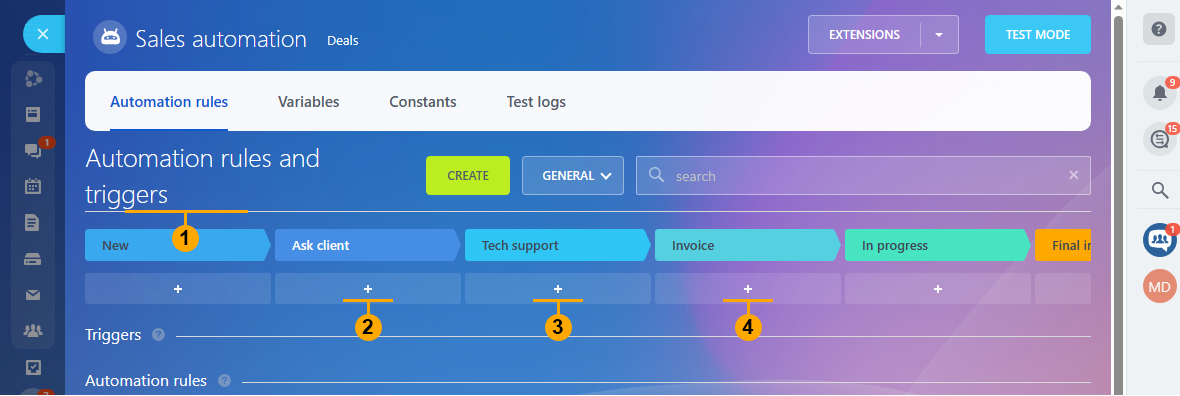2.1 Press "+" button (2) from "Step 2" to add a new trigger to the "Ask client" stage and configure the trigger like in the picture below: select "Customer communication" (1) then find the "Track customer messages" trigger (2) and press "Add" button (3).
2.2 In the appeared window give a name to the trigger (1). Select which channel it will listen (2)\*. "Message text contains" (3) leave empty\*\*. Press the "Save" button (4)
NOTE: \* By default, Bitrix24 gives the name to the Whatsapp channel - "Open channel"
\*\* Empty "Message text contains" means that the trigger will react on any "Lead" message.
IMPORTANT! Don't check "Allow moving back to previous status"
2.3 Press "+" button (3) from "Step 2" to add a new trigger to the "Tech support" stage and configure the trigger like in the picture below: select "Customer communication" (1) then find the "Track customer messages" trigger (2) and press "Add" button (3).

2.4 In the appeared window give a name to the trigger (1). Select which channel it will listen (2)\*. "Message text contains" (3) write **'**Tech support**'**. Check "Allow moving back to previous status" (4). Press the "Save" button (5)
2.5 Press "+" button (4) from "Step 2" to add a new trigger to the "Invoice" stage and configure the trigger like in the picture below: select "Customer communication" (1) then find the "Track customer messages" trigger (2) and press "Add" button (3).

2.6 In the appeared window give a name to the trigger (1). Select which channel it will listen (2)\*. "Message text contains" (3) write 'Invoice'. Check "Allow moving back to previous status" (4). Press the "Save" button (5)
1. Now you need to create and approve the message template on the [https://app.chatarchitect.com](https://app.chatarchitect.com) website. Make selections (1) and (2). Write template text (3). Repeat template text (4). Write 'Tech support' \*\*\*\* as the name of the first button. Write 'Invoice' \*\*\*\* as the name of the second button (5) and hit the "Submit template" button (6)
\*\*\*\* IMPORTANT! To avoid accidental triggers (if the user writes similar combinations of words that the trigger listens for), it is important to make template buttons with unique characters. We recommend apostrophes around the edges. For example 'Tech support'.
1. Now let's create three automations (2), (3), (4) in Bitrix24 like in the picture below:
4.1 Hit "Create" button (1) from "Step 4" and create the first automation "Send SMS to customer" (2) for "Ask client" stage.
4.2 Our first automation will send our approved WhatsApp template from "Step 3". Insert template text in the text field (1). Make selections (2) and (3) and hit the "Save" button (4)
4.3 Hit "Create" button (1) from "Step 4" and create the second automation "Send SMS to customer" (2) for "Tech support" stage. Write the "Support" text in the text field (1). Make selections (2) and (3) and hit the "Save" button (4)
4.4 Hit "Create" button (1) from "Step 4" and create the third automation "Send message to the chat" (2) for the "Invoice" stage.
4.5 Write the "Invoice" text in the text field (1). Select (2) and then (3) to upload an invoice file from your drive. And hit the "Save" button (4)
5\. Now let's test our result. Send "Hello" to your WhatsApp number and enjoy your work!

# Instructions for sending templates in Bitrix24 via our WhatsApp Business API integration entity
**In this guide, you will learn how to send template messages in Bitrix24 using our integration entity.**
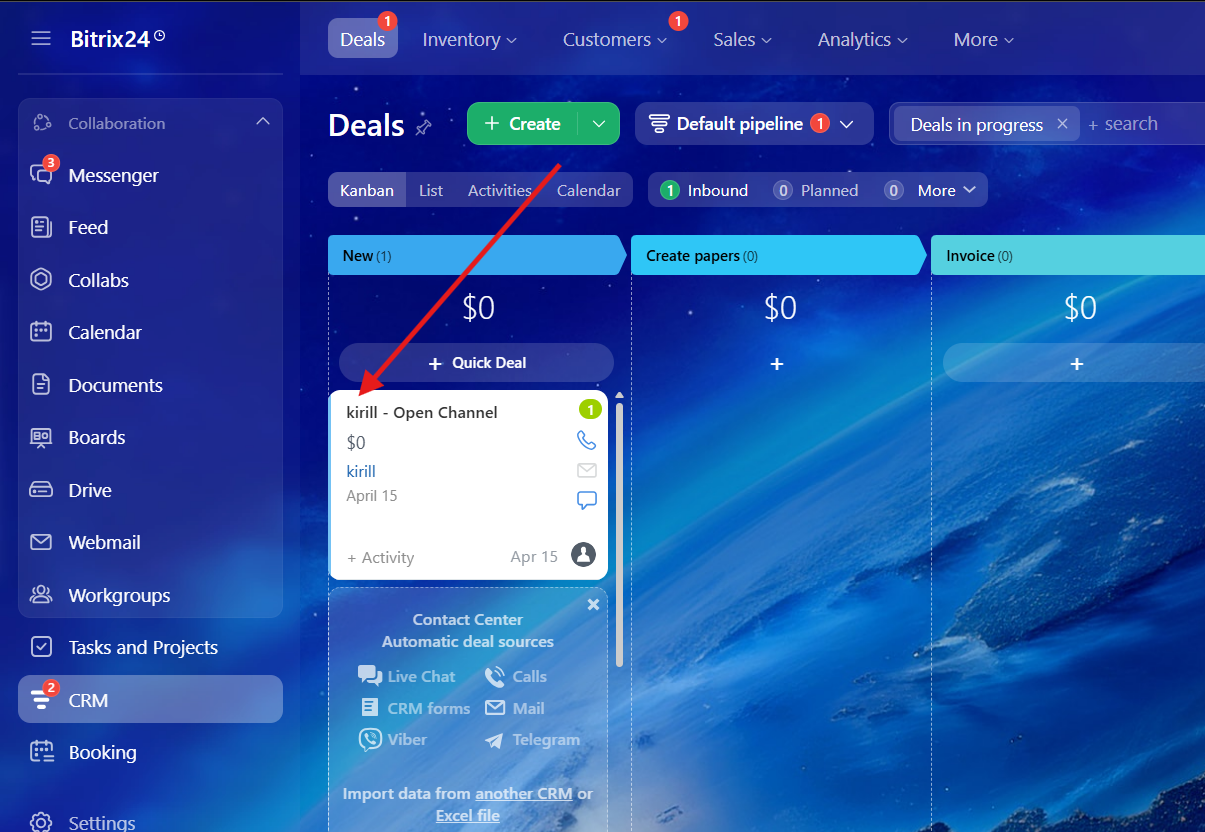
1\. Go to the CRM -> Deals and choose a deal
[](https://support.chatarchitect.com/uploads/images/gallery/2026-04/EPnimage.png)
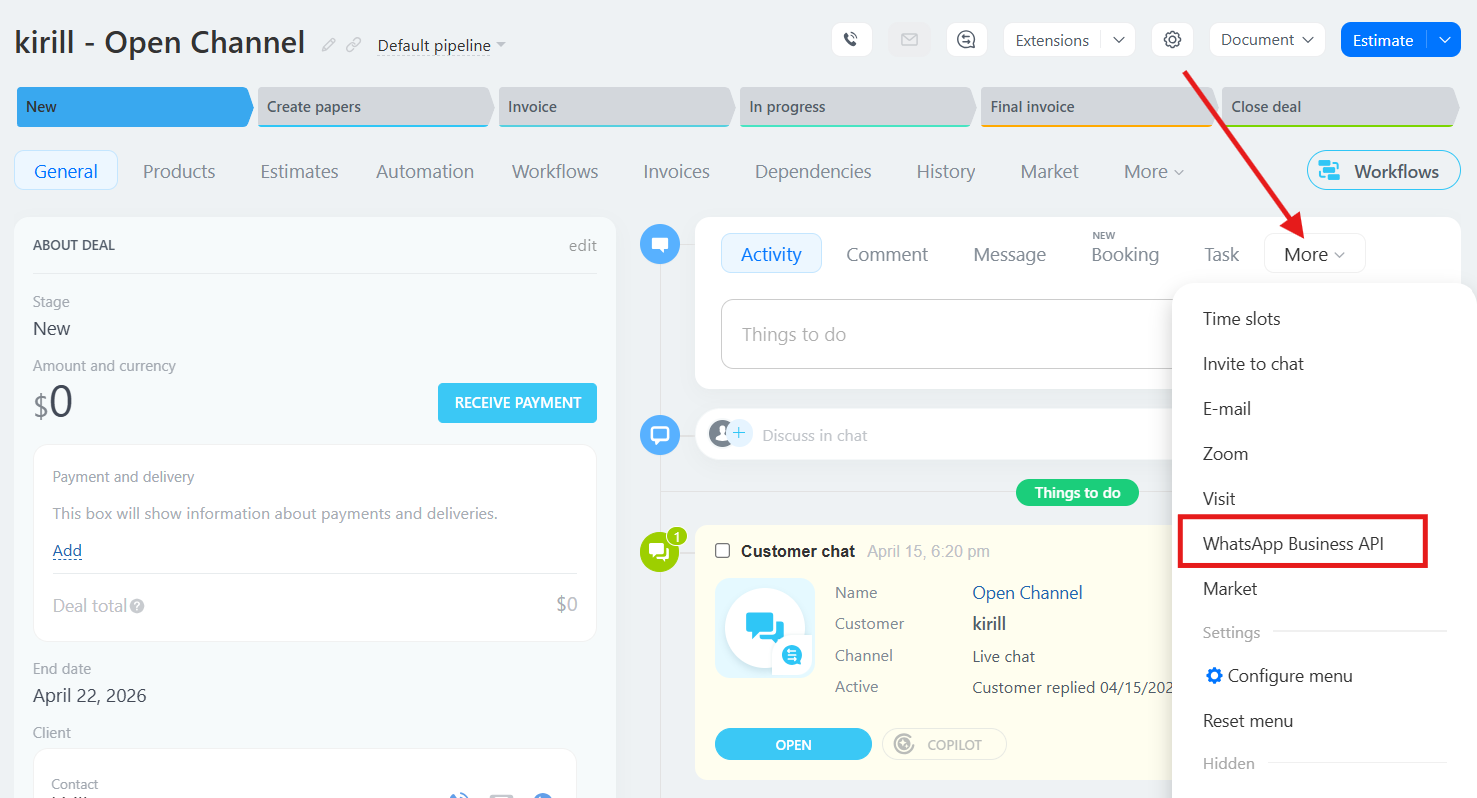
2\. Press "More" and choose our entity "WhatsApp Business API"
[](https://support.chatarchitect.com/uploads/images/gallery/2026-04/eBiimage.png)
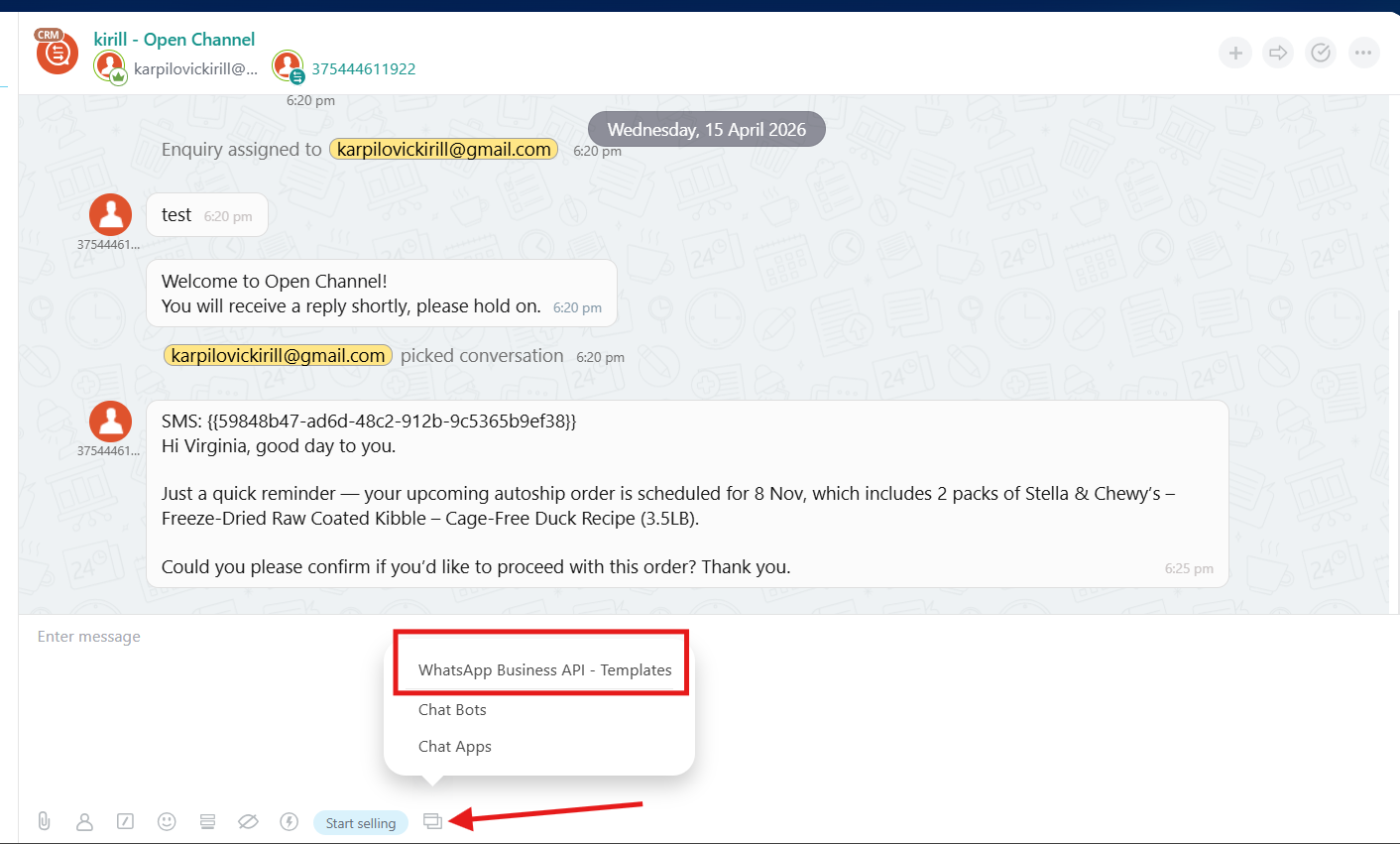
3\. You will be redirected to Open Lines. In the chat window, at the bottom, there will be a button (indicated by an arrow in the screenshot). Click on it and select **"WhatsApp Business API templates."**
After that, choose the required template and send it to your client.
[](https://support.chatarchitect.com/uploads/images/gallery/2026-04/ZDyimage.png)
# Instructions for sending a template from the client card in Bitrix24
**In this guide, you will learn how to send template messages in Bitrix24 through the client card.**
Video manual: [https://www.youtube.com/watch?v=xDwp3tOS5Qo](https://www.youtube.com/watch?v=xDwp3tOS5Qo)
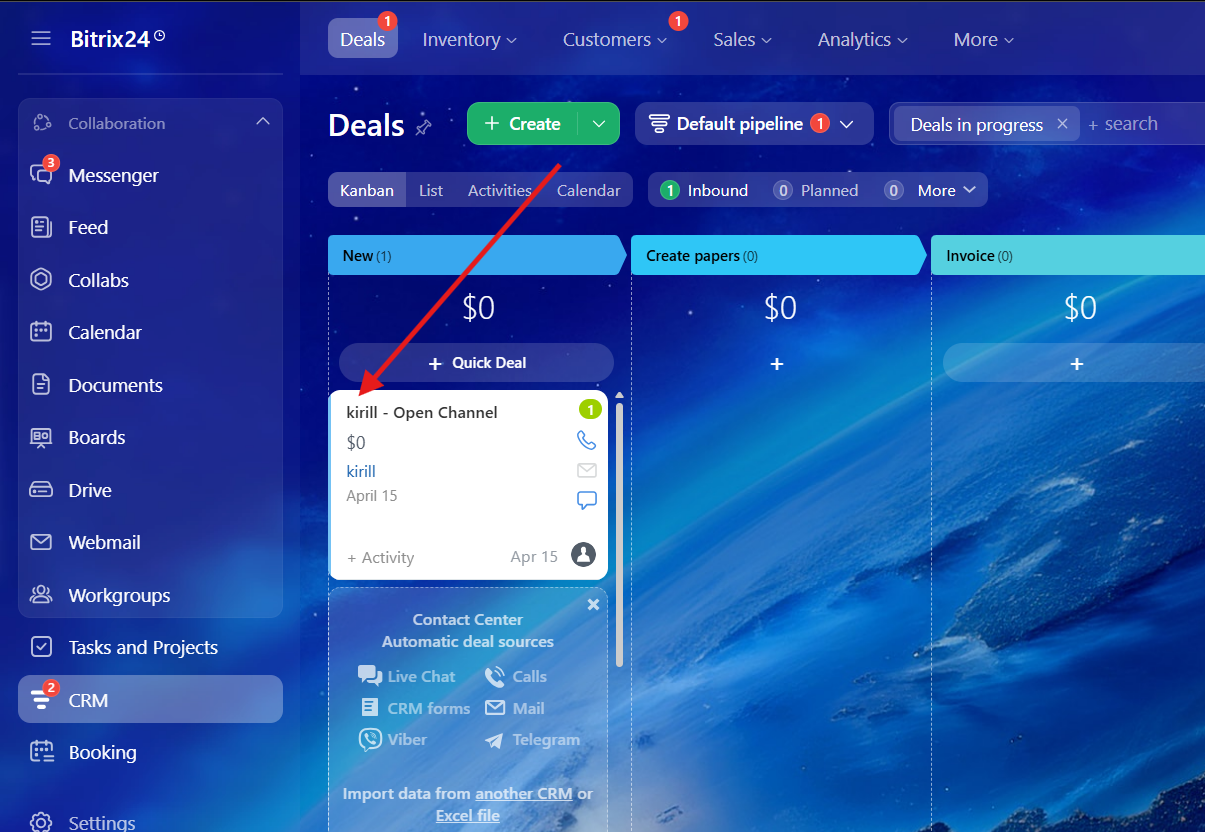
1\. First of all, you need to choose a deal\\lead
[](https://support.chatarchitect.com/uploads/images/gallery/2026-04/pt3image.png)
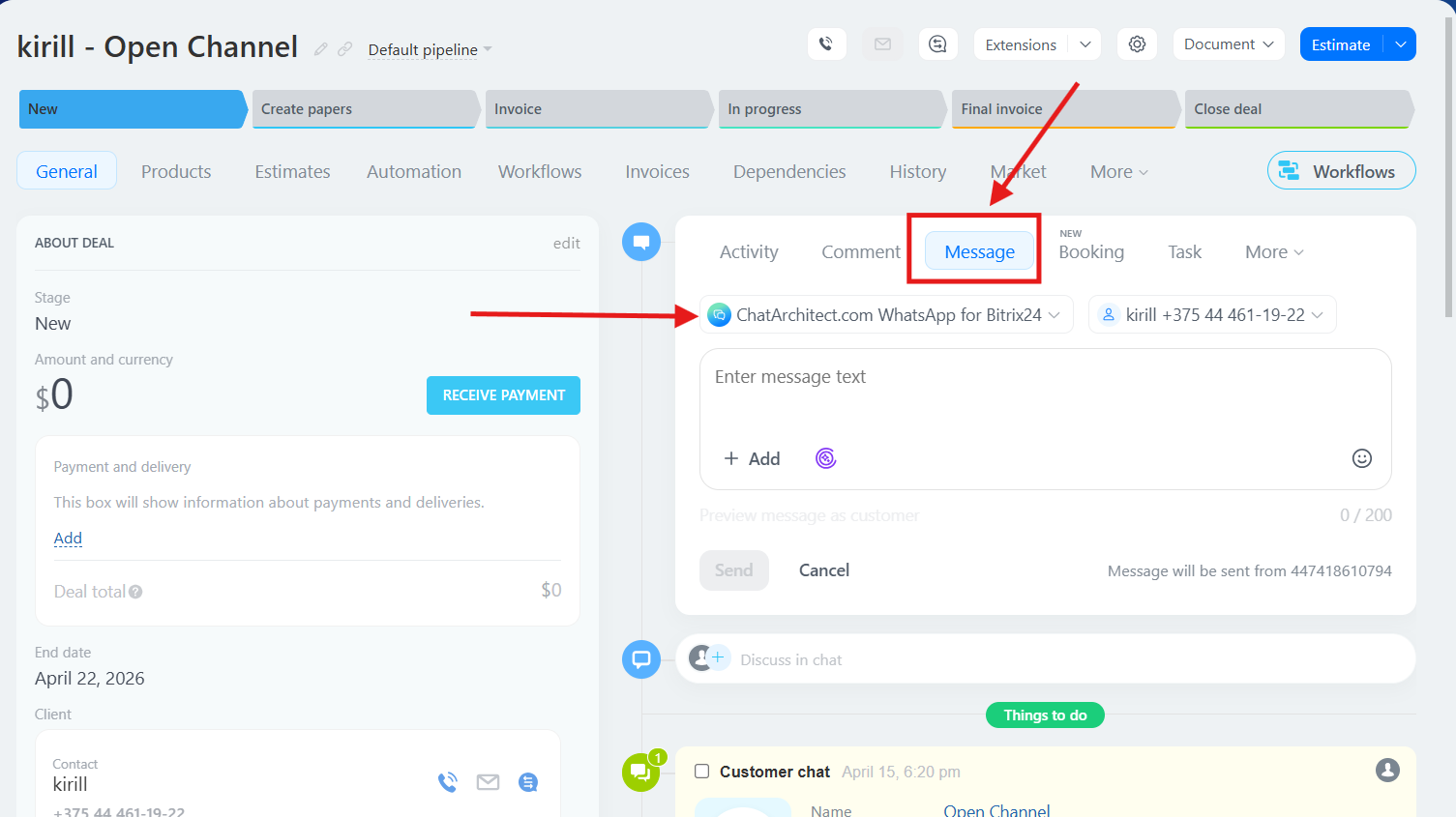
2\. Choose "Message" button and choose our app as a provider
[](https://support.chatarchitect.com/uploads/images/gallery/2026-04/82Uimage.png)
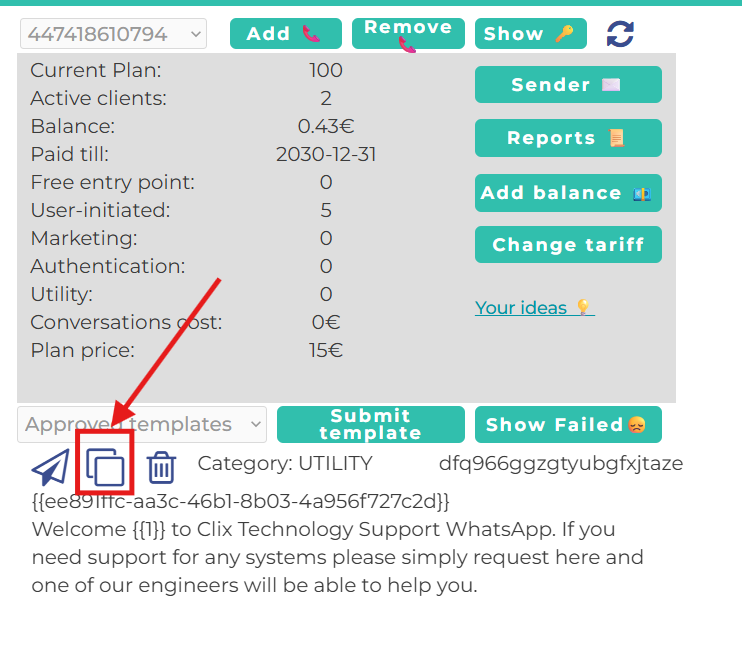
3\. Go to your personal account ( [https://wtargeted.com/](https://wtargeted.com/) ) and copy a template that you need by using special button
[](https://support.chatarchitect.com/uploads/images/gallery/2026-04/E05image.png)
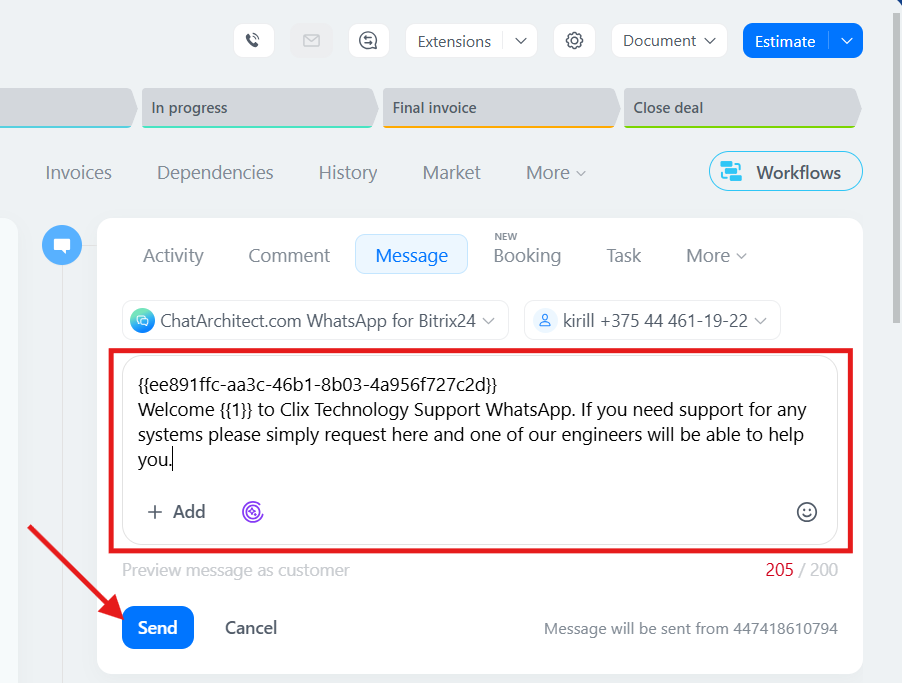
4\. After that, return to the client card, paste the template text into the message field, and send it. Done!
[](https://support.chatarchitect.com/uploads/images/gallery/2026-04/uQXimage.png)
# How to create a template for WhatsApp Business API
## Step-by-step instructions how to create a template in our app
1\. First of all, you need to open [wtargeted.com/](https://wtargeted.com/) and click on the "Facebook Login" button or "Google Login" button
2\. After you have logged in to your google \\ facebook account, you must enter your PERSONAL phone number on which there is a WhatsApp application, a verification code will be sent to it (not to be confused with the number that you connected with us)
3\. Put your App key and Secret and press "Yes, continue".
4\. After this, an app menu will be opened. Click on the "Submit template" button.
5\. Select the desired language and template type.
Write your message with variables in the first column. For example, "Hello, our employee will answer you as soon as possible. Ticket {{1}} has been created." Variables should be in braces {{}}.
Write a sample message replacing the variables with meaningful information in the second column. For example, "Hello, our employee will answer you as soon as possible. Ticket \[999TTT\] has been created.". The placeholder is square brackets \[\].
Then click "Submit Template".
6\. After review, your template will appear in "Approved templates".
Don't forget to click on the "refresh" button.
# How to improve your mailling
# How to improve your Template
When preparing a mailing campaign, one of the most common questions is: *How can I create an effective newsletter without risking being blocked?* In this article, we’ll share practical recommendations to help you achieve that.
## Text Length
Meta recommends keeping marketing templates under 500 characters to maximize customer engagement. The optimal range is 300–500 characters. In practice, this means keeping your message concise and focused: present the essence of your offer in just a few sentences instead of overwhelming readers with a wall of text.
## Personalization with Variables
Personalization significantly improves the effectiveness of your campaigns. Using variables such as the customer’s name is a simple but powerful way to make your messages feel more personal. After all, everyone appreciates being addressed directly.
## Use of Media
Adding visuals such as bright images or short videos is a proven way to increase click-through rates. High-quality media design not only attracts attention but also serves as an important driver of conversions.
## Action Buttons
Quick-reply buttons are an excellent tool for faster customer interaction. A single click is always easier than typing a response.
In addition, action buttons can redirect users directly to your website or phone number, making the communication process seamless and convenient.
## Unsubscribe Button
Meta recommends including an “Unsubscribe” button in mass-mailing templates, and we strongly support this practice. It’s much better to give customers an easy, native way to opt out than to risk complaints or negative feedback.
## Conclusion
If you want your newsletter to deliver high engagement and strong conversion rates, make sure your template includes all of the elements listed above: concise copy, personalization, engaging visuals, action buttons, and an unsubscribe option.
**Important Note:** Templates containing images or call-to-action buttons (such as a website link or phone number) can only be approved via chat with our support team: [wa.me/421233221242
wa.me/17377101702](https://wa.me/74956686361)
# How to run a marketing campaign in Bitrix24.
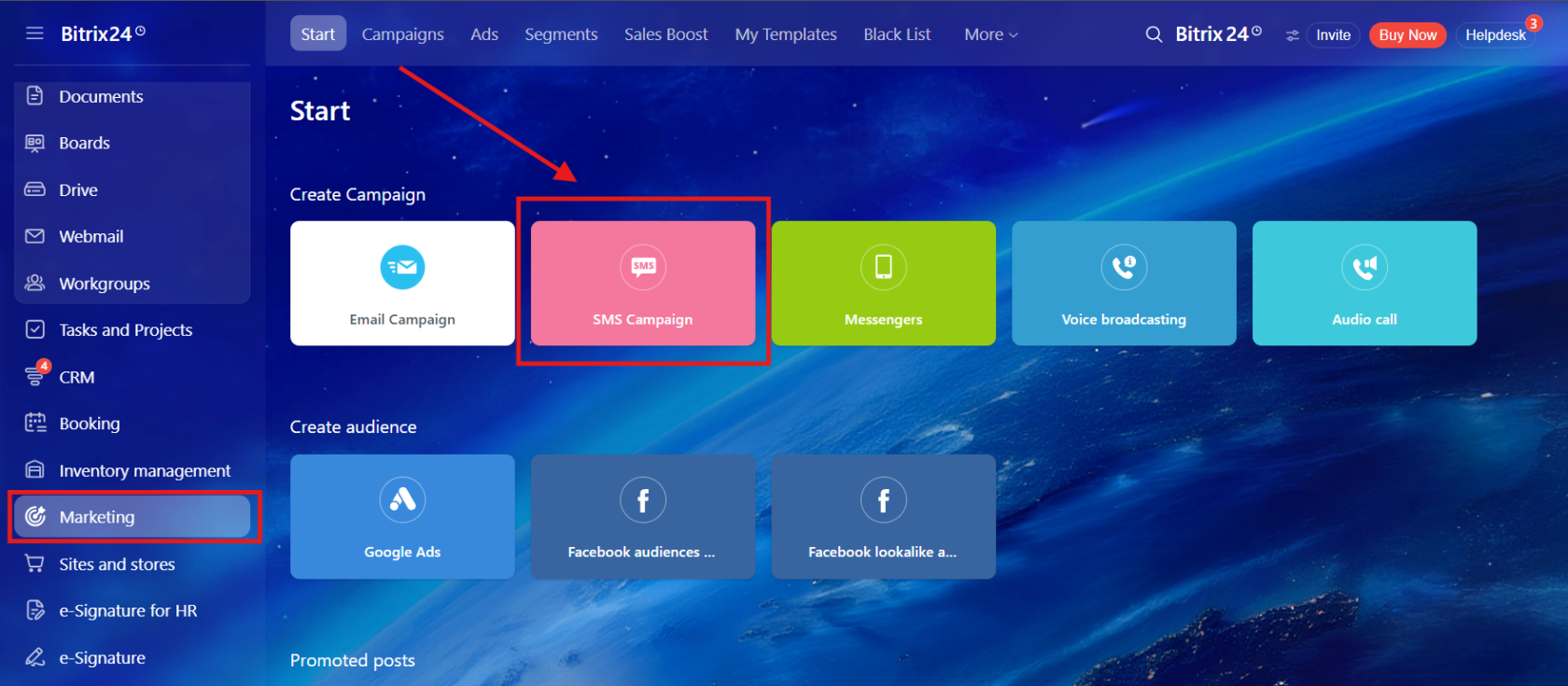
**In this guide, you will learn how to launch a marketing campaign using our module.** 1. First of all go to the **"Marketing"** -> **"SMS Campaign"**
[](https://support.chatarchitect.com/uploads/images/gallery/2026-04/s2Jimage.png)
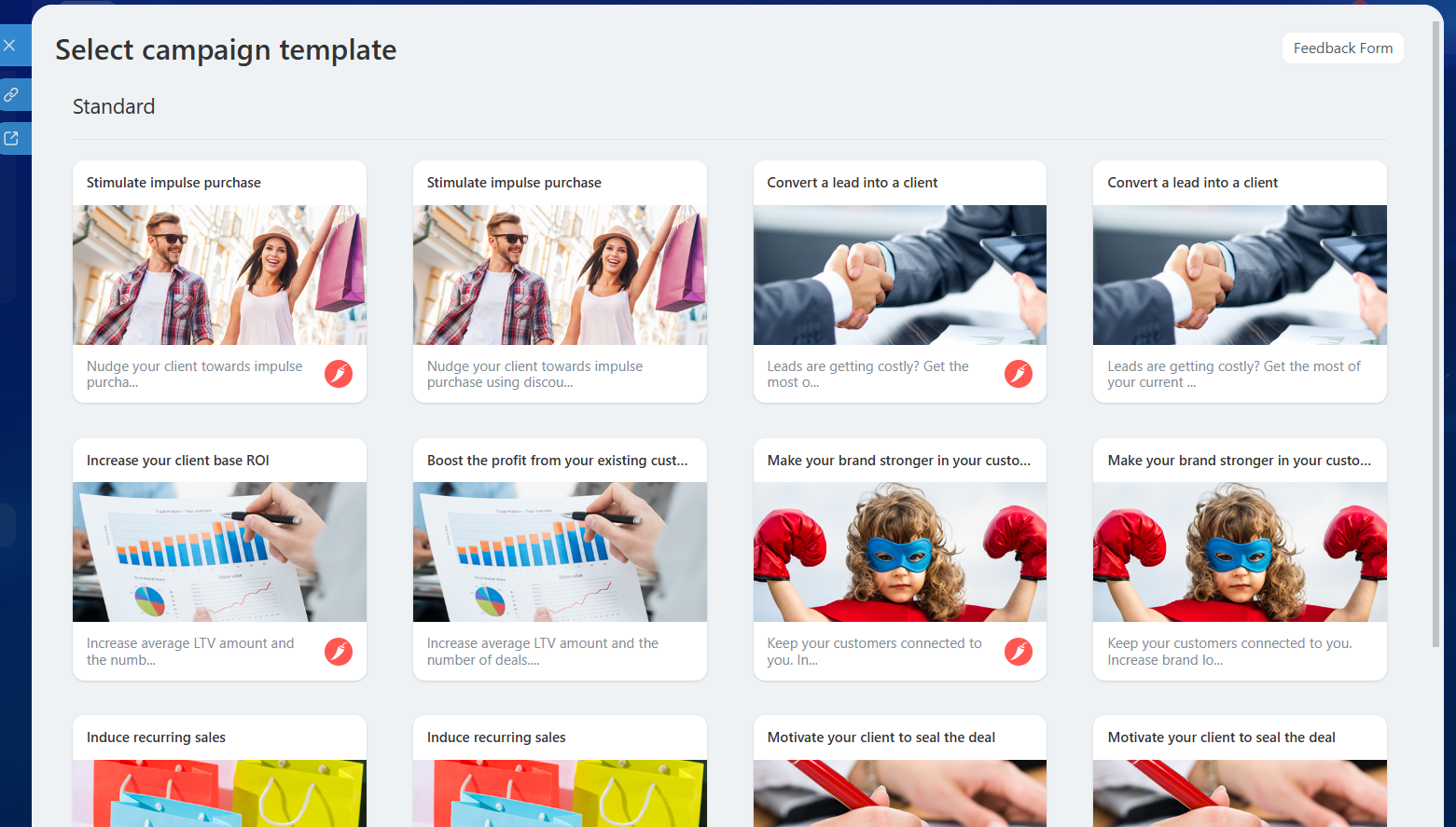
2\. Choose any template
[](https://support.chatarchitect.com/uploads/images/gallery/2026-04/DOfimage.png)
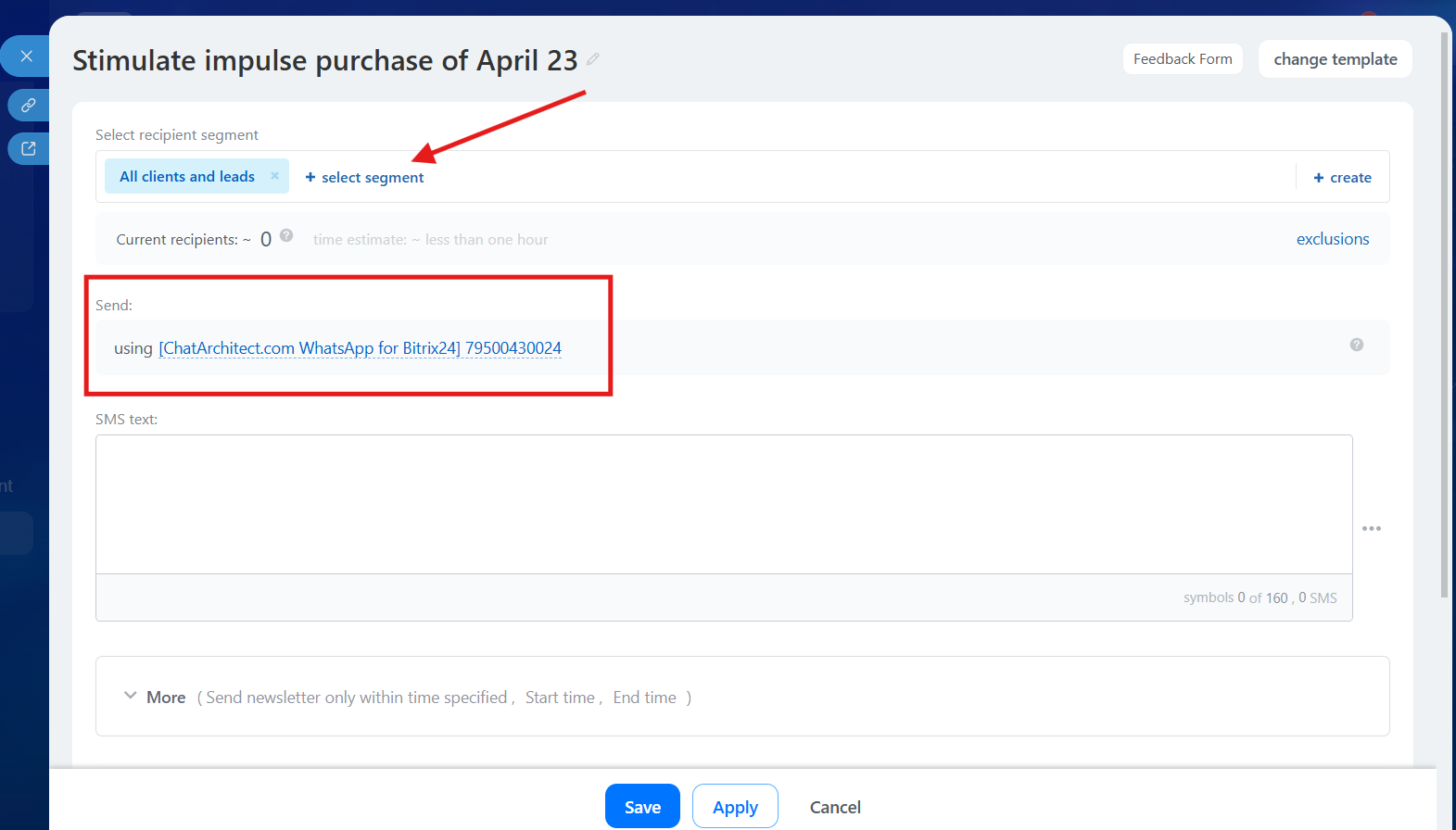
3\. Choose a segment that you want to use and choose our app as a provider
[](https://support.chatarchitect.com/uploads/images/gallery/2026-04/H86image.png)
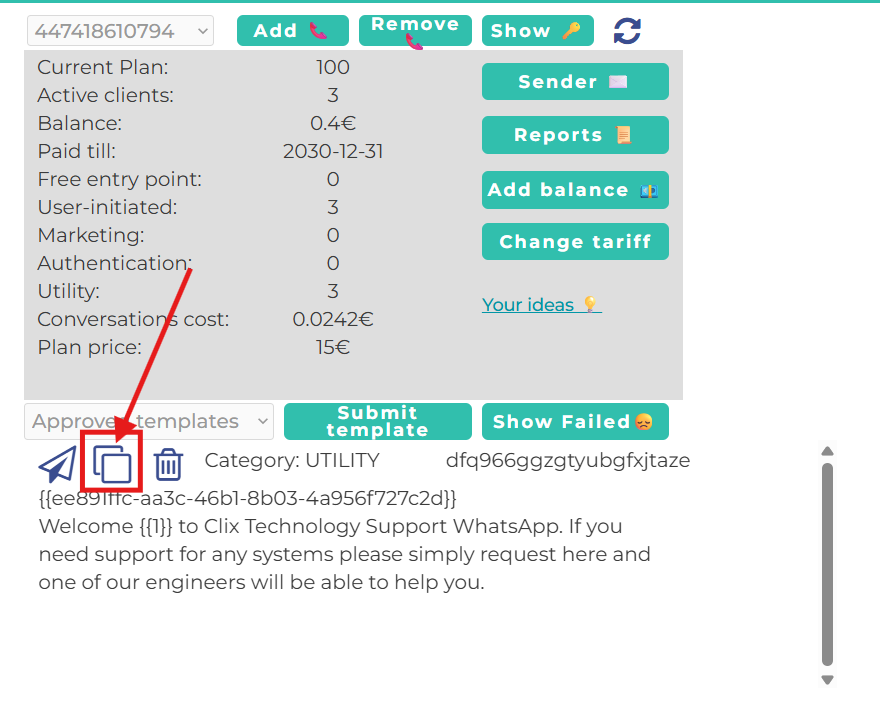
4\. After this go to our app [https://wtargeted.com/](https://wtargeted.com/) and copy a template that you want to use by using **"Copy"** button
[](https://support.chatarchitect.com/uploads/images/gallery/2026-04/Ne2image.png)
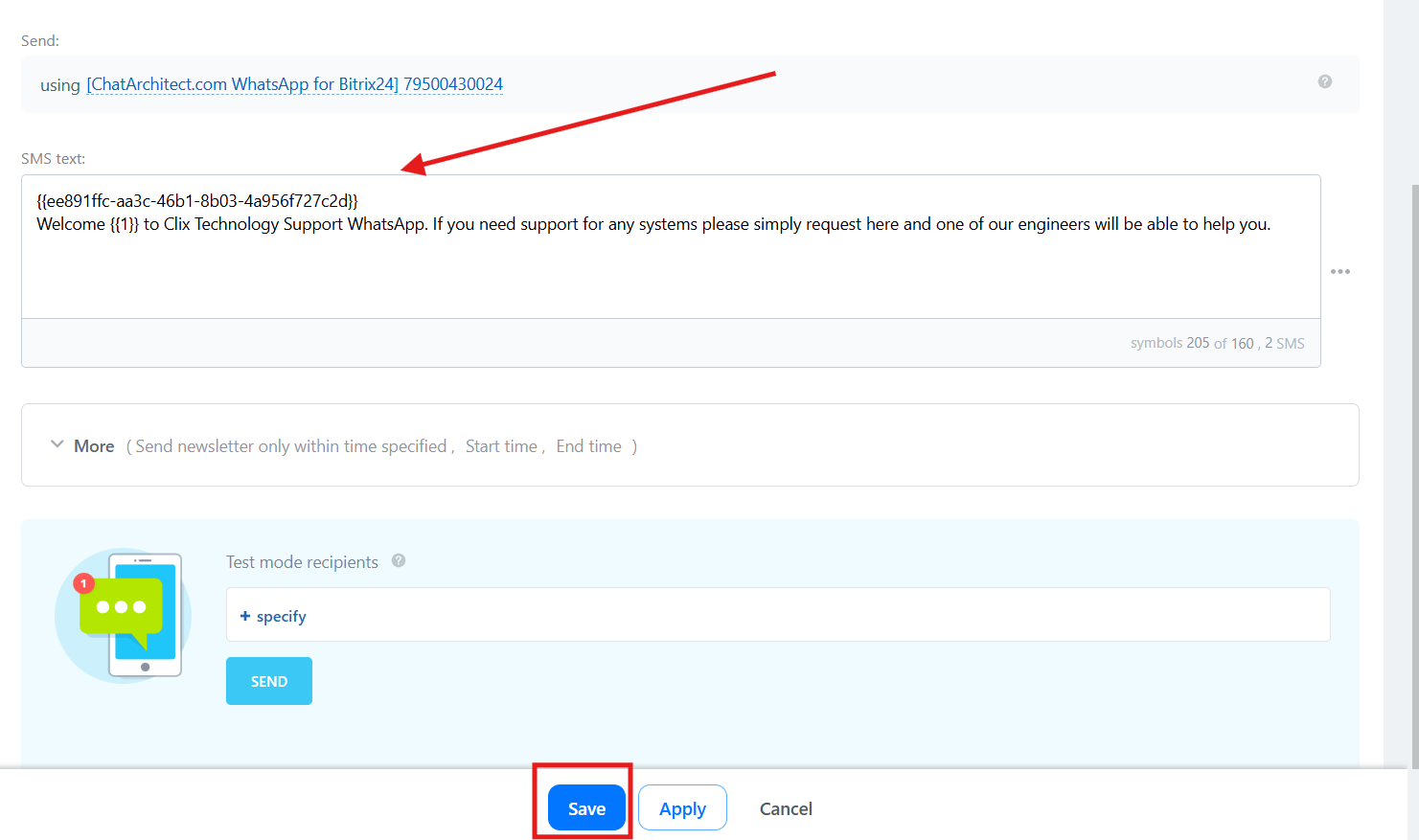
5\. Then return to Bitrix24 and paste the template into the text field and press **"Save"**
[](https://support.chatarchitect.com/uploads/images/gallery/2026-04/R7Wimage.png)
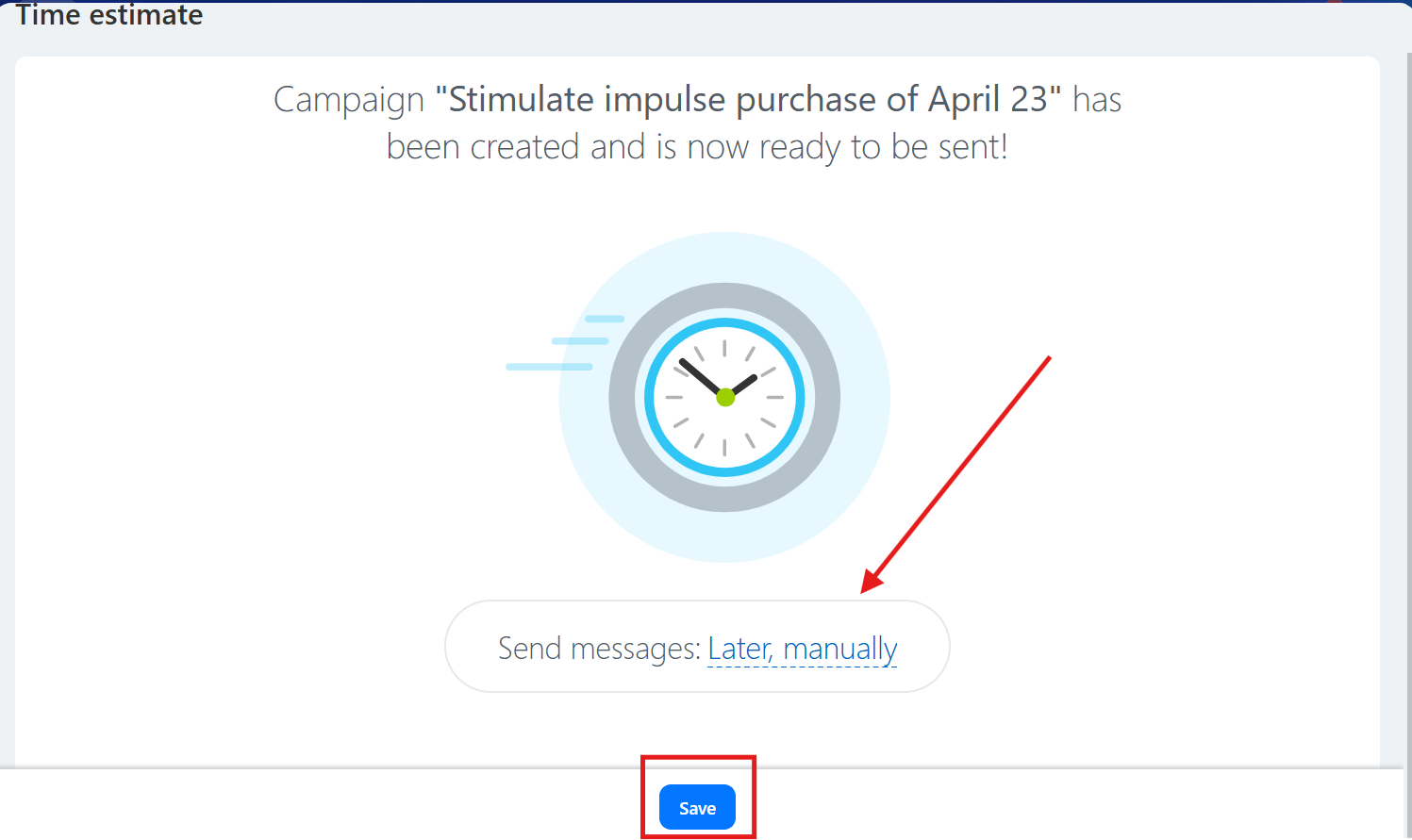
6\. Select the time when you want the message to be sent and click **“Save”**
[](https://support.chatarchitect.com/uploads/images/gallery/2026-04/ie5image.png)
Done. Now you know how to send marketing campaigns from the Bitrix24 interface.
# WhatsApp for Google Sheets
# WhatsApp for Google Sheets initial configuration
1\)
Press the button to open the script form on the right
Enter the APP KEY and APP SECRET you received from ChatArchitect.com
Press Save
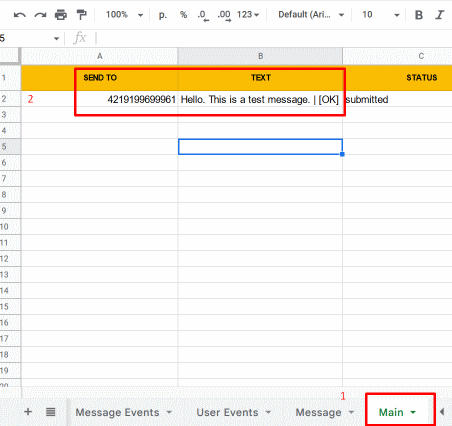
2\)
The script will create new tabs at the bottom.
Open the Main tab.
Enter a number and a text.
The script will send this text to this number automatically.
# How to create a template for WhatsApp Business API
## Step-by-step instructions how to create a template in our app
1\. First of all, you need to open [wtargeted.com/](https://wtargeted.com/) and click on the "Facebook Login" button or "Google Login" button
2\. After you have logged in to your google \\ facebook account, you must enter your PERSONAL phone number on which there is a WhatsApp application, a verification code will be sent to it (not to be confused with the number that you connected with us)
3\. Put your App key and Secret and press "Yes, continue".
4\. After this, an app menu will be opened. Click on the "Submit template" button.
5\. Select the desired language and template type.
Write your message with variables in the first column. For example, "Hello, our employee will answer you as soon as possible. Ticket {{1}} has been created." Variables should be in braces {{}}.
Write a sample message replacing the variables with meaningful information in the second column. For example, "Hello, our employee will answer you as soon as possible. Ticket \[999TTT\] has been created.". The placeholder is square brackets \[\].
Then click "Submit Template".
6\. After review, your template will appear in "Approved templates".
Don't forget to click on the "refresh" button.
# How to improve your mailling
# How to improve your Template
When preparing a mailing campaign, one of the most common questions is: *How can I create an effective newsletter without risking being blocked?* In this article, we’ll share practical recommendations to help you achieve that.
## Text Length
Meta recommends keeping marketing templates under 500 characters to maximize customer engagement. The optimal range is 300–500 characters. In practice, this means keeping your message concise and focused: present the essence of your offer in just a few sentences instead of overwhelming readers with a wall of text.
## Personalization with Variables
Personalization significantly improves the effectiveness of your campaigns. Using variables such as the customer’s name is a simple but powerful way to make your messages feel more personal. After all, everyone appreciates being addressed directly.
## Use of Media
Adding visuals such as bright images or short videos is a proven way to increase click-through rates. High-quality media design not only attracts attention but also serves as an important driver of conversions.
## Action Buttons
Quick-reply buttons are an excellent tool for faster customer interaction. A single click is always easier than typing a response.
In addition, action buttons can redirect users directly to your website or phone number, making the communication process seamless and convenient.
## Unsubscribe Button
Meta recommends including an “Unsubscribe” button in mass-mailing templates, and we strongly support this practice. It’s much better to give customers an easy, native way to opt out than to risk complaints or negative feedback.
## Conclusion
If you want your newsletter to deliver high engagement and strong conversion rates, make sure your template includes all of the elements listed above: concise copy, personalization, engaging visuals, action buttons, and an unsubscribe option.
**Important Note:** Templates containing images or call-to-action buttons (such as a website link or phone number) can only be approved via chat with our support team: [wa.me/421233221242
wa.me/17377101702](https://wa.me/74956686361)
# WhatsApp for Zoho CRM \ CLIQ
# WhatsApp Business API for Zoho Cliq: Installation and sending the first message.
**In this guide, you will learn how to install our WhatsApp Business API integration in Zoho Cliq.**
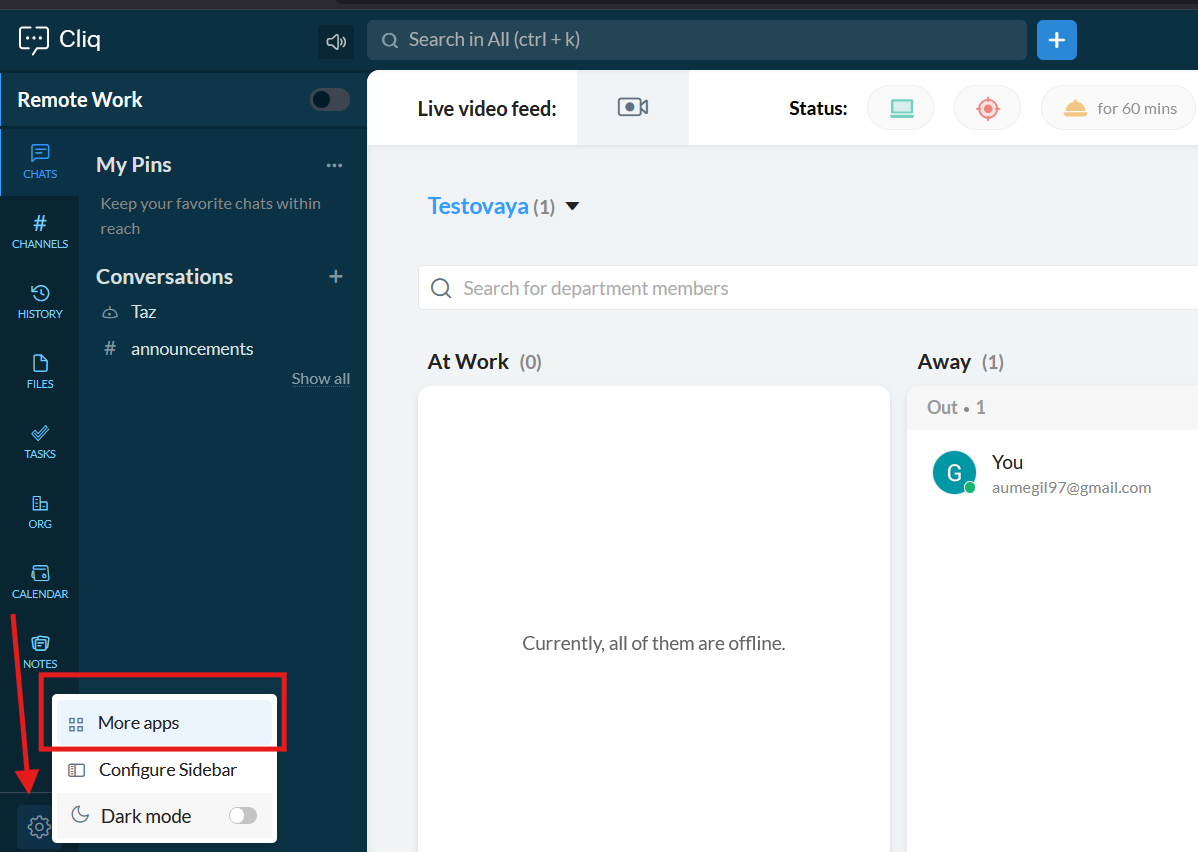
1\. First of all, go to the **"Settings"** -> **"More apps"**
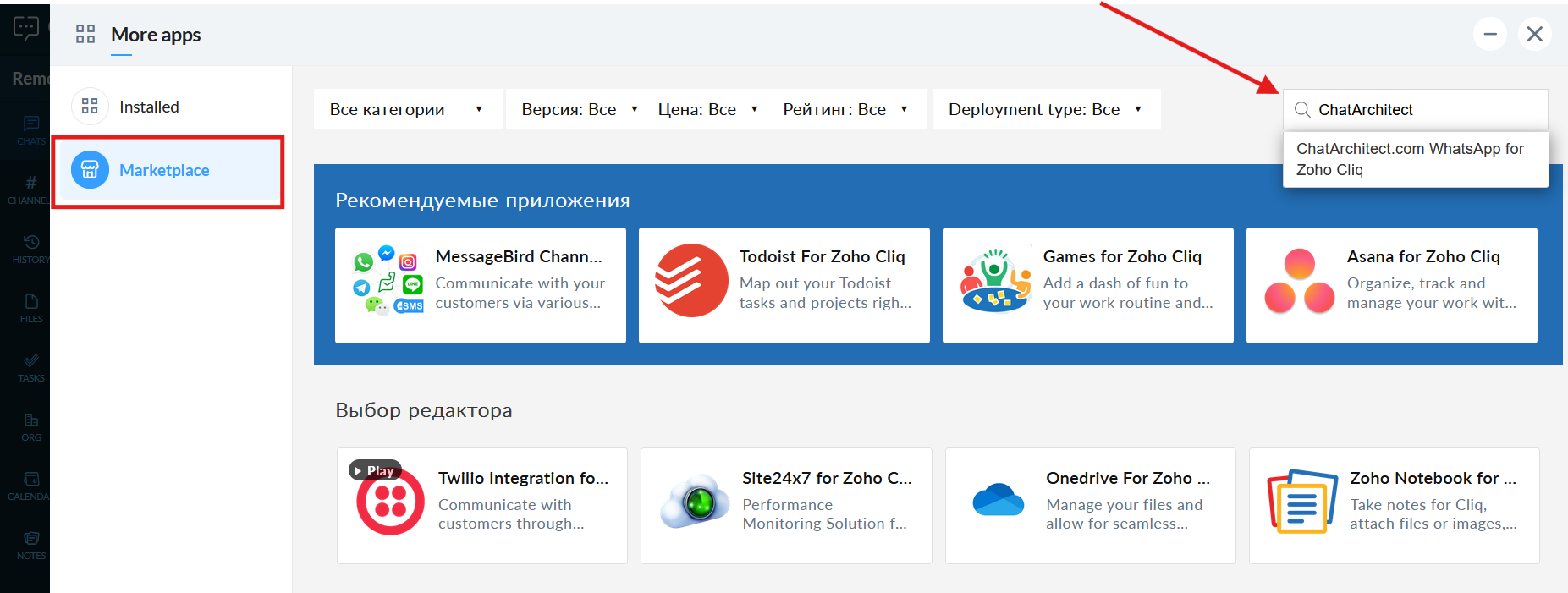
[](https://support.chatarchitect.com/uploads/images/gallery/2026-04/Iylimage.png)2. Go to the "**Marketplace**" and fill in in the search field "**ChatArchitect**" and choose our app
[](https://support.chatarchitect.com/uploads/images/gallery/2026-04/qISimage.png)
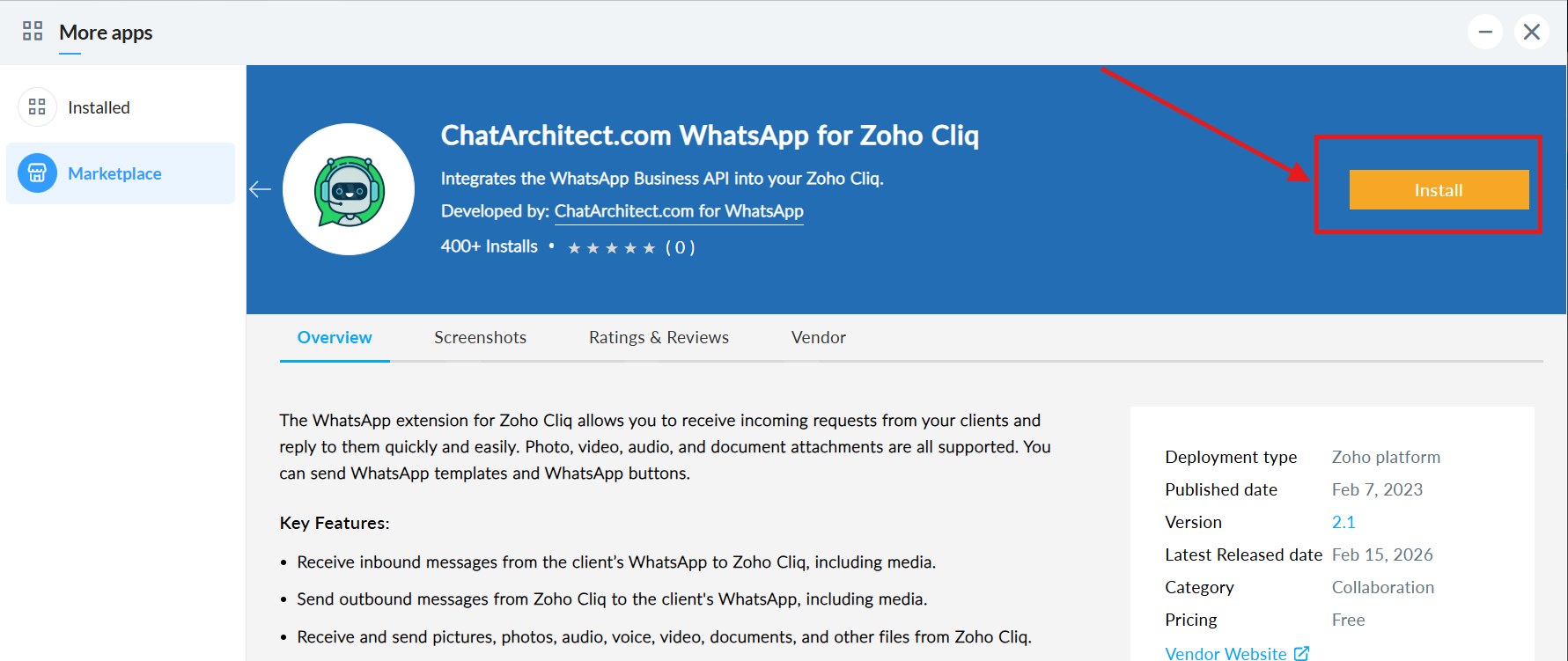
3\. Press "**Install**"
[](https://support.chatarchitect.com/uploads/images/gallery/2026-04/B4Uimage.png)
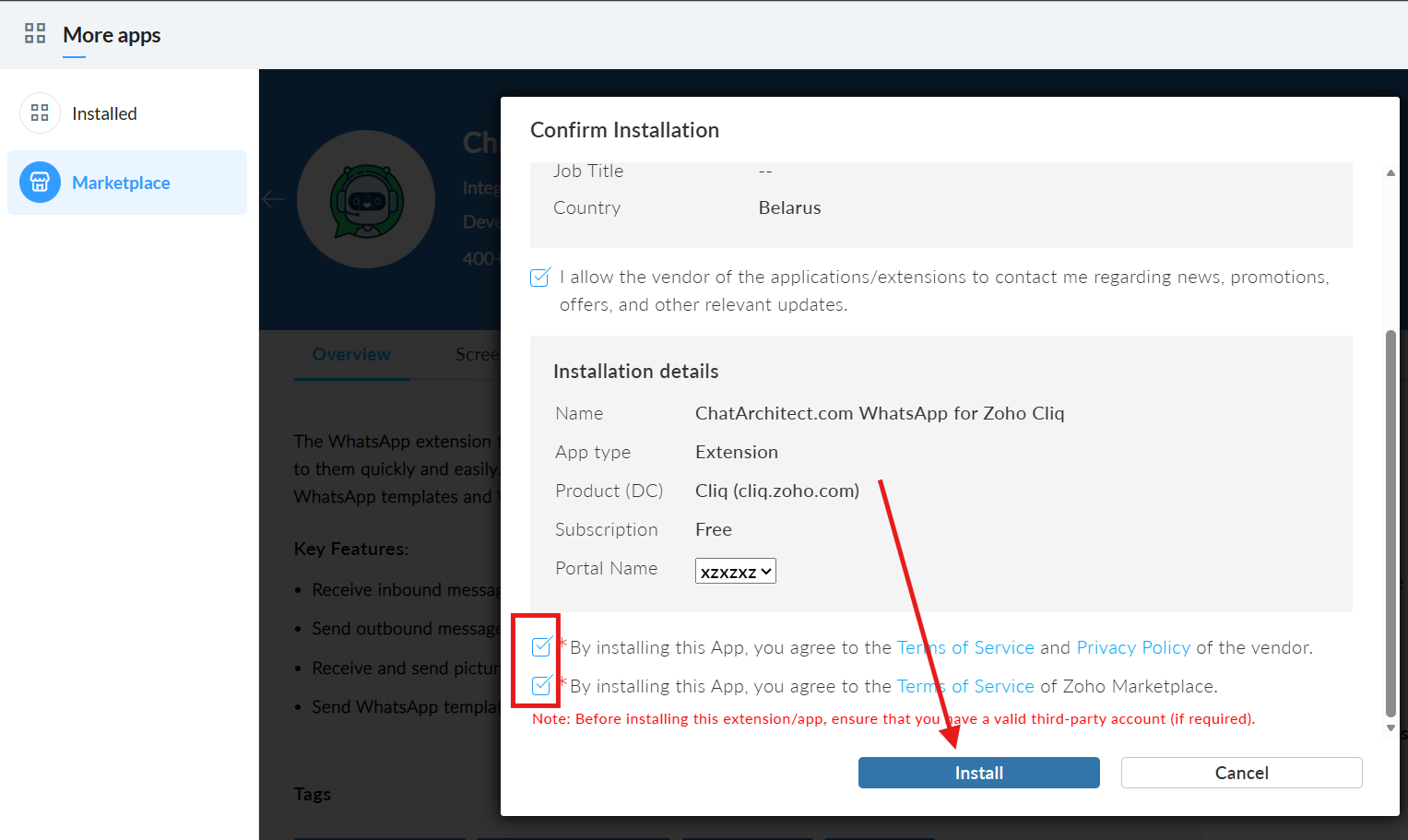
4\. Check the boxes and click the “**Install**” button.
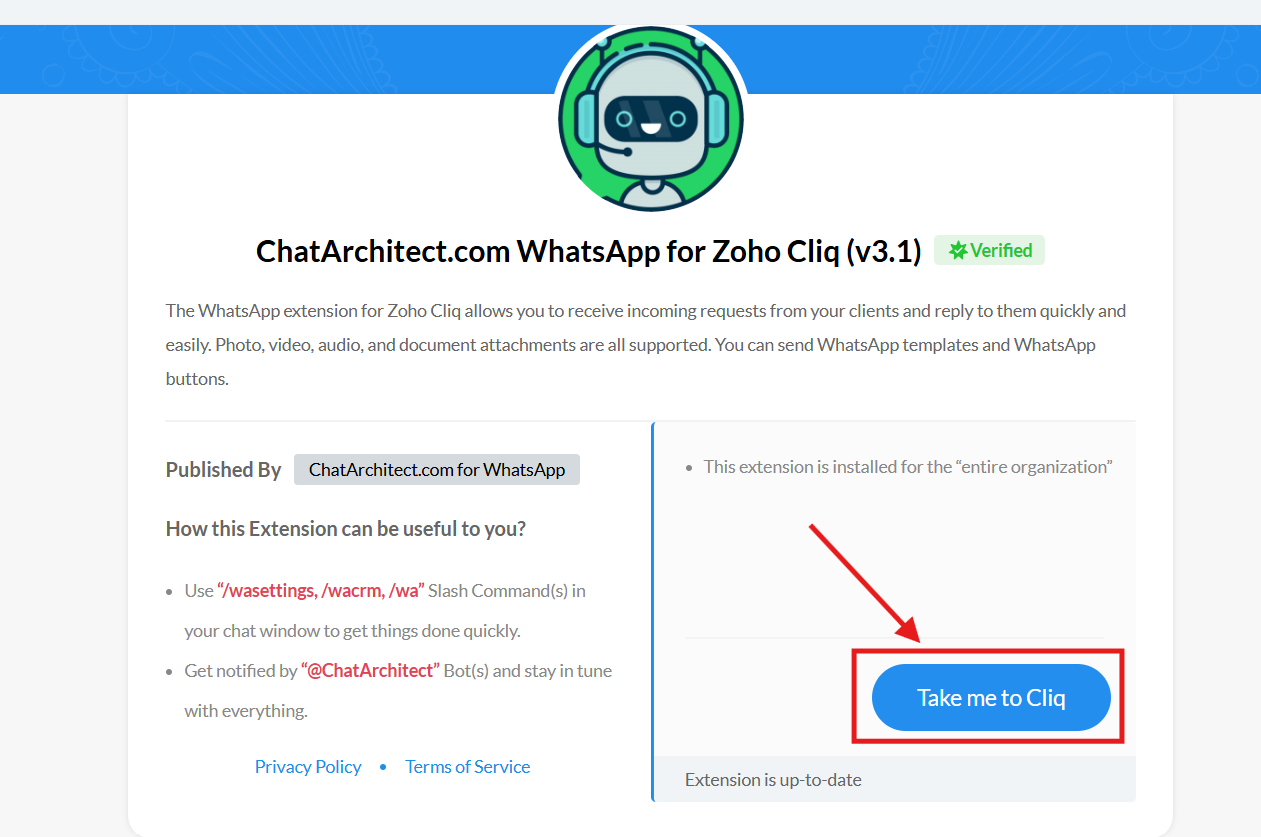
[](https://support.chatarchitect.com/uploads/images/gallery/2026-04/v8gimage.png)5. Press "Take me to Cliq" button
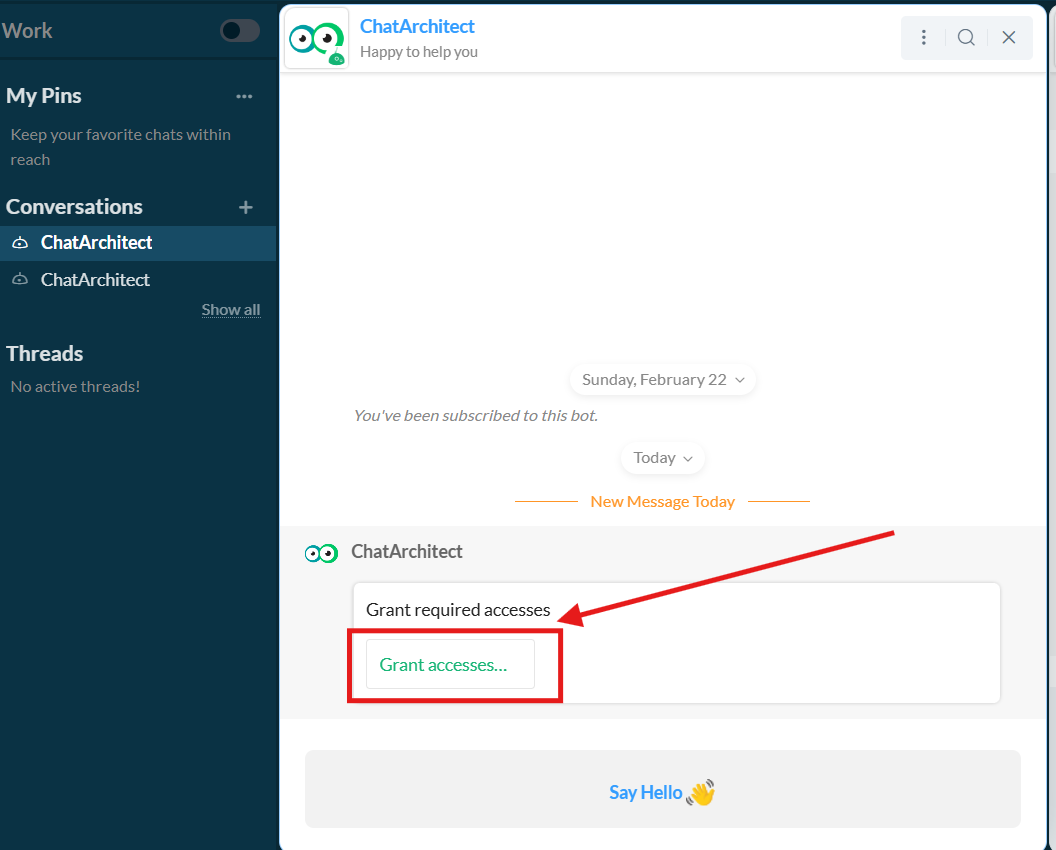
[](https://support.chatarchitect.com/uploads/images/gallery/2026-04/3sdimage.png)6. Choose "**Grant access**"
[](https://support.chatarchitect.com/uploads/images/gallery/2026-04/2RWimage.png)
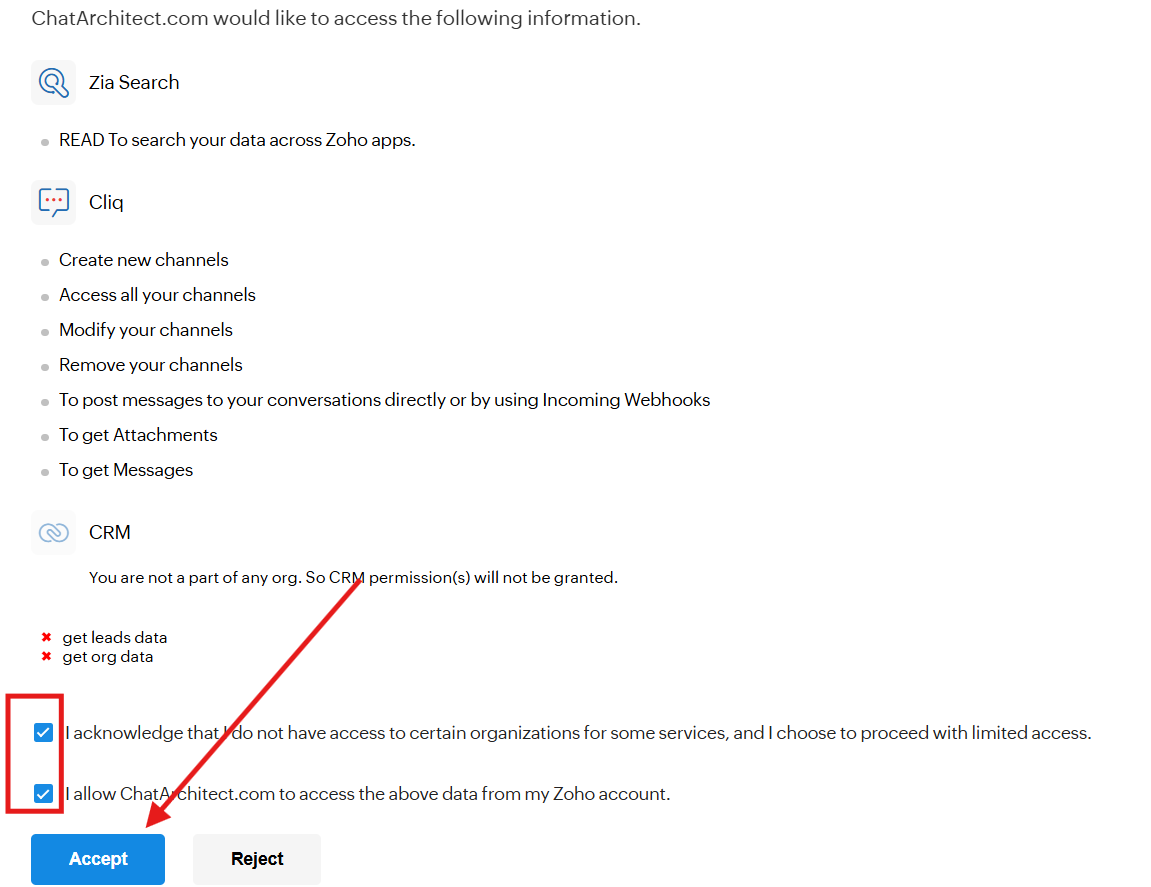
7\. Check the boxes and press "**Accept**"
[](https://support.chatarchitect.com/uploads/images/gallery/2026-04/qpgimage.png)
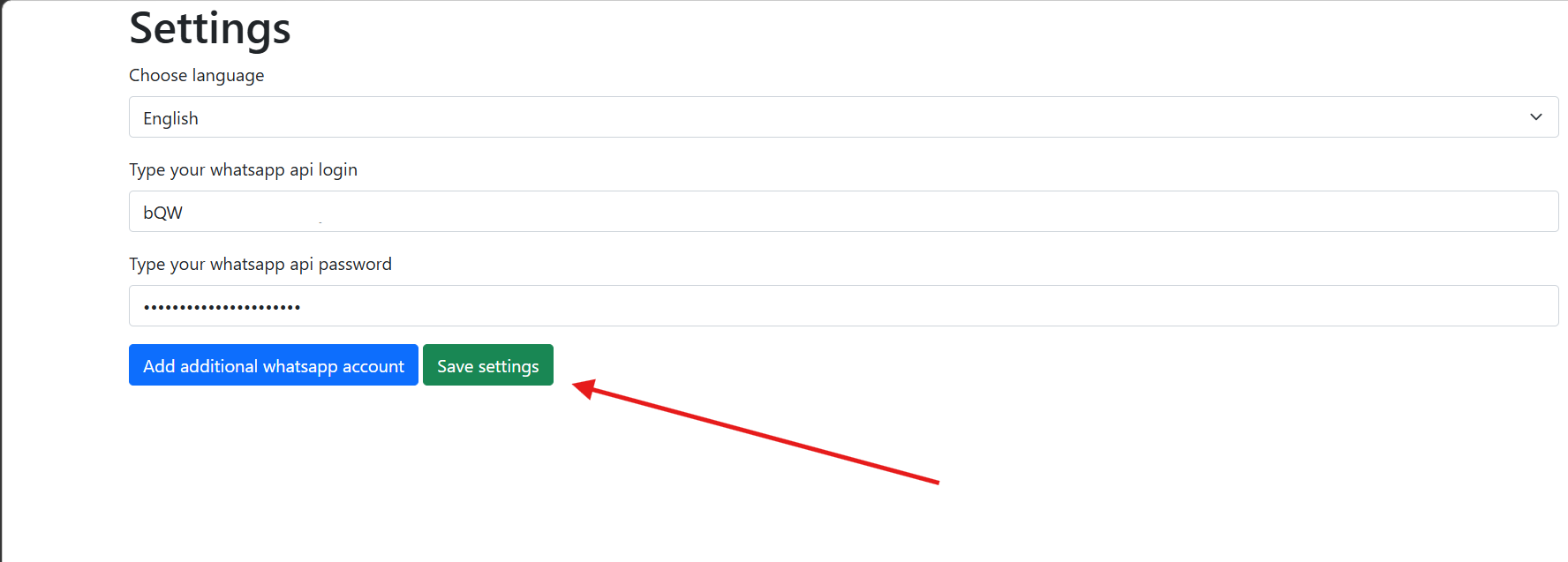
8\. Fill in your **APP ID** and **APP SECRET** and press "**Save settings**"
[](https://support.chatarchitect.com/uploads/images/gallery/2026-04/MJ4image.png)
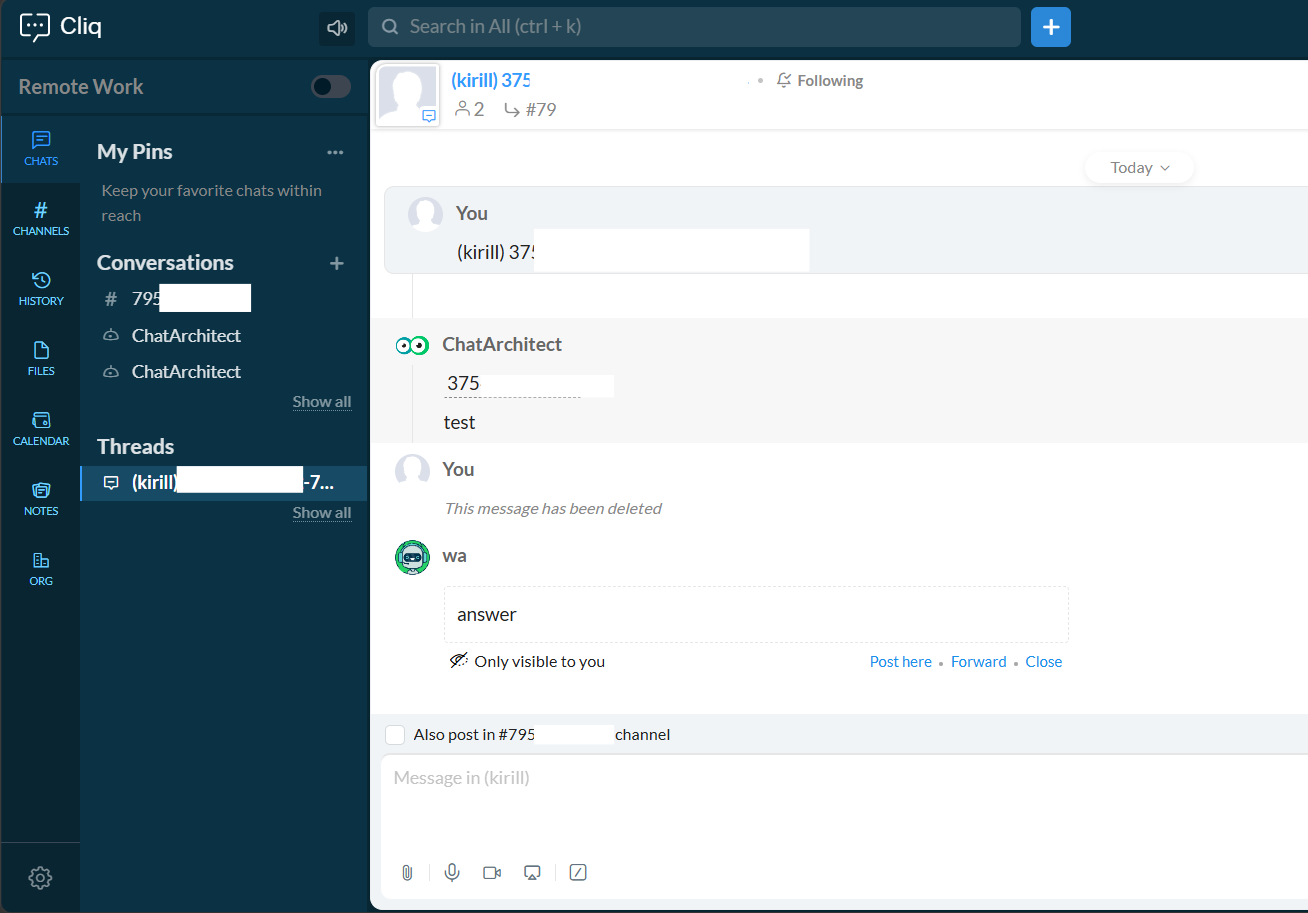
9\. Next, write to your connected WhatsApp Business API number from your personal WhatsApp. It will be displayed in threads.
[](https://support.chatarchitect.com/uploads/images/gallery/2026-04/D9Pimage.png)
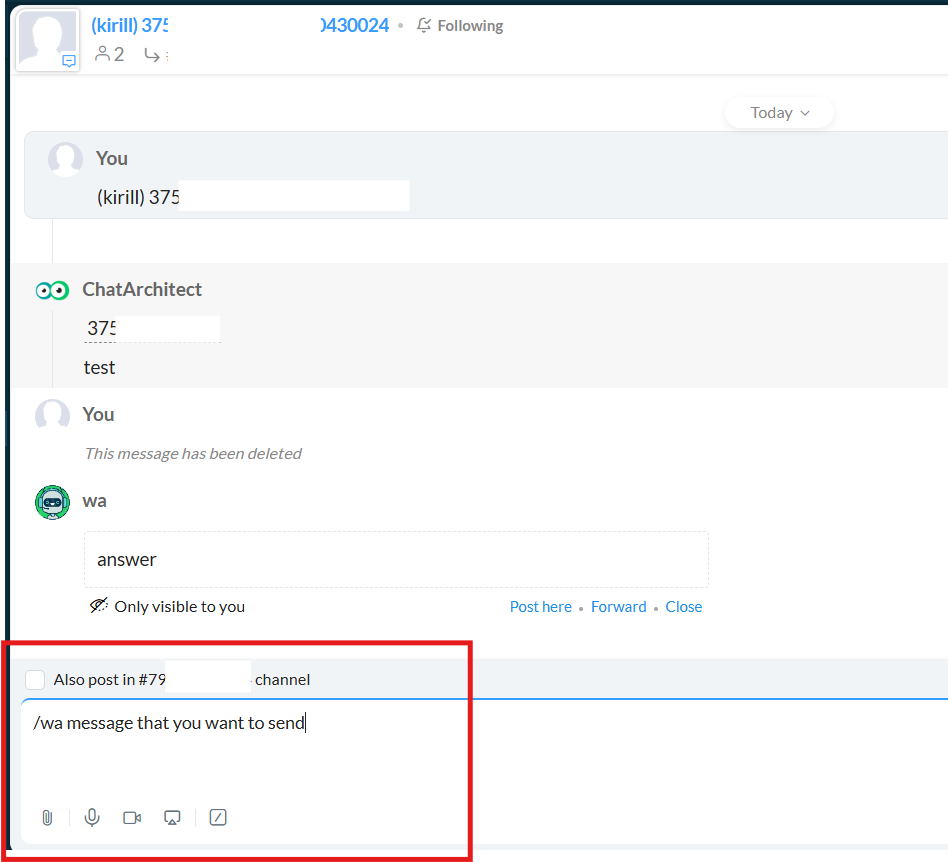
**How to reply**
1\. You can reply by using **/wa** +your\_text
[](https://support.chatarchitect.com/uploads/images/gallery/2026-04/sdYimage.png)
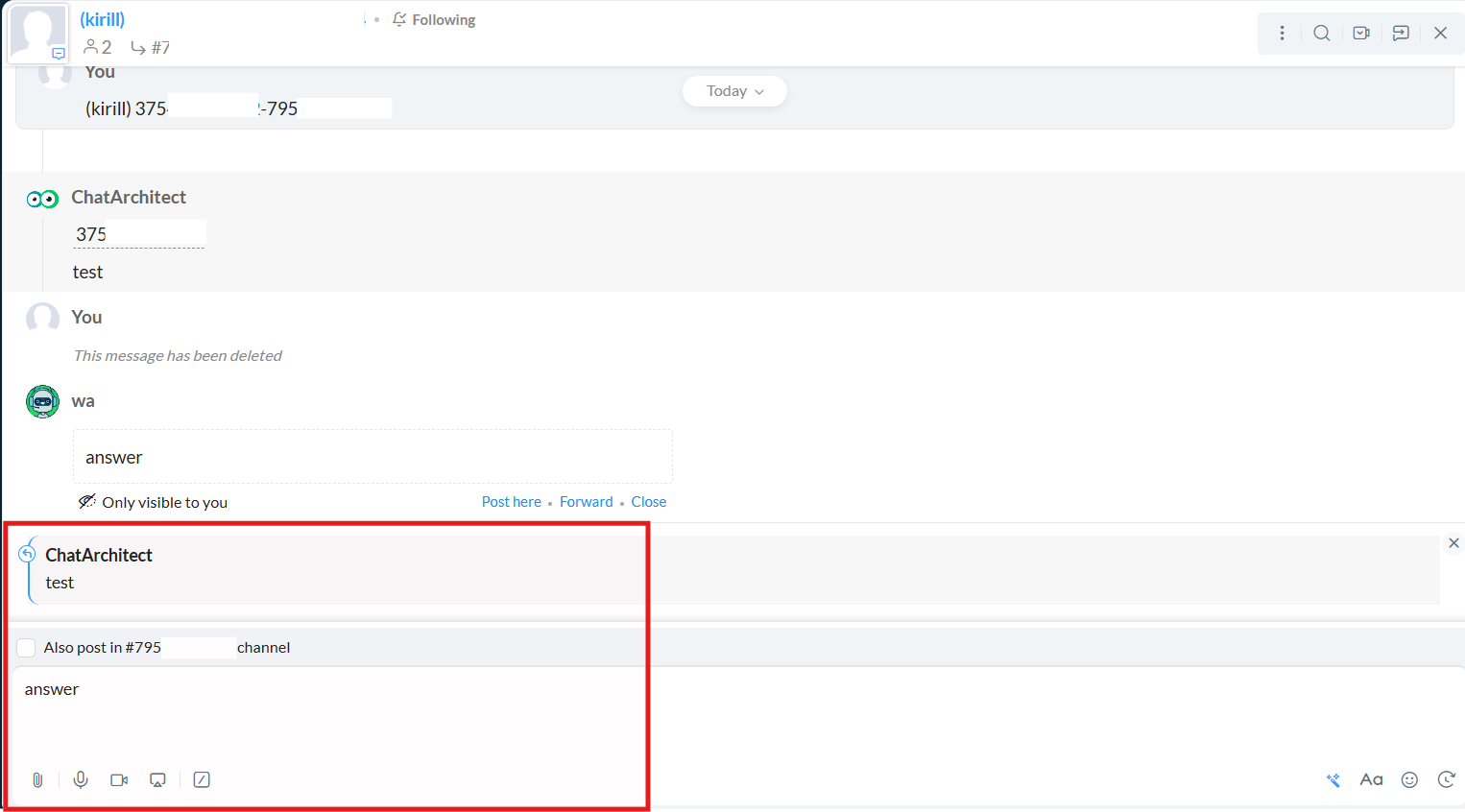
2\. You can **quote** client's message
[](https://support.chatarchitect.com/uploads/images/gallery/2026-04/4nYimage.png)
# How to create a template for WhatsApp Business API
## Step-by-step instructions how to create a template in our app
1\. First of all, you need to open [wtargeted.com/](https://wtargeted.com/) and click on the "Facebook Login" button or "Google Login" button
2\. After you have logged in to your google \\ facebook account, you must enter your PERSONAL phone number on which there is a WhatsApp application, a verification code will be sent to it (not to be confused with the number that you connected with us)
3\. Put your App key and Secret and press "Yes, continue".
4\. After this, an app menu will be opened. Click on the "Submit template" button.
5\. Select the desired language and template type.
Write your message with variables in the first column. For example, "Hello, our employee will answer you as soon as possible. Ticket {{1}} has been created." Variables should be in braces {{}}.
Write a sample message replacing the variables with meaningful information in the second column. For example, "Hello, our employee will answer you as soon as possible. Ticket \[999TTT\] has been created.". The placeholder is square brackets \[\].
Then click "Submit Template".
6\. After review ( it may take from few minutes to 24 hours), your template will appear in "Approved templates".
Don't forget to click on the "refresh" button.
# How to improve your mailling
# How to improve your Template
When preparing a mailing campaign, one of the most common questions is: *How can I create an effective newsletter without risking being blocked?* In this article, we’ll share practical recommendations to help you achieve that.
## Text Length
Meta recommends keeping marketing templates under 500 characters to maximize customer engagement. The optimal range is 300–500 characters. In practice, this means keeping your message concise and focused: present the essence of your offer in just a few sentences instead of overwhelming readers with a wall of text.
## Personalization with Variables
Personalization significantly improves the effectiveness of your campaigns. Using variables such as the customer’s name is a simple but powerful way to make your messages feel more personal. After all, everyone appreciates being addressed directly.
## Use of Media
Adding visuals such as bright images or short videos is a proven way to increase click-through rates. High-quality media design not only attracts attention but also serves as an important driver of conversions.
## Action Buttons
Quick-reply buttons are an excellent tool for faster customer interaction. A single click is always easier than typing a response.
In addition, action buttons can redirect users directly to your website or phone number, making the communication process seamless and convenient.
## Unsubscribe Button
Meta recommends including an “Unsubscribe” button in mass-mailing templates, and we strongly support this practice. It’s much better to give customers an easy, native way to opt out than to risk complaints or negative feedback.
## Conclusion
If you want your newsletter to deliver high engagement and strong conversion rates, make sure your template includes all of the elements listed above: concise copy, personalization, engaging visuals, action buttons, and an unsubscribe option.
**Important Note:** Templates containing images or call-to-action buttons (such as a website link or phone number) can only be approved via chat with our support team: [wa.me/421233221242
wa.me/17377101702](https://wa.me/74956686361)
# WhatsApp for HubSpot
# WhatsApp for HubSpot
HubSpot is a specially developed system for your business that gives you the ability to send emails, communicate directly with customers, keep track of company data.
Connecting HubSpot and ChatArchitect synchronizes your contacts and speeds up the process of interaction with the client.
After connecting, you will be able to customize your account according to your needs, as well as contact any of your clients.
Follow the instructions to set everything up correctly and make it easier for yourself to interact with the program in the future.**
Installation instruction**
**1.** First of all, install our application via the link (first, log in to your HubSpot account, then enter the keys that we will send you after the connection is completed)
[https://wa.chatarchitect.com/email-hubspot/
](https://wa.chatarchitect.com/email-hubspot/)**2.** Then enter the keys that we sent you
****3.**** After connection is completed, click "Proceed to HubSpot" button

**4.**** After installation, go to the tab Conversations - Inbox **5.** Next, click on Inbox settings **6.** In the HubSpot fallback email subsection, click Edit **7.** Check the box Use the HubSpot email for sending messages and save it 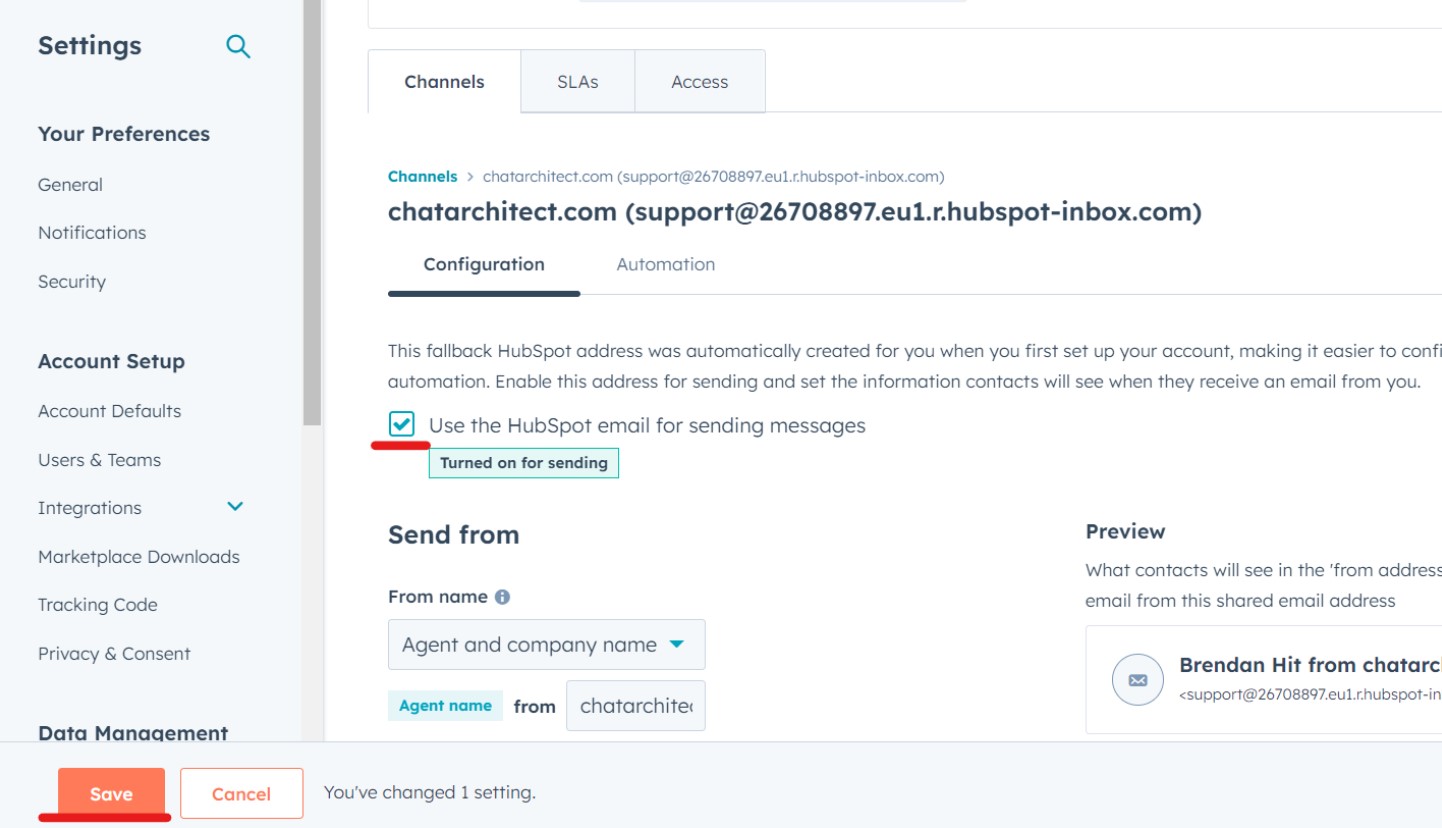 **8.** Now you can check your incoming messages. To do this, send a message to your number which you have linked to CRM. The message should appear in the "Conversations -> Inbox tab"
******9.** To send messages via HubSpot follow these instructions [https://support.chatarchitect.com/l\_eng/knowledge\_base/item/298533?sid=63122](https://support.chatarchitect.com/l_eng/knowledge_base/item/298533?sid=63122)
# Initiation via HubSpot
**In this guide, you will learn how to initiate a conversation with your client using a template message from HubSpot.**
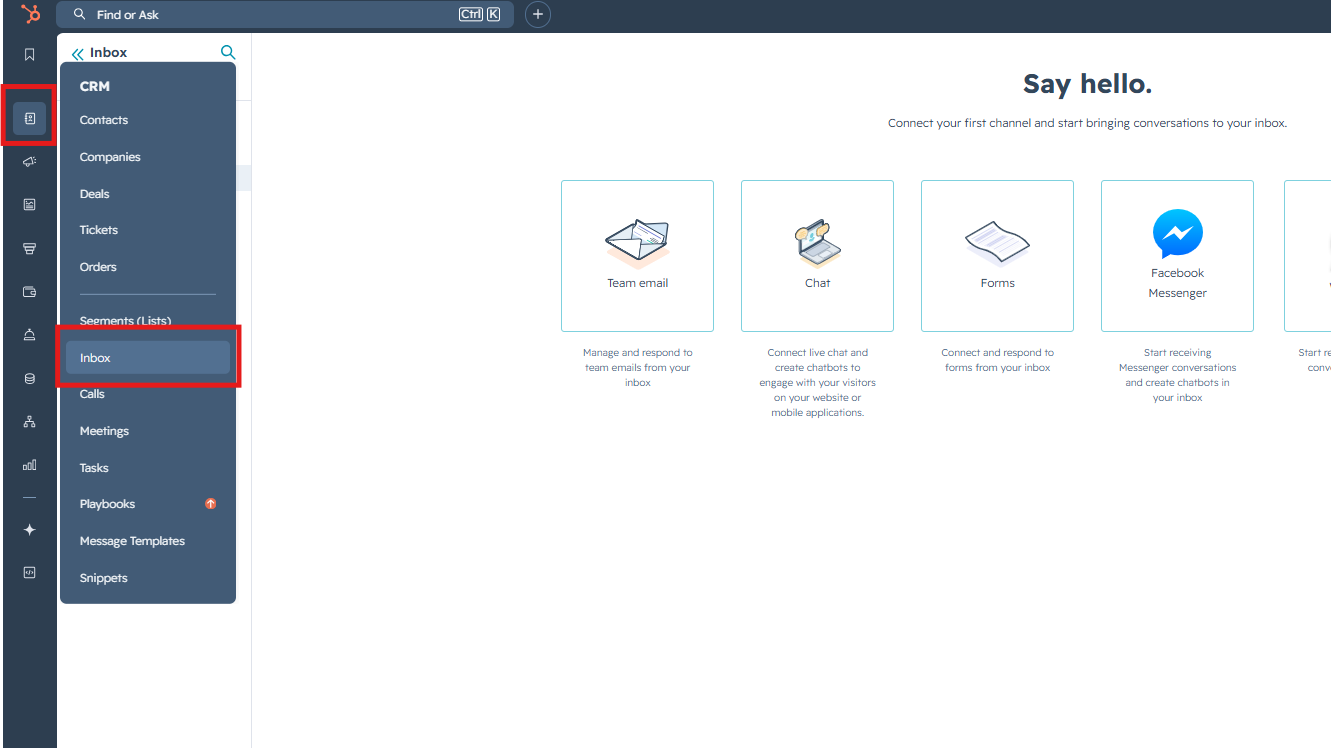
1\. Go to the **"Inbox"**
[](https://support.chatarchitect.com/uploads/images/gallery/2026-04/zlPimage.png)
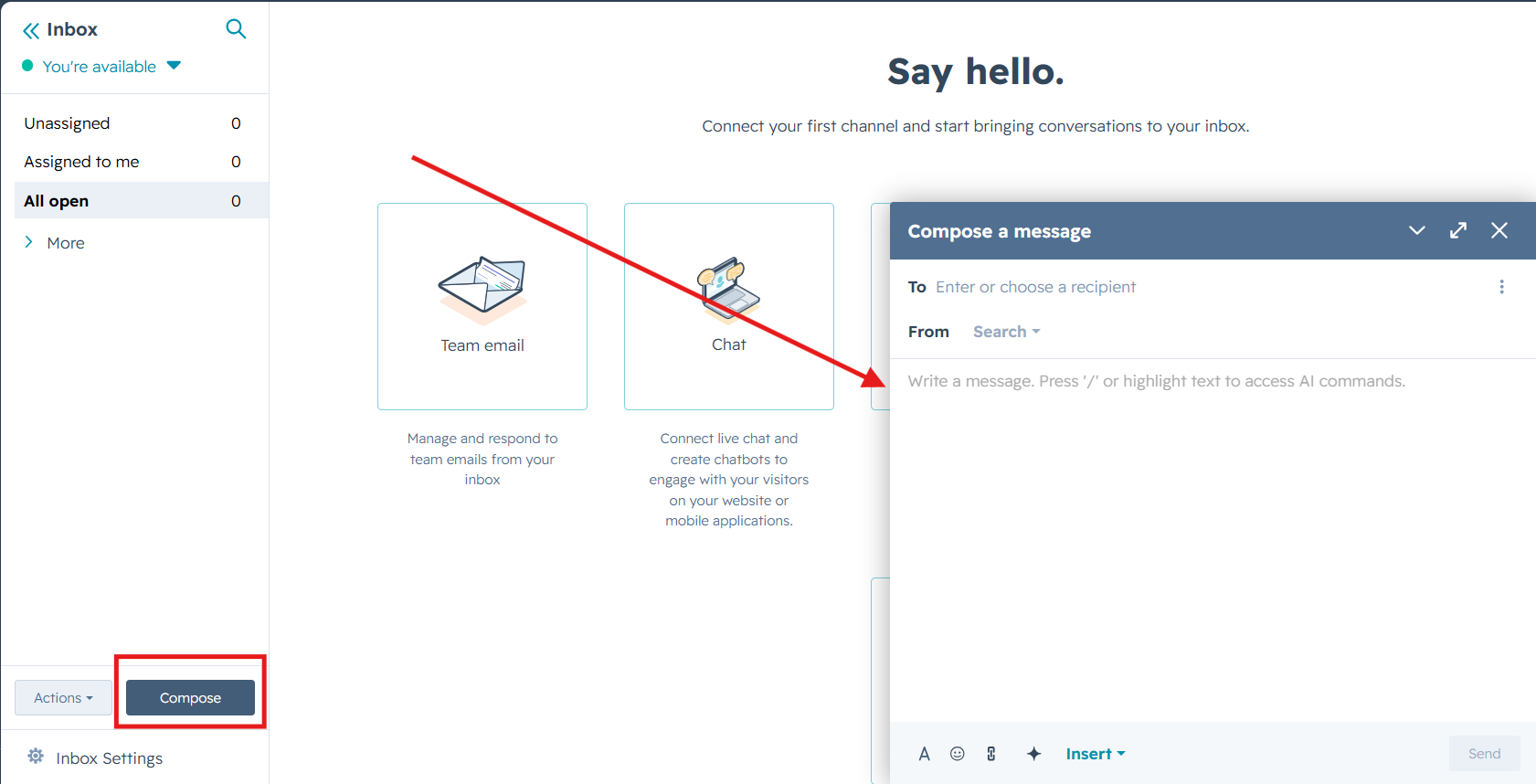
2\. Press **"Compose"** button and fill in data like this:
[](https://support.chatarchitect.com/uploads/images/gallery/2026-04/j9Yimage.png)
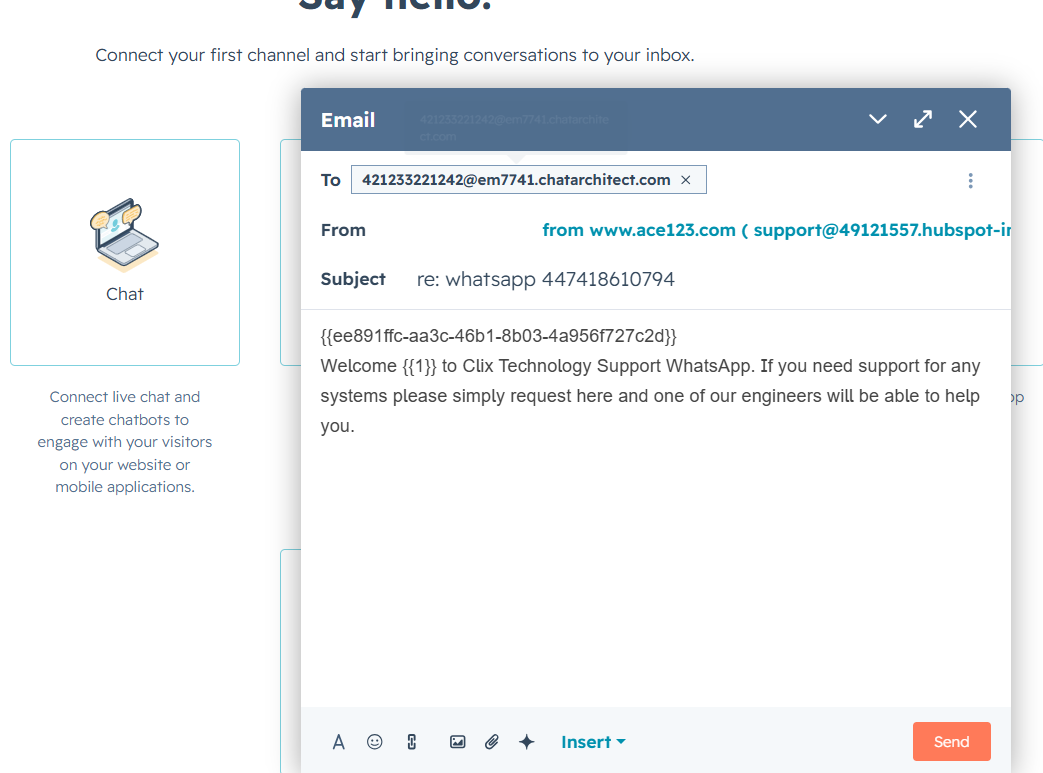
3\. Fill in data like this:
**To**: phone number you are sending to + @em7741.chatarchitect.com (for example, **421233221242@em7741.chatarchitect.com** )
**From**: DO NOT CHANGE
**Subject**: RE: whatsapp + WhatsApp Business API number ( for example, re: whatsapp **447418610794** )
**Text field**: copy a template from our app https://wtargeted.com/ and paste
[](https://support.chatarchitect.com/uploads/images/gallery/2026-04/ixJimage.png)
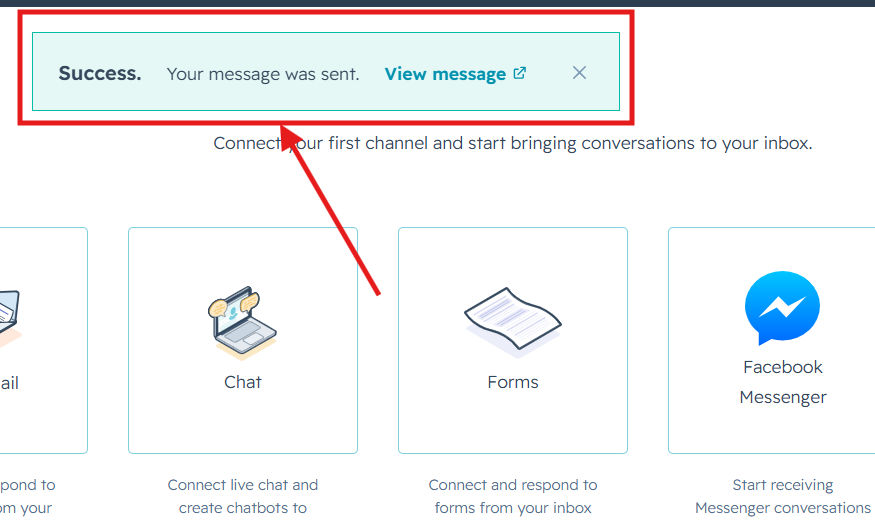
3\. Click **"Send"**. A message will appear indicating that the sending has been completed.
[](https://support.chatarchitect.com/uploads/images/gallery/2026-04/QMSimage.png)
Done. Now you know how to send template messages from the HubSpot interface.
# How to create a template for WhatsApp Business API
## Step-by-step instructions how to create a template in our app
1\. First of all, you need to open [wtargeted.com/](https://wtargeted.com/) and click on the "Facebook Login" button or "Google Login" button
2\. After you have logged in to your google \\ facebook account, you must enter your PERSONAL phone number on which there is a WhatsApp application, a verification code will be sent to it (not to be confused with the number that you connected with us)
3\. Put your App key and Secret and press "Yes, continue".
4\. After this, an app menu will be opened. Click on the "Submit template" button.
5\. Select the desired language and template type.
Write your message with variables in the first column. For example, "Hello, our employee will answer you as soon as possible. Ticket {{1}} has been created." Variables should be in braces {{}}.
Write a sample message replacing the variables with meaningful information in the second column. For example, "Hello, our employee will answer you as soon as possible. Ticket \[999TTT\] has been created.". The placeholder is square brackets \[\].
Then click "Submit Template".
6\. After review, your template will appear in "Approved templates".
Don't forget to click on the "refresh" button.
# How to improve your mailling
# How to improve your Template
When preparing a mailing campaign, one of the most common questions is: *How can I create an effective newsletter without risking being blocked?* In this article, we’ll share practical recommendations to help you achieve that.
## Text Length
Meta recommends keeping marketing templates under 500 characters to maximize customer engagement. The optimal range is 300–500 characters. In practice, this means keeping your message concise and focused: present the essence of your offer in just a few sentences instead of overwhelming readers with a wall of text.
## Personalization with Variables
Personalization significantly improves the effectiveness of your campaigns. Using variables such as the customer’s name is a simple but powerful way to make your messages feel more personal. After all, everyone appreciates being addressed directly.
## Use of Media
Adding visuals such as bright images or short videos is a proven way to increase click-through rates. High-quality media design not only attracts attention but also serves as an important driver of conversions.
## Action Buttons
Quick-reply buttons are an excellent tool for faster customer interaction. A single click is always easier than typing a response.
In addition, action buttons can redirect users directly to your website or phone number, making the communication process seamless and convenient.
## Unsubscribe Button
Meta recommends including an “Unsubscribe” button in mass-mailing templates, and we strongly support this practice. It’s much better to give customers an easy, native way to opt out than to risk complaints or negative feedback.
## Conclusion
If you want your newsletter to deliver high engagement and strong conversion rates, make sure your template includes all of the elements listed above: concise copy, personalization, engaging visuals, action buttons, and an unsubscribe option.
**Important Note:** Templates containing images or call-to-action buttons (such as a website link or phone number) can only be approved via chat with our support team: [wa.me/421233221242
wa.me/17377101702](https://wa.me/74956686361)
# WhatsApp for Everbridge
# WhatsApp for Everbridge installation manual
# Step by step instruction
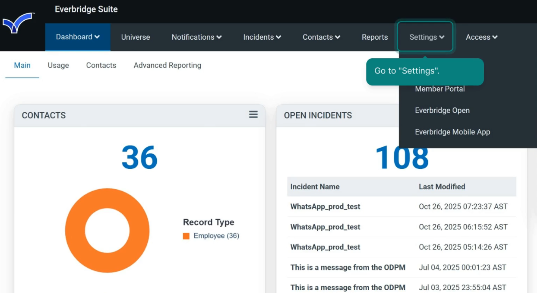
1. Open Settings.
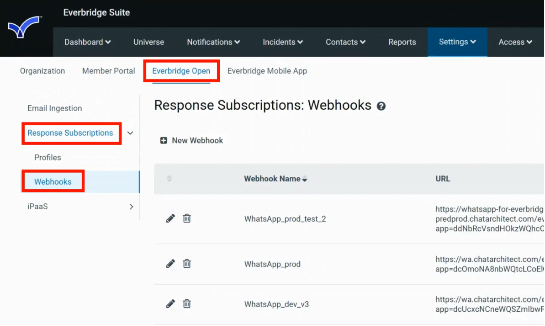
2\. Select “Everbridge Open” section, then “Response Subscriptions”, and then “Webhooks”.
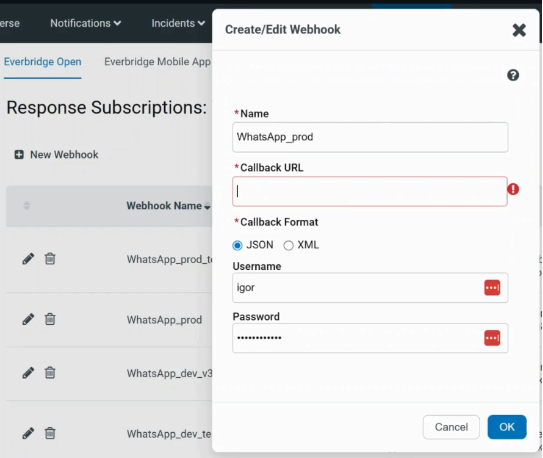
3\. To create a new webhook, click “New Webhook”.
1\) Fill in “Name”;
2\) Fill in “Callback URL”:
https://whatsapp-for-everbridge.chatarchitect.com/everbridge\_v3/?app=**{app}**&secret=**{secret}**&access\_key\_id=**{access\_key\_id}**&secret\_key=**{secret\_key}**
WhatsApp APP key **{app}** and WhatsApp Secret key **{secret}**: you need to get from our support.
Everbridge Access key **{access\_key\_id}** & Everbridge Secret key **{secret\_key}**: you need to get from Everbridge admins.
3\)
Choose “Callback Format”, fill in “Username” and “Password”. Click OK.
4\. Select “Everbridge Open” section, then “Response Subscriptions”, then “Profiles”, and click “New Profile”.
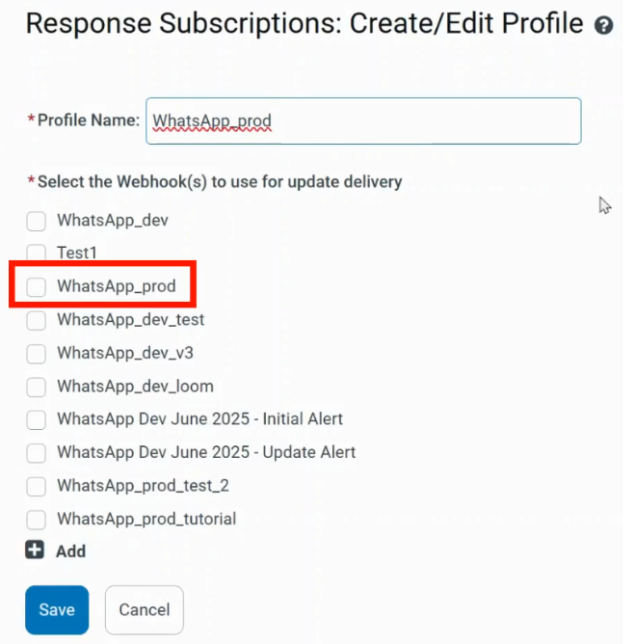
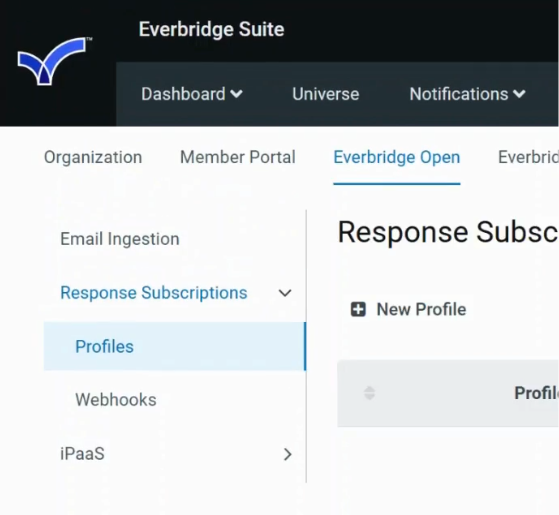5\. Fill in “Profile Name”. Select the necessary webhook. Click “Save”.
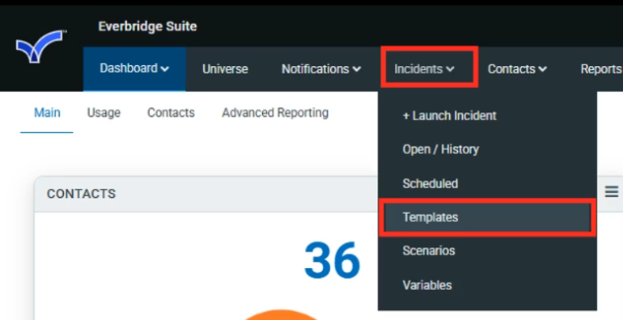
6\. Go to “Incidents”. Select “Templates”.
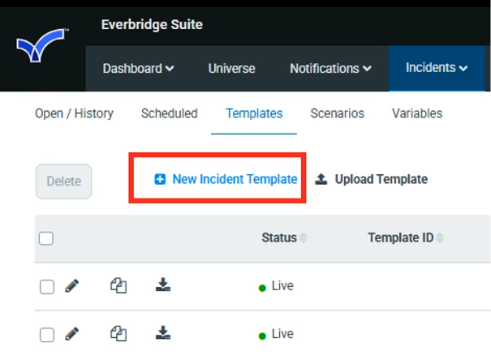
7\. Click “New Incident Template”.
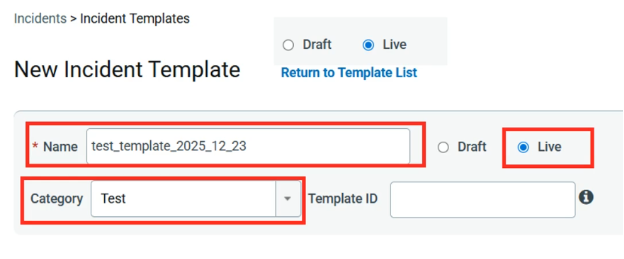
8\. Fill in “Name” and choose “Category”.
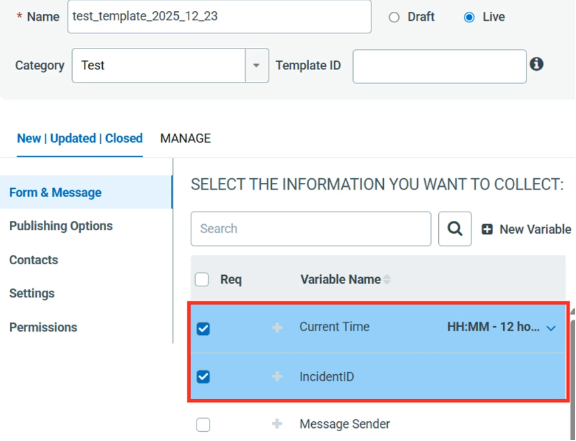
9\. Select all the necessary variables. Their order can be rearranged in the “PREVIEW & EDIT” section.
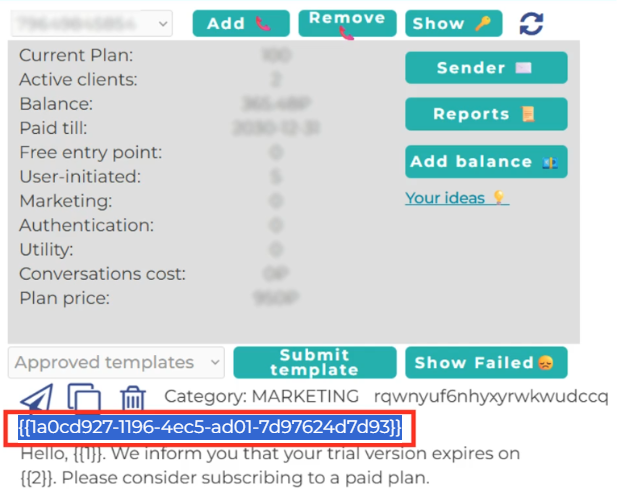
10\. In the Chatarchitect app (https://wtargeted.com/settings), find the necessary template and copy its ID (including the brackets).
11\. In Everbridge, in the “PREVIEW & EDIT” section, paste the copied template’s ID into the WhatsApp Code.
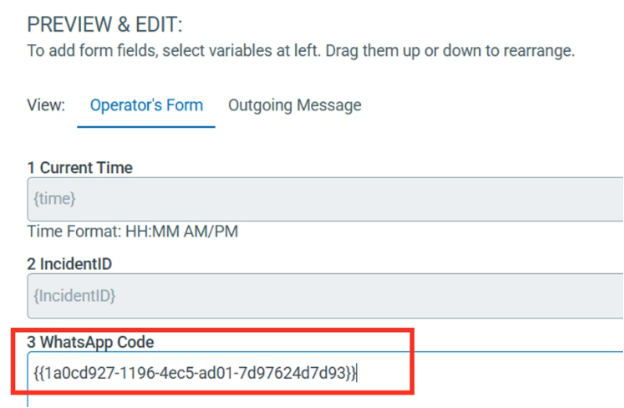12\. Fill in the input fields of the template’s variables with values.
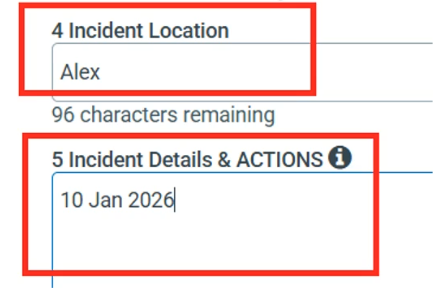13\. In the Chatarchitect app, copy the necessary template by clicking the Copy button.
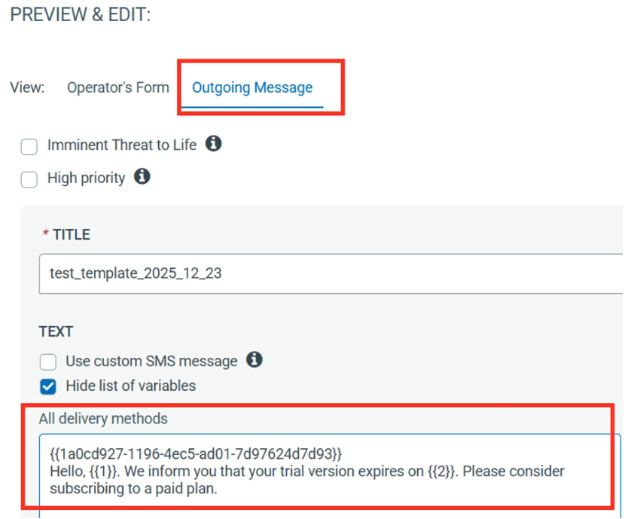
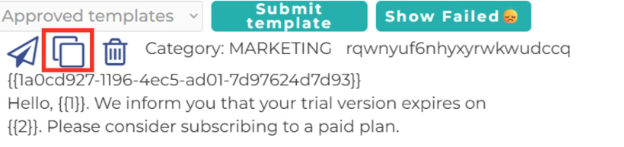14\. In Everbridge, select “Outgoing Message” and paste the copied template into “All delivery methods”.
15\. Select the “Contacts” section. Click “Preview contacts”.
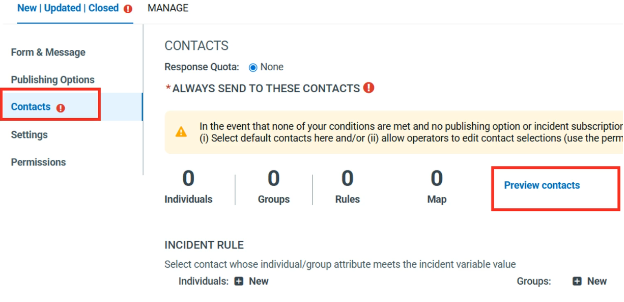16\. Click “Select” and choose contacts who will receive the message. Click OK.
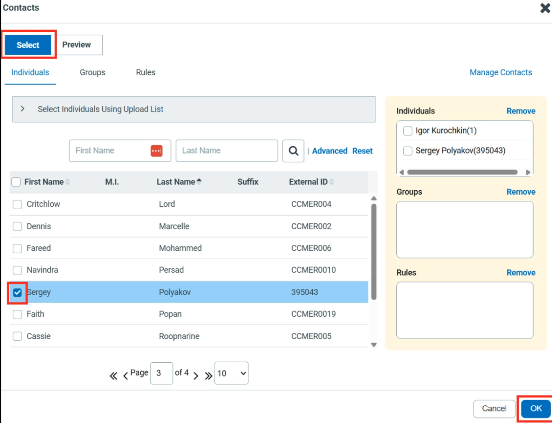17\. Go to “Settings” section. Click “Edit”.
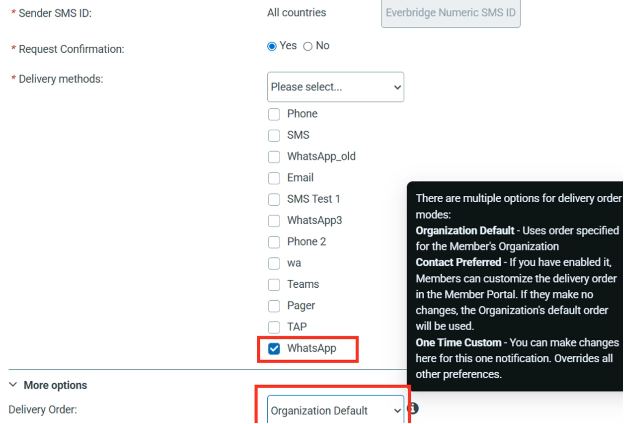
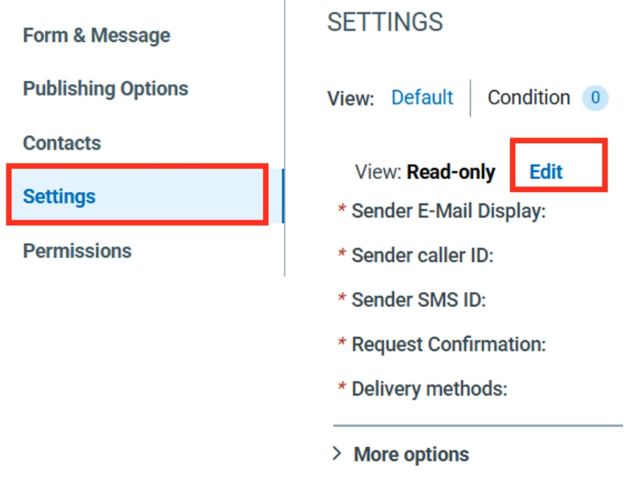18\. Select the necessary Delivery Order. In Delivery methods, select WhatsApp.
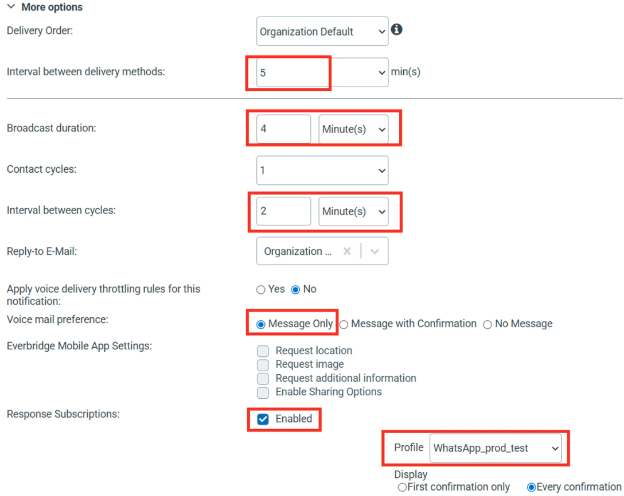
19\. Select the necessary Profile and set all the necessary options.
20\. In the “Permissions” section, select all the necessary operator permissions.
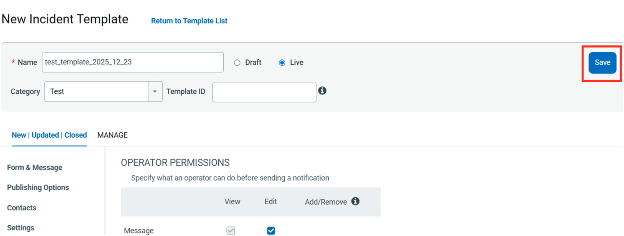
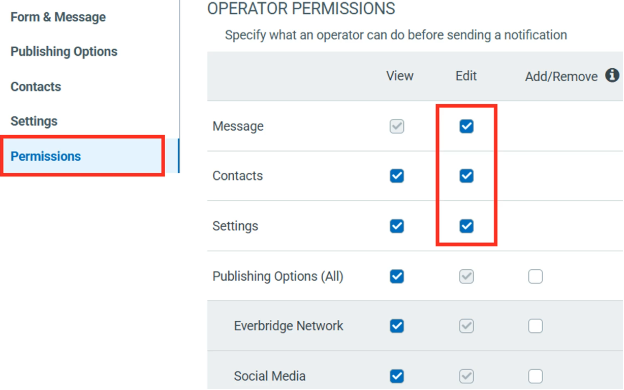21\. Click “Save” to save the template.
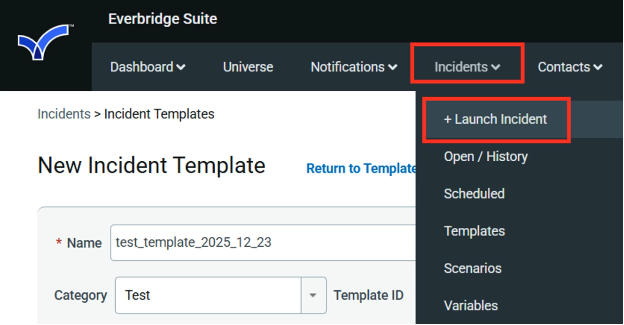
22\. Select “Incidents” - “Launch Incident”.
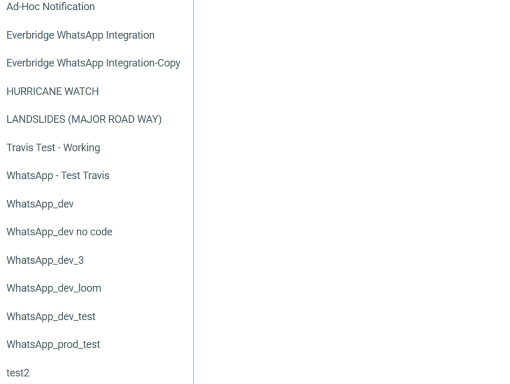
23\. Select the necessary template from the list.
24\. Set the values of the template’s variables.
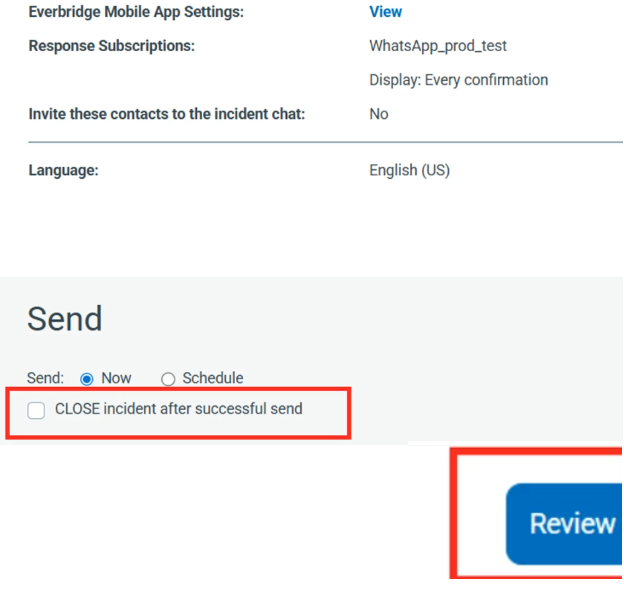
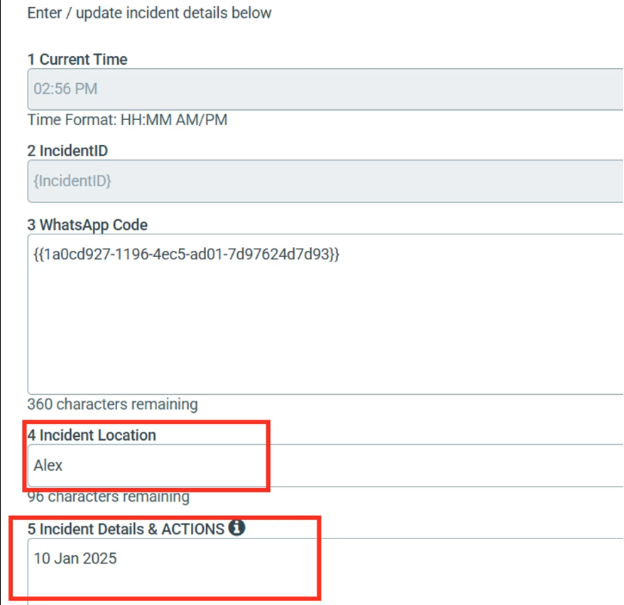25\. Specify the sending options and click “Review”.
26\. To send the message, click “Send”.
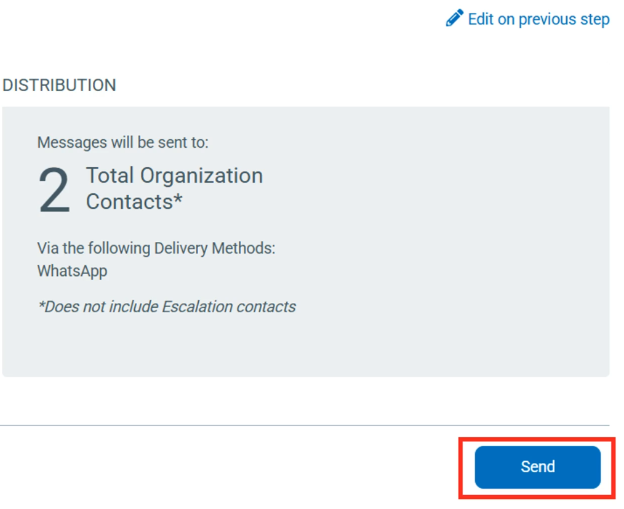27\. The message will be sent to the contacts you had selected in the 16th step.

# How to create a template for WhatsApp Business API
## Step-by-step instructions how to create a template in our app
1\. First of all, you need to open [wtargeted.com/](https://wtargeted.com/) and click on the "Facebook Login" button or "Google Login" button
2\. After you have logged in to your google \\ facebook account, you must enter your PERSONAL phone number on which there is a WhatsApp application, a verification code will be sent to it (not to be confused with the number that you connected with us)
3\. Put your App key and Secret and press "Yes, continue".
4\. After this, an app menu will be opened. Click on the "Submit template" button.
5\. Select the desired language and template type.
Write your message with variables in the first column. For example, "Hello, our employee will answer you as soon as possible. Ticket {{1}} has been created." Variables should be in braces {{}}.
Write a sample message replacing the variables with meaningful information in the second column. For example, "Hello, our employee will answer you as soon as possible. Ticket \[999TTT\] has been created.". The placeholder is square brackets \[\].
Then click "Submit Template".
6\. After review, your template will appear in "Approved templates".
Don't forget to click on the "refresh" button.
# How to improve your mailling
# How to improve your Template
When preparing a mailing campaign, one of the most common questions is: *How can I create an effective newsletter without risking being blocked?* In this article, we’ll share practical recommendations to help you achieve that.
## Text Length
Meta recommends keeping marketing templates under 500 characters to maximize customer engagement. The optimal range is 300–500 characters. In practice, this means keeping your message concise and focused: present the essence of your offer in just a few sentences instead of overwhelming readers with a wall of text.
## Personalization with Variables
Personalization significantly improves the effectiveness of your campaigns. Using variables such as the customer’s name is a simple but powerful way to make your messages feel more personal. After all, everyone appreciates being addressed directly.
## Use of Media
Adding visuals such as bright images or short videos is a proven way to increase click-through rates. High-quality media design not only attracts attention but also serves as an important driver of conversions.
## Action Buttons
Quick-reply buttons are an excellent tool for faster customer interaction. A single click is always easier than typing a response.
In addition, action buttons can redirect users directly to your website or phone number, making the communication process seamless and convenient.
## Unsubscribe Button
Meta recommends including an “Unsubscribe” button in mass-mailing templates, and we strongly support this practice. It’s much better to give customers an easy, native way to opt out than to risk complaints or negative feedback.
## Conclusion
If you want your newsletter to deliver high engagement and strong conversion rates, make sure your template includes all of the elements listed above: concise copy, personalization, engaging visuals, action buttons, and an unsubscribe option.
**Important Note:** Templates containing images or call-to-action buttons (such as a website link or phone number) can only be approved via chat with our support team: [wa.me/421233221242
wa.me/17377101702](https://wa.me/74956686361)
# WhatsApp for Microsoft Teams
# WhatsApp Business API for Microsoft Teams: Installation and sending the first message.
Installation guide
1\. First of all you need to choose a team where do you want to use our app, press "more options" and after that "manage team"

2\. Go to the "apps" => "upload an app" and upload a file that we sent to you
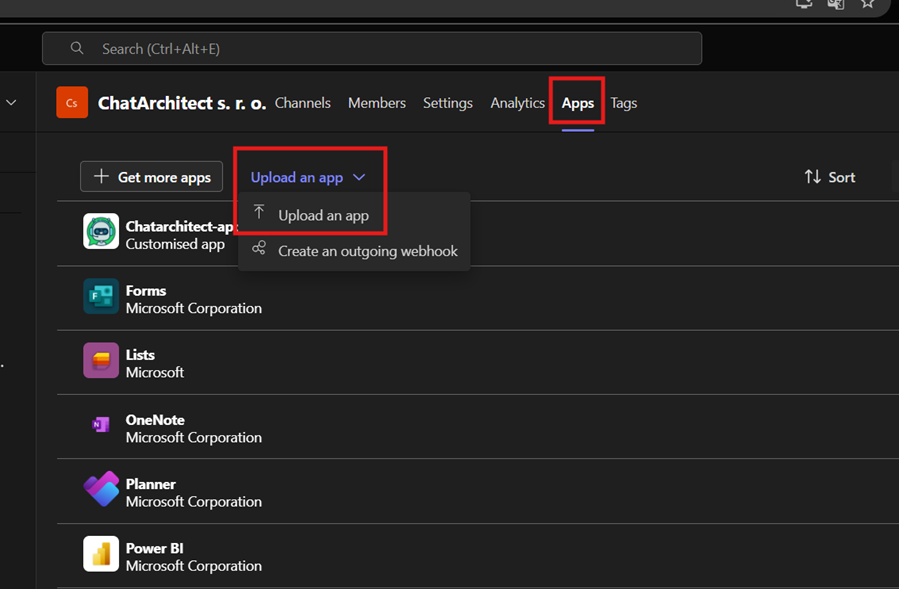 3. Upload a file that we will send you and press "add"

4\. Select a channel and press "go"

5\. After this you will be redirected to the channel that you choose and you will see "install" button. Press on it

6\. You need to fill in **app id** and **app secret** and press "install"

7\. Now you need to check incoming and outgoing messages:
You need to write from your personal number on WhatsApp Business API number using this link wa.me/855388801854

# How to create a template for WhatsApp Business API
## Step-by-step instructions how to create a template in our app
1\. First of all, you need to open [wtargeted.com/](https://wtargeted.com/) and click on the "Facebook Login" button or "Google Login" button
2\. After you have logged in to your google \\ facebook account, you must enter your PERSONAL phone number on which there is a WhatsApp application, a verification code will be sent to it (not to be confused with the number that you connected with us)
3\. Put your App key and Secret and press "Yes, continue".
4\. After this, an app menu will be opened. Click on the "Submit template" button.
5\. Select the desired language and template type.
Write your message with variables in the first column. For example, "Hello, our employee will answer you as soon as possible. Ticket {{1}} has been created." Variables should be in braces {{}}.
Write a sample message replacing the variables with meaningful information in the second column. For example, "Hello, our employee will answer you as soon as possible. Ticket \[999TTT\] has been created.". The placeholder is square brackets \[\].
Then click "Submit Template".
6\. After review, your template will appear in "Approved templates".
Don't forget to click on the "refresh" button.
# How to improve your mailling
# How to improve your Template
When preparing a mailing campaign, one of the most common questions is: *How can I create an effective newsletter without risking being blocked?* In this article, we’ll share practical recommendations to help you achieve that.
## Text Length
Meta recommends keeping marketing templates under 500 characters to maximize customer engagement. The optimal range is 300–500 characters. In practice, this means keeping your message concise and focused: present the essence of your offer in just a few sentences instead of overwhelming readers with a wall of text.
## Personalization with Variables
Personalization significantly improves the effectiveness of your campaigns. Using variables such as the customer’s name is a simple but powerful way to make your messages feel more personal. After all, everyone appreciates being addressed directly.
## Use of Media
Adding visuals such as bright images or short videos is a proven way to increase click-through rates. High-quality media design not only attracts attention but also serves as an important driver of conversions.
## Action Buttons
Quick-reply buttons are an excellent tool for faster customer interaction. A single click is always easier than typing a response.
In addition, action buttons can redirect users directly to your website or phone number, making the communication process seamless and convenient.
## Unsubscribe Button
Meta recommends including an “Unsubscribe” button in mass-mailing templates, and we strongly support this practice. It’s much better to give customers an easy, native way to opt out than to risk complaints or negative feedback.
## Conclusion
If you want your newsletter to deliver high engagement and strong conversion rates, make sure your template includes all of the elements listed above: concise copy, personalization, engaging visuals, action buttons, and an unsubscribe option.
**Important Note:** Templates containing images or call-to-action buttons (such as a website link or phone number) can only be approved via chat with our support team: [wa.me/421233221242
wa.me/17377101702](https://wa.me/74956686361)
# WhatsApp for Discrod
# WhatsApp Business API for Discord: Installation and sending the first message.
WhatsApp Business API for Discord: Installation and sending the first message.
# How to create a template for WhatsApp Business API
## Step-by-step instructions how to create a template in our app
1\. First of all, you need to open [wtargeted.com/](https://wtargeted.com/) and click on the "Facebook Login" button or "Google Login" button
2\. After you have logged in to your google \\ facebook account, you must enter your PERSONAL phone number on which there is a WhatsApp application, a verification code will be sent to it (not to be confused with the number that you connected with us)
3\. Put your App key and Secret and press "Yes, continue".
4\. After this, an app menu will be opened. Click on the "Submit template" button.
5\. Select the desired language and template type.
Write your message with variables in the first column. For example, "Hello, our employee will answer you as soon as possible. Ticket {{1}} has been created." Variables should be in braces {{}}.
Write a sample message replacing the variables with meaningful information in the second column. For example, "Hello, our employee will answer you as soon as possible. Ticket \[999TTT\] has been created.". The placeholder is square brackets \[\].
Then click "Submit Template".
6\. After review, your template will appear in "Approved templates".
Don't forget to click on the "refresh" button.
# How to improve your mailling
# How to improve your Template
When preparing a mailing campaign, one of the most common questions is: *How can I create an effective newsletter without risking being blocked?* In this article, we’ll share practical recommendations to help you achieve that.
## Text Length
Meta recommends keeping marketing templates under 500 characters to maximize customer engagement. The optimal range is 300–500 characters. In practice, this means keeping your message concise and focused: present the essence of your offer in just a few sentences instead of overwhelming readers with a wall of text.
## Personalization with Variables
Personalization significantly improves the effectiveness of your campaigns. Using variables such as the customer’s name is a simple but powerful way to make your messages feel more personal. After all, everyone appreciates being addressed directly.
## Use of Media
Adding visuals such as bright images or short videos is a proven way to increase click-through rates. High-quality media design not only attracts attention but also serves as an important driver of conversions.
## Action Buttons
Quick-reply buttons are an excellent tool for faster customer interaction. A single click is always easier than typing a response.
In addition, action buttons can redirect users directly to your website or phone number, making the communication process seamless and convenient.
## Unsubscribe Button
Meta recommends including an “Unsubscribe” button in mass-mailing templates, and we strongly support this practice. It’s much better to give customers an easy, native way to opt out than to risk complaints or negative feedback.
## Conclusion
If you want your newsletter to deliver high engagement and strong conversion rates, make sure your template includes all of the elements listed above: concise copy, personalization, engaging visuals, action buttons, and an unsubscribe option.
**Important Note:** Templates containing images or call-to-action buttons (such as a website link or phone number) can only be approved via chat with our support team: [wa.me/421233221242
wa.me/17377101702](https://wa.me/74956686361)