# How to Hide agent information on Bitrix24
**Bitrix24 automatically adds agent's name to your message when answering via "Open Channel", disrupting the correct functioning of templates.**
To disable this feature, you have to:
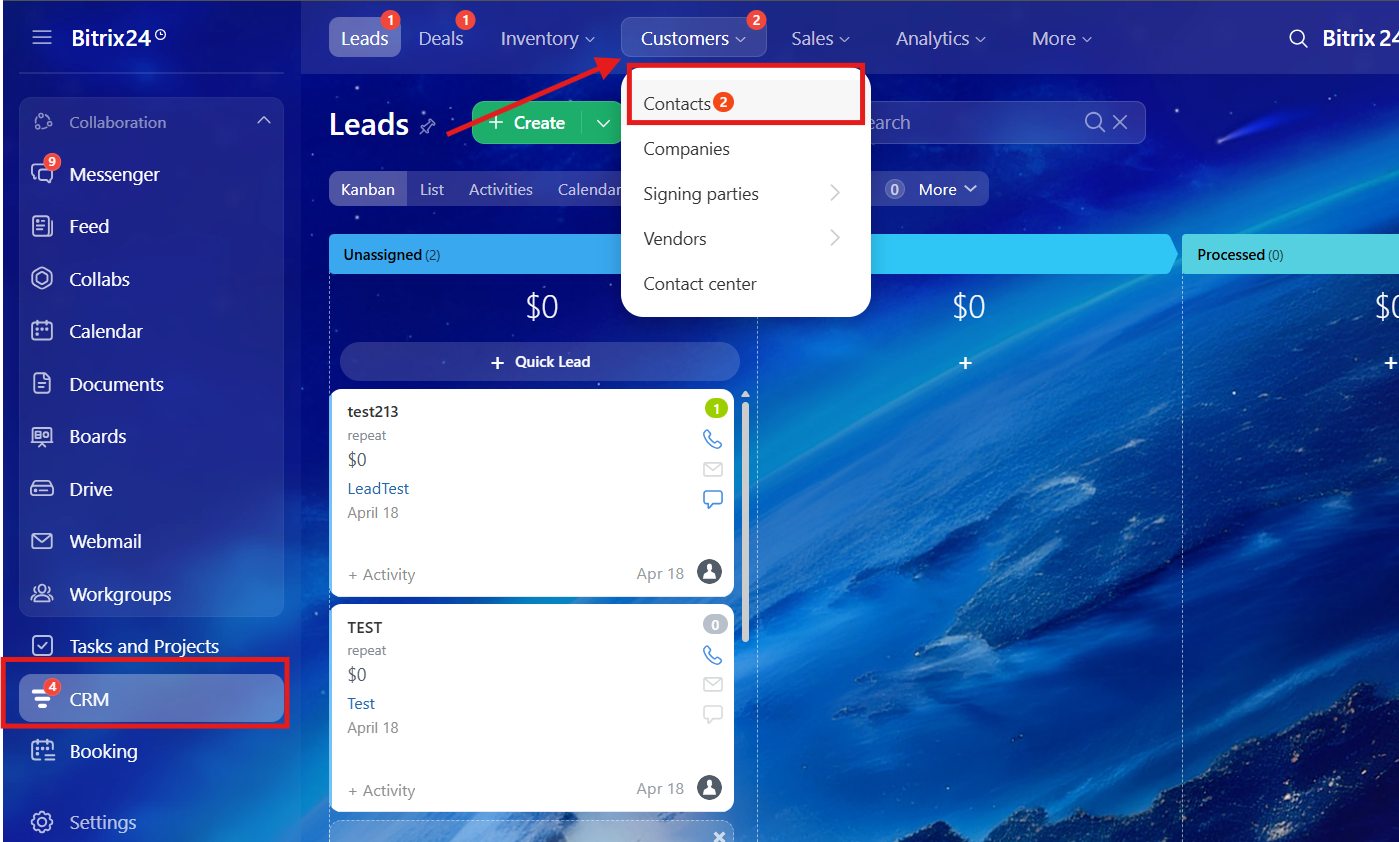
1\. **Open the "contact center" section**.
Go to the **"CRM"** -> **"Customers"** -> **"Contact Center"**
[](https://support.chatarchitect.com/uploads/images/gallery/2026-04/YFBimage.png)
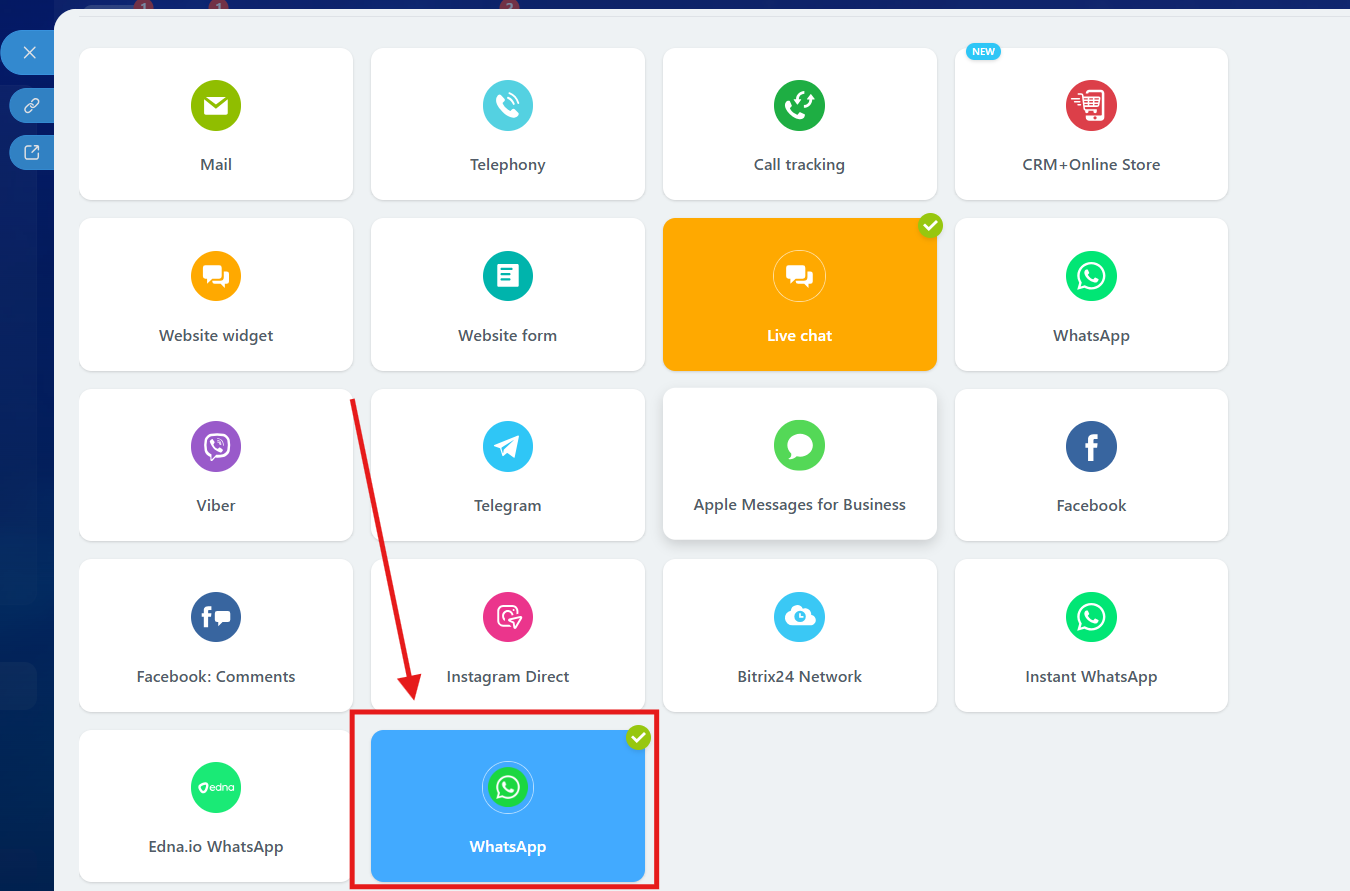
2\. In the contact center, you need to find our app and click on it
[](https://support.chatarchitect.com/uploads/images/gallery/2026-04/iyBimage.png)
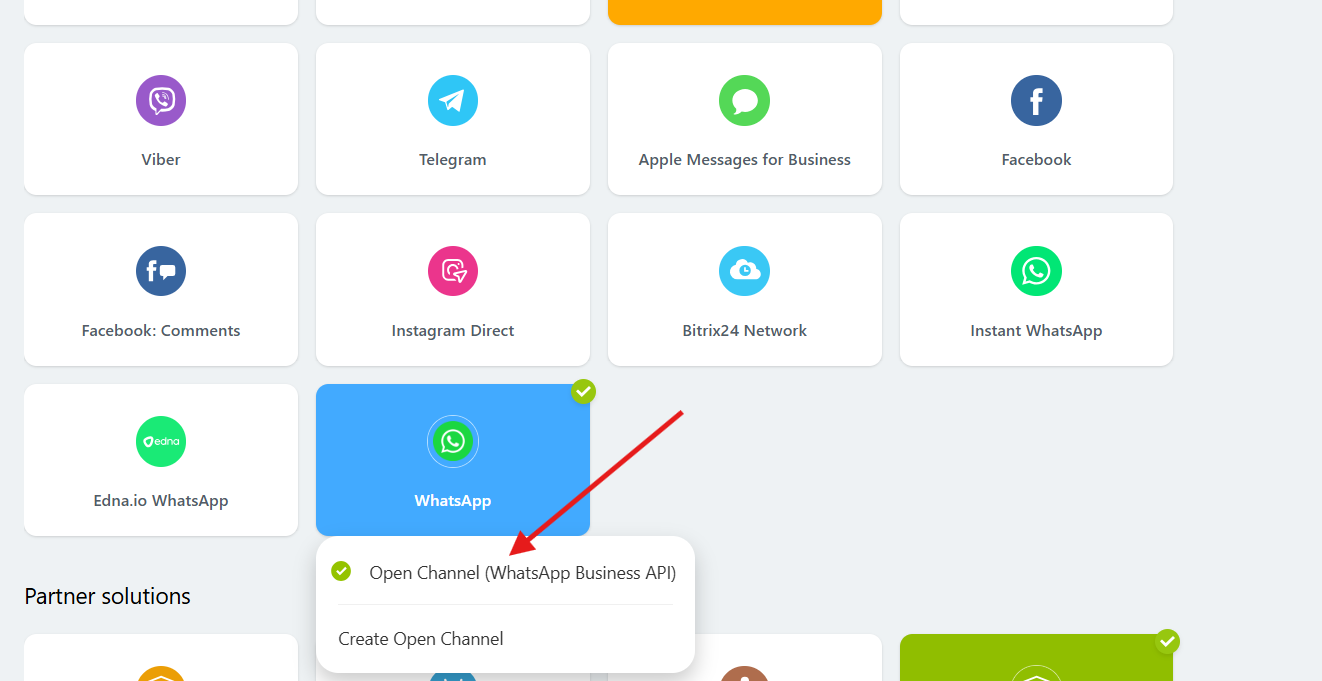
3\. After clicking on our app, you need to select "**Open Channel**".
[](https://support.chatarchitect.com/uploads/images/gallery/2026-04/znIimage.png)
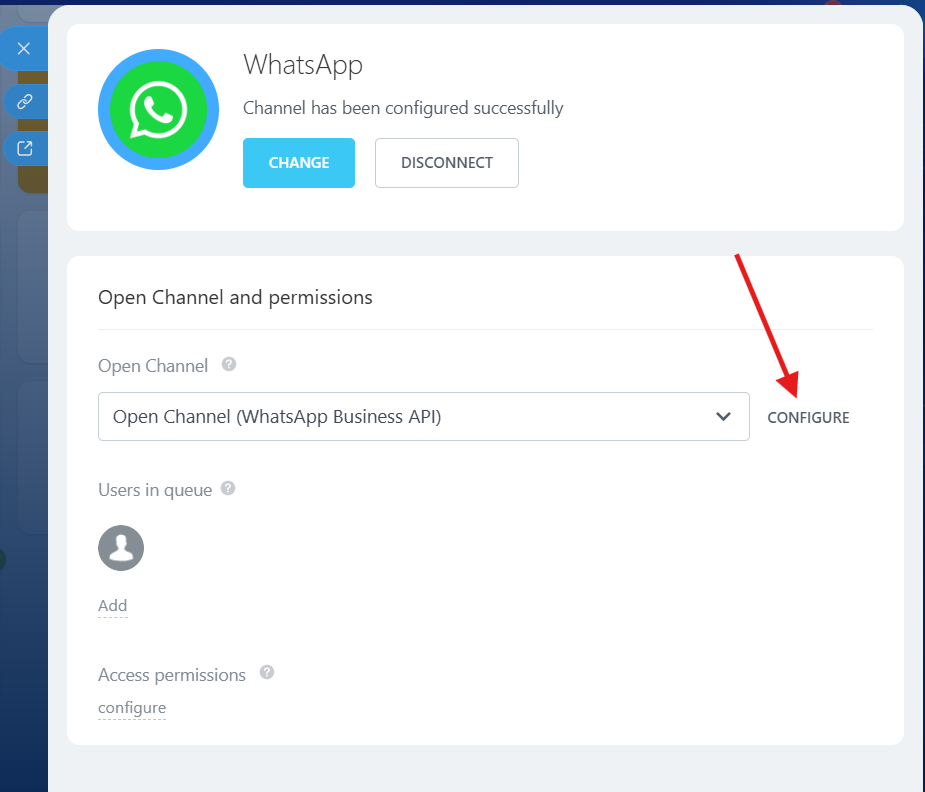
4\. Click on the "**Configure**" button.
[](https://support.chatarchitect.com/uploads/images/gallery/2026-04/QTBimage.png)
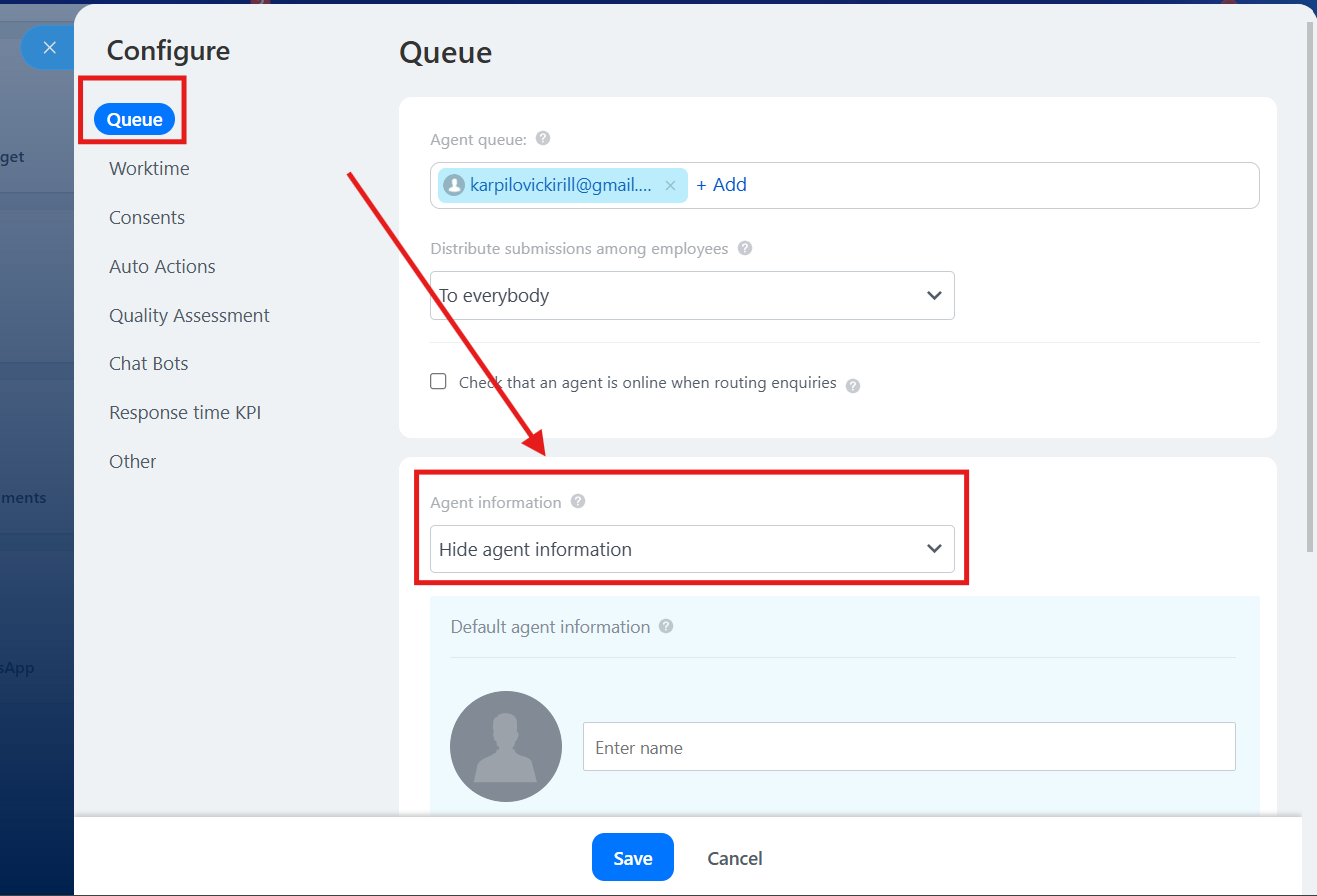
5\. In the configure menu, go to the **"Queue"** and in the **"Agent information"** section, select
"**Hide agent information"** and press **"Save"** button
[](https://support.chatarchitect.com/uploads/images/gallery/2026-04/2O4image.png)
Done. Now you can easily send templates from Open Lines without any issues.